
US Bank statement download guide (2026)

US Bank statement download guide (2026)
A single misread digit in a US Bank statement download can create hours of reconciliation work. US Bank statement download is the process of exporting your U.S. Bank account statements as PDF, CSV, Excel, or OFX files from web or mobile for bookkeeping, audits, or loan paperwork. This how-to guide gives step-by-step instructions to download on web and mobile, pick file formats, check retention limits, and automate conversions with Rocket Statements. Rocket Statements is a platform that converts PDF and image statements into spreadsheets, stores documents in cloud folders, syncs live transactions, and exports CSV, Excel, JSON, and QuickBooks-ready files with up to 99.9% accuracy. See how our bank statement converter and US Bank statement PDF to Excel Converter cut statement prep time.
What do you need before you download a U.S. Bank statement?
You need account access, the correct statement type selected, and a plan for retention and storage. Confirm eStatement enrollment, review how far back statements are available, and prepare your login plus two-factor method before you try to download a file.
Step 1: Confirm your account type and statement availability 🧾
Confirm whether the account is personal, business, or trust because export options and retention differ by account type. U.S. Bank keeps different records and portal options for checking, savings, credit card, and business accounts; a business checking or merchant account often shows different date ranges and requires an admin user to access statements. Check the account profile page for an eStatement or Documents section and look for any notes about archived copies. Example: if you manage six client business accounts you must verify you have statement access for each client before scheduling downloads to avoid stalled batch jobs.
Step 2: Know what an eStatement is and where it appears 📄
An eStatement is an electronic version of your paper statement that usually appears as a PDF and contains the same transaction detail. eStatements commonly live under a Statements or Documents menu and may require that you opt in to receive them electronically. If you do not see PDFs, check Messages or Alerts for an enrollment prompt. Example: a personal credit card may show only the last 12 months until you enroll in eStatements, while the same card on a business portal might display different file types.
Step 3: Check retention limits, date ranges, and potential fees 📆
Check retention limits and any copy fees before you assume older statements are available online. U.S. Bank typically provides recent statements online and may limit how far back you can access them without ordering archived copies; older statements sometimes require a paid copy request. Look at the account disclosures and the bank’s statements help pages for official retention windows. Example: if you need a 2016 statement for an audit, expect to order a historical copy and budget time and possible fees; plan that request before the reconciliation deadline. For cross-bank retention practices, see our guide to downloading statements from 25+ major banks: https://www.rocketstatements.com/blog/how-to-download-bank-statements-from-25-major-banks-2026-direct-links-estatements-and-pdf-tips
Step 4: Prepare login credentials and security methods 🔐
Prepare your username, password, and two-factor authentication method because U.S. Bank blocks downloads until multi-factor verification completes. Confirm whether your account uses SMS codes, an authenticator app, or a security key and have that device available. If you manage multiple accounts, verify you have delegated access or administrative rights for each account to avoid access denials during bulk exports. ⚠️ Warning: Avoid downloading statements on public or shared computers and do not store unencrypted statements on devices accessible to others.
Step 5: Decide which format you need and how you'll store it 📦
Decide whether you need a PDF for records or a CSV/Excel/QBO file for accounting imports before you download. PDFs match paper statements and are best for legal records and audit trails. CSV, Excel, or QBO files simplify reconciliation and import into accounting systems but may not be offered directly in the U.S. Bank portal. If the bank only provides PDFs, plan to convert them to spreadsheet-ready formats or use Rocket Statements to automate converting PDFs and scanned images into CSV, Excel, JSON, or QuickBooks-compatible files and to organize them in cloud folders. Example: a bookkeeping firm that needs monthly CSVs for 20 clients can save hours by scheduling bulk PDF-to-CSV conversions instead of manual reformatting. See our Bank Statement Converter page for automated options: https://www.rocketstatements.com/bank-statement-converter
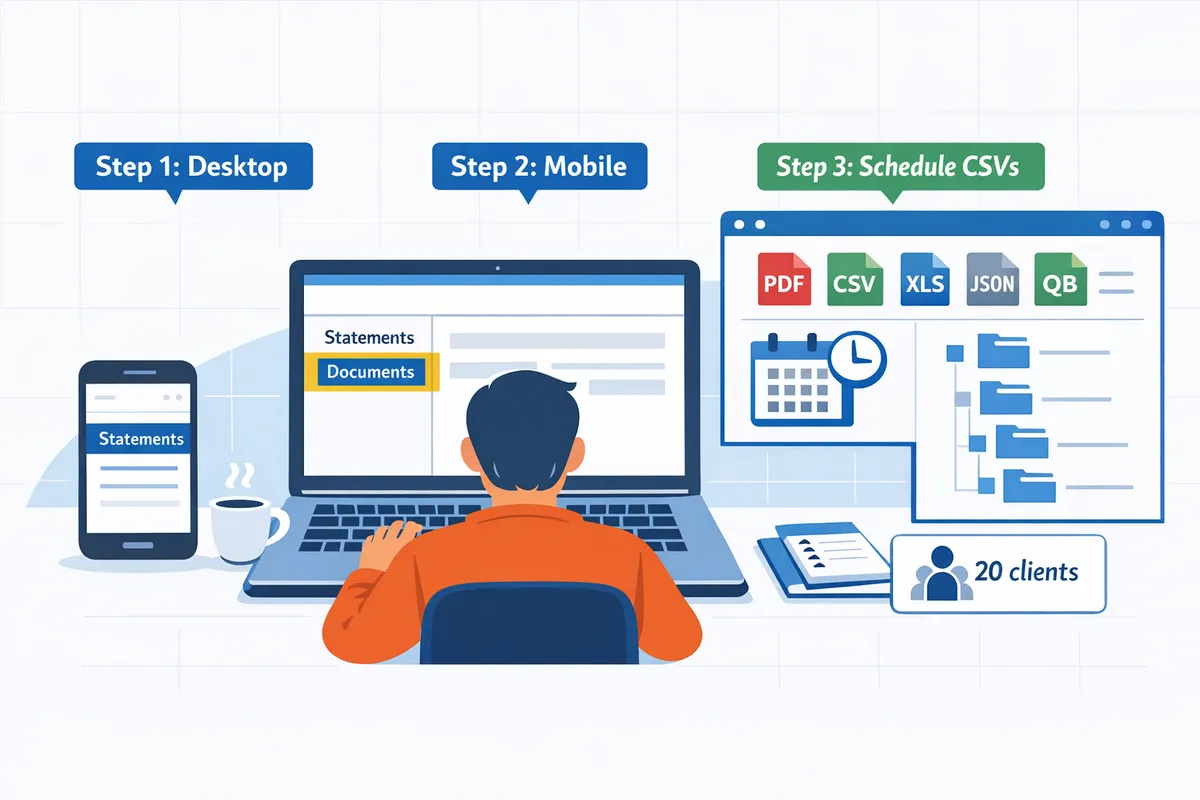
How do you download a U.S. Bank statement PDF from the web and mobile?
Follow these step-by-step instructions to download U.S. Bank statement PDFs from desktop web and the U.S. Bank mobile app. The steps show how to pick a date range, save single PDFs, and prepare multiple files for bookkeeping or conversion.
Web (desktop) steps 🌐
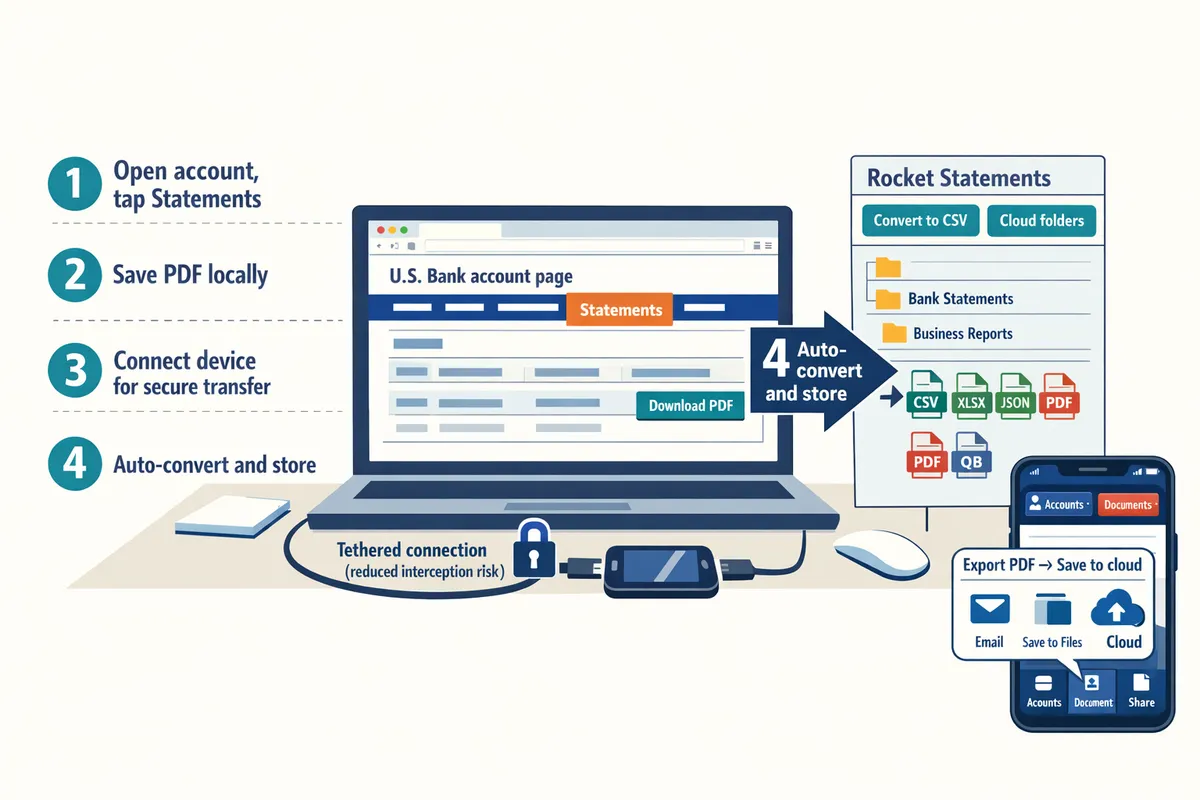
Sign in to your U.S. Bank online account, open the account, then choose Statements or Documents to find eStatements and archived PDFs. Complete any required multi-factor authentication before continuing and use a private network or corporate VPN when handling financial files.
- Sign in to online banking. Enter your username and password and approve any security prompt. Expected outcome: you land on the Accounts overview page.
- Open the account that holds the statement. Click the specific account tile so transaction history and document tabs appear. Expected outcome: the account view shows Statements or Documents.
- Filter by date or choose the Statements/Documents tab. Use the date-picker or filter menu to narrow results to the period you need. Expected outcome: the statement list shows only the months you selected.
- Select and download. Click View or Download next to the statement period, then choose PDF to save to your local drive. Expected outcome: the PDF opens or downloads to your browser's download folder.
- Bulk-download when available. Use checkboxes or a multi-select then Download Selected; move files to an encrypted folder. Expected outcome: multiple PDFs saved and organized for processing.
⚠️ Warning: Avoid public Wi-Fi when downloading statements. Use a corporate VPN or tethered connection to reduce interception risk.
Refer to our step-by-step collection for other banks in How to Download Bank Statements from 25+ Major Banks (2026): Direct Links, E‑Statements, and PDF Tips.
Mobile app steps 📱
Open the U.S. Bank mobile app, sign in, then tap Accounts and Documents or eStatements to view and save statement PDFs. The 2026 app shows a share action that exports a PDF or saves it to cloud storage on your phone.
- Sign in to the U.S. Bank app. Approve any biometric or SMS prompt. Expected outcome: the app opens to your accounts list.
- Tap the account, then Documents or eStatements. Look for a document icon or a menu labeled Documents. Expected outcome: a list of monthly statements appears.
- View and use the share or download icon. Tap a statement, then use the share button to Save to Files, upload to your preferred cloud folder, or email the PDF to an accounting contact. Expected outcome: PDF saved in a named folder on device or cloud.
- Organize immediately. Create a folder named by account and month (for example, Business Checking - 2026-03) before uploading. Expected outcome: consistent naming for bookkeeping and later imports.
Exporting transaction history and bulk download tips ⚙️
Use the Export or Download CSV option under transaction history to get raw transaction data when available; otherwise download PDFs and convert them to spreadsheets with Rocket Statements. Export options often restrict date ranges per export, so plan multiple exports for longer histories.
- Check transaction history for Export. Look for CSV, OFX, or QBO options in the account tools. Expected outcome: a structured file downloads containing raw transactions.
- Work around export limits. If the portal limits the date span to 90 or 180 days, create consecutive exports and concatenate them in a spreadsheet. Expected outcome: a continuous transaction file ready for reconciliation.
- Use Rocket Statements for batch conversion. Upload multiple PDFs to Rocket Statements to convert to CSV, Excel, JSON, or QuickBooks-ready files and store results in cloud folders. Expected outcome: bulk PDFs become ready-to-import spreadsheets with less manual cleanup.
- File naming and retention. Rename files with account name, year, and month before upload and keep originals in an encrypted archive. Expected outcome: easier audit trails and safer long-term storage.
See our Bank Statement Converter page for batch processing details and the US Bank Statement PDF to Excel Converter guide for U.S. Bank–specific layout handling. For QuickBooks imports, review PDF Bank Statements to QuickBooks in Minutes | Rocket Statements for recommended pre-import checks.
What common problems block U.S. Bank statement downloads and how do you fix them?
Most download failures come from account access, eStatement settings, or local device/browser issues. Each root cause has a targeted fix you can follow without guessing which step to try next.
Step 1: Fix login and multi-factor issues 🔐
Login and multi-factor failures usually require resetting your authentication method or using account-recovery options. Start by confirming the username and password on a device you have used successfully before. If one-time codes fail, try these steps in order: 1) use a backup code or authenticator app instead of SMS; 2) confirm the device clock is correct (time skew breaks some authenticators); 3) clear your browser cache or try a different device; 4) request a temporary access code via U.S. Bank secure message or phone support. Expected outcome: regain portal access and the ability to view statements. If U.S. Bank places an identity hold, explain you need statement access for bookkeeping or audit purposes and ask for next steps.
Rocket Statements recommends downloading the PDF once access is restored and uploading it to our converter to automate spreadsheet creation and secure cloud storage. See our US Bank converter for processing options.
Step 2: Resolve missing eStatements or old history 📄
Missing statements usually mean eStatement enrollment is disabled or older records require archived requests. First, check Account Services or Documents in your U.S. Bank profile to confirm eStatement enrollment and the statement type filter (monthly vs. quarterly). If the date range is absent, request archived statements through secure message or by calling support and ask for the bank’s retention policy for your account type. Expected outcome: either immediate access to additional eStatements or directions to order paper or archived copies with estimated fees and delivery time.
For bulk bookkeeping, upload any retrieved PDFs to Rocket Statements to convert them to Excel or QuickBooks-ready formats and to store the originals in organized cloud folders. For a broader download workflow across banks, see our guide to download bank statements from 25+ banks.
Step 3: Fix browser and file-access problems 🖥️
Unreadable PDFs or failed downloads most often come from browser extensions, outdated PDF readers, or restrictive download settings. Troubleshoot with these steps: 1) open the portal in Incognito or private mode to bypass extensions; 2) try a different browser (Chrome, Edge, Firefox); 3) update Adobe Reader or your preferred PDF app and open the file locally before moving it to cloud storage; 4) temporarily disable download-blocking extensions, then re-enable them after testing. Expected outcome: a downloadable, readable PDF you can move into a secure folder.
If the file still fails, download on another device and then upload the working PDF to Rocket Statements for OCR and conversion into CSV, Excel, or QuickBooks formats. Our Bank Statement Converter supports scanned images and mixed bank layouts, which saves manual cleanup.
Step 4: Security and safe-download practices 🔒
Downloading statements over insecure networks increases the risk of account compromise; always prefer private networks or a personal hotspot. Use strong, unique passwords and enable two-factor authentication with an authenticator app or hardware token. Store downloaded statements in encrypted cloud folders or your company vault and enable account alerts for large or unusual transactions so you detect unauthorized access quickly.
⚠️ Warning: Avoid downloading statements over public Wi-Fi or shared networks; use a VPN or your phone hotspot if you must access statements outside the office.
Rocket Statements provides encrypted cloud organization and team folders so you can store converted spreadsheets securely and control access for accounting teams.
Step 5: When to order paper copies or contact U.S. Bank support 📬
Order paper copies or contact support when the portal does not contain the date range you need or you require signed, mailed statements for legal or audit purposes. Before you call, gather account numbers, the exact date range, and a reason (audit, tax filing, legal request). Ask the agent about fees, turnaround time, and whether the bank can provide certified or notarized copies. Expected outcome: a clear timeline and fee estimate for receiving official statements.
After you receive mailed or archived PDFs, use Rocket Statements to convert pages to structured data, store originals in client folders, and export to QuickBooks-compatible formats. For step-by-step conversion and import tips, see our guide on converting PDF bank statements to QuickBooks.
How can Rocket Statements convert and automate U.S. Bank statements into CSV, Excel, OFX, and QBO?
Rocket Statements converts U.S. Bank statements by extracting transactions from PDF files and producing accounting-ready CSV, Excel, OFX, and QBO exports. After a US Bank statement download, upload PDFs or connect your account to import statements, run automatic extraction, and schedule recurring exports into your bookkeeping tools.
Step 1: Upload or connect your U.S. Bank statements 📤
Upload a U.S. Bank statement PDF or connect the account to import statements directly into Rocket Statements. Use batch upload when you have multiple downloaded PDFs to process dozens or hundreds of statements without opening each file. Rocket Statements detects US Bank layouts automatically and groups multi-page statements into a single transaction set.
Expected outcome: the system shows a small sample of extracted rows for each uploaded file and flags scanned images that need OCR. If you need help getting the PDFs, our guide on how to download bank statements from 25+ major banks explains how to export U.S. Bank statement PDFs and set eStatement delivery.
Step 2: Run AI extraction and map fields 🔎
Rocket Statements runs AI extraction that pulls transaction rows, dates, amounts, and payees and maps them into spreadsheet columns. The extractor normalizes currency and date formats so every export uses consistent columns (Date, Description, Amount, Balance, Category). Review the five-row sample the tool shows, correct any vendor or payee mismatches, and save a mapping rule to apply the fix automatically to similar statements.
Example: a bookkeeping team that receives monthly statements from multiple clients can create a single mapping rule for recurring merchant names and avoid repeating manual renames across files. For more on how the converter handles different bank PDF structures, see our Bank Statement Converter overview.
Step 3: Choose export format and compare options 🔁
Choose CSV, Excel, JSON, OFX, or QBO based on where you will import the data and how you reconcile. Below is a quick comparison to pick the best format for your workflow.
| Format | Best for | Import compatibility | Typical downstream workflow |
|---|---|---|---|
| CSV | Spreadsheet-based reconciliation or bulk uploads | Excel, Google Sheets, most accounting tools | Open in Excel → clean columns → import to any ledger |
| Excel (XLSX) | Analysts needing formulas, pivot tables, or multiple sheets | Excel, Google Sheets (via import) | Build pivot summaries, share annotated workbooks |
| OFX | Bank import workflows requiring transaction-level imports | Quicken, some bookkeeping systems | Import into financial software for bank matching |
| QBO | Direct QuickBooks Online imports with account mapping | QuickBooks Online | Upload to QBO for bank feed reconciliation |
| JSON | Data integrations and automated systems | APIs and ETL tools | Pipe into BI tools or custom scripts for reporting |
Rocket Statements exports accounting-ready OFX and QBO files so you can import directly into QuickBooks and similar systems. See our US Bank Statement PDF to Excel Converter page for format-specific tips and compatibility notes.
Step 4: Organize, sync, and integrate with your workflows 🔗
Save converted files into Rocket Statements folders, set folder rules, and push exports to Google Sheets, Excel, or QuickBooks. Create a folder per client or account and apply rules that automatically move monthly exports into year folders and tag them with the account number or period. Use the Google Sheets and Excel connectors to keep live copies in your reporting files.
Example workflow: convert a month of statements, push a CSV to a shared Google Sheet, and assign the sheet to a bookkeeper who receives an automatic notification. For QuickBooks-focused teams, follow the QuickBooks export walkthrough in PDF Bank Statements to QuickBooks in Minutes to avoid common import mapping errors.
Step 5: Automate recurring conversions and bulk processing ⏱️
Schedule imports and batch processing so monthly U.S. Bank statements convert automatically without manual uploads. Set a monthly job that looks in a designated folder or connects to the account to fetch new statements, converts them into the chosen format, and drops them into the correct client folder or pushes them to your bookkeeping app.
Example: schedule a 1st-of-month conversion that produces QBO files for your accountant and CSVs for your internal ledger. Use team permissions to give bookkeeping staff folder access instead of emailing PDFs.
💡 Tip: Enable folder-level permissions and scheduled exports to avoid emailing sensitive PDFs; use Rocket Statements’ scheduled jobs to keep files updated and reduce manual file transfers.
For bulk processing and recurring jobs, see the Bank Statement Converter page for batch processing details and queue management.
Step 6: When DIY causes delays and how Rocket Statements reduces risk ⚠️
Manual spreadsheet conversion creates wasted hours, reconciliation errors, and missed deadlines; Rocket Statements automates extraction, formatting, and categorization to reduce those risks. Manual steps—downloading each PDF, copying rows into a spreadsheet, standardizing payee names, and rebuilding columns—consume time and produce inconsistent imports that slow month-end close.
Example consequence: a small accounting firm that runs manual conversions for 20 clients spends hours per month fixing column alignment and vendor name mismatches. Using Rocket Statements removes repetitive work, applies consistent mappings, and centralizes access control so staff and clients access the same validated exports. For a step-by-step QuickBooks import workflow, see our PDF Bank Statements to QuickBooks in Minutes guide.
Frequently Asked Questions
This FAQ answers the most common queries about US Bank statement download, retention periods, export formats, and automation options. Each question begins with a direct answer, followed by concise, actionable details you can use immediately.
How do I download a U.S. Bank statement PDF? 📥
Sign in to U.S. Bank online or the mobile app, open Statements or Documents, pick the account and date range, then choose Download PDF. If you use the desktop site: open Accounts, select your account, click Statements & Documents, choose the statement period, and hit Download. If the statement does not appear, confirm eStatement enrollment in Profile settings or request archived copies from U.S. Bank support; archived requests sometimes require a fee or processing time. For a single-source reference on portal and app paths across many banks, see How to Download Bank Statements from 25+ Major Banks (2026): Direct Links, E‑Statements, and PDF Tips.
How far back can I access U.S. Bank statements online? 📆
Access length varies by account type and U.S. Bank's retention policy, so your available history depends on the account. Check your account disclosures or the Statements & Documents page for specific retention windows tied to personal, business, or mortgage accounts. Some older or archived statements may only be available by request and can incur a retrieval fee or require a signed authorization. If you rely on multi-year reporting for taxes or audits, plan for periodic exports or use Rocket Statements to archive statements into organized cloud folders automatically.
Can I export transactions directly to CSV, OFX, or QBO from U.S. Bank? 📁
Some U.S. Bank accounts allow exporting transaction history as CSV or OFX, but QuickBooks-ready QBO exports are not always available directly from the bank. If the bank’s portal provides CSV or OFX, check column headers and date formatting before importing to accounting software to avoid mismatched fields. When the bank does not produce QBO or clean CSVs, Rocket Statements converts statement PDFs into spreadsheet and accounting formats (CSV, Excel, OFX, QBO) and applies automatic column mapping to reduce manual cleanup. For a step-by-step conversion workflow, see PDF Bank Statements to QuickBooks in Minutes | Rocket Statements and Bank Statement Converter.
What should I do if I forgot my U.S. Bank login or multi-factor device? 🔐
Use U.S. Bank’s account recovery flow to reset your password or register a new multi-factor device, or call U.S. Bank support if you cannot complete verification online. Prepare your account number, recent transaction details, and a government ID when you call to speed identity verification. Avoid sharing passwords or verification codes over email or social media. If you need to recover many statements while access is restricted, Rocket Statements can accept secure uploads from verified users to proceed with conversions once you restore access.
Is it safe to download statements on public Wi-Fi? ⚠️
Downloading statements on public Wi-Fi increases exposure unless you use a trusted VPN or the bank's official mobile network; prefer home or office networks for sensitive downloads. Store downloaded statements in encrypted folders or a secure cloud solution with access controls to limit exposure and audit who accessed the files. For business workflows that must avoid local storage, Rocket Statements provides cloud document management and folder-level permissions so teams can convert and share exports without saving sensitive PDFs to unsecured devices.
💡 Tip: Use a password manager and enable multi-factor authentication for your U.S. Bank login to reduce recovery time and the risk of account compromise.
How does Rocket Statements handle batch conversions of U.S. Bank PDFs? 🚀
Rocket Statements processes batch uploads, detects U.S. Bank statement layouts automatically, extracts transactions, and exports multiple files to spreadsheet or accounting formats in one run. You can upload a folder of PDFs, set export format (CSV, Excel, QBO, OFX), and apply rules for automatic categorization and date normalization to minimize reconciliation work. Scheduled batch jobs let you convert new monthly statements automatically into organized cloud folders and push exports to Google Sheets, Excel, or your accounting system, saving hours that manual conversion would consume. See Bank Statement Converter and US Bank Statement PDF to Excel Converter - Fast and Secure for format-specific guidance.
Are there fees to order paper copies of old statements from U.S. Bank? 🧾
U.S. Bank may charge fees and require a formal request for archived paper statements; fees and turnaround times vary by account and the age of the records. Check the fee schedule in your account disclosures or contact U.S. Bank support before ordering to confirm costs and delivery options. If you need multiple historical statements, consider requesting electronic archives or converting downloaded PDFs in bulk with Rocket Statements to avoid repeated paper fees and speed bookkeeping.
You can complete a US Bank statement download and prepare those files for accounting in minutes.
Following the step-by-step web and mobile instructions in this guide leaves you with downloadable PDFs or CSVs, clear retention choices, and files ready for reconciliation or import. For wider needs—multiple banks, direct links, and batch tips—see our guide on downloading statements from 25+ major banks.
Rocket Statements is a platform that helps users save time and money by automating the process of converting their statements into spreadsheets as well as manage their documents in the cloud.
Start a free trial of Rocket Statements to run a sample US Bank PDF through the converter and confirm the exported spreadsheet matches your accounting layout. If you plan to import into bookkeeping software, check our QuickBooks import guide for practical checks and common fixes. Taking that first trial run proves whether the workflow saves you hours of manual cleanup and reduces costly import mistakes.