
Reconcile Credit Card Statement From PDF
Reconcile Credit Card Statement From PDF
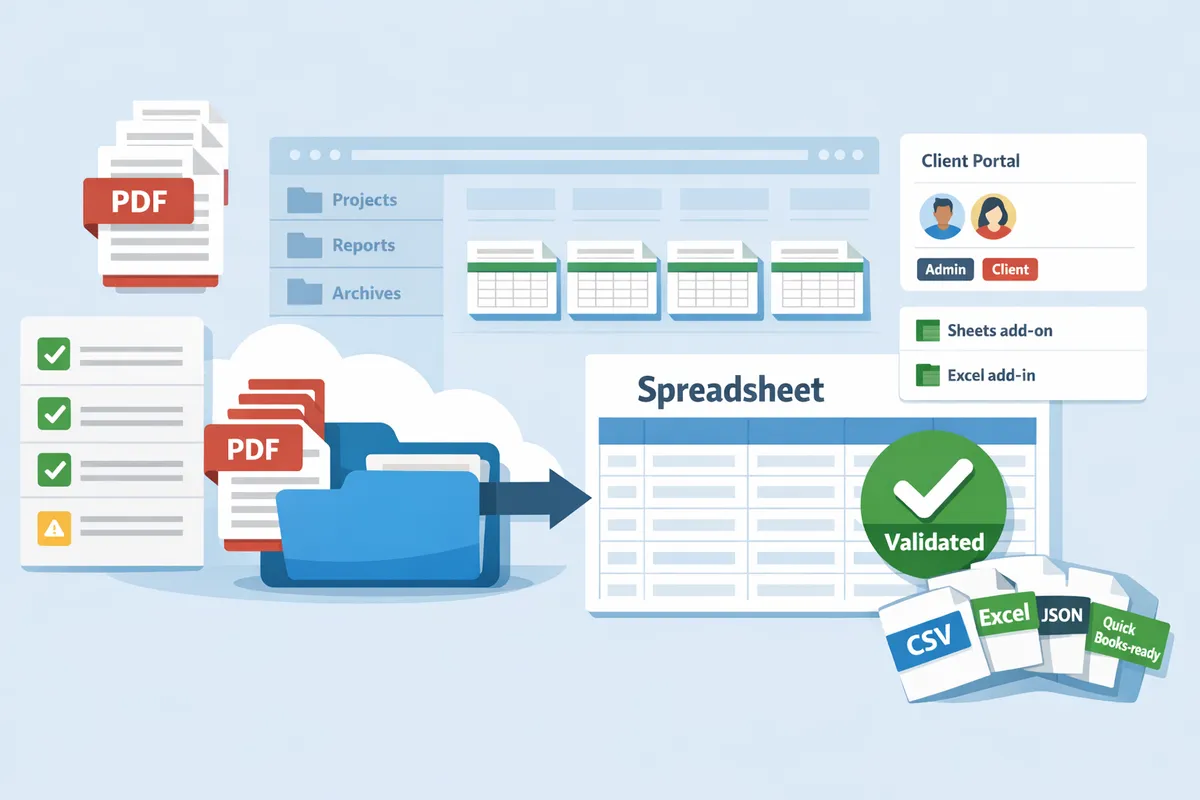
A single misposted line on a credit card PDF can add two hours to month-end close. Reconcile credit card statement from pdf is a process that converts PDF transaction lines into reconciled ledger entries suitable for bookkeeping. Our guide compares tools and methods for turning PDF credit card statements into reconciled ledger entries, gives a checklist, outlines PDF-to-spreadsheet workflow improvements, and explains when to automate. Rocket Statements converts uploaded credit card PDFs and images into structured CSV, Excel, and QuickBooks-compatible files, stores documents in client folders and portals, and offers Google Sheets and Excel add-ins. See our Bank Statement Converter: PDF and Image Statements to CSV, Excel and JSON. Which approach saves the most billable hours while keeping reconciliation errors visible across a firm's clients?
Reconciling a credit card statement from a PDF is slow and error-prone because manual transcription, inconsistent statement formats, and missing metadata create rework and exceptions.
Manual PDF workflows add hours to the month end credit card reconciliation process and increase the chance of exceptions. Small accounting teams spend time on layout fixes, hunt for missing metadata, and manage exceptions instead of closing the books. Rocket Statements converts uploaded PDFs into consistent, spreadsheet-ready transaction data and validates extracted totals so teams see extraction errors early.
Common PDF pain points and why they slow reconciliations 🧾
Inconsistent column layouts, multi-page statements, and low-quality scans force manual mapping and slow every step of reconciliation. For example, a P-card statement that wraps merchant names across two lines requires someone to rejoin lines and confirm amounts. Corporate cards with foreign-currency lines force manual currency-conversion notes or separate mapping rules. Some issuers reorder columns between months so a previously mapped import fails and requires manual column alignment.
These problems increase lookup time, raise exception counts, and create repeated fixes across clients. PDF-to-spreadsheet conversion is a process that extracts transaction lines from PDF files into structured columns; using a consistent converter reduces the number of manual mappings your team must perform. See our guide on how to convert credit card PDF statements to Excel with Rocket Statements for a sample cleanup workflow and common bank layouts to watch for.
How manual transcription creates audit and compliance risk ⚠️
Manual transcription produces errors that lead to audit exceptions and compliance headaches. A mistyped amount or a skipped transaction creates a balance mismatch that triggers investigation, client questions, and billable hours to reconcile. The business consequences include wasted staff hours, an extended close window, and misposted expenses that distort cash flow reporting and vendor accruals.
Relying on copy-paste or rekeying also breaks the audit trail: it is harder to prove who entered what and why. Rocket Statements reduces transcription by converting PDFs into structured exports and keeping the original PDFs and converted files together in folders, which preserves a clear source-to-export trail for audits.
⚠️ Warning: Keep the original statement PDFs with every converted export so auditors can trace any reconciliation exception back to the source document.
Why metadata and merchant-name variation cause mismatches 🔍
Absent merchant codes, abbreviated merchant names, and inconsistent date formats prevent automated matching to receipts and GL accounts. For example, the same supplier may appear as "STAPLES", "STAPLES INC", and "STAPLES #403" across statements; without normalization, you must create three separate reconciliation rules and three receipt-matching steps. That multiplies maintenance work as new aliases appear.
Practical steps to reduce mismatches:
- Maintain a central merchant-alias table and apply it to every converted export.
- Normalize dates and currency columns immediately after conversion.
- Attach or link receipts before import and validate statement totals against the converted file.
Rocket Statements produces consistent column formats and exports that make it practical to apply a single alias table across clients using Google Sheets or Excel add-ins. See our step-by-step guide to convert PDF bank statements into Google Sheets to learn how to apply alias tables and automate recurring imports.
💡 Tip: Keep a shared merchant-alias sheet and run a quick fuzzy-match pass after every import; consistent Rocket Statements exports make that pass reliable.
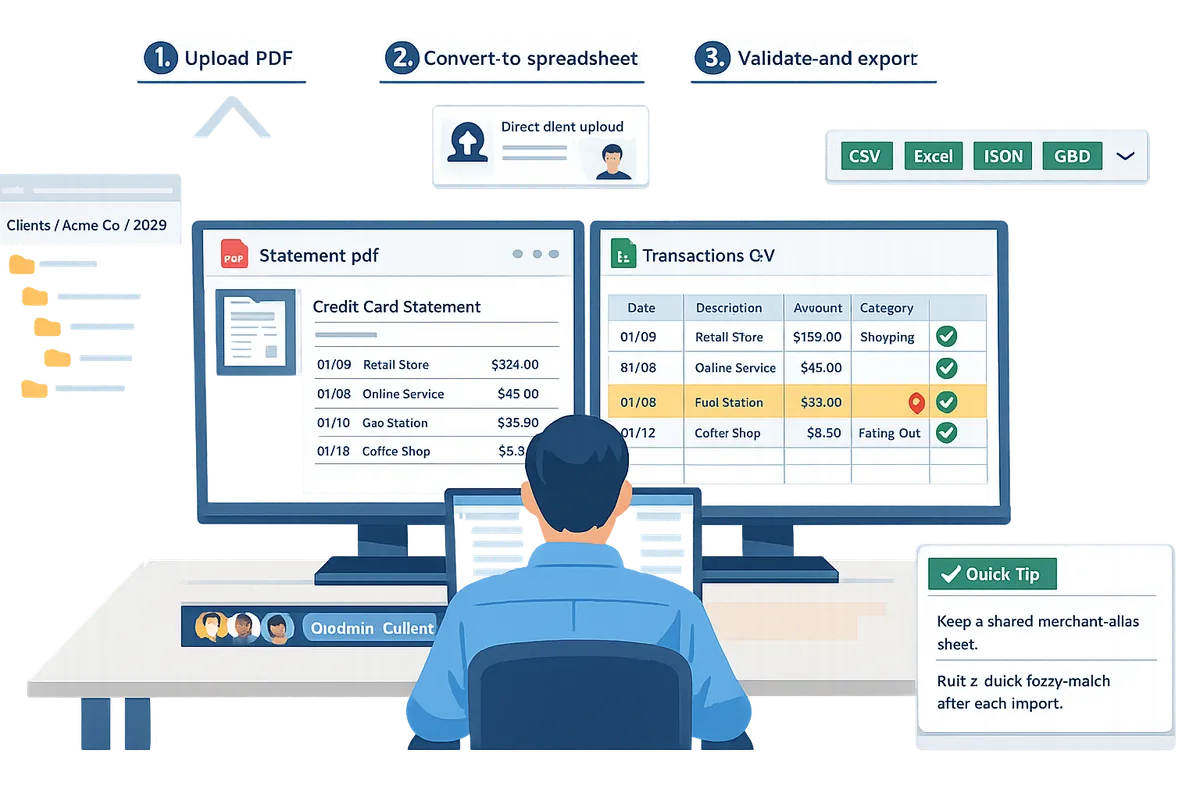
A clean reconciliation requires every transaction line captured, correct dates and amounts, and statement totals that tie to the general ledger.
A clean reconciliation requires every statement line to appear in the transactions list, be coded or routed for coding, have supporting documentation, and for the statement balance to match the GL or a clearing account. This acceptance rule prevents silent extraction errors, misposted dates, and month-end surprises. Rocket Statements helps by converting PDF and image statements into structured files and validating extracted transactions against the printed statement totals so extraction errors surface early.
Credit card reconciliation checklist ✅
Credit card reconciliation checklist is a checklist that requires every statement line to be recorded, coded, evidenced, and tied to the statement balance. Use this checklist as your acceptance criteria at review.
- Every line captured: the transactions file contains every row from the statement. Missing lines force manual discovery and late adjustments. Use Rocket Statements to extract all lines into a single consistent CSV or Excel export.
- Receipt or documented business purpose: attach an expense receipt or a short note for non-receipt business reasons (e.g., subscription ID, client name). Missing support increases audit risk and slows approvals.
- Account coding or routing: each transaction has a GL code or a routing flag for an approver. Uncoded items create month-end bottlenecks.
- Date and amount verified: transaction date and posted amount match the source PDF. Flag currency conversions and fees.
- Totals tie out: statement opening, activity, and closing balances reconcile to the GL or a designated clearing account.
Printable checklist (copy into your task manager):
- All statement rows present in transactions file
- Receipts or documented purpose attached
- GL code assigned or routed for coding
- Dates and amounts verified
- Statement balance reconciles to GL/clearing account
For hands-on conversion tips and sample exports, see our guide on how to convert credit card PDF statements to Excel with Rocket Statements.
Month-end process: a reliable 1–5 workflow 📅
A reliable month-end credit card reconciliation process follows these five repeatable steps. Follow these steps each close to reduce exceptions and shorten review time.
- Extract all lines into a single file. Upload every PDF or image for the card account into Rocket Statements so you get a consistent CSV, Excel, or JSON export. Consolidating pages removes transcription gaps and mixed column orders.
- Map bank columns to chart-of-accounts fields. Match vendor name, date, amount, currency, and memo fields to your chart-of-accounts columns. Save the mapping as a template for recurring statements to cut cleanup time.
- Auto-match transactions to receipts and cleared payments. Use automated matching first, then route unmatched items for manual review. Matching reduces the items that need human attention.
- Investigate exceptions (duplicates, refunds, FX differences). Triage by impact: high-dollar items first, then recurring merchant-name mismatches. Document the resolution path for each exception.
- Post adjustments and close the card account. Post clearing entries or reclassifications, then confirm the card closing balance ties to GL before locking the period.
If you sync closing spreadsheets to Google Sheets or Excel, our Google Sheets add-on and Excel add-in help import Rocket Statements exports without reformatting. For a step-by-step conversion into Sheets, see how to convert PDF bank statements into Google Sheets.
Common exceptions and how to resolve them quickly ⚠️
Common exceptions include duplicate charges, merchant name variations, refunds posted after period close, and employee reimbursements; each has a short-resolution path. Addressing these quickly keeps reconciliations under control.
- Duplicate charge. Resolution: identify supporting docs, confirm duplicate with merchant receipt or statement line, then either request merchant refund or post a reversing entry. Log action and expected resolution date.
- Merchant name variation. Resolution: match on amount and date, add a normalized vendor name in your transactions file, and save the mapping for future statements. Rocket Statements preserves original merchant text while letting you export normalized fields.
- Refund posted after period close. Resolution: create a short-term clearing entry for the refund and annotate the original period. Reconcile both the refund and the clearing entry in the period when cash moved.
⚠️ Warning: Always document post-close adjustments with the source PDF and an approval note. Undocumented adjustments raise audit flags and increase compliance risk.
- Employee reimbursement or personal use. Resolution: obtain the employee expense report, reclassify the charge or bill the employee, and record the reimbursement when received. Keep the receipt and approval chain attached to the transaction.
For teams converting many PDFs each month, using Rocket Statements to produce a consistent, validated export reduces the frequency of merchant-name mismatches and missed lines. For examples of preparing QuickBooks-importable files after exception resolution, read our guide on converting bank PDFs to QuickBooks-ready files.
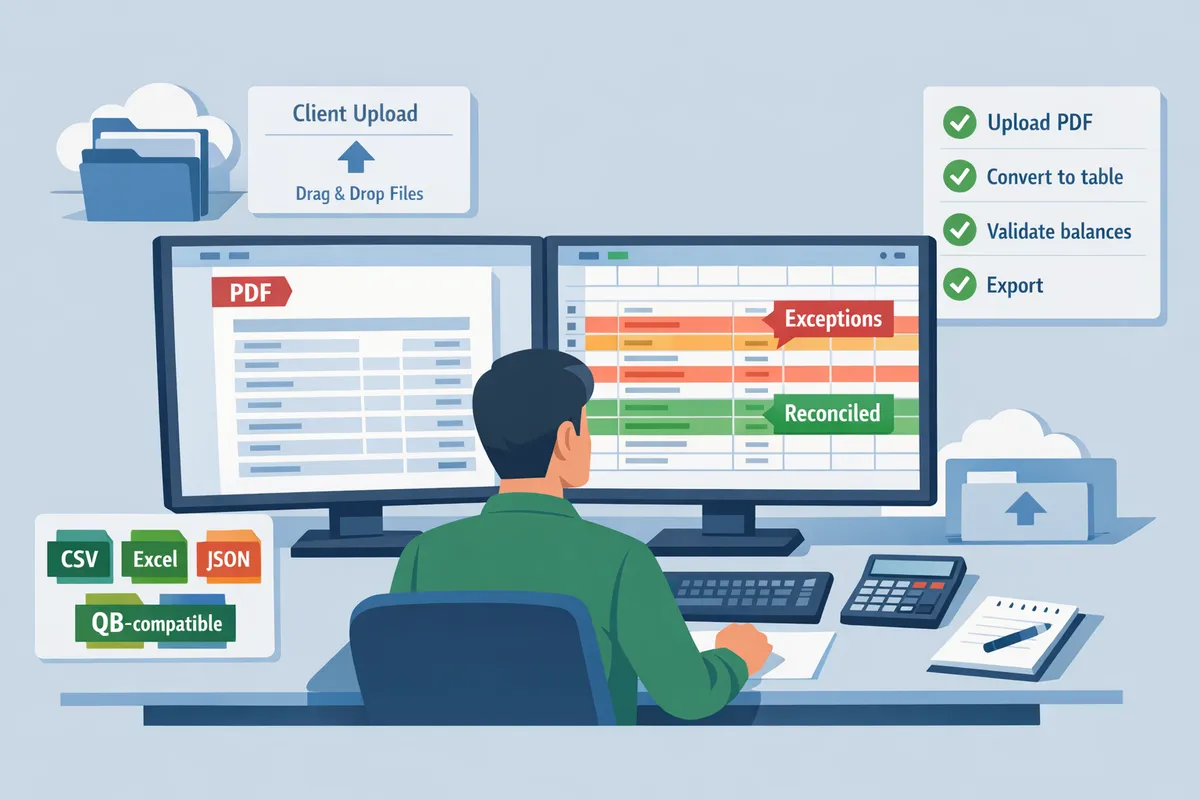
Converting PDFs to CSV/Excel and validating extractions changes the job by removing manual typing and surfacing extraction errors before they reach the ledger.
Converting statement PDFs into consistent spreadsheet outputs removes hours of manual typing and makes extraction errors visible before they contaminate the general ledger. This approach shortens month-end cycles by turning unstructured pages into repeatable, mappable rows that your team can review, code, and import. According to Rocket Statements' experience, consistent exports cut recurring-client rework by eliminating layout drift and one-off column fixes.
🧾 What a proper PDF-to-spreadsheet conversion delivers.
PDF-to-spreadsheet conversion is a process that outputs structured transaction rows (date, amount debit/credit, merchant, memo, running balance when present) plus the original PDF for reference. Rocket Statements exports these rows into CSV, Excel, JSON, and QuickBooks-compatible formats so the same file can serve review, analytics, and manual import workflows. A robust conversion keeps column order consistent (date, description, memo, amount, running_balance, source_pdf) so you map once for a client and avoid remapping each month. For example, firms that standardize on a single column layout can apply the same import template across 20+ clients instead of customizing per bank layout.
🔍 How validation against statement balances prevents silent extraction errors.
Validation checks compare the sum of extracted transactions to the printed statement totals and flag mismatches before import. This step catches dropped rows, doubled rows, and OCR misreads that would otherwise pass silently into the ledger. Make validation part of the pipeline: run page-level and statement-level totals, surface any line-level exceptions, then require reviewer sign-off before export. If the extraction total differs from the statement by more than your threshold, open an exception ticket and attach the original PDF for quick verification.
💡 Tip: Require balance validation as a mandatory checkpoint for every batch. It prevents silent errors that generate reconciliation exceptions later.
📥 Downstream tools: Google Sheets add-on, Excel add-in, and manual import paths.
Teams can open converted files in Google Sheets or Excel using dedicated add-ons and add-ins, or import CSV/QBO files manually into accounting systems. Rocket Statements provides a Google Sheets add-on and a Microsoft Excel add-in so reviewers can load fresh conversions directly into their live worksheets and apply mappings or formulas. For QuickBooks import workflows, export a QuickBooks-compatible file (QBO/CSV), run a staging import to check field mapping, then do the final import. Rocket Statements produces the compatible files but does not push transactions automatically into QuickBooks, Xero, or Sage, so you keep control over import timing and approvals.
Useful links for setup and examples: read our guide on How to Convert PDF Bank Statement Into Google Sheets and How to Easily Convert Credit Card PDF Statements to Excel with Rocket Statements.
📁 Document management, client portals, and team workflows.
A managed workflow stores uploaded PDFs and converted outputs in organized folders with client portals and shared team workspaces to reduce back-and-forth during month-end. Rocket Statements supports multi-tenant workspaces and client portals so each client’s statements and converted files live in the correct folder and clients can upload directly into their workspace. For accounting firms, consistent formatting across client folders speeds reviewer training and simplifies QA because the same mapping rules apply across a set of clients. Use folder-level naming conventions (Client / Year-Month / Source) and require the original PDF to remain attached to every conversion for audit trails.
See our firm-focused advice in Bank Statement Converter for Accounting Firms.
🔄 How to export a QuickBooks-compatible file and import it manually.
Export the QuickBooks-compatible file, verify mapping to your staging company, then import manually through your accounting software's import tool. Follow these numbered steps to avoid common import mistakes:
- Export QBO or QuickBooks-ready CSV from your converter and download the original PDF for reference.
- Create a staging company or test file in QuickBooks and import the file there first.
- Confirm field mapping: date field, memo/description, account mapping, and vendor/merchant columns.
- Run pre-import checks: ensure date format matches your QuickBooks settings, confirm debit/credit sign conventions (positive vs negative amounts), check currency and tax code columns, and deduplicate known transactions.
- Import a small batch (10–20 rows) to validate results, then import the full file if staging passes.
⚠️ Warning: Incorrect sign conventions or mismatched date formats cause the largest import errors. Always test with a staging import before posting to production.
For step-by-step QuickBooks examples, see PDF Bank Statements to QuickBooks in Minutes | Rocket Statements and Convert Bank Statements Into QuickBooks‑Ready Files.
📦 One-time free 20-page trial to validate extraction quality.
Rocket Statements offers a one-time free 20-page trial so teams can verify extraction quality and workflow fit before committing. The trial covers up to 20 pages in total, not a time window, and lets you export CSV, Excel, JSON, or QuickBooks-compatible files and re-download the source PDFs. To test effectively, upload a representative mix of client statement layouts (scanned images, multi-page statements, and statements with running balances), run the conversion, validate statement totals against extracted totals, and perform a staging import to confirm field mappings.
Try the trial to compare extraction quality and mapping time against your current manual process and read our conversion walkthroughs on the Bank Statement Converter page.
Use a simple decision framework to choose manual reconciliation or PDF conversion based on volume, error risk, and staff time.
Choose manual reconciliation for very low volumes or highly irregular formats and choose PDF conversion for recurring, higher-volume work where staff time is the constraint. Finance managers should calculate monthly hours, estimate remediation risk, and compare that against a managed conversion service cost to reach a clear ROI decision. This section gives the calculators, rules of thumb, and measurement checklist you can use to decide whether to reconcile credit card statement from pdf manually or with a service like Rocket Statements.
💰 ROI criteria: pages per month, staff hourly cost, and error remediation time 🧮
Calculate ROI by comparing monthly hours saved on extraction and exception handling against the service cost. Use this short formula: Monthly savings = (manual_minutes_per_page - converted_minutes_per_page) * pages_per_month / 60 * hourly_rate + exception_hours_saved * hourly_rate. Net monthly benefit = Monthly savings - service_cost.
Example. A small practice processes 100 pages per month. Manual extraction takes 6 minutes per page (600 minutes, 10 hours). Exception handling adds 2 hours per month. If a conversion service cuts extraction to 1 hour total per 100 pages, hours saved = 11 - 1 = 10 hours. At $50/hour that is $500 saved. If the service cost is $200/month, net benefit = $300. Run this calculation with your own minutes-per-page and hourly rates to see the breakpoint.
Use Rocket Statements' free trial to measure converted_minutes_per_page on your firm’s actual statements before committing. This gives an apples-to-apples comparison against your staff times.
💡 Tip: Use the 20-page free trial from Rocket Statements on a representative client batch to measure real extraction time and exception counts.
Read our guide on how to convert credit card statement pdf to excel for a hands-on example of time savings and export formats.
🧾 When manual work still makes sense 📝
Manual transcription still makes sense for extremely low volumes, one-off audits, or very messy, irregular statement formats. If you process fewer than ~20 pages per month and those pages come from different banks with unique layouts, the fixed cost and setup of a managed conversion service may not pay back quickly.
Business trade-offs: manual work has near-zero vendor expense but increases close time, raises the chance of missed lines, and leaves no repeatable audit trail. For example, a one-person bookkeeping shop that handles two occasional client statements a month may prefer manual entry to avoid subscription overhead. However, every missed or mistranscribed line costs downstream hours in reconciliations and client queries.
If you keep manual workflows, add a credit card reconciliation checklist and a second-reader step to reduce missed lines and slow month-end closes.
⚙️ When PDF conversion provides the best business outcome 🚀
PDF conversion provides the best outcome for recurring clients, multi-tenant firms, and teams that need consistent, repeatable outputs across statements. Firms that intake the same clients monthly or manage many client accounts benefit from standard CSV/Excel outputs, client portals for direct uploads, and folder organisation.
Measurable outcomes to expect include fewer extraction exceptions, shorter total extraction hours, and fewer client follow-ups about missing transactions. For example, teams often see extraction time fall from several minutes per page to under a minute per page and gain a clear audit trail with cloud-stored source PDFs. Rocket Statements supports multi-tenant folders, client portals, and exports to CSV, Excel, and QuickBooks-compatible files, which helps standardise downstream posting and reduces import cleanup.
If your firm imports credit card transactions into accounting software, see our guide on converting bank PDFs to spreadsheets and the QuickBooks-ready export options.
📊 How to measure success after adopting conversion 📈
Measure success by tracking extraction hours pre/post, exception rate per statement, and average days to close the card account. Create a simple dashboard with these KPIs: total extraction hours, exceptions per 100 pages, client follow-ups per month, and days-to-close-per-card.
Practical setup. Use a Google Sheet or simple BI dashboard with these columns: month, pages_processed, manual_hours_recorded, converted_hours_recorded, exceptions_count, days_to_close, vendor_cost. Add rows for each client or client group. Calculate percent reduction in hours and exceptions month over month.
For automated tracking, connect your converted CSV/Excel exports into a sheet. Our how-to guide on converting PDF bank statements into Google Sheets shows a practical workflow for feeding conversion outputs into monitoring spreadsheets and automating recurring imports.
⚠️ Warning: Remember that Rocket Statements stores uploaded PDFs in cloud folders. Control who can upload and who can access client folders to meet your firm’s data governance policies.
Frequently Asked Questions
This FAQ answers common questions about converting credit card statement PDFs into spreadsheet-ready transactions and preparing them for ledger reconciliation. Read the short, practical answers below to decide whether to use manual import, a conversion workflow, or Rocket Statements for recurring work.
How accurate is PDF-to-spreadsheet conversion for credit card statements? ✔️
Accuracy depends on the PDF source quality and the consistency of the statement layout. Native bank PDFs with a consistent column layout typically produce very few extraction errors; scanned images, rotated pages, or vendor-generated PDFs with merged columns often require manual fixes. According to Rocket Statements, extracted transactions are validated against the statement balances so extraction errors surface before you import data into the ledger. For example, a firm that processes a single issuer with unchanged format will usually spend minutes reviewing instead of hours retyping.
Can I convert credit card statement PDFs to Excel and keep formatting for import? 📄
Yes. Conversion can produce Excel files with consistent columns for date, description, amount, memo, and balance that you can map for import. Rocket Statements exports Excel and offers an Excel add-in plus a Google Sheets add-on to speed mapping and preserve common formats such as negative amounts and two-decimal precision. See our guide on how to easily convert credit card PDF statements to Excel with Rocket Statements for step-by-step mapping and common format checks.
Will Rocket Statements push transactions automatically into QuickBooks or Xero? 🔁
No. Rocket Statements does not post transactions directly into QuickBooks, Xero, or Sage. Instead, Rocket Statements exports QuickBooks-compatible files and other structured formats for manual import so your accounting team retains control and avoids accidental automated postings. If you need a workflow for QuickBooks imports, follow the QuickBooks-ready export steps in our PDF Bank Statements to QuickBooks guide and import into a test company file first to confirm mappings.
What should I include in a credit card reconciliation checklist? ✅
A good checklist confirms every statement line is captured, receipts are matched, coding is assigned, statement totals tie to the GL, and exceptions are resolved or documented. Include these practical steps:
- Verify the import contains the same number of lines as the PDF and that statement opening and closing balances match the GL.
- Match receipts or expense reports to high-value or flagged transactions.
- Assign GL account and cost center codes; flag missing POs or policy exceptions.
- Record how you handled duplicates, foreign currency conversions, and chargebacks.
💡 Tip: Use a two-column staging check (Imported / Verified) so reviewers can tick off batches quickly and capture who approved each import.
Rocket Statements' validation and export formats simplify the first two items by surfacing balance mismatches and producing import-ready files.
How do I import credit card transactions CSV into QuickBooks safely? 🧾
Prepare a staging CSV that matches QuickBooks field order, confirm date and amount formats, import into a test file, then review mapped transactions before final import. Follow these steps:
- Export a QuickBooks-compatible CSV from Rocket Statements or reformat the Excel file to QuickBooks field order.
- Check dates (use yyyy-mm-dd or the format your QuickBooks locale expects) and ensure debits/credits or negative amounts match QuickBooks conventions.
- Import into a test company file or sandbox and review 10–20 sample transactions for mapping and tax codes.
- After verification, import into the live file and run a reconciliation to confirm statement totals match.
See Convert Bank Statements Into QuickBooks‑Ready Files for full import best practices and examples of common mapping mistakes to avoid.
Is a one-time free trial of 20 pages enough to evaluate a conversion service? 🎯
A one-time 20-page trial typically reveals how a service handles your common statement formats and recurring client statements. Use a representative sample: include a few native bank PDFs, one or two scanned copies, and any vendor-styled statements your clients supply. Rocket Statements offers a single 20-page trial; use those pages to test the most error-prone layouts and the end-to-end export/import fit so you can judge time savings before committing.
Finish month-end reconciliation with a repeatable PDF-to-spreadsheet workflow.
Converting a credit card PDF into structured transactions and validating balances catches extraction errors before they hit your ledger. Manually retyping rows wastes billable hours and creates import mistakes; converting one statement first shows mapping issues and balance mismatches you can fix before batch work. For many teams, this single change shortens the month end credit card reconciliation process and reduces costly fixes.
💡 Tip: Start by converting one month's PDF and verify the exported file against the printed statement before processing multiple accounts.
Take the next step with Rocket Statements: convert a sample statement to check mapping and reconciliation, then scale the workflow across clients. See our Bank Statement Converter: PDF and Image Statements to CSV, Excel and JSON for setup guidance and read How to Easily Convert Credit Card PDF Statements to Excel with Rocket Statements for a step-by-step example. Start a free trial on the Bank Statement Converter page to test a real conversion (trial covers 20 pages, one time). Subscribe to our newsletter for hands-on implementation tips and updates.