
QuickBooks & Xero Bank Statement Automation in 2026: Import Mapping, Error Fixes, and When to Use Free vs Pro Converters
QuickBooks & Xero Bank Statement Automation in 2026: Import Mapping, Error Fixes, and When to Use Free vs Pro Converters
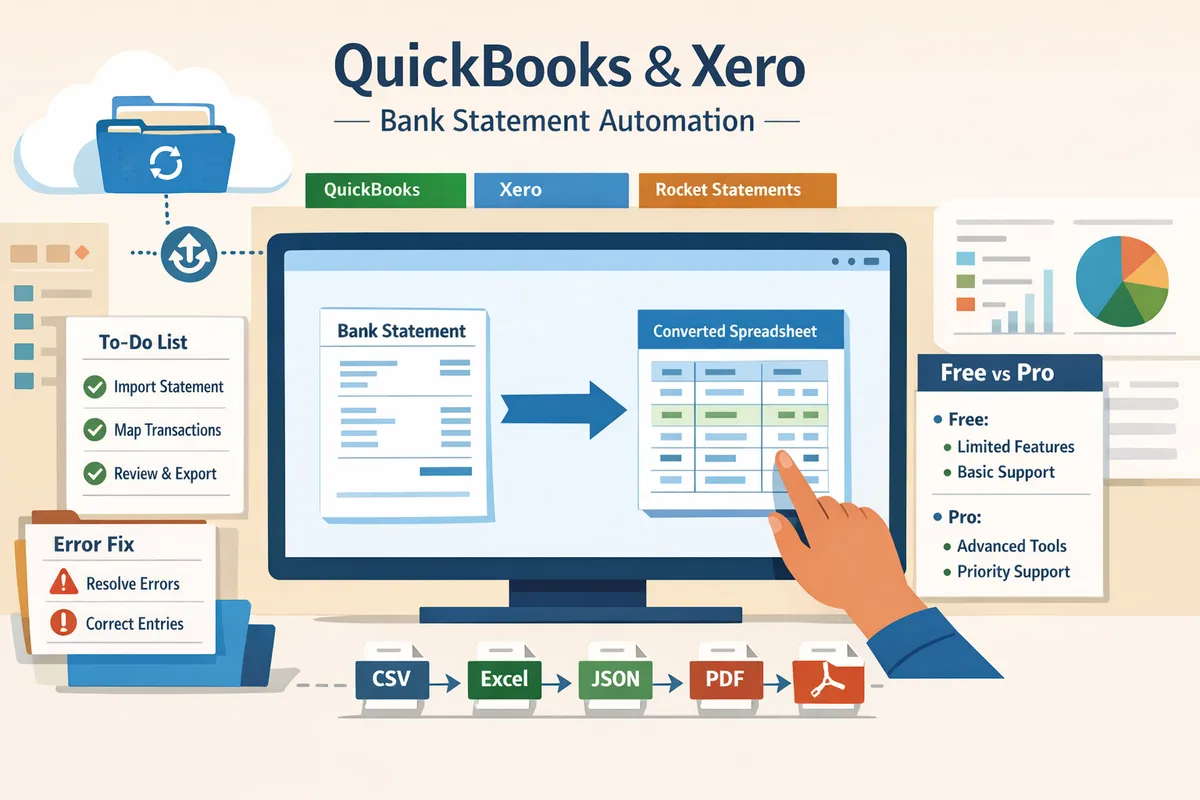
A single misread digit in a bank statement can add hours to month-end close for small accounting firms. Bank statement conversion automation for QuickBooks and Xero in 2026 is a workflow that extracts transactions from PDF and image statements and maps them into QuickBooks- and Xero-compatible import files. This best-practices guide helps accounting firm owners and SMB controllers compare converter options, map imports, fix common errors, and weigh how each fits your accounting automation stack. Our platform, Rocket Statements, converts PDFs to Excel, CSV, JSON, QBO and OFX via its bank statement converter, stores documents in cloud folders, and can sync live transactions through its QuickBooks Online integration. Which parts of the workflow are worth automating, and when should you use Rocket Statements?
What core principles should guide bank statement conversion automation for QuickBooks and Xero in 2026?
The core principles are accuracy, correct output formats, robust mapping, strong security, and predictable onboarding time. These priorities determine whether a converter saves billable hours or creates more cleanup work. Use them as evaluation criteria when you compare vendors and when you build an internal pilot plan.
What is a bank statement converter? 🧾
A bank statement converter is software that extracts transactions from PDF and image statements and exports them to structured formats for accounting systems. The scope includes three actions: extraction (OCR plus AI to parse multi-line descriptions), formatting (CSV, Excel, QBO, OFX, JSON), and integration (direct writes to accounting platforms or export files). For example, Rocket Statements converts PDF and image statements into spreadsheets, detects common bank layouts automatically, and exports batch jobs to QBO or CSV so you avoid repetitive per-file setup. Compare vendors on batch processing speed, automatic bank-format detection, and the list of supported output files before running a pilot.
Which accuracy and format standards matter? 🔍
Line-item accuracy, correct date and amount parsing, and consistent payee normalization are the standards that determine whether imports succeed without manual cleanup. Measure precision by sampling 50–200 statements and tracking parsing errors by field (date, amount, description, running balance). Require vendors to show handling of ambiguous entries and multi-line descriptions; ask for an error-report that flags items needing human review. Aim to see a preview of the mapped output before export. Rocket Statements provides mapping previews and batch exports so you can confirm payee normalization rules and date formats before writing to QuickBooks or exporting for Xero.
How should security and compliance be handled? 🔐
Encryption in transit and at rest, role-based access controls, and regular security audits are minimum requirements for handling statement data. Check vendor documentation for PCI DSS or equivalent controls, audit log availability, and data retention policies. Ask about folder-level permissions, customer-managed encryption keys, and whether the vendor supports audit exports that your firm can store with client records. Rocket Statements documents its bank-level security practices on the QuickBooks Online integration page and offers a trial so you can verify controls against your compliance checklist.
How to map fields for Xero CSV import mapping 2026 📋
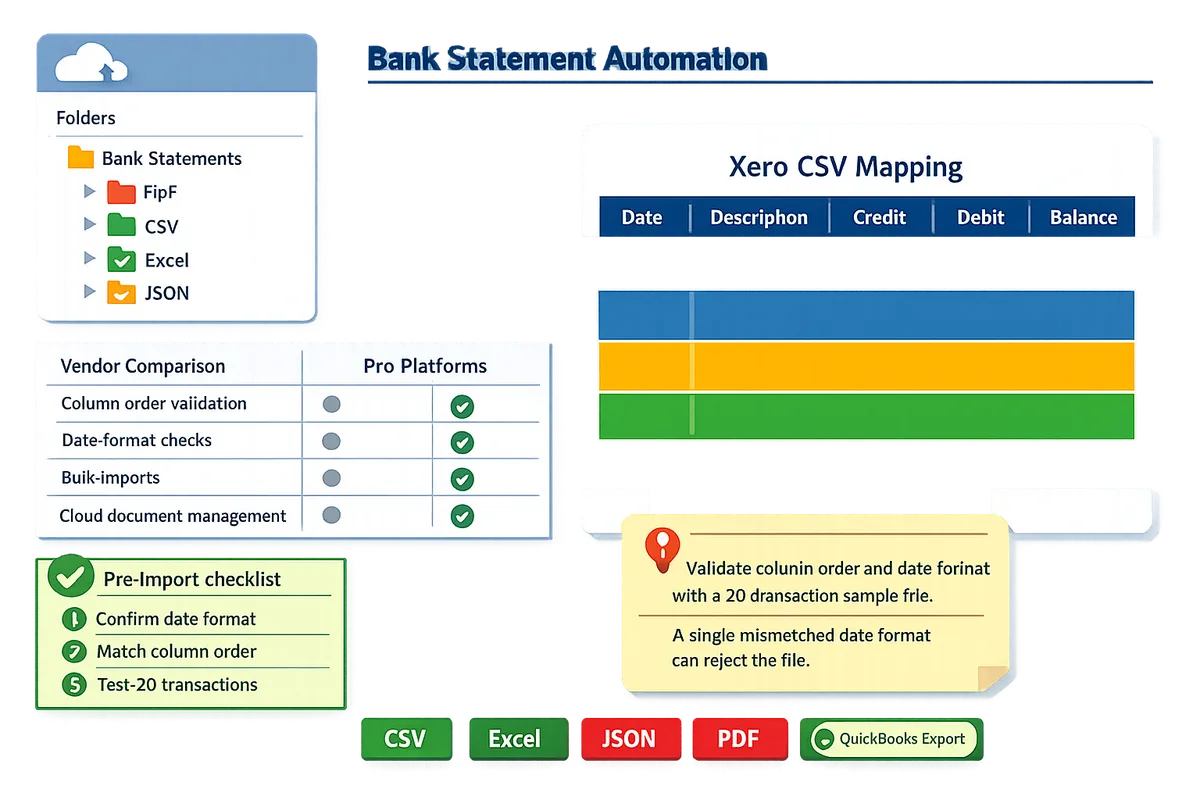
Map date, amount (credit and debit), description, and running balance exactly to Xero's required columns and date format to avoid import rejections. Follow this step-by-step mapping process:
- Select a template that matches Xero's expected column order and set the date format (YYYY-MM-DD or DD/MM/YYYY).
- Place amounts into the correct columns: use separate credit/debit columns or a signed amount column depending on Xero template rules.
- Normalize payees using a short-list of merchant name rules so bank descriptions like "AMZN Mktp" map to "Amazon" consistently.
- Run a small validation batch (10–25 transactions) and check Xero's import preview for date parsing or amount flips.
- Create a fallback exceptions folder for rows Xero rejects, and route those to a human reviewer.
Rocket Statements supports mapping templates, preview validation, and exports that match Xero CSV conventions so you can validate a sample batch before scaling. Use this mapping checklist alongside a vendor comparison to avoid repeated import failures.
💡 Tip: Validate both column order and date format with a 20-transaction sample file before a full import. A single mismatched date format causes the entire file to reject.
For vendor feature comparisons and a checklist that separates free AI converters from pro platforms, see our Bank Statement Converter Features in 2026: Free AI Tools vs Pro Workflows (Benchmarks + Checklist). For QuickBooks-specific export rules and template examples, see QuickBooks Bank Transaction Import 2026: CSV/QBO/QFX Specs, Desktop EOL Playbook, and No‑Code Automations with Rocket Statements.
What proven strategies and techniques reduce import errors and speed up month-end reconciliations?
Automated preflight checks, template-based mapping, and batch extraction catch format and encoding issues before QuickBooks or Xero see the file. These steps shorten reconciliation by reducing manual column fixes, rejected imports, and repeated re-uploads. Our platform Rocket Statements uses automatic bank-format detection and native QBO/OFX or properly mapped CSV exports to minimize manual mapping time.
💡 Tip: Run automated preflight checks for encoding, date formats, and delimiters before attempting any QuickBooks or Xero import.
How to fix QuickBooks 2026 bank transaction import error codes ⚠️
Fix QuickBooks import errors by identifying the specific error code, correcting the offending file attributes (encoding, date, delimiters, special characters), and re-running a validated import.
- Identify the error code and read QuickBooks' message. Match the message to the most common causes: encoding mismatch, wrong date format, inconsistent separators, or header differences. Link to our QuickBooks import spec for required CSV/QBO headers and date conventions: QuickBooks Bank Transaction Import 2026: CSV/QBO/QFX Specs, Desktop EOL Playbook, and No‑Code Automations with Rocket Statements.
- Correct file format issues. Convert files to UTF-8, unify all dates to the target format (use the QuickBooks header spec from the guide), replace comma/decimal mismatches with the expected separators, and strip unsupported special characters.
- Split very large files by date range when QuickBooks times out or rejects due to size. Re-import smaller batches and merge results inside QuickBooks if needed.
- Re-run a preflight validation. Use Rocket Statements to auto-validate exports against QBO/OFX templates before you push files to QuickBooks. Rocket Statements flags common causes so your team fixes the exact line instead of guessing.
⚠️ Warning: Never import into a live company file without first testing in a sandbox or a copy. Rejected imports can create duplicate transactions that are time-consuming to remove.
Document each error and resolution in an internal knowledge base so staff can resolve repeats faster. For walkthroughs on preparing scanned statements and mapping fields, see our how-to: PDF Bank Statements to QuickBooks in Minutes | Rocket Statements.
Vendor comparison table 📊
Compare vendors by extraction accuracy, format fidelity, direct QuickBooks/Xero writes, onboarding time, and support quality.
| Tool | Extraction accuracy (typical) | Supported output formats | Direct QuickBooks / Xero writes | Onboarding time | Total cost of ownership (TCO) signal |
|---|---|---|---|---|---|
| Rocket Statements | High | CSV, Excel, JSON, QBO, OFX | Yes (QBO/OFX and mapped CSV) | Short to medium (guided setup) | Moderate; lowers recurring manual labor |
| Free AI converter (open tools) | Medium | CSV, Excel | Partial (CSV only) | Minimal (self-serve) | Low initial, high recurring manual cost |
| Pro converter (mid-market) | Medium–High | CSV, QBO, OFX, JSON | Yes | Medium (onboarding required) | Higher subscription, lower manual cost |
How to use this table. Weight direct integration and batch processing higher if you process more than 100 statements monthly. According to Rocket Statements' benchmarks, firms that need predictable QuickBooks/Xero writes benefit more from tools that produce native QBO/OFX or fully mapped CSV exports. For an expanded feature checklist and side-by-side benchmarks, read: Bank Statement Converter Features in 2026: Free AI Tools vs Pro Workflows (Benchmarks + Checklist).
When should you use free converters versus pro converters? 💡
Use free converters for one-off, low-volume, single-bank PDFs when staff can spend time on manual cleanup; choose pro converters for recurring, multi-bank, or high-volume workflows that require predictable QuickBooks/Xero outputs.
- Estimate volume and complexity. Count monthly statement pages, number of banks, and how many distinct statement layouts you receive.
- Measure manual correction time. Track hours spent fixing a representative batch for one client. Multiply by billable rate to see ongoing cost.
- Compare payback. If manual corrections cost more per month than a pro subscription, pro tools pay back quickly. For recurring workflows, Rocket Statements reduces repeated cleanup by exporting QBO/OFX and offering batch processing and automatic bank-format detection.
Example scenarios. A small bookkeeper handling isolated scanned statements for a startup client can use a free converter and finish cleanup in one session. A mid-sized firm reconciling dozens of clients across five banks benefits from Rocket Statements' batch extraction, mapping templates, and direct QuickBooks/Xero writes to cut recurring hours and reduce import rejections.
For a practical decision checklist and implementation costs, see our buyer guide and benchmarks at Bank Statement Converter Features in 2026: Free AI Tools vs Pro Workflows (Benchmarks + Checklist) and the QuickBooks import spec article for mapping details: QuickBooks Bank Transaction Import 2026: CSV/QBO/QFX Specs, Desktop EOL Playbook, and No‑Code Automations with Rocket Statements.
How do you implement, measure, and scale bank statement conversion automation across clients?
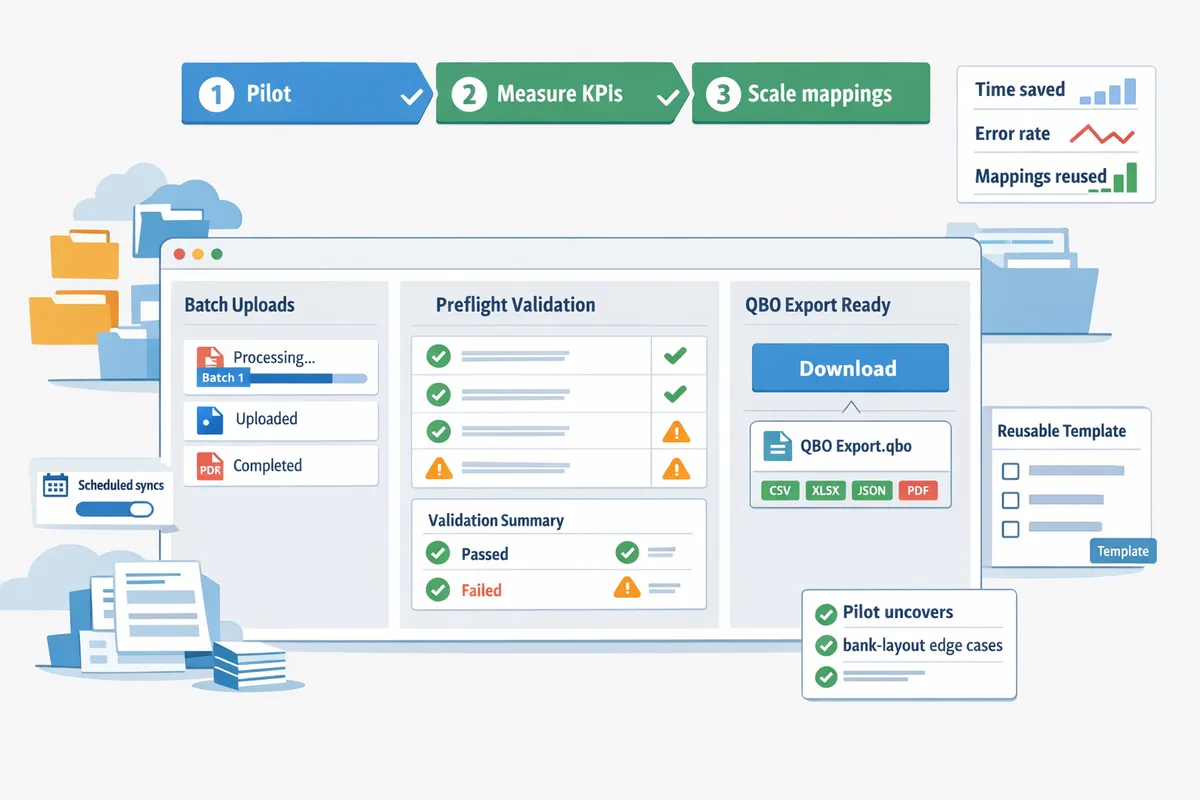
Run a staged pilot, measure defined KPIs, then scale mapping templates and scheduled syncs for repeatable efficiency. Pilots uncover bank-layout edge cases and let you prove time savings before committing staff or contracts. Use measured outcomes to prioritize which clients get batch schedules and live transaction syncs first.
Pilot checklist and sample KPIs 📈
Start with a 5–10 client pilot that tracks extraction accuracy, average processing time per statement, reconciliation time saved, and post-import exception rate. Checklist (step-by-step):
- Select 5–10 representative clients covering single-bank, multi-bank, and scanned-image statements.
- Capture baseline metrics: manual hours to extract and clean each statement, average reconciliation time, and typical exception types.
- Configure Rocket Statements with folder-based document management and batch auto-detection for the sample set.
- Run three full cycles and refine mappings after each cycle.
- Compare post-automation metrics to baseline and document remaining manual touchpoints.
Sample KPIs and how to measure them:
- Extraction accuracy rate. Measure percentage of transactions correctly parsed per statement.
- Average processing time per statement. Time from upload to export-ready file.
- Reconciliation time saved. Compare minutes spent per account before and after automation.
- Post-import exception rate. Count imports requiring manual fixes per 100 statements.
Use these KPIs to build a per-client business case and to set internal SLAs for rollout priority. For a feature checklist and benchmark comparisons between free tools and pro workflows, see our Bank Statement Converter Features in 2026: Free AI Tools vs Pro Workflows (Benchmarks + Checklist).
💡 Tip: Sample at least one client per bank brand and one with scanned PDFs. Layout variance is the biggest predictor of manual rework.
Onboarding and setup time expectations ⏱️
Onboarding ranges from a few hours for uniform, single-bank clients to several days for multi-bank, mixed-layout clients. Tasks that drive setup time:
- Initial mapping and template tuning for each bank layout.
- Security vetting and permission setup for cloud folders.
- Internal training and a rollback plan for the first live imports.
Practical timelines:
- Small bookkeeping client (single bank, digital statements): 2–4 hours to map and validate one month.
- Mid-size practice (multiple banks, some scanned statements): 1–3 days to complete mappings and run two validation cycles.
- Enterprise or mixed-source client (many bank brands, scanned archive): 1–2 weeks including document intake and security checks.
Rocket Statements' batch auto-detection and folder/subfolder document management reduce mapping time by grouping like-formats automatically and keeping historical templates tied to client folders. For step-by-step import mapping and QuickBooks-specific checks, see QuickBooks Bank Transaction Import 2026: CSV/QBO/QFX Specs, Desktop EOL Playbook, and No‑Code Automations with Rocket Statements and PDF Bank Statements to QuickBooks in Minutes | Rocket Statements.
Total cost of ownership and ROI scenarios 💰
Calculate total cost of ownership by adding subscription fees, staff processing costs, and error correction expenses, then compare that to hours saved to estimate ROI for each client segment. Use simple math: (Monthly staff hours × hourly rate) + subscription = monthly TCO. Compare that to automated hours after Rocket Statements to get net hours saved.
Example scenarios (illustrative):
- Small firm — 200 statements/month. Assumption: 4–6 manual hours per client monthly. If automation reduces cleanup to 1 hour per client, you free 600–1,000 staff hours annually.
- Mid-size practice — 1,000 statements/month. Assumption: 4–8 manual hours per client monthly. Batch exports and scheduled syncs cut repeated mapping work and reduce per-statement handling to a fraction of prior time.
- Enterprise mixed-format client — 3,000 statements/month. Assumption: high variance in layouts and scanned archives. Prioritize live transaction syncs and template reuse to prevent recurring manual mapping that multiplies costs.
When comparing vendors, weigh these items in your TCO model:
- Onboarding fees and time to first usable export.
- Ongoing subscription per statement or per-user pricing.
- Support response times and access to template tuning resources.
- Security and compliance controls tied to bank data handling.
Use Rocket Statements when the cost of recurring manual cleanup and reconciliation exceeds the subscription and onboarding investment, because Rocket Statements centralizes templates, produces QuickBooks-compatible exports, and offers live transaction sync to reduce repeat work. For help estimating per-client ROI and export format details, consult our guide on Can Rocket Statements export QuickBooks-compatible files? and the QuickBooks import specs article.
⚠️ Warning: Do not skip a rollback plan for first live imports. A single bad import can create reconciliation debt across periods.
Frequently Asked Questions
This FAQ answers practical implementation and vendor-evaluation questions for bank statement conversion automation for QuickBooks and Xero in 2026. Use these concise Q&A items to troubleshoot common import problems, validate vendor claims, and speed vendor selection.
How accurate is OCR for bank statements? 📝
OCR accuracy for bank statements depends on statement quality and layout; modern AI-assisted extraction handles native digital statements with high field-level accuracy. Scanned, low-resolution, multi-column, or heavily annotated PDFs produce more errors and require manual validation. Run a sample test across your firm's most common statement types to measure real-world error rates before buying or rolling out a vendor. Rocket Statements includes automatic bank-format detection and batch processing, which reduces manual mapping time for consistent digital feeds but you should still validate edge-case banks and scanned pages.
Tip: Run a 50-page sample across your most common statement layouts and track field-level error rates (date, amount, payee) before committing.
Can I import QBO files directly into QuickBooks Online? 🔁
Yes. QuickBooks Online accepts QBO files and direct QBO exports typically reduce mapping errors compared with CSV imports. Ensure the exporting tool writes QBO records in the exact structure QuickBooks expects and validate a small batch (10–20 transactions) before a full push. For direct writes, confirm vendor permissions, audit trails, and whether the export process creates a reversible import or a system-logged push. Rocket Statements can export QBO and other QuickBooks-compatible files; check the QuickBooks Online integration details and run a pilot to verify field mappings and audit logs. See our QuickBooks import specs guide for required headers and pre-import checks.
How do I handle multi-currency bank statements? 💱
Handle multi-currency statements by preserving per-transaction currency codes and exporting exchange-rate metadata alongside each transaction. Require your converter to keep currency fields intact and to include the rate and timestamp if available so your accounting system can perform base-currency normalization consistently. If your bookkeeping workflow expects base-currency entries, perform rate normalization during reconciliation and log the source of exchange rates. Rocket Statements preserves currency fields and can export the metadata needed for reconciliation, and its live-sync option can provide rate context for bank feeds.
How long does it take to set up mappings for Xero? ⏳
Setting up Xero CSV mappings typically takes a few hours for a single, consistent bank format and increases proportionally with the number of distinct layouts you support. Use saved mapping templates, automatic bank-format detection, and a sample-import validation to reduce repeated setup time. For example, a firm with five recurring bank layouts can often get from zero to reliable imports in one day if templates exist; heterogeneous client statements add days of manual mapping. Rocket Statements offers saved templates and automatic detection that cut repeated setup work; validate a test import into Xero with 20–50 transactions before scaling.
Is cloud storage for bank PDFs secure enough for client data? ☁️
Cloud storage can be secure when the vendor implements strong encryption, granular access controls, and clear retention and deletion policies. Verify encryption in transit and at rest, role-based permissions, customer access logs, and third-party audit summaries or compliance attestations before storing client PDFs. Ask vendors for security documentation and sample audit logs during procurement; lack of these increases compliance and client-risk exposure. Rocket Statements documents end-to-end encryption, bank-level security controls, and regular security audits—request the vendor's audit summaries and retention policy as part of your security checklist.
Warning: Do not accept generic "secure cloud" claims without seeing encryption details, access logs, and a vendor-provided audit summary.
Can Rocket Statements write transactions directly to QuickBooks and Xero? 🔗
Yes. Rocket Statements supports direct exports to QuickBooks-compatible files and mapped Xero CSVs built for reliable import. Rocket Statements provides batch processing, automatic bank-format detection, and encrypted exports; confirm the exact integration flow, required permissions, and whether the vendor performs a staged test import or a direct write. During onboarding, run a controlled pilot, verify the audit trail for each pushed file, and confirm rollback or correction procedures so mapping surprises do not create reconciliation errors. See our explainer on exporting QuickBooks-compatible files for practical mapping steps and common issues.
Choose the fastest, lowest-risk path for bank statement conversion automation for QuickBooks and Xero in 2026.
The clearest takeaway is that picking the right mix of mapping templates, error checks, and batch tools saves hours and prevents import rejections. Small firms that standardize mapping rules and run quick pre-import checks reduce client billable hours and failed imports.
Rocket Statements is a platform that helps users save time and money by automating the process of converting their statements into spreadsheets and managing their documents in the cloud. Use it to replace repetitive cleanup and free staff for higher-value work.
Start with the highest-impact practice: standardize one bank layout and test a batch export. Our guide on bank statement converter features in 2026 and the walkthrough for PDF bank statements to QuickBooks in minutes show practical checks that cut errors.
💡 Tip: Begin by mapping date and amount columns first; that single change often prevents the biggest import errors.
Schedule a consultation with Rocket Statements to review your client workflows and reduce manual cleanup.