
QuickBooks vs Xero vs Sage (2026): Bank Feeds, Statement Imports, and Backfill Automation Compared
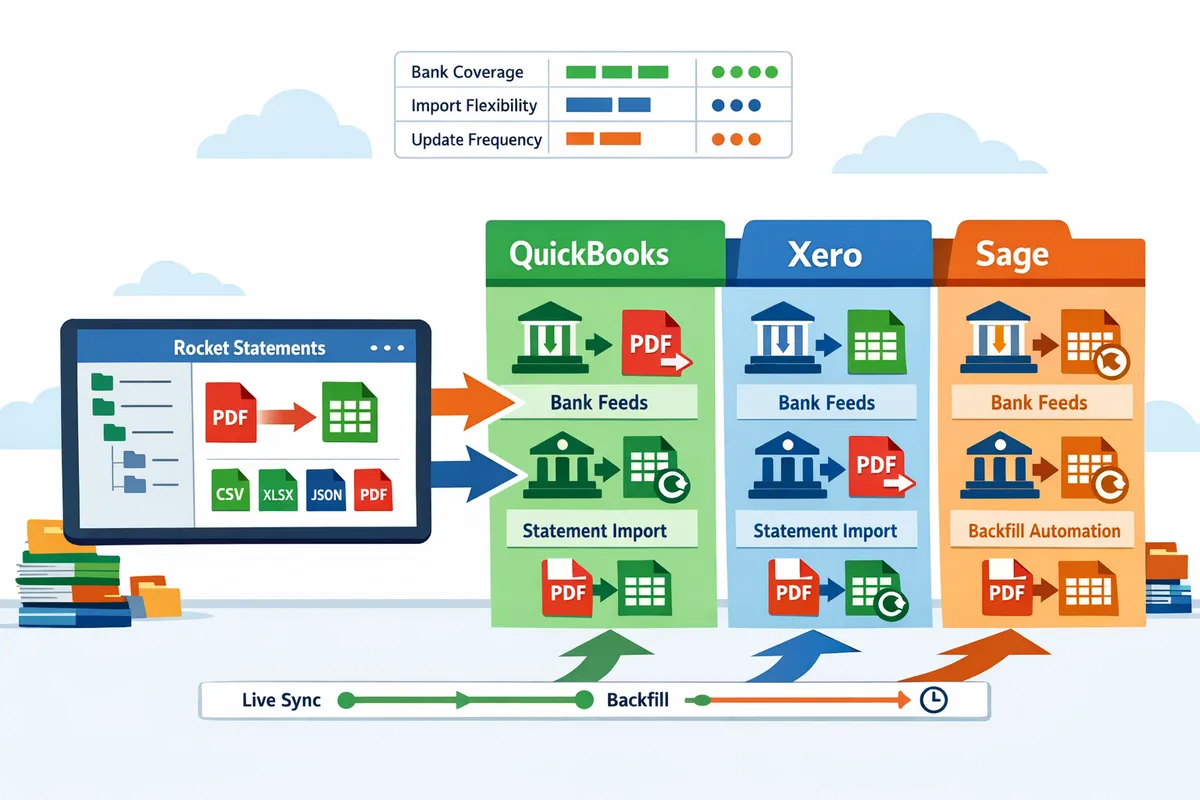
QuickBooks vs Xero vs Sage (2026): Bank Feeds, Statement Imports, and Backfill Automation Compared
A single duplicate import can cost a small accounting firm five billable hours and produce reconciliation errors that slow month-end. QuickBooks vs Xero vs Sage bank feeds 2026 compares feed reliability, statement import methods, and backfill automation to inform a purchase or migration decision. This article defines the core differences in how each platform handles live sync, PDF statement imports, and automated backfills. Rocket Statements is a platform that helps users save time and money by automating the conversion of PDF and image statements into spreadsheets, managing documents in cloud folders, syncing live transactions, and exporting CSV, Excel, JSON, PDF and QuickBooks-compatible files. We test real workflows for Accounting Automation and surface where manual cleanup eats hours. Which vendor and workflow will stop the duplicate entries and speed your migration?
How do QuickBooks, Xero, and Sage compare for bank feeds, statement imports, and backfill automation in 2026?
QuickBooks has the strongest live-feed coverage in the US, Xero relies on partner providers for broader global feeds, and Sage focuses on regionally managed connectors for mid-market customers. Each vendor treats PDF imports and historical backfill differently, which creates operational gaps that force accountants to patch workflows with third-party tools. Our product Rocket Statements bridges those gaps by converting PDFs and images into spreadsheet and QuickBooks-compatible files while offering cloud folders and live-sync options.
QuickBooks bank feed profile (US focus) 🇺🇸
QuickBooks prioritizes direct integrations with major US banks and usually delivers stable live feeds for national financial institutions. QuickBooks often handles daily transaction pulls from Chase, Bank of America, and other national banks without intermediate vendors. For smaller regional banks and PDF-only statements, QuickBooks either requires manual imports or relies on third-party connectors, which increases reconciliation work and duplicate risks. For example, a small accounting firm reconciling a regional bank that lacks a direct feed can spend 3–5 extra hours fixing duplicate rows and mapping columns. Our product Rocket Statements converts bank PDFs to QuickBooks-ready CSV or QBO files and stores statements in cloud folders, reducing manual cleanup; see our QuickBooks Online integration for setup details.
Xero bank feed profile (global focus) 🌍
Xero depends on marketplace data providers for multi-currency coverage, so feed stability and update cadence vary by country. Xero excels at connecting to European and Australian banks through established partners, but users in emerging markets report inconsistent update frequency and occasional missing fields. For multi-currency merchants, Xero's feed model supports foreign exchange tagging, though local provider gaps force manual imports or CSV mapping for some banks. Forum threads and community reports commonly cite mapping errors when local provider formats change. Our Rocket Statements bank statement converter can fill those gaps by converting PDF or image statements into standardized CSV, Excel, or JSON formats that Xero accepts. See our QuickBooks & Xero bank statement automation guide for mapping best practices.
Sage bank feed profile (mid-market and region-specific) 🇬🇧
Sage uses local feed providers in the UK and parts of Europe and works well with regionally supported mid-market banks. Sage customers that bank with locally integrated institutions typically see reliable daily feeds and clearer statement formats. International operations or banks that only provide PDF statements require extra manual steps: exporting PDFs, fixing inconsistent column names, and importing via CSV templates. Those extra steps add billable hours and increase month-end risk for finance teams. Our Rocket Statements automates PDF-to-spreadsheet conversion, consolidates documents in cloud folders, and exports Sage-ready CSVs to cut the manual mapping time for international accounts.
How vendors handle PDF/CSV statement imports and backfill automation 🧾
Vendors prefer live syncs but vary widely on native PDF import support, CSV export quality, and historical backfill automation. Most accounting platforms will rely on third-party solutions or manual workflows for reliable backfills and deduplication. Below is a side-by-side snapshot.
| Vendor | Live feed ownership | Native PDF import | CSV/Excel export quality | Backfill automation notes |
|---|---|---|---|---|
| QuickBooks | Direct integrations for major US banks | Limited native PDF parsing; often requires conversion | Exports conform to QuickBooks templates but banks vary | Historical imports often require manual mapping or third-party converters |
| Xero | Partner data providers for global reach | Few native PDF tools; marketplace apps fill gaps | Good multi-currency headers but local formats differ | Backfills depend on provider; manual CSV mapping common in some countries |
| Sage | Local feed providers in UK/Europe | Native imports vary by region; PDF-only banks need extra steps | Exports suit ledger workflows but require template alignment | Backfill reliable where local connectors exist; cross-border backfills need manual work |
Rocket Statements plugs into this matrix by converting PDFs and images into standardized CSV, Excel, JSON, or QuickBooks-compatible files and by offering live transaction syncs to reduce duplicate imports. For teams that combine live feeds with historical PDF archives, our Google Sheets import guide shows a no-code way to backfill multiple banks without duplicate rows. For a practical checklist on which converter features matter, consult our bank statement converter feature comparison.
💡 Tip: Schedule backfills during low-activity hours and run deduplication checks before importing to avoid extra reconciliation time.
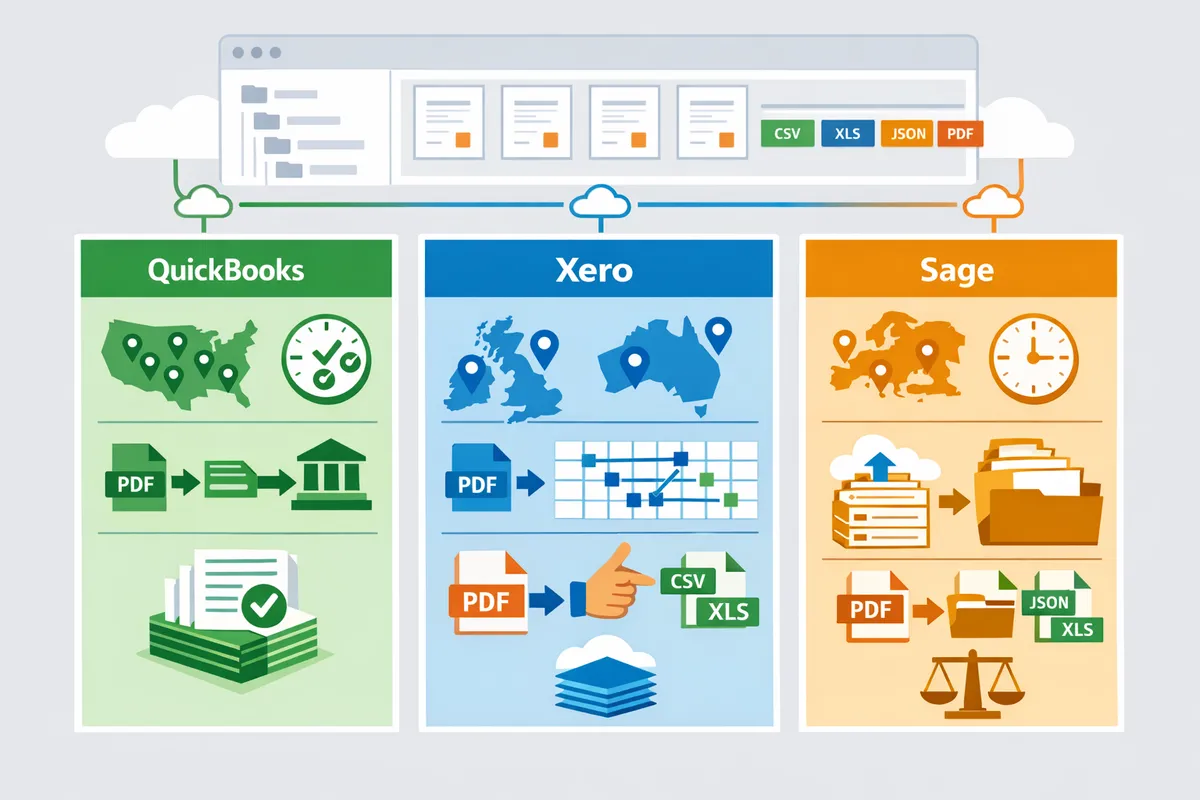
Which platform scores highest on bank coverage, update frequency, data mapping, and reconciliation efficiency?
QuickBooks generally scores highest for US bank coverage while Xero and Sage show regional strengths that affect sync cadence and mapping accuracy. A consistent evaluation on coverage, sync frequency, mapping accuracy, and backfill automation reveals where each vendor forces manual cleanup at month end.
Comparison matrix: bank coverage, sync frequency, mapping accuracy, and backfill automation 📊
The table below rates QuickBooks, Xero, and Sage on bank coverage, typical sync cadence, mapping accuracy, and available backfill tooling.
| Vendor | US coverage | UK coverage | EU coverage | AU coverage | Typical sync cadence | Mapping accuracy notes | Backfill automation / tooling |
|---|---|---|---|---|---|---|---|
| QuickBooks | High (broad direct connections in US) | Moderate (partner feeds) | Moderate (regional providers) | Limited to moderate | Near-real-time to hourly in primary markets | Good for standard columns; custom statement formats need template work | Relies on provider backfill; use Rocket Statements to convert PDFs and export QuickBooks-ready files for missing history |
| Xero | Moderate (depends on partner providers) | High (strong partner coverage) | High in select EU markets via aggregators | High (ANZ-focused connectors) | Typically 15–60 minutes where partner supports live sync | Strong partner mappings but variability across banks; mapping templates often required | Backfill often handled by partners; Rocket Statements converts files into Xero-compatible CSV/Excel for consistent imports |
| Sage | Limited in US (focus on mid-market sellers) | Moderate (country-specific connectors) | Moderate to high in some EU countries | Limited | Hourly to daily in many regions | Better for standard bank formats in mid-market integrations; small-bank PDFs require manual mapping | Fewer turnkey backfill tools; Rocket Statements fills gaps by turning PDF statements into import-ready files |
The coverage and cadence entries reflect provider coverage maps and practitioner reports across accounting forums and customer feedback. For mapping and import templates, see our guide on QuickBooks & Xero bank statement automation for hands-on mapping advice.
Region-specific performance notes (US, UK, EU, Australia) 🌐
Feed reliability differs by region: QuickBooks performs strongest in the US, Xero often leads in the UK and Australia through partner connectors, and Sage holds pockets of strength in EU mid-market workflows.
- US. QuickBooks has the widest set of direct connections, which reduces manual backfill in many US-based bookkeeping workflows. Where banks use thin API coverage, delayed imports and partial history are common. Use Rocket Statements to convert archived PDFs into QuickBooks-compatible files when provider history is incomplete. See our QuickBooks Online integration for export options.
- UK. Open Banking improves update frequency but increases mapping variance because providers return different column orders. Xero and Rocket Statements both handle many British bank layouts; tie a consistent mapping template to each bank to avoid row-shift errors. Read our bank statement converter benchmarks for template advice.
- EU. Fragmented provider landscape produces inconsistent coverage across countries. Sage performs well for mid-market ERP-style feeds but smaller banks often require PDF backfill. Rocket Statements' PDF-to-CSV workflow reduces manual column fixes for localized statement formats.
- Australia. Xero and ANZ-focused connectors usually offer reliable cadence and mapping for major banks. Regional smaller institutions still deliver scanned PDFs; automate conversion with Rocket Statements to maintain a single import template.
Real-world failure modes and reconciliation pain points 🔎
Duplicate imports, delayed delivery, and inconsistent column mappings cause the largest share of reconciliation time.
Common failure modes and practical remediation steps:
- Duplicate transactions from mixed live sync and PDF imports.
- Detect duplicates by matching date, amount, and reference fields before import.
- Apply duplicate protection and de-duplication rules in your import workflow. Rocket Statements supports deduplication when backfilling PDFs into QuickBooks formats.
- Delayed or partial imports that leave gaps in historical data.
- Backfill missing months by converting bank PDFs into import-ready CSV or QBO files.
- Reconcile imported backfill in a sandbox month to catch ordering mismatches before full import. Use Rocket Statements' PDF conversion and folder organization to keep historical batches auditable.
- Column-shift errors and inconsistent mappings across banks.
- Create one mapping template per bank and lock header positions.
- Run a 50-row sample import and confirm mapping before full ingestion. Our guide on converting PDF bank statements to QuickBooks includes sample checklist steps and template examples.
💡 Tip: Run a staged backfill: convert one month of statements, import to a sandbox company, reconcile a 50-transaction sample, then proceed. This catches mapping and duplicate issues before they block month-end.
Numbered remediation steps above reflect workflows that reduce billable cleanup hours when applied consistently. When you manage mixed live feeds and archived PDFs, Rocket Statements helps by converting PDFs into QuickBooks- and Xero-compatible files, storing the source PDFs in organized folders, and offering deduplication rules that cut reconciliation time.
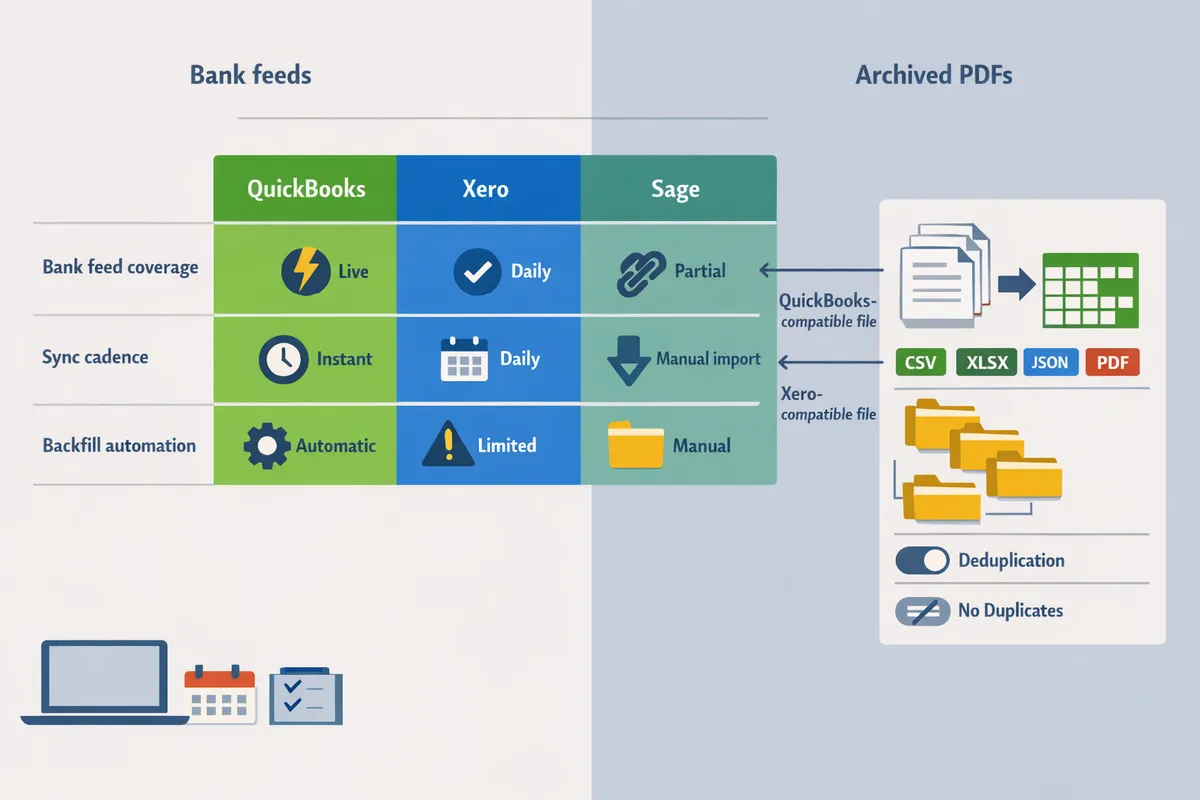
Which option should your firm choose and how can Rocket Statements simplify migration and ongoing reconciliation?
Choice depends on your clients' bank mix, team capacity, and tolerance for manual mapping; Rocket Statements reduces migration time and recurring reconciliation by standardizing statements and exporting QuickBooks-compatible files. Our website recommends matching platform strengths to your client base: choose the ledger with the best live-feed coverage for your region, and use Rocket Statements where PDF/manual imports are still needed. The following subsections give concise pros/cons, a hands-on buyer checklist, and practical workflows that combine live sync with PDF backfill.
Pros and cons: QuickBooks, Xero, and Sage ⚖️
Each vendor has trade-offs in bank coverage, import flexibility, and ongoing manual cleanup that change total cost of ownership for small accounting firms and SMB finance teams.
QuickBooks (pros)
Stronger live-feed coverage across many US banks. For firms with mostly US clients this reduces frequent PDF backfills.
Native QBO/QFX support shortens import steps for QuickBooks users.
Tight integration with payroll and tax apps common in US bookkeeping stacks.
QuickBooks (cons)
CSV import templates can be rigid and require column mapping per bank statement layout. For example, scanned PDFs often need per-bank mapping rules.
Dependency on partner feed providers causes occasional outages that require manual backfill.
Our website's Rocket Statements converts PDFs into QuickBooks-ready files to remove repetitive column fixes and speed imports; see our QuickBooks import guide for practical setup.
Xero (pros)
Broader global partner network often covers non-US banks better than QuickBooks for multi-country clients.
Flexible CSV imports and strong accountant-focused features for reconciliation workflows.
Xero (cons)
Feed cadence depends on partner providers; update frequency can vary by region and bank.
Mapping differences across international statements increase reconciliation time; Rocket Statements standardizes formats across regions to reduce mapping exceptions. Read our comparison of QuickBooks vs Xero bank statement imports for mapping tips.
Sage (pros)
Regionally managed connectors aimed at mid-market customers and certain European banks.
Often better support for multi-entity and multi-currency ledgers in specific verticals.
Sage (cons)
Fewer out-of-the-box global feed options; firms with many small banks will spend time on PDF imports.
Import tooling sometimes requires manual column normalization; Rocket Statements stores source PDFs in cloud folders and applies repeatable mappings to cut that workload.
Buyer checklist: evaluating bank feed reliability and statement import workflows ✅
Use this practical, hands-on checklist to validate bank coverage, mapping accuracy, and backfill automation before switching platforms.
- Verify live-feed presence. Request a list of banks covered for your client portfolio and test live sync for at least three active client accounts. Note frequency (near-real-time, daily, or weekly).
- Trial PDF and CSV imports. Upload three months of real client PDFs and a sample CSV export to test mapping accuracy. Measure hours required to fix errors.
- Run a sample backfill. Ask each vendor to backfill 12 months and inspect how duplicate detection and date/amount parsing behave.
- Validate mapping templates. Confirm you can save and reuse templates per bank/institution to avoid per-import rework.
- Check SLA on feed outages. Request documented response time for connector failures and compensation or support windows.
- Confirm deduplication and reconciliation support. Import the same transactions via live feed and via converted PDFs to see how the platform flags duplicates.
- Test exports to your general ledger. Export to QuickBooks, Xero, or Sage formats and run a trial reconcile in a sandbox client file.
- Estimate recurring time savings. Multiply the manual cleanup time per client by the number of clients to quantify billable hours saved with automation.
⚠️ Warning: Do not assume CSVs exported from banks have consistent columns; test several statements per bank to avoid import errors that cost billable hours.
For a deeper checklist and benchmarks comparing free AI converters to pro workflows, review our bank statement converter features guide.
How Rocket Statements fits into a multi-platform workflow 🔁
Rocket Statements acts as a middle layer that converts PDF and image statements into standardized spreadsheets, stores documents in cloud folders, and exports QuickBooks-compatible files to reduce manual cleanup.
Recommended mixed-bank workflow (step-by-step):
- Identify core live-sync banks. Enable direct live feeds in QuickBooks, Xero, or Sage for the top 60–80% of transaction volume.
- Ingest PDF-only banks into Rocket Statements. Upload scanned PDFs or enable email import for smaller banks and credit unions.
- Apply saved mapping templates. Use Rocket Statements to normalize columns (date, description, debit/credit) and save a template per bank.
- Export to ledger-ready files. Send QuickBooks-compatible CSV/QBO for QuickBooks clients, or standard CSV for Xero and Sage, with a clear audit trail to cloud folders.
- Run dedupe and reconcile. Use Rocket Statements' deduplication rules to prevent double imports, then perform a reconciliation pass in the accounting ledger.
Recommended migration workflow (step-by-step):
- Run pilot with three representative clients (mix of live-feed and PDF-only banks).
- Convert 12 months of historical PDFs in Rocket Statements and import into a sandbox ledger to validate balances.
- Adjust mapping templates based on pilot findings and automate scheduled exports.
- Cut over by syncing live feeds and scheduling Rocket Statements backfill jobs for remaining accounts.
Rocket Statements integrates with our QuickBooks Online integration and supports hybrid live-sync plus PDF fallback patterns; read our discussion on managing live bank sync versus PDF exports to see practical trade-offs. For Google Sheets-based consolidations, our guide shows how to import live transactions and backfilled PDFs into a single sheet with no duplicates.
Frequently Asked Questions
This FAQ answers the most common buyer questions about OCR accuracy, backfill automation, vendor selection, and integrating Rocket Statements into your accounting stack. Use these answers to compare QuickBooks vs Xero vs Sage bank feeds 2026 and to design a short vendor pilot that reveals real cleanup time and reconciliation risk.
How accurate is OCR for bank statements? 🔍
OCR accuracy depends on scan quality, statement layout consistency, and language, with amounts and dates usually read correctly but line-item descriptions often requiring verification. For printed, high-resolution PDFs with consistent bank layouts OCR commonly extracts dates and amounts reliably; hand-written notes, low-resolution scans, multi-column statements, or uncommon languages increase recognition errors. Common error types include swapped decimal points, merged rows, and misread payee names. To reduce manual correction time, scan at 300 dpi, provide multiple sample statements for each bank, and use Rocket Statements to flag low-confidence rows for human review. Our guide on Bank Statement Converter Features in 2026 shows which converter features cut post‑OCR cleanup hours.
What is backfill automation and how does it work? 🔁
Backfill automation imports historical statements and attempts to match those transactions to ledger accounts to close gaps in your books. The process reads past PDF or image statements, extracts transactions, and matches them to existing accounts using account numbers, IBANs, dates, and amounts; unmatched entries get routed for human review. Rocket Statements can perform bulk backfill from PDFs and from live sync sources, producing standardized spreadsheets or QuickBooks-compatible exports so your ledger receives consistent rows. Expect manual review where payments split across portfolios, where reference fields differ between bank and ledger, or when account numbers changed. See our setup guide for multi-bank backfills in Automatically Import Bank Statements into Google Sheets from Multiple Banks for a step-by-step backfill workflow.
Which platform is the best accounting software for bank feed reliability 2026? 🏅
No single platform is best for every firm; reliability depends on the banks your clients use and the regions you serve. QuickBooks tends to offer stronger direct coverage for many US banks, Xero relies on partner providers to reach broader international banks, and Sage focuses on regionally managed connectors that suit certain mid-market clients. Choose by running sample statements through each vendor, asking about update frequency and support escalation, and checking how each handles failed reconciliation cases. Rocket Statements simplifies that evaluation by producing identical import files for each platform so you can compare cleanup time rather than guessing on vendor marketing. For a hands-on comparison of import mapping and error fixes, read our guide on QuickBooks & Xero Bank Statement Automation in 2026.
Can Rocket Statements convert bank statement PDFs into QuickBooks imports? 🧾
Yes. Rocket Statements converts PDF and image bank statements into QuickBooks-compatible files and spreadsheets. Typical outputs include CSV and Excel formatted specifically for QuickBooks import, plus JSON or QBO when required by your workflow. The usual steps are: upload PDFs to Rocket Statements, run the extraction and template mapping, review flagged rows, and export QuickBooks-ready files. Our QuickBooks Online integration page explains encrypted transfer and import tips and includes a trial offer for testing with sample statements: QuickBooks Online Integration. For a beginner's walkthrough, see PDF Bank Statements to QuickBooks in Minutes | Rocket Statements.
How do I handle duplicate transactions when using live feeds and PDF imports? ⚠️
Prevent duplicates by assigning one source of truth per bank connection and using unique transaction identifiers before importing. Practical checks include matching on date, amount, and bank reference; flag any near-duplicates for manual review before posting. If you must import backfilled PDFs alongside a live feed, temporarily pause the live connection or import only non-overlapping date ranges to avoid overlap. Rocket Statements can add unique IDs and standardized reference fields to exports so your reconciliation engine or QuickBooks import rules can detect and ignore duplicates.
⚠️ Warning: Importing the same date range from a bank feed and a PDF export without deduplication often creates duplicates that take hours to resolve.
How should I test feeds and statement imports during vendor evaluation? 🧪
Run a focused pilot with representative banks, sample statements, and clear success metrics to measure real cleanup effort and vendor responsiveness. Follow this checklist:
- Select 3–5 representative bank accounts that reflect your client base and include at least one problematic layout.
- Submit 30–90 days of PDF statements and request a live-feed test where available.
- Measure automated mapping accuracy: target at least 85% of transactions requiring no manual field edits after extraction.
- Time end-to-end cleanup: record hours spent cleaning 50 PDF pages and compare across vendors.
- Test backfill: run historical imports and confirm ledger matching for edge cases like split payments.
- Evaluate support: log time to first response and time to issue resolution for mapping errors.
Use Rocket Statements during the pilot to standardize exports and to separate vendor feed reliability from statement conversion accuracy. For CSV/QBO import specs and no-code automation options, review QuickBooks Bank Transaction Import 2026: CSV/QBO/QFX Specs to plan your acceptance criteria.
QuickBooks vs Xero vs Sage bank feeds 2026 shows clear trade-offs in reliability, statement imports, and backfill automation.
Choose the system that matches your tolerance for manual cleanup, how you import historical statements, and whether live sync must be continuous. QuickBooks, Xero, and Sage each handle feeds and backfill differently; pick the one that reduces billable hours for your team and lowers compliance risk when imports fail. For practical migration steps and mapping tips, read our bank statement conversion guide for QuickBooks and Xero.
Rocket Statements is a platform that helps users save time and money by automating the process of converting their statements into spreadsheets as well as manage their documents in the cloud. The product has the following features:
- Convert their PDF and image statements into spreadsheets
- Manage their documents in the cloud with folders and subfolders
- Sync live transactions data from bank accounts
- Convert their statements into CSV, Excel, JSON, and PDF files
- Convert their statements into QuickBooks compatible files
💡 Tip: Run a small test import and backfill before switching a client to a new feed to catch mapping errors early.
Compare workflows in our post on automatically importing bank statements into Google Sheets and the conversion best-practices guide, then schedule a consultation with Rocket Statements to review your specific bank feed setup and migration plan.