
QuickBooks Desktop vs Online Import Formats
QuickBooks Desktop vs Online Import Formats
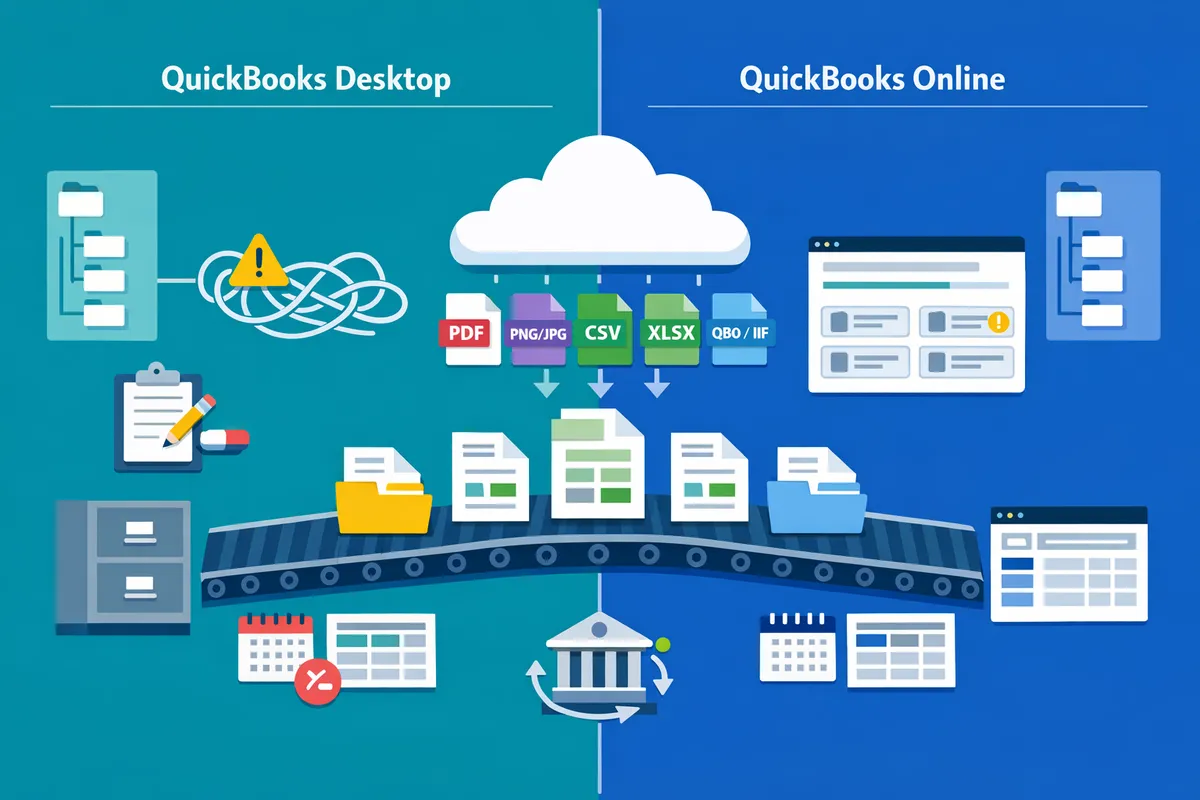
A single mismatched CSV field can add 3–5 hours per client during month-end migration. QuickBooks Desktop vs Online import formats differ in accepted columns, date formats, and supported file types, causing manual cleanup. QuickBooks Desktop vs Online import formats is a comparison of file specifications that shows required fields and extensions. Our Rocket Statements platform converts PDF and image bank statements into spreadsheets, stores documents in cloud folders, syncs live transactions, and exports CSV, Excel, JSON, PDF and QuickBooks-compatible files. This article compares file formats, import workflows, and migration risks, testing whether Rocket Statements speeds migration. We cite community threads such as PDF-to-QuickBooks friction, QuickBooks sync hiccups, and our QuickBooks Statement Imports hub to reveal where imports fail.
Which import formats do QuickBooks Desktop and QuickBooks Online accept?
QuickBooks Desktop and QuickBooks Online accept overlapping but not identical import formats. Choosing the wrong file type or header layout causes failed imports, duplicate entries, or hours of post-import cleanup. The table and Q&A below list each format, common limits, and the most frequent support questions.
Which file formats does QuickBooks Desktop accept?
QuickBooks Desktop accepts IIF, QBO, QFX/OFX, and a limited set of CSV/XLSX imports depending on the data type. IIF remains the legacy format for lists and transactions but often requires manual cleanup after import. QBO and QFX are accepted for bank transaction imports; banks that offer Web Connect typically provide QBO, while QFX is Intuit's QFX-flavored OFX file for certain bank downloads. Desktop can import CSV and Excel for lists (customers, items) using the built-in import wizards, but CSVs for bank transactions usually need conversion to QBO/QFX or third-party tools.
Rocket Statements can export QBO, OFX, CSV, and Excel files and offers QuickBooks-specific templates to reduce mapping errors during Desktop imports. See our guide on QuickBooks Bank Transaction Import 2026 for required CSV headers and pre-import checks.
Which file formats does QuickBooks Online accept?
QuickBooks Online accepts QBO for Web Connect, CSV/XLSX with strict header mappings, and direct bank feeds through supported banks. QBO uploads work for bank/credit-card transactions but QuickBooks Online enforces stricter validation than Desktop, which often rejects rows with unexpected dates or nonstandard amount formats. QuickBooks Online does not support IIF imports. CSV/XLSX imports work best for lists and invoices when you follow QuickBooks Online's required column names and date/amount conventions.
Rocket Statements can produce QBO and QuickBooks-compatible CSV/Excel exports tailored to QuickBooks Online's new layout, and its automated column matching reduces manual mapping steps. For step-by-step CSV mapping and error fixes, see our QuickBooks Online 2026 CSV/QBO import guide.
Comparison table: common import file extensions
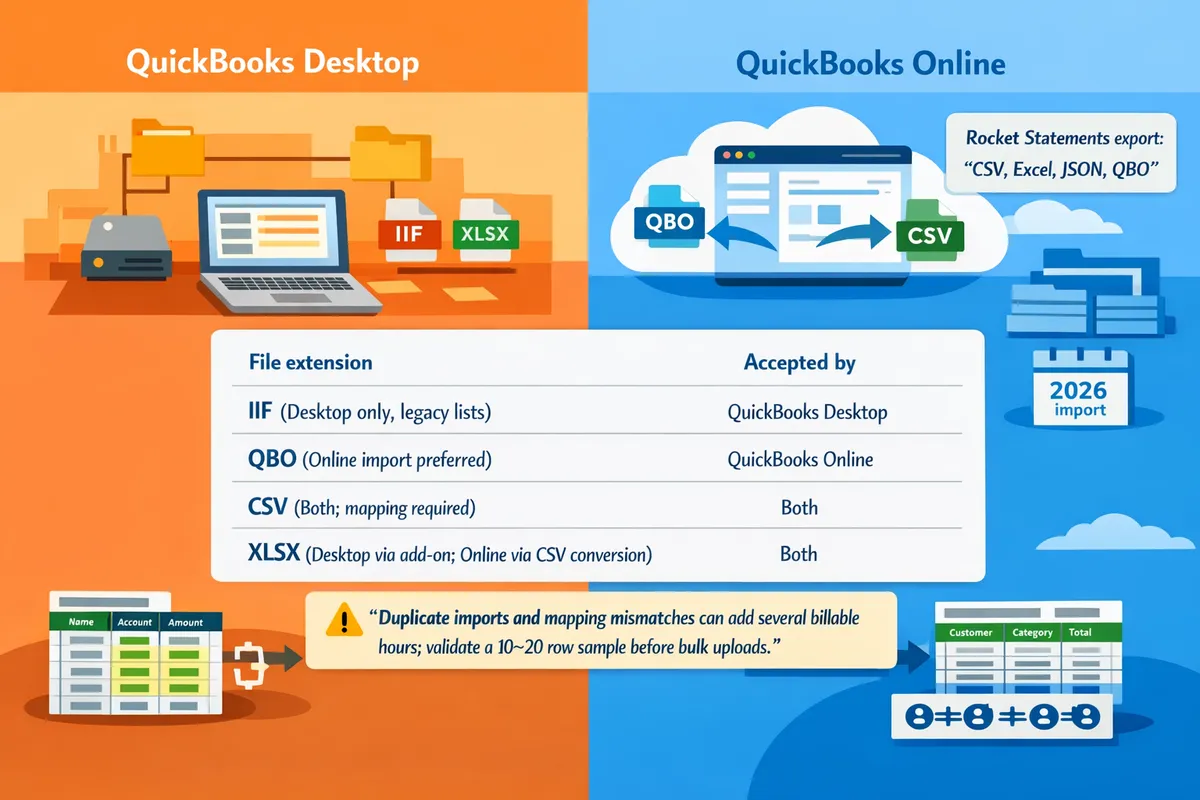
| File extension | Desktop support | Online support | Typical use case | Import caveats |
|---|---|---|---|---|
| CSV | Y (limited) | Y | Bulk lists, bank transaction imports after conversion | Headers must match QuickBooks template; date and amount formats cause most rejects |
| XLSX | Y (limited) | Y | Lists, invoices, staging spreadsheets | Some fields require CSV export first; Excel formatting (merged cells) breaks imports |
| QBO | Y | Y | Web Connect bank/credit-card transaction imports | Desktop accepts wider variants; Online enforces stricter validation and rejects malformed QBOs |
| QFX | Y | N | Bank downloads for Desktop (Intuit-flavored OFX) | Not accepted by Online; QFX contains Intuit headers that Desktop expects |
| OFX | Y | N (rare) | Direct bank feeds, export from some banks | Online typically requires QBO; OFX can need conversion to QBO for Online |
| IIF | Y | N | Lists and legacy transaction imports for Desktop | Prone to duplicates and missing fields; Intuit advises caution |
| QBB (company file) | Y (native) | N | Full Desktop company backups | Not an import format; used for full Desktop migrations |
What is a .QBO file and is .QBO for QuickBooks Online or Desktop?
.QBO is a Web Connect bank transaction file used to import bank and credit-card transactions; both QuickBooks Desktop and QuickBooks Online accept .QBO files but apply different validation rules. QBO is the common export when a bank offers an Intuit Web Connect download. Some banks instead provide QFX or OFX; QFX includes Intuit-specific headers while OFX is the broader open financial exchange format. If a bank labels the download 'Web Connect' or 'QuickBooks (QBO),' use QBO for direct import. Rocket Statements can generate QBO exports from PDFs and images when banks do not provide a Web Connect file, reducing manual conversion work. See our FAQ on whether Rocket Statements can export QuickBooks-compatible files for mapping details and common gotchas.
Why do CSV and XLSX still cause the most mapping errors?
CSV and XLSX cause the most mapping errors because they allow many header names, date formats, and amount layouts that QuickBooks will not accept without explicit mapping. QuickBooks expects a consistent set of column names and formats. Common QuickBooks-expected columns include:
- Date (mm/dd/yyyy or yyyy-mm-dd).
- Description or Payee.
- Amount (single signed column) or separate Debit and Credit columns (less common).
- CheckNumber.
- Memo.
- Balance (optional).
If your file uses separate Debit/Credit columns but QuickBooks expects a single Amount column, the import may duplicate entries or reject rows. Another frequent error is nonstandard date formats (e.g., 2026.07.01) which QuickBooks flags as invalid. Rocket Statements provides CSV templates and automated column matching that convert PDF or image statements into QuickBooks-ready CSV/XLSX or direct QBO files, cutting the manual mapping step. For practical mapping templates and example workflows, see our QuickBooks Bank Transaction Import 2026 article and the Rocket Statements CSV export FAQ.
⚠️ Warning: Duplicate imports and mapping mismatches can add several billable hours per client and cause reconciliation drift; always validate a 10–20 row sample before bulk uploads.
How do Desktop and Online import workflows differ and which fits your business?
Desktop import workflow is a local process that accepts legacy list formats and gives direct file control on the user’s machine. QuickBooks Online import workflow is a cloud-based process that requires stricter CSV or bank-file formats and enforces header and account validation before accepting uploads. These differences change how much manual mapping, post-import cleanup, and testing you must do. Our website recommends using Rocket Statements to automate conversions when you need predictable output across both Desktop and Online workflows; see our QuickBooks import guide for template details.
Comparison matrix: file types, support, mapping effort 📊
This table compares which file types each platform accepts and the typical mapping and cleanup effort required.
| File type | Desktop support | Online support | Mapping complexity | Post-import edits needed | Best for |
|---|---|---|---|---|---|
| CSV | Yes (manual mapping in Banking or Lists) | Yes (strict headers required) | Medium | Moderate (header alignment, date formats) | One-off imports and bulk transaction uploads |
| XLSX | Yes (save or convert to CSV first) | No (must save as CSV before upload) | Medium | Moderate (convert to CSV, check headers) | Spreadsheet-first workflows and accountant edits |
| QBO | Yes (Web Connect import for Desktop) | Partial (depends on bank and file variant) | Low for Desktop, Medium for Online | Low for Desktop, Moderate for Online | Bank statement uploads using Web Connect or bank-provided QBO |
| QFX | Partial (import via some banking tools) | No | Medium | Moderate (matching payees) | Banks that export QFX for Desktop or intermediate conversions |
| OFX | Partial (bank feed imports or conversions) | No | Medium | Moderate | Bank feed interchanges and backups for Desktop |
| IIF | Yes (legacy Desktop lists and transactions) | No | High | High (list and account cleanup) | Legacy list imports and Desktop-only migrations |
| JSON | Not supported natively; must convert to CSV or QBO first | Not supported natively; must convert to CSV or QBO first | High (requires mapping and format changes) | Moderate to High | API exports or custom system integrations that are converted before import |
Rocket Statements can produce CSV, Excel, QBO and OFX outputs directly from PDF and image statements, which reduces the mapping back-and-forth described above. See our post on Can Rocket Statements export QuickBooks-compatible files? for mapping examples and required header layouts.
How validation, duplicates, and account mapping differ 🔧
Desktop applies softer validation on many list and transaction imports while QuickBooks Online enforces stricter headers and account matching before accepting files. ACCTTYPE is a field that indicates the account type (bank, expense, asset) used by Desktop list imports. INTU.BID is an internal bank identifier that QuickBooks uses to match a file to a bank. FID is a financial institution ID that helps match bank files to an existing bank feed.
Desktop will accept IIF and other legacy files that create or modify lists during import, which often requires manual fixes for ACCTTYPE mismatches and duplicate list entries. QuickBooks Online validates required headers, date formats, and amount conventions before import and returns errors rather than silently creating bad rows.
Common mismatch examples include:
- Date formats. QuickBooks Online typically requires MM/DD/YYYY or an ISO variant depending on locale. Desktop sometimes accepts other formats but can import wrong dates.
- Negative amounts. Some banks use parentheses (1,234.56) while QuickBooks prefers a leading negative sign (-1234.56).
- Unmatched accounts. Errors referencing ACCTTYPE, INTU.BID, or FID mean QuickBooks could not match a row to an existing account or list item.
Quick troubleshooting steps:
- Open the import error in QuickBooks Online or the import log in QuickBooks Desktop.
- Inspect the offending row in the CSV for missing headers, date format, or amount formatting.
- Fix the row in the source file and re-run the import into a test company or copy of the file.
Where to find the import menus (brief):
- QuickBooks Desktop: File > Utilities > Import > Web Connect Files (for QBO/QFX) or File > Utilities > Import > IIF Files (for IIF).
- QuickBooks Online: Gear icon > Import Data > Bank Data, or Banking > Upload transactions and follow the upload wizard.
⚠️ Warning: Duplicate imports create reconciliation drift and cost hours to fix. Always compare import totals to the bank statement before finalizing reconciliations.
Time, cost, and risk for small accounting teams 💰
Manual one-off conversions are time-consuming and increase reconciliation risk compared with automated conversion tools. For example, a small retail client with 150 monthly transactions might need 2–3 hours of extraction and mapping plus 1–2 hours of post-import cleanup when done manually. Using an automated converter that outputs QBO or validated CSV typically reduces work to a 30–60 minute review, cutting direct labor and lowering the chance of reconciliation errors.
Checklist: Desktop vs Online import tasks (small-business example)
- Export the bank statement or PDF from the bank.
- Convert the statement to the target file type (CSV/XLSX/QBO) or run Rocket Statements conversion.
- Align headers, date, and amount formats to the chosen QuickBooks template.
- Run a test import into a copy or test company file.
- Review import totals, check for duplicates, and resolve ACCTTYPE/INTU.BID/FID errors.
- Finalize the import and reconcile the bank account.
When to use an automated conversion tool versus a one-off manual import:
- Use automated conversion (Rocket Statements) when you import statements repeatedly, handle multiple clients, or need consistent mappings across Desktop and Online. This reduces repeated mapping errors and speeds monthly close.
- Use a one-off manual import only for rare imports with very few transactions or for a single historical file you will not repeat.
Our website recommends Rocket Statements for teams that want predictable QuickBooks-compatible exports and fewer post-import edits; review our QuickBooks Bank Transaction Import 2026 guide for template specifics and no-code automation workflows.
What are the pros, cons, and recommended path for importing statements?
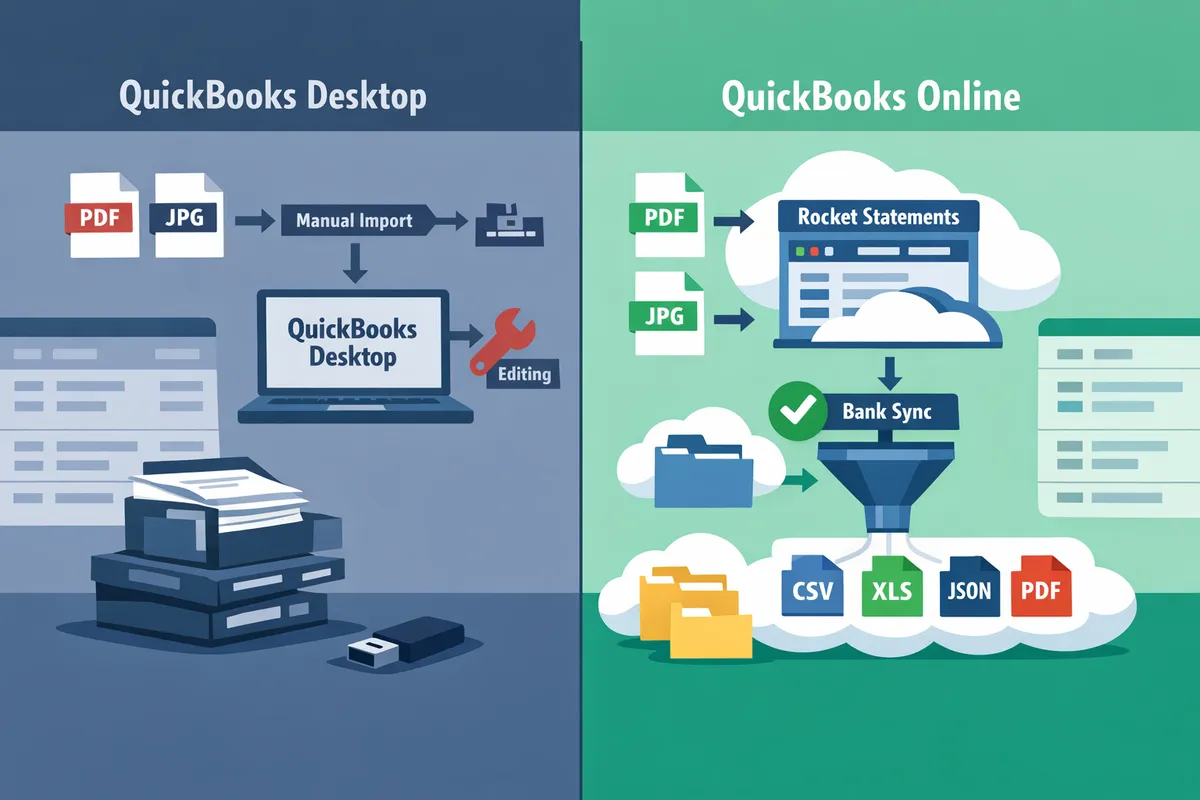
QuickBooks Desktop gives more legacy-format flexibility but increases local handling and reconciliation work; QuickBooks Online enforces stricter import rules while offering centralized validation and bank feeds, and Rocket Statements reduces manual cleanup for recurring or bulk imports. Choosing between manual imports and a conversion platform depends on volume, frequency, and tolerance for post-import fixes. For one-off clean statements, DIY can be fastest; for recurring clients or bulk backfills, Rocket Statements reduces hours spent on mapping, de-duplication, and archival.
Desktop vs Online for statement imports ⚖️
QuickBooks Desktop allows legacy formats and local control but raises reconciliation and compliance effort; QuickBooks Online enforces stricter import rules while offering centralized validation and bank feeds.
| Factor | QuickBooks Desktop | QuickBooks Online |
|---|---|---|
| Accepted legacy formats | IIF and Desktop-specific exports (more flexible locally) | CSV, QBO, QFX with stricter header rules |
| Time to import (typical SMB) | Faster for single-file local imports; adds hours if formats mismatch | Slower to prep if headers differ but faster long-term with feeds |
| Reconciliation load | Higher risk of duplicates and ledger mismatches | Lower when bank feeds are active and imports follow required templates |
| Compliance & audit trail | Local files require disciplined archiving | Centralized validation and cloud attachments simplify audits |
- Desktop pro: full local access to legacy data and custom export formats.
- Desktop con: manual cleanup and duplicate protection increase bookkeeping hours.
- Online pro: tighter validation reduces recurring reconciliation work.
- Online con: stricter import rules require exact header formats and date/amount conventions.
How Rocket Statements speeds imports with a sample workflow 🔁
Rocket Statements converts PDFs and images into QuickBooks-compatible files, applies mapping templates, and archives originals to remove repetitive manual steps and reduce reconciliation errors. According to Rocket Statements, the platform automates field mapping and supports QuickBooks export options. See the deep dive on whether Rocket Statements can export QuickBooks-compatible files for mapping details.
Follow this 5-step example workflow used by bookkeeping teams:
- Upload PDFs or images into Rocket Statements' cloud folder.
- Auto-extract transactions into a working spreadsheet and detect ambiguous rows.
- Validate and resolve field mismatches with the platform's mapping templates.
- Export as QBO or CSV formatted for QuickBooks Online or Desktop and import.
- Archive original PDFs in organized subfolders for audit trails and future backfill.
💡 Tip: Run a 50-line sample export and import before full-scale migration to catch header mismatches and date-format issues.
See our QuickBooks Bank Transaction Import 2026 guide for required headers and templates when preparing exports for either platform.
When to DIY and when to use Rocket Statements ✅
Do-it-yourself imports work best for a single, clean statement; Rocket Statements is the better choice for recurring, bulk, or compliance-sensitive imports.
Use DIY when:
- You have one-off statements with consistent CSV headers and under 100 transactions.
- You or a staffer can spare 30–60 minutes to validate and reformat headers.
Use Rocket Statements when:
- You process recurring monthly statements for multiple clients.
- You must backfill six months or more of statements.
- Compliance or audit trails require organized cloud storage and original-document attachments.
Typical business costs from manual mistakes: a single mismatched CSV field can add 3–5 hours per client during month-end, duplicate imports can cause 2–8 reconciliation hours, and missing attachments raise audit response time by days.
⚠️ Warning: Bulk imports without sample validation commonly produce duplicate entries and reconciliation drift that delay month-end close.
Refer to the QuickBooks Online 2026 New Layout guide for step-by-step CSV/QBO import instructions if you plan to DIY at scale.
Business scenarios that favor each choice
Rocket Statements fits recurring, multi-client, or regulated workflows; DIY fits ad-hoc single statements with clean exports.
Scenarios favoring Rocket Statements:
- Accounting firms onboarding 10+ clients with monthly statement imports.
- Retail chains needing monthly multi-account backfills and central archiving.
- Bookkeepers under a CPA oversight requirement who must retain originals and produce audit trails.
Scenarios favoring DIY:
- A sole proprietor importing a single credit card statement once.
- A controller doing an occasional one-off reconciliation with under 50 transactions.
For cross-platform automation comparisons and when to use free vs paid converters, see our QuickBooks & Xero Bank Statement Automation article.
Is .QBO for QuickBooks Online or Desktop? (FAQ)
.QBO is a bank transfer format primarily designed for QuickBooks Online imports, though some Desktop tools accept it. Most bookkeeping teams use .QBO for Online imports because QBO files package transaction metadata in a way QuickBooks Online accepts directly; Desktop may require a separate OFX/QFX path or conversion step.
How do I fix ACCTTYPE INTU.BID FID errors QuickBooks Desktop? (FAQ)
ACCTTYPE INTU.BID FID errors occur when the import file contains bank-specific identifiers Desktop does not recognize, and cleaning or removing those fields resolves the error. Strip nonstandard ID columns or export a Desktop-friendly CSV/QFX from Rocket Statements' export options and retry the import; our QuickBooks Bank Transaction Import 2026 guide shows which columns Desktop expects.
For more on mapping, error fixes, and no-code automation with Rocket Statements, read our guide on QuickBooks Bank Transaction Import 2026: CSV/QBO/QFX Specs and Automations.
Frequently Asked Questions
This FAQ gives concise, actionable answers to the file-format and import issues users ask about when moving statements into QuickBooks Desktop or QuickBooks Online. Each answer notes the menu or tool to use, quick troubleshooting steps, and where Rocket Statements can help with validated exports and mapping templates.
Is .QBO for QuickBooks Online or Desktop? 🤔
.QBO is a Web Connect bank statement file both QuickBooks Desktop and QuickBooks Online can use in specific import flows. QuickBooks Desktop accepts .QBO via the Web Connect import (File > Utilities > Import > Web Connect Files or Banking > Bank Feeds > Import Web Connect File depending on your Desktop version). QuickBooks Online accepts .QBO through Banking > Upload transactions > Browse, then select Web Connect (.qbo). Banks usually supply .QBO from their online portal as the "Download for QuickBooks" or "Web Connect" option. Rocket Statements can generate properly structured .QBO files when banks only provide PDFs or images; see our guide on whether Rocket Statements exports QuickBooks-compatible files for mapping tips and common pitfalls.
Can I import PDF bank statements directly into QuickBooks? 📥
QuickBooks does not import PDFs as transaction lists directly. You must convert PDFs or scanned images into CSV, QBO, QFX, or IIF before importing. Conversion options include manual OCR into Excel, paid converters, or an automated tool like Rocket Statements that extracts rows from PDF/image statements and exports CSV, Excel, QBO, or OFX files. After conversion, run a quick validation: check date formats, decimal separators, and that negative amounts use a minus sign rather than parentheses. For a deeper workflow and pre-import checks, see our CSV/QBO import specs and no-code automation recommendations.
💡 Tip: Always verify a 3-transaction sample import before ingesting full date ranges to confirm field mapping and avoid bulk cleanup.
Which file type is safest for avoiding post-import edits? ✅
QBO files and well-structured CSVs with consistent column names typically require the least manual cleanup when formatted correctly. QBO preserves bank IDs and cleared status, which helps QuickBooks match bank records without manual tagging. For CSVs, include these minimum columns and formats to reduce edits:
- Date (YYYY-MM-DD or MM/DD/YYYY matching your QuickBooks settings)
- Description (transaction memo)
- Amount (positive for income, negative for expenses or separate Debit/Credit columns)
- FitID or Unique ID (a per-transaction identifier to prevent duplicates)
- Bank Account Number (optional but helpful for multi-account imports)
Pre-import checklist:
- Match date format to your QuickBooks company file.
- Ensure amounts use a consistent decimal and negative format.
- Add FitID values or a deterministic unique ID.
- Trim extra header rows and remove summary lines.
Rocket Statements can export CSVs and QBO files using preset templates, and our QuickBooks Bank Transaction Import 2026 guide lists the exact headers QuickBooks expects.
How do I fix ACCTTYPE INTU.BID FID errors in QuickBooks Desktop? ⚠️
ACCTTYPE INTU.BID FID errors indicate mismatched or malformed header fields in Web Connect (.QBO) files, usually around account type or bank ID metadata. Troubleshooting steps:
- Export the .QBO from the bank again using the "Web Connect" option; banks sometimes issue corrected files.
- Compare the header lines to a known-good .QBO (look for ACCTID, ACCTTYPE, INTU.BID, and FID entries).
- Regenerate the Web Connect file using Rocket Statements if the bank only provides PDFs or if header fields are inconsistent; Rocket Statements produces validated Web Connect exports designed for QuickBooks Desktop imports.
- If you must edit headers manually, keep a backup and only change obvious typos in bank ID fields; incorrect edits can cause duplicate or misapplied transactions.
⚠️ Warning: Editing Web Connect headers without a backup can create duplicates or break bank matching. Use Rocket Statements to recreate validated .QBO files when possible.
How do I avoid duplicate transactions when re-importing? 🔁
Avoiding duplicates requires comparing existing transactions in QuickBooks to the incoming file and using unique IDs or FitID values to prevent re-imports. Before re-importing:
- Export existing transactions for the same date range from QuickBooks as CSV.
- Compare FitID/Unique ID or Date+Amount+Description combinations to the incoming file and remove or flag matches.
- Use QuickBooks Online's duplicate prevention during Banking uploads and QuickBooks Desktop's Web Connect matching heuristics.
Rocket Statements can add or regenerate FitID values and deduplicate during export so you import a single canonical set. For a procedural checklist and automation options, see our QuickBooks Bank Transaction Import 2026 guide and the QuickBooks & Xero bank statement automation comparison for when to use converters versus pro tools.
How long does a typical migration of statements take for a small firm? ⏱️
A small-firm migration of a few months of statements typically takes a few hours when done manually and under an hour with automated conversion and validation. Example timelines:
- Manual workflow (PDF to Excel to CSV to QuickBooks): 3 to 6 hours for 3 months of statements for 10 clients, including cleanup and fixes.
- Automated workflow with Rocket Statements (PDF/image extraction, mapping, validated QBO/CSV export): 20 to 60 minutes for the same volume, depending on statement quality and number of accounts.
Factors that add time: low-quality scanned PDFs requiring manual correction, missing account mappings, multi-currency adjustments, and large volumes across many entities. Use Rocket Statements to batch-convert and store statements in cloud folders to shorten the validation and reconciliation phase.
Where can I find detailed mapping templates for different industries? 📁
Industry-specific mapping templates live in our downloadable template library and inside Rocket Statements' folder and template features for cloud organization. For common examples:
- Services firms: map transactions to Customer, Service Account, Class, and Job fields; include Customer/Invoice references in the Description column.
- Retail: include Item/SKU, Sales Tax code, and Sales Receipt mapping; split tender types into separate columns if you reconcile by payment method.
- Manufacturing: include Inventory part numbers, COGS account mapping, and separate freight and materials lines when the statement breaks out supplier invoices.
We host CSV templates and mapping walkthroughs in the article on whether Rocket Statements exports QuickBooks-compatible files and the step-by-step QuickBooks Online 2026 CSV/QBO import guide. Use those templates as a starting point, then adjust fields to match your Chart of Accounts and item setup before bulk imports.
Final recommendations for import formats
Choose the file type that matches your QuickBooks target and minimizes manual header fixes.
QuickBooks Desktop vs Online import formats differ in acceptable file layouts, required headers, and common failure modes; pick the format that reduces mapping and verification time for your team. For many small firms, starting with CSV or QBO that match QuickBooks sample templates cuts import errors and speeds reconciliation. See the CSV/QBO spec guide for detailed header mappings in the QuickBooks Bank Transaction Import 2026 guide.
Rocket Statements is a platform that helps users save time and money by automating the process of converting their statements into spreadsheets as well as manage their documents in the cloud. The product has the following features:
- Convert their PDF and image statements into spreadsheets
- Manage their documents in the cloud with folders and subfolders
- Sync live transactions data from bank accounts
- Transform their statements into CSV, Excel, JSON, and PDF files
- Transform their statements into QuickBooks-compatible files
Schedule a consultation with Rocket Statements to map your current files and run a test conversion so you can see where manual fixes occur. For common export questions and mapping examples, read Can Rocket Statements export QuickBooks-compatible files? and the PDF-to-QuickBooks community discussion on conversion friction.
💡 Tip: Verify date format and amount signs against QuickBooks sample files before importing to avoid rejected rows.