
QuickBooks Bank Transaction Import 2026: CSV/QBO/QFX Specs, Desktop EOL Playbook, and No‑Code Automations with Rocket Statements
QuickBooks Bank Transaction Import 2026: CSV/QBO/QFX Specs, Desktop EOL Playbook, and No‑Code Automations with Rocket Statements
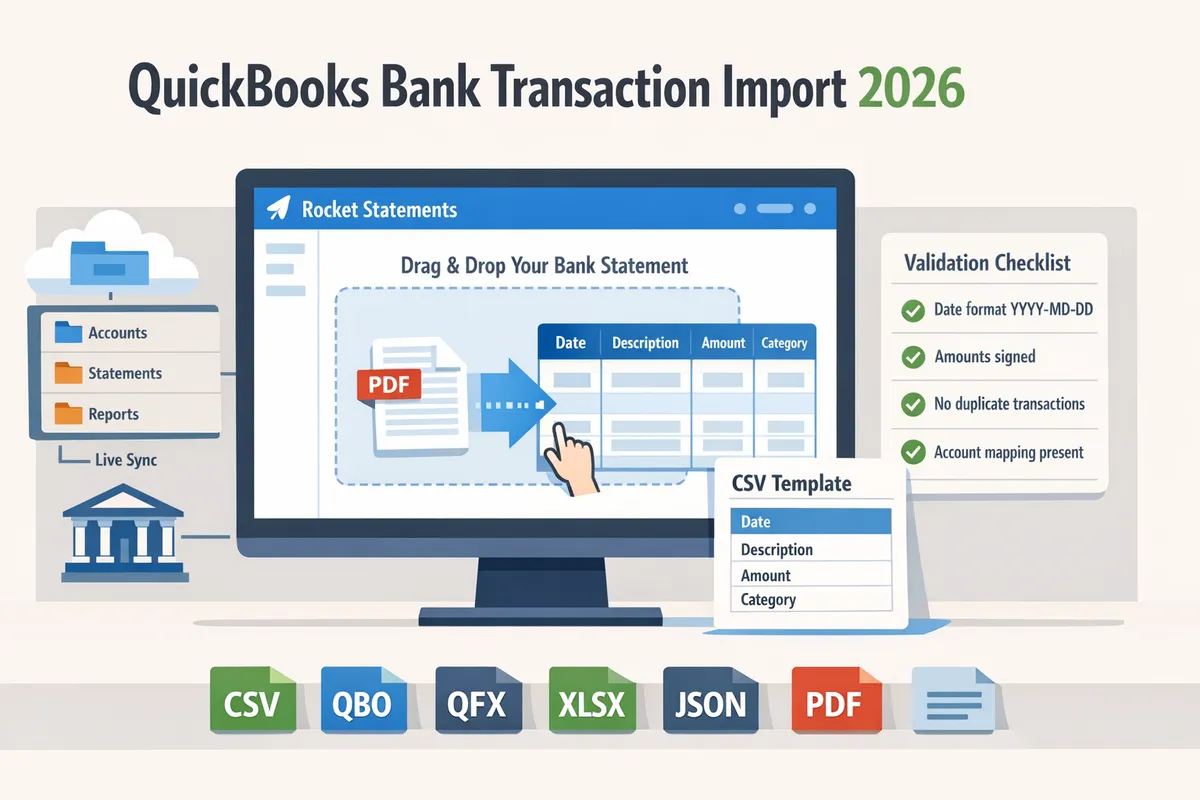
A single misformatted CSV can cost an SMB accountant several hours of reconciliation and generate duplicate expenses. QuickBooks CSV import 2026 requirements is a set of file-format and mapping rules that determine whether QuickBooks Desktop and QuickBooks Online accept bank transaction CSVs. This best-practices guide helps SMB accountants and finance ops compare Desktop vs Online formats, evaluate CSV/QBO/QFX specs, and assess no-code automation with Rocket Statements for faster, lower-risk imports. Rocket Statements automates converting PDF and image statements into spreadsheets, manages documents in cloud folders and subfolders, syncs live bank transactions, and exports QuickBooks-compatible CSVs, Excel, JSON, and PDF files via our QuickBooks Online integration. Which import format and pre-import sanity checks will save you hours at month-end?
How do QuickBooks Online and QuickBooks Desktop CSV import formats differ in 2026?
QuickBooks Online uses CSV or .QBO bank files with specific header formats, while QuickBooks Desktop relies on .QBO for bank feeds and IIF for lists and does not offer a built-in CSV transaction import path.
QuickBooks Online is cloud accounting software that accepts CSV and Web Connect (.qbo) uploads for bank and credit card transactions. Intuit documentation lists CSV and .qbo as the supported upload types for bank/credit-card imports. For CSV uploads, QBO expects either a single Amount column (use negative numbers for withdrawals) or separate Debit and Credit columns. Common header patterns QBO accepts:
- Date, Description, Amount. Use mm/dd/yyyy or yyyy-mm-dd date formats and put negative values for payments.
- Date, Description, Debit, Credit. Put numeric values only in the appropriate column; leave the other column blank.
QuickBooks Desktop is desktop accounting software that reads Web Connect .qbo files for bank feeds and uses IIF for lists and legacy imports; Desktop does not provide a standard native CSV transaction import workflow. Accountants who try to upload CSV directly to Desktop usually convert the CSV to .qbo or use a third-party converter. Using the wrong file type leads to import errors, duplicated transactions, or reconciliation mismatches.
According to Rocket Statements' export options, the cleanest path is to export the file type that matches the target QuickBooks product rather than forcing a CSV conversion. Our export options map to each app’s native expectations, which reduces manual cleanup and reconciliation time.
| Target product | Native import file types | Typical required headers / format | Recommended Rocket Statements export |
|---|---|---|---|
| QuickBooks Online | CSV, .qbo (Web Connect) | Date + Description + Amount OR Date + Description + Debit + Credit | QuickBooks Online (CSV, QBO-ready) |
| QuickBooks Desktop | .qbo (bank feeds), IIF (lists) | .qbo contains OFX/Web Connect structure; IIF uses mapped fields for lists | QuickBooks Desktop (.qbo or IIF) |
| Manual CSV -> QuickBooks (not native) | Not a supported native transaction path | CSV must match QBO patterns; Desktop still needs conversion | Use Rocket Statements' .qbo export to avoid conversion |
Common reject causes and how to avoid them:
- Wrong file extension. Submitting .QFX or generic XLSX instead of .qbo or CSV causes automatic rejection.
- Incorrect headers. Missing Date or Amount columns prevent mapping.
- Date or number format mismatch. Use consistent mm/dd/yyyy and plain numeric values.
- Character encoding errors. Non-UTF-8 files show garbled payee names.
💡 Tip: Before a full import, export 20 transactions and test the import. That reveals header, date, and encoding issues without creating a lot of cleanup work.
Encoding guidance and quick how-to. CSV encoding is the most common source of garbled characters. QuickBooks Online prefers UTF-8 CSV for uploads. QuickBooks Desktop often accepts files saved in Windows ANSI for legacy imports, but the safest universal choice for bank uploads is UTF-8.
- To save a UTF-8 CSV from Excel on Windows: File > Save As > choose "CSV UTF-8 (Comma delimited)".
- To create an ANSI CSV on Windows Excel: File > Save As > choose "CSV (Comma delimited)".
- If characters look wrong after import, open the CSV in a text editor to confirm encoding, then re-save in the preferred format.
⚠️ Warning: Do not upload .QFX files to QuickBooks Desktop or Online expecting them to behave like .qbo. .QFX is Quicken format and often causes import failures or incorrect mappings.
Which Rocket Statements export to choose. Use our QuickBooks Online CSV or .qbo export when targeting QBO. Use our QuickBooks Desktop .qbo or IIF export when targeting Desktop. Choosing the matching export minimizes mapping errors, reduces manual row edits, and lowers reconciliation risk.
What proven steps and CSV templates prevent import failures and speed reconciliation?
Using validated CSV templates and a short Rocket Statements pre-import checklist prevents common QuickBooks import failures and cuts reconciliation time. This section supplies two ready-to-use CSV mappings (3-column and 4-column), a compact Rocket Statements pre-import checklist, and a decision-tree style troubleshooting flow you can follow when QuickBooks rejects a file.
Sample CSV templates and exact field mappings (3-column and 4-column) 📁
A 3-column template is a CSV layout that contains Date, Description, and Amount columns and matches QuickBooks Online bank import expectations when formatted correctly. Below are mapping tables you can copy directly into exports from Rocket Statements or a spreadsheet tool.
3-column template (bank transactions)
| CSV header (accepted variants) | QuickBooks field | Example value | Allowed formats / notes |
|---|---|---|---|
| Date / Transaction Date / Posted Date | Date | 04/15/2026 | Use mm/dd/yyyy or yyyy-mm-dd. QBO accepts either; QuickBooks Desktop prefers mm/dd/yyyy. |
| Description / Payee / Memo | Payee or Memo | ACME SUPPLIES 1234 | Keep payee under 255 chars. Avoid commas inside fields unless quoted. |
| Amount / Transaction Amount | Amount | -125.50 | Use negative for withdrawals/expenses and positive for deposits. Do not use separate Dr/Cr columns for QBO bank import. |
4-column template (checks or split-friendly rows)
| CSV header (accepted variants) | QuickBooks field | Example value | Allowed formats / notes |
|---|---|---|---|
| Date | Date | 04/15/2026 | See date note above. |
| Description / Payee | Payee | Payroll ACH | Useful for check labeling and rule creation. |
| CheckNumber / Num | Check No. | 1024 | Use only integers. Leave blank for electronic txn. |
| Amount | Amount | 500.00 | For checks, keep amount positive and include CheckNumber to avoid duplicate detection. |
Short sample rows you can paste into a spreadsheet (header row then one data row):
Date,Description,Amount 04/15/2026,ACME SUPPLIES - OFFICE,-125.50
Date,Description,CheckNumber,Amount 04/20/2026,Payroll CHECK,1024,500.00
Header name variants QuickBooks tolerates and which to avoid:
- Tolerated: Date, Transaction Date, Posted Date, Description, Payee, Memo, Amount, Transaction Amount, CheckNumber, Num.
- Avoid: custom labels like "Txn dt" or "Amt($)" because QuickBooks fails to map them reliably.
- Do not include extra formatting characters in headers (currency symbols, parentheses).
See our article "Can Rocket Statements export QuickBooks-compatible files? CSV for QBO and Spreadsheet Sync mappings explained (2026)" for extended mapping examples and when manual edits are still required.
Pre-import sanity checklist for Rocket Statements → QuickBooks ✅
Use Rocket Statements QuickBooks export checklist to verify balances, line counts, date formats, sign handling, memos, and file names before importing. Follow these numbered checks in order to catch the 80% of import issues before uploading.
- Verify ending balance. Compare Rocket Statements' file ending balance to the bank statement closing balance and the QuickBooks register closing balance for the same date.
- Confirm row counts. Match the number of transaction rows in the CSV to the original statement line count. Missing rows indicate parsing errors.
- Normalize dates. Convert all dates to a single format (prefer mm/dd/yyyy for Desktop, mm/dd/yyyy or yyyy-mm-dd for QBO) and spot-check timezone-shifted dates around month boundaries.
- Standardize amounts and signs. Ensure withdrawals/fees are negative and deposits are positive. Do not mix debit/credit columns unless you are importing to a system that requires separate columns.
- Check for duplicates. Search for repeated transaction IDs, identical date+amount+payee triplets, and transactions created by a live bank sync to avoid double imports. Our discussion checklist at Rocket Statements QuickBooks export checklist explains duplicate-detection heuristics.
- Confirm memo/payee for key lines. Add short memos for vendor payments or payroll to simplify rule creation in QuickBooks.
- Apply consistent file naming. Use YYYY-MM-NAME-BANK.csv to make rollbacks and audits easy.
💡 Tip: Run a quick pivot of date and amount to confirm no rows have been parsed into the wrong columns. A single misaligned column often shows as a recurring bad date or identical amounts.
Refer to our walkthrough "PDF Bank Statements to QuickBooks in Minutes | Rocket Statements" for a step-by-step conversion workflow that minimizes the manual cleanup time often seen in accounting teams.
Troubleshooting flowchart for import rejects and reconciliation errors 🔍
Follow a decision tree that checks date parsing, amount decimals, duplicates, encoding, and ending balance mismatches to resolve most QuickBooks CSV import errors. Use the numbered steps below as a linear flow when an import fails.
- Import rejected with a date parse error. Fix: Verify date format consistency and convert stray text dates to mm/dd/yyyy. If multiple formats appear, re-export from Rocket Statements or use spreadsheet Text to Columns to normalize. If dates still fail, export QBO/QFX from Rocket Statements instead of CSV.
- Import accepted but amounts round or split. Fix: Check decimal separator and thousands separators. Ensure amounts use a period as the decimal mark and remove commas. Re-export CSV with UTF-8 encoding if decimals still misread.
- QuickBooks flags duplicates on import. Fix: Confirm whether a live bank sync already pulled the same date range. Use unique CheckNumber or add a custom ID column in Rocket Statements exports to help QuickBooks avoid duplicate matching. If many duplicates recur, pause live sync or import a narrower date range.
- Garbage characters or encoding errors. Fix: Save the CSV as UTF-8 without BOM. Use a plain-text editor to remove non-printable characters. Rocket Statements can export UTF-8 CSV to prevent charset issues; see our QuickBooks Online Integration page for integration options.
- Ending balance mismatch after import. Fix: Reconcile systematically: compare beginning balance, apply omitted fees or interest lines, and confirm no rows were truncated. If reconciliation still fails, export the same statement as QBO or QFX from Rocket Statements and import that file; QuickBooks can often reconcile more reliably from bank-native formats.
When to revert to QBO/QFX instead of CSV:
- Use QBO/QFX if duplicate detection repeatedly misclassifies transactions or if QuickBooks fails to interpret splits and rules from your CSV.
- Use QBO/QFX when the bank provides a direct download or Rocket Statements can produce QBO/QFX for that institution; these formats preserve account metadata and reduce manual mapping.
⚠️ Warning: If you import CSV while a live bank sync is active, you risk duplicate transactions. Pause the sync or limit import dates to avoid reconciliation headaches.
How to implement no-code automations with Rocket Statements and measure import success?
Use Rocket Statements to automate PDF-to-QBO/QFX/CSV exports, then measure import success with end-balance match rate, manual-edit percentage, duplicate-detection rate, and average time-per-import. Automating exports removes repetitive column fixes and enforces consistent file naming, foldering, and encryption so imports hit QuickBooks with fewer rejects. Below are step-by-step setup instructions, a metrics playbook, and a practical DIY vs Rocket Statements comparison using a 200-statement monthly workload.
Set up Rocket Statements exports for QBO, QFX, and CSV formats ⚙️
Create an export profile in Rocket Statements that maps statement fields to QuickBooks headers, chooses export type (CSV, QBO, or QFX), and sets folder and encryption options. Follow these steps:
- Create a project and folder structure. Use folders by client > year > bank to keep audit trails and make bulk exports predictable.
- Add source documents. Upload PDFs or connect the live bank sync to ingest transactions continuously.
- Define an export profile. Select file type (QBO for QuickBooks Online bank imports, QFX for QuickBooks Desktop bank imports, CSV when you need custom column mappings) and pick a naming convention like Client_YYYYMM_Bank.
- Map columns to QuickBooks headers. Required mappings typically include Date, Description (Payee), Amount (signed debit/credit), and Running Balance; add Check Number and Memo when available. See our mapping examples in "Can Rocket Statements export QuickBooks-compatible files? CSV for QBO and Spreadsheet Sync mappings explained (2026)" for exact header names used by QBO vs Desktop.
- Security and sync. Enable end-to-end encryption and set folder access controls. If you use live transaction sync, configure duplicate detection rules to ignore already-imported dates.
Rocket Statements' QuickBooks Online Integration page explains setup for QBO-specific tokens and security options.
💡 Tip: Use a separate export profile for Desktop imports (QFX) and Online imports (QBO/CSV). That prevents column-mapping errors when switching between QBO vs QuickBooks Desktop bank import formats 2026.
Validation metrics and reconciliation checks to measure import success 📊
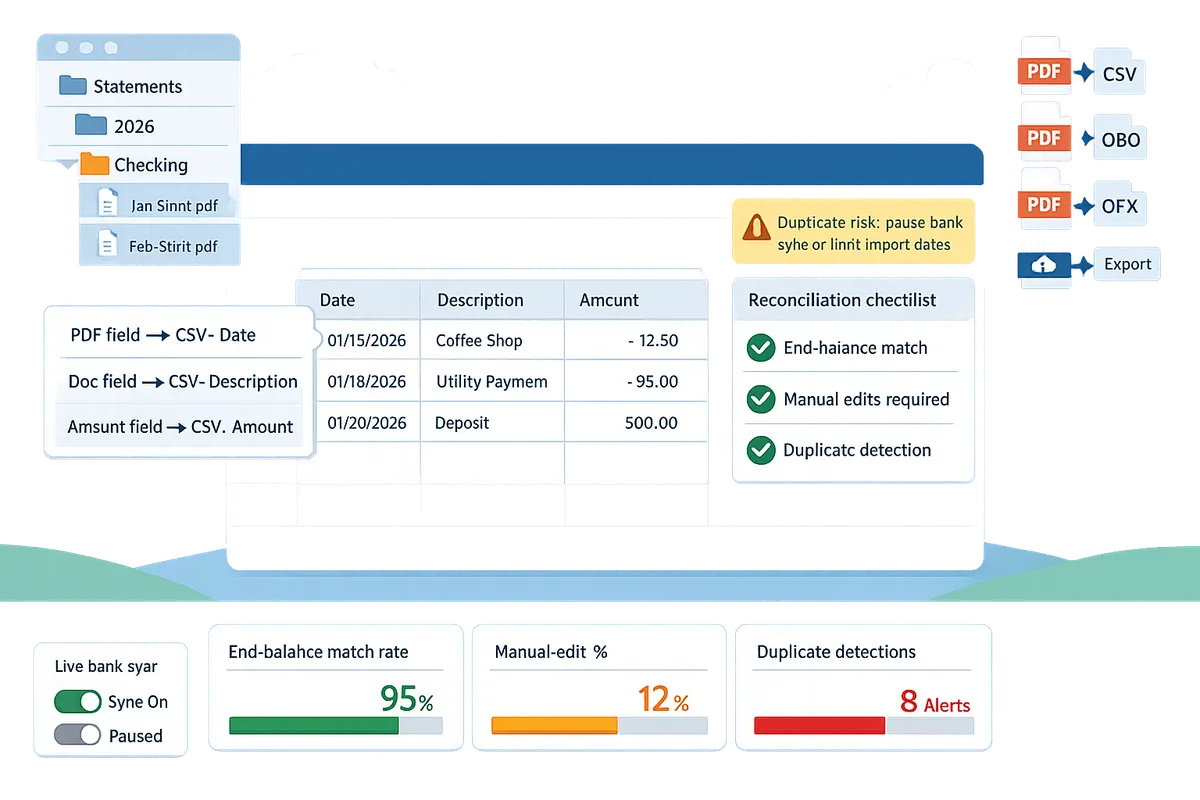
Measure import quality with four core metrics: end-balance match rate, manual-edit percentage, duplicate-detection rate, and average time per import. Track these to quantify time saved and pinpoint recurring format problems.
- End-balance match rate = (imports with matching end balance / total imports) × 100. Use Rocket Statements export logs and QuickBooks reconciliation reports to compute this. Rocket Statements' export logs often flag balance mismatches before import.
- Manual-edit percentage = (rows edited in QuickBooks after import / total rows imported) × 100. Export a pre/post import line count from Rocket Statements and compare with QuickBooks post-import edits.
- Duplicate-detection rate = duplicates found during reconciliation / total imports. Configure Rocket Statements to tag suspected duplicates in the export so you can measure how many still pass to QuickBooks.
- Average time per import = total staff time spent on export + cleanup + reconciliation ÷ number of imports. Pull time-per-task from your ticketing or time-tracking tool and correlate with Rocket Statements timestamps.
Example: a month with 200 statement imports where 190 end balances match yields a 95% end-balance match rate. Use that same month to calculate manual-edit percentage and time savings versus your historical baseline.
💡 Tip: Run the "Pre-import sanity check for RS → QuickBooks (my quick list)" after each bulk export to catch date formats, sign issues, and memo trimming before importing.
DIY spreadsheet workflow vs Rocket Statements: time, error, and compliance tradeoffs 🧾
Manual PDF-to-spreadsheet workflows often cost accounting teams several staff hours per 50 PDF pages and increase reconciliation risk; Rocket Statements reduces that workload by producing QuickBooks-ready files and centralized document management. Example scenario and comparative table below use a small accounting firm that processes 200 client statements in a month.
| Metric | DIY spreadsheet workflow (example) | Rocket Statements (example) |
|---|---|---|
| Staff hours per 200 statements | 120 hours (manual OCR cleanup, column fixes, mapping) | 12 hours (review exports, run sanity checks) |
| First-pass import success (end-balance match) | 78% | 95% |
| Duplicate detection burden | High. Manual cross-checks and missed dupes cause reconciliation edits | Low. Exports include duplicate flags and naming rules |
| Compliance & audit trail risk | High if files live on local drives or ad-hoc Google Sheets | Low. Cloud folders, access controls, and export logs centralize evidence |
These numbers illustrate typical business consequences: DIY increases billable-hours spent on cleanup, risks missed duplicates that drive reconciliation cycles, and creates audit exposure when documents are scattered. Rocket Statements reduces those risks by converting statements into structured exports, storing them in client/year folders, and syncing live feeds so you do fewer manual merges.
For prescriptive onboarding, see our step-by-step guide "PDF Bank Statements to QuickBooks in Minutes | Rocket Statements" and the mapping deep dive in "Can Rocket Statements export QuickBooks-compatible files? CSV for QBO and Spreadsheet Sync mappings explained (2026)."
Frequently Asked Questions
This FAQ answers the operational and product questions accountants and finance ops ask most about QuickBooks CSV import 2026 requirements and using Rocket Statements to prepare imports. Each answer gives a direct, actionable ruling followed by the exact steps or links you need to resolve the issue quickly.
Can I import bank transactions from CSV into QuickBooks Online in 2026? 🧾
Yes. QuickBooks Online accepts CSV imports when the file uses QuickBooks-compatible headers and approved date and amount formats. QuickBooks prefers a clean CSV with canonical headers like Date, Description, Amount, and Payee and with dates normalized to YYYY-MM-DD or MM/DD/YYYY depending on your QBO locale. QBO or QFX files remain preferable when you can produce them because they preserve transaction type and split information that CSV often loses. Our Rocket Statements exports can produce QBO/QFX or QuickBooks-ready CSV so you avoid spreadsheet rework; see our guide on whether Rocket Statements can export QuickBooks-compatible files for mapping examples.
What exact CSV headers does QuickBooks Online require in 2026? 🧷
QuickBooks Online requires explicit header names and consistent value formats for reliable mapping. Use these canonical headers and formats:
| Header | Accepted values and notes |
|---|---|
| Date | YYYY-MM-DD preferred. Avoid ambiguous formats like 01/02/03. |
| Description | Free text. Keep bank-provided description intact for audit trails. |
| Amount | Positive numbers for credits, negative for debits or use parentheses depending on your QBO import settings. No thousands separators. |
| Payee | Optional but recommended to speed categorization. |
| Memo | Optional. Use only when you need extra context. |
| CheckNumber | Optional for checks; use plain numbers only. |
If you need a slimmer file, a 3-column CSV with Date, Description, and Amount works for many imports. Download the sample 3-column and 4-column templates earlier in this guide and follow our Pre-import sanity check for RS → QuickBooks checklist before uploading.
Is QuickBooks Desktop being discontinued in 2026 and how does that affect imports? 🔁
QuickBooks Desktop continues to receive updates in 2026 but its import workflows differ from Online and require planning when migrating. Desktop still supports IIF, QFX, and CSV workflows that differ in accepted fields and mapping behavior. That means a migration done without exporting native-format files risks losing transaction-level metadata and increases reconciliation time. To future-proof migrations, export Desktop-ready QFX or platform-native backups and also keep a clean CSV export that follows the header table above. Our Rocket Statements exports can produce both QuickBooks Online and Desktop-compatible files so you can stage a phased migration while preserving audit trails and reducing manual mapping during the handoff.
Do I need Intuit's CSV toolkit to import into QuickBooks? 🧰
No. Intuit's CSV toolkit is optional and helps with complex, bulk transformations, but it is not required for most imports. The toolkit adds value when you must convert dozens of bespoke bank layouts into a single schema or when you need Intuit-verified mappings for unusual fields. For typical PDF-to-CSV workflows, Rocket Statements QuickBooks-ready exports remove the need for extra conversion tools because our exports apply consistent headers and format rules that match QuickBooks import expectations. See our step-by-step examples in PDF Bank Statements to QuickBooks in Minutes to compare the time saved by using Rocket Statements versus manual toolkit workflows.
How accurate is OCR when converting bank statements to CSV? 🖨️
OCR accuracy varies by statement quality, but Rocket Statements plus manual validation reduces the error rate compared with DIY OCR workflows. Common OCR failure modes include multi-line descriptions, faded scans, and handwritten notes. To catch OCR errors, perform the following verification steps: verify end-balance against the bank statement, run a 10–20 line spot check of dates and amounts, confirm negative signage and decimal placement, and compare line counts to the source PDF. Our Pre-import sanity check for RS → QuickBooks checklist shows the exact checks that prevent the most expensive reconciliation mistakes.
What are the fastest fixes for 'date not recognized' or 'amount format' errors during import? 🛠️
Normalize Date and Amount formats first; that resolves most QuickBooks import errors. Do these steps in order:
- Convert all dates to YYYY-MM-DD or your QBO locale format and save the column as text to prevent spreadsheet reformatting.
- Remove thousands separators and ensure a single decimal point.
- Standardize negative values to either a leading minus or parentheses based on the import profile you selected.
- Trim leading and trailing spaces from all fields and remove non-printable characters.
- Save the CSV as UTF-8 without BOM and verify the header names match exactly the canonical headers table above.
💡 Tip: Run the Rocket Statements pre-import checklist before retrying an import to catch header mismatches, sign errors, and duplicate detection issues.
Start with a checklist to avoid import failures and save time.
Standardize file layout, date formats, and balance checks so your team meets QuickBooks CSV import 2026 requirements and avoids downstream reconciliation work. Accounting teams that apply a short pre-import routine cut client-level cleanup from hours to minutes; this article shows which checks matter most for QBO and Desktop imports.
Rocket Statements is a platform that helps users save time and money by automating the process of converting their statements into spreadsheets as well as manage their documents in the cloud. The product has the following features:
- Convert their PDF and image statements into spreadsheets
- Manage their documents in the cloud with folders and subfolders
- Sync live transactions data from bank accounts
- Transform their statements into CSV, Excel, JSON, and PDF files
- Transform their statements into Quickbooks compatible files
💡 Tip: Run the pre-import checklist before uploading exports to QuickBooks. See the pre-import checklist for RS → QuickBooks for quick validation steps.
Schedule a consultation with Rocket Statements to review your import workflow and reduce manual cleanup. For export and mapping details, consult the QuickBooks-compatible export FAQ and the PDF Bank Statements to QuickBooks in Minutes guide.