
PDF Bank Statements to QuickBooks in Minutes | Rocket Statements

PDF Bank Statements to QuickBooks in Minutes | Rocket Statements
Converting 50 PDF bank statement pages into QuickBooks-compatible files can cost an accountant 3–5 hours of manual work. To convert bank statements to QuickBooks, teams typically export CSVs, fix columns, and reconcile differing bank layouts before import. Rocket Statements is a platform that automates converting PDF and image statements into spreadsheets, stores documents in cloud folders, and produces QuickBooks-ready CSV, Excel, JSON, or PDF exports. This beginner's guide starts from zero and shows how to prepare scanned statements, set up multi-bank exports, and sync live transaction feeds so imports need minimal cleanup. See our guide to convert bank PDFs to spreadsheets for hands-on steps. You'll see which simple checks prevent costly import mistakes and how minutes can replace hours.
How does converting bank statements to QuickBooks work?
Converting bank statements to QuickBooks extracts transaction rows from PDFs or scanned images and outputs a QuickBooks-compatible import file such as QBO, QFX, IIF, or CSV. This process uses optical character recognition to read dates, amounts, payees, and balances, then maps those columns to QuickBooks fields so you can import without retyping each entry. Using Rocket Statements reduces manual cleanup by producing consistent columns, running pre-import validation checks, and exporting the exact file type QuickBooks expects.
QuickBooks import formats: QBO, QFX, IIF, CSV 🗂️
QBO, QFX, IIF, and CSV are the main file types QuickBooks accepts for bank imports. QBO and QFX act like bank-feed files and keep metadata such as check numbers and running balances, which helps automatic matching inside QuickBooks Online. IIF is an older QuickBooks Desktop format that requires more mapping and is best when you must import legacy account structures. CSV offers the most flexibility for bulk uploads when you control column mapping but needs careful column alignment to avoid date or amount errors.
| Format | Best for | Pros | Cons | Example use |
|---|---|---|---|---|
| QBO | QuickBooks Online bank-feed style imports | Keeps transaction metadata and dates | Vendor-specific quirks possible | Use when you want transactions to appear like a bank feed |
| QFX | QuickBooks Desktop / bank-fed files | Keeps metadata and works with many banks | Slight format differences across banks | Import into QuickBooks Desktop for reconciliations |
| IIF | QuickBooks Desktop legacy imports | Can import complex account allocations | Needs manual mapping and careful templates | Migrate historical data where QBO/QFX not supported |
| CSV | Bulk imports and custom mappings | Flexible, easy to preview in Excel | Requires column mapping and date format consistency | Use when consolidating multiple banks into one import file |
For a practical workflow that uses Excel as an intermediate step, see Easily Convert Bank Statements to Excel and Import into QuickBooks for a step-by-step example using Rocket Statements.
How OCR and data extraction work 📄
Optical character recognition (OCR) is a technology that reads printed or scanned text and converts it into structured rows (date, description, amount, balance) ready for mapping to QuickBooks fields. Rocket Statements applies OCR to both machine-generated PDFs and scanned images, then standardizes the output into columns a bookkeeper can preview and adjust. Machine-generated PDFs usually require minimal edits because text layers are clean; scanned images often need line-break fixes, decimal correction, or manual payee normalization. A practical workflow: run OCR, review a sample page, correct recurring errors with a find-and-replace step, then export to the target QuickBooks format.
If you prefer an Excel staging step, our guide How to Convert Bank Statements to Excel (Fast & Free Guide) explains using Rocket Statements to create a reviewable spreadsheet before creating QBO or CSV files. Rocket Statements also stores the converted files in cloud folders so teams can review and approve before import.
Common data issues that break imports ⚠️
Missing columns, inconsistent date formats, and duplicate transactions are the most common problems that cause QuickBooks import failures. Missing the date or amount column results in rejected rows; inconsistent dates (MM/DD/YYYY vs DD/MM/YYYY) cause mis-posted transactions; duplicates create reconciliation mismatches and overstate cash balances. Month-end balance mismatches often trace to statement-level adjustments or omitted bank fees that were not captured as separate rows.
Rocket Statements includes pre-import validation that flags missing fields, inconsistent date formats, negative-sign anomalies, and repeated transaction references so you fix issues before you import. For accountants, this saves billable hours by catching errors earlier and reducing reconciliation time. Read Bank Statement Converter for Accountants and Bookkeepers to see how automated checks fit into an accounting workflow.
💡 Tip: Run pre-import validation on a small sample file first. Flagged errors are easier to batch-fix in the spreadsheet than after an import.
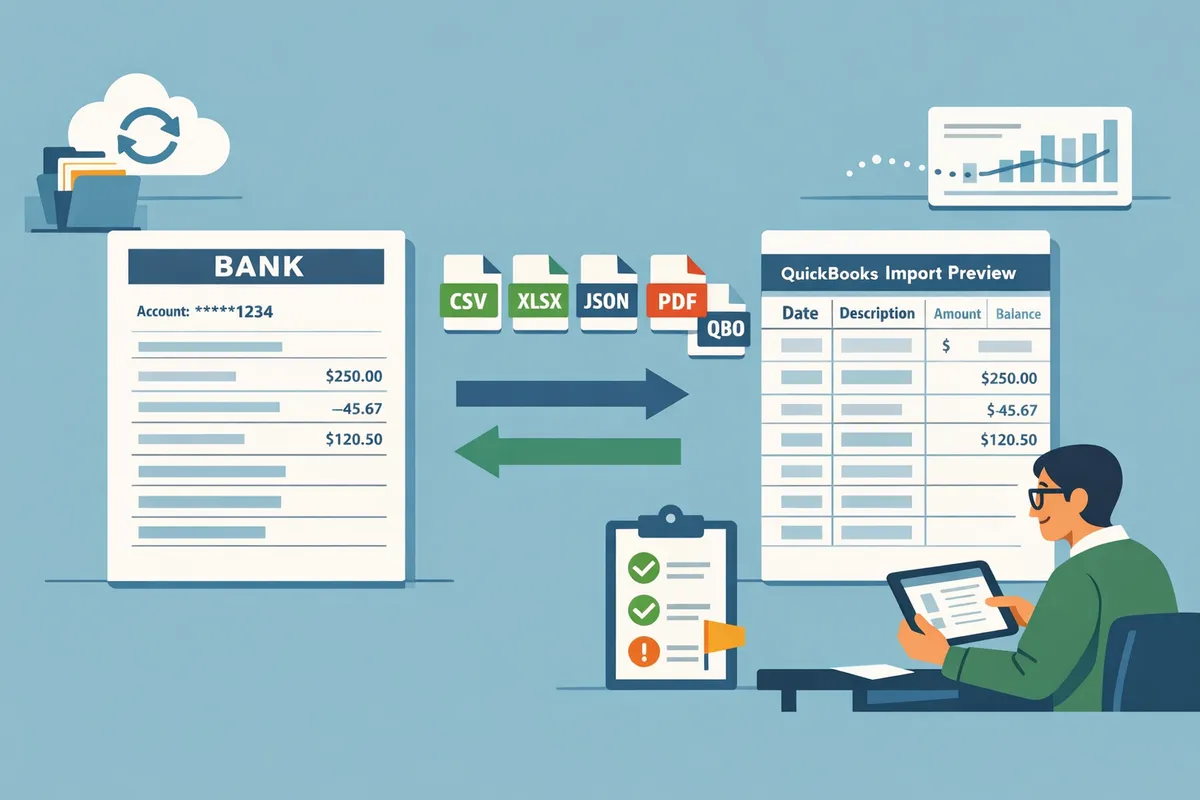
How do I convert PDF bank statements to QuickBooks step-by-step?
Use a four-step workflow—upload, extract, map/validate, and import—to convert PDF bank statements to QuickBooks fast. Rocket Statements on our website automates extraction and outputs QBO, QFX, CSV, or IIF files ready for QuickBooks Online and Desktop. The steps below show practical actions, quick checks, and common pitfalls that cost accountants hours when done manually.
Step 1: Prepare and upload statements to Rocket Statements 📤
Upload all PDFs and scanned images into Rocket Statements and organize them by client folder with metadata (account number, statement period). Organizing by client and adding metadata ensures mapping rules apply consistently across months and removes repeated downloads. Use bulk upload for large batches and name files consistently (bankname_YYYY-MM). For example, grouping 12 months of statements into a single folder lets you apply one mapping template to the entire year instead of remapping each file individually. See our guide on Bank Statement Converter for Accountants and Bookkeepers for workflows that accountants use to centralize files.
Step 2: Choose the right output format and map fields 🔁
Select QBO for QuickBooks Online bank-feed style imports and choose QFX or QBO for QuickBooks Desktop; choose CSV or IIF when you need custom field mapping. Map obvious fields first: date to Date, description to Payee, debit/credit to Amount, and check for split or fee lines. Save the mapping as a template named for the bank and account type (for example, 'Chase Business Checking - QBO') so subsequent months import with no manual remapping. If you plan to inspect data in Excel before import, export a CSV or Excel file and follow our step-by-step Excel import workflow in Easily Convert Bank Statements to Excel and Import into QuickBooks.
Step 3: Validate, fix duplicates, and run a test import ✅
Validate date formats, amounts, and duplicate detection, then run a test import to a copy of your company file or a single account. Spot-check 10 to 20 rows across different statement pages for OCR errors (misread dates or decimal points). Use matching rules based on date + amount + reference to flag probable duplicates; Rocket Statements flags likely duplicates and supports exclusion rules so you avoid importing repeated entries. Perform the test import into a sandbox or a single bank account to confirm how QuickBooks matches vendor names and categories before you touch the live register.
Step 4: Import into QuickBooks and reconcile 📥
Import the prepared QBO, QFX, CSV, or IIF file into the appropriate QuickBooks product and reconcile using your bank register. For QuickBooks Online, upload the QBO/QFX or CSV file from the Banking page and assign the destination account before finalizing. For QuickBooks Desktop, use the Web Connect path for QBO/QFX files and QuickBooks' import feature for CSV or IIF files; always confirm the destination account first. After import, reconcile by matching a sample of transactions against the PDF statement. Manual conversion errors typically cause reconciliation mismatches and add hours of corrective work, which is why many firms use Rocket Statements to reduce that risk.
Security and privacy checklist before using a third-party converter 🔒
Verify encryption in transit and at rest, role-based access controls, retention and deletion policies, and audit trails before uploading client statements to any third party. Confirm that client folders are private, that admins can set retention windows, and that the vendor records who accessed or exported each document. Rocket Statements stores files in client-specific folders, keeps audit logs, and supports role-based permissions to help meet common compliance needs.
⚠️ Warning: Do not upload client statements without confirming deletion policies and access controls. If a vendor cannot guarantee deletion or an audit trail, you increase exposure to data breaches and regulatory risk.
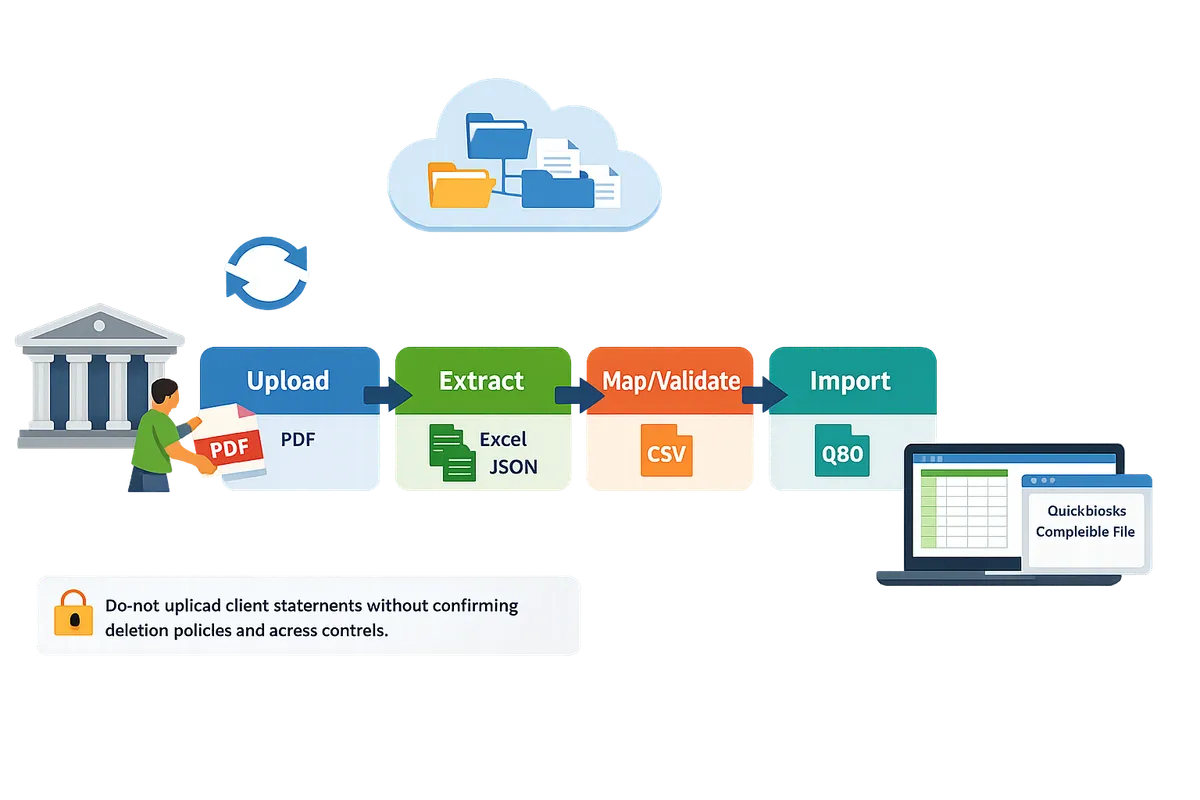
For more on converting statements to spreadsheets before import, see our practical guide How to Convert Bank Statements to Excel (Fast & Free Guide) and the conversion-to-Excel walkthrough in How to convert your bank statements from pdf to excel.
How do I automate, scale, and integrate bank statement imports with QuickBooks?
Automate imports by scheduling Rocket Statements to extract transactions and deliver QuickBooks-ready files on the cadence your firm uses for reconciliation. Scheduled extracts cut repeated manual downloads, reduce missed transactions, and keep client books current for month-end closes.
Set up scheduled syncs and live feeds from multiple banks 🔄
Schedule nightly extracts or continuous live feeds in Rocket Statements so QuickBooks-ready files arrive without manual downloads. For each client, map bank account numbers to a client folder in our Rocket Statements platform and set the cadence (nightly, daily, or hourly) that matches your reconciliation cycle. Example: schedule nightly extracts and weekly QBO exports so your reconciler sees a fresh bank feed before weekly client calls. Rocket Statements tags transactions and applies duplicate protection to prevent repeated imports when a bank reissues the same statement.
Use our banks list to verify supported connections and to prioritize live feeds for high-volume clients. See our bank coverage page for a quick check of supported institutions.
Export workflows: QuickBooks import vs Google Sheets automation 📊
Export directly to QBO/QFX/IIF/CSV for ledger updates, or export to Google Sheets for consolidated multi-bank reporting and pre-import review. Use QBO exports when you need bank feeds imported into QuickBooks Online for direct reconciliation. Use CSV/Excel exports pushed to Google Sheets when you need consolidated cash positions across multiple banks or clients.
Rocket Statements can automatically export CSV or Excel to Google Sheets so bookkeepers can automatically import statements into Google Sheets from multiple banks for rollups and KPI dashboards. For step-by-step Excel-focused workflows, see our guide on converting bank statements to Excel and importing into QuickBooks and our fast PDF-to-Excel walkthrough.
Comparison table: QBO vs QFX vs IIF vs CSV 🧾
Choose the file type that matches your QuickBooks version and your tolerance for manual mapping. QuickBooks bank-feed file conversion QBO QFX IIF is commonly required language when deciding which export to use.
| Format | QuickBooks compatibility | Metadata retention | Ease of mapping | Best use case | Notes |
|---|---|---|---|---|---|
| QBO | QuickBooks Online (native bank feeds) | High (bank id, fitid) | Low mapping required | Live bank feeds and fastest reconciliation | Rocket Statements outputs QBO for direct uploads to QBO accounts |
| QFX | QuickBooks Desktop (certain imports) | Medium (bank id but limited fields) | Moderate mapping | Desktop users needing bank-feed style files | Use when Desktop requires bank-formatted imports |
| IIF | QuickBooks Desktop (legacy) | Low (ledger-focused) | High; manual mapping often required | Legacy journal or list imports where CSV won’t suffice | Good for old workflows but higher risk of mapping errors |
| CSV | QuickBooks Online/Desktop (manual import) | Varies by column mapping | High control; requires mapping | Bulk imports, Google Sheets rollups, custom ledgers | Best for consolidated reports and custom ETL; Rocket Statements exports clean CSVs for import bank statements into QuickBooks from CSV workflows |
Scaling tips: multi-client folders, audit trails, and exception workflows 🗃️
Use client folders, automated tagging, and exception alerts in Rocket Statements to scale processing across many clients without missed items. Start by creating a folder template with subfolders for raw PDFs, parsed extracts, and QuickBooks exports. Assign a naming convention that includes client ID and statement period to speed audit searches.
Set exception rules that trigger alerts for missing pages, failed extractions, or suspicious transactions (for example, single transactions above a threshold). Route exceptions to a named reviewer with an SLA (24–48 hours) and track status in the folder audit trail so managers can spot bottlenecks. Our platform logs every upload and export so you can produce an audit report if a client questions an import.
⚠️ Warning: Limit folder access and redact or mask full account numbers when sharing exports outside your bookkeeping team to meet client privacy expectations.
Frequently Asked Questions
This FAQ answers the operational and technical questions small business owners and accountants ask about converting bank statements to QuickBooks with Rocket Statements. It focuses on accuracy, file formats, Desktop vs Online workflows, duplicate handling, and security so you can move from PDF to reconciling faster.
How accurate is OCR for bank statements? 🧾
OCR is a technology that reads text from images and PDFs, and its accuracy depends on statement quality and source. Machine-generated PDFs from banks typically yield very few extraction errors, while low-resolution scans, photographed pages, heavy shading, stamps, or handwriting cause most mistakes. Improve results by scanning at 300 DPI, saving as searchable PDF or PDF/A, cropping to the statement area, and removing sticky-note or pen annotations before upload. Rocket Statements flags uncertain reads and shows a validation grid so you can correct ambiguous lines before export.
💡 Tip: Always scan at 300 DPI and use PDF/A for consistent OCR output.
Next step: Upload a representative sample to Rocket Statements to see extraction confidence scores and validate corrections.
Can I convert PDF bank statements to QuickBooks Online directly? ☁️
Yes. You can import converted files into QuickBooks Online by producing a QBO file or a properly formatted CSV. QBO preserves bank-feed style metadata and imports into the QuickBooks bank upload flow; CSV gives you column control when you need custom mapping. Use a 10–20 transaction test import to confirm column mapping and date formats before doing a full import. Rocket Statements can output QBO and CSV files and offers a preview to match columns to QuickBooks fields.
Next step: Create a short test file in Rocket Statements and follow the QuickBooks Online import to confirm mapping.
Which file format should I use for QuickBooks Desktop vs Online? 📂
Choose QBO for QuickBooks Online bank-feed imports and QFX or QBO for Desktop when bank-feed metadata matters; use CSV or IIF for custom mapping or large bulk imports. Below is a quick comparison to pick the right format for your situation.
| Format | Best for | Pros | When to pick |
|---|---|---|---|
| QBO | QuickBooks Online bank uploads | Preserves feed-style fields, date/amount/reference alignment | You want minimal mapping and straightforward reconciliation |
| QFX | QuickBooks Desktop bank-style imports | Desktop-friendly feed metadata | Desktop requires bank-like imports with bank ID metadata |
| CSV / IIF | Bulk imports or custom chart mapping | Full control over columns, easy to edit in Excel | You need to remap account codes or upload hundreds of rows |
Rocket Statements can produce QBO, QFX, CSV, and IIF outputs and provides format templates to match QuickBooks Desktop or Online requirements.
Next step: Confirm your QuickBooks version and export a small QBO or CSV from Rocket Statements to test the import path.
Can Rocket Statements convert statements for QuickBooks Desktop? 🖥️
Yes. Rocket Statements outputs QBO and QFX compatible with QuickBooks Desktop and can produce CSV or IIF files when you require custom mapping. The platform includes format choices and export templates that align with Desktop import expectations and reduces manual column edits. For Desktop-specific guidance and format examples, see our article for accountants and bookkeepers that explains how to set up file exports for Desktop workflows.
Next step: Select QuickBooks Desktop output in Rocket Statements and run the validation report before importing into Desktop.
How do I handle duplicates and reconciliation after import? 🔁
Identify duplicates by matching date, amount, and reference, then exclude or mark them before reconciliation. Use Rocket Statements' validation step to flag likely duplicates and review suggested matches. Follow a short reconciliation sequence:
- Export a test file with a single month.
- Import into QuickBooks with a small sample and compare opening/closing balances.
- Use Rocket Statements' duplicate report to exclude rows that match existing QuickBooks transactions.
- Reconcile by matching imported transactions to the bank statement and investigate any flagged exceptions.
Next step: Run Rocket Statements' duplicate check, export a test import, and reconcile that one month in QuickBooks to confirm the process.
Is it safe to upload bank statements to a cloud service? 🔒
Uploading bank statements is safe when the provider uses encryption in transit and at rest, role-based access controls, and audit logs. You should also verify retention policies, data deletion options, client-level folder isolation, and compliance attestations such as SOC2 or ISO where available. Rocket Statements stores documents in cloud folders and provides subfolder organization and access controls; review the security documentation and retention settings before onboarding sensitive client data.
⚠️ Warning: Confirm deletion policies and client isolation before uploading production client statements to any third-party service.
Next step: Review Rocket Statements' security pages and test with non-sensitive statements to confirm your retention and access controls.
Related reading: If you prefer a step-by-step Excel route first, see our guide on how to convert bank statements to Excel and import them into QuickBooks for alternate workflows.
Take the next step to convert bank statements to QuickBooks.
You now know how a purpose-built workflow turns PDF or scanned statements into QuickBooks-ready files without hours of manual rekeying. Doing it by hand creates reconciliation errors, wasted staff time, and missed deadlines; using a tool focused on statement processing reduces those risks and frees your team for higher-value work. For a hands-on example, see our guide on Easily Convert Bank Statements to Excel and Import into QuickBooks.
Rocket Statements is a platform that helps users save time and money by automating the process of converting their statements into spreadsheets as well as manage their documents in the cloud.
The product has the following features:
- Convert PDFs and image statements into spreadsheets
- Manage their documents in the cloud with folders and subfolders
- Sync live transactions data from bank accounts
- Transform their statements into CSV, Excel, JSON, and PDF files
- Transform their statements into QuickBooks-compatible files
Start a free trial of Rocket Statements to upload a sample statement and produce a QuickBooks-compatible file in minutes. If you want step-by-step practice first, follow How to Convert Bank Statements to Excel (Fast & Free Guide) before your trial.
💡 Tip: Run a single converted file through QuickBooks before batch importing to confirm account mapping and column order.
For more on Bank statement conversion & QuickBooks automation, see our Bank Statement Converter for Accountants and Bookkeepers.