
Microsoft Excel Add-In for Bank Statement Conversion
Microsoft Excel Add-In for Bank Statement Conversion
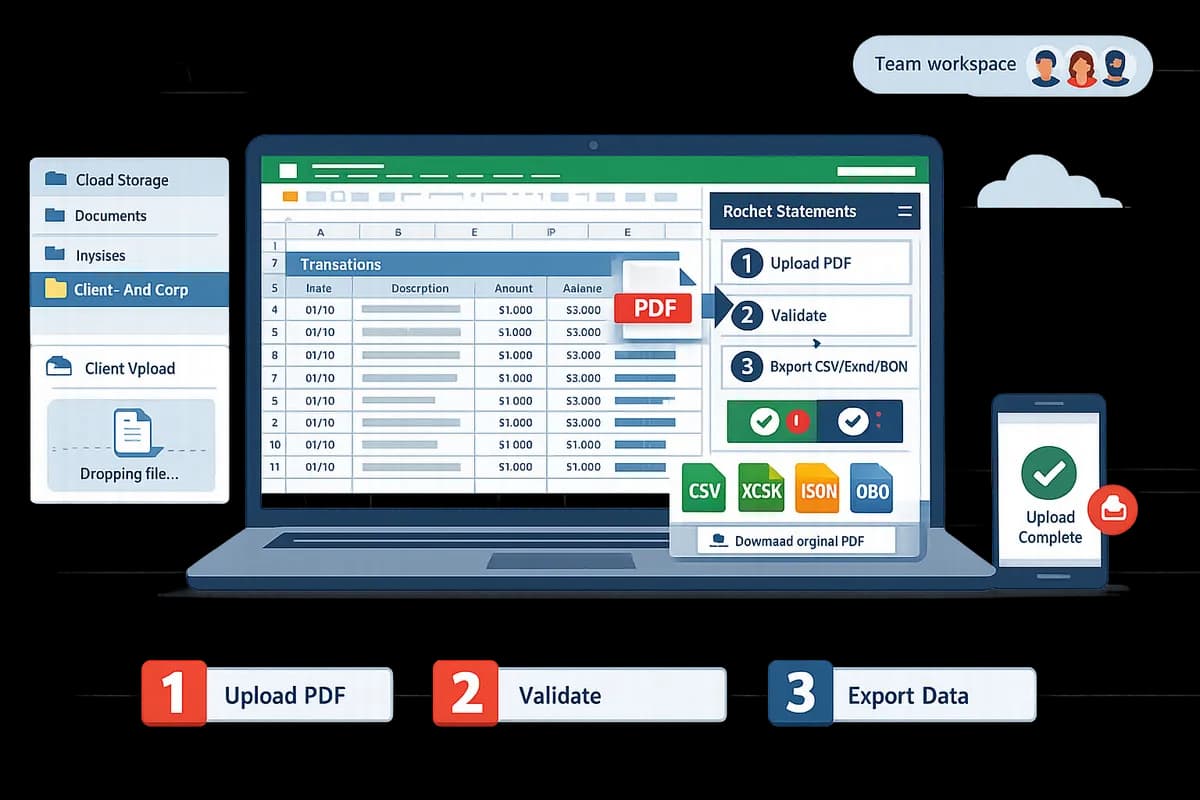
A single misaligned column in a PDF bank statement can add two hours of manual cleanup per client. A Microsoft Excel add-in for bank statement conversion is a plugin that converts user-supplied PDF and image statements into structured, spreadsheet-ready transaction data inside Excel. Our Rocket Statements Excel add-in brings that conversion into your workbook while storing originals and results in cloud folders so teams and clients share one organized workspace. That reduces hours spent retyping transactions and lowers the risk of import errors during month-end and tax prep. Explore our bank statement converter to see supported exports and batch processing. Curious how it flags extraction errors by reconciling extracted transactions with the statement's printed balances?
What do I need to prepare before using the Microsoft Excel add-in for bank statement conversion?
Prepare the source PDF or image files, a Rocket Statements workspace with the Excel add-in available, and a consistent client folder structure before you start. These items reduce manual cleanup, enable batch processing, and make exports repeatable across clients. Below are four practical preparation steps with concrete examples and expected outcomes.
Step 1: Confirm acceptable file types and naming conventions 🗂️
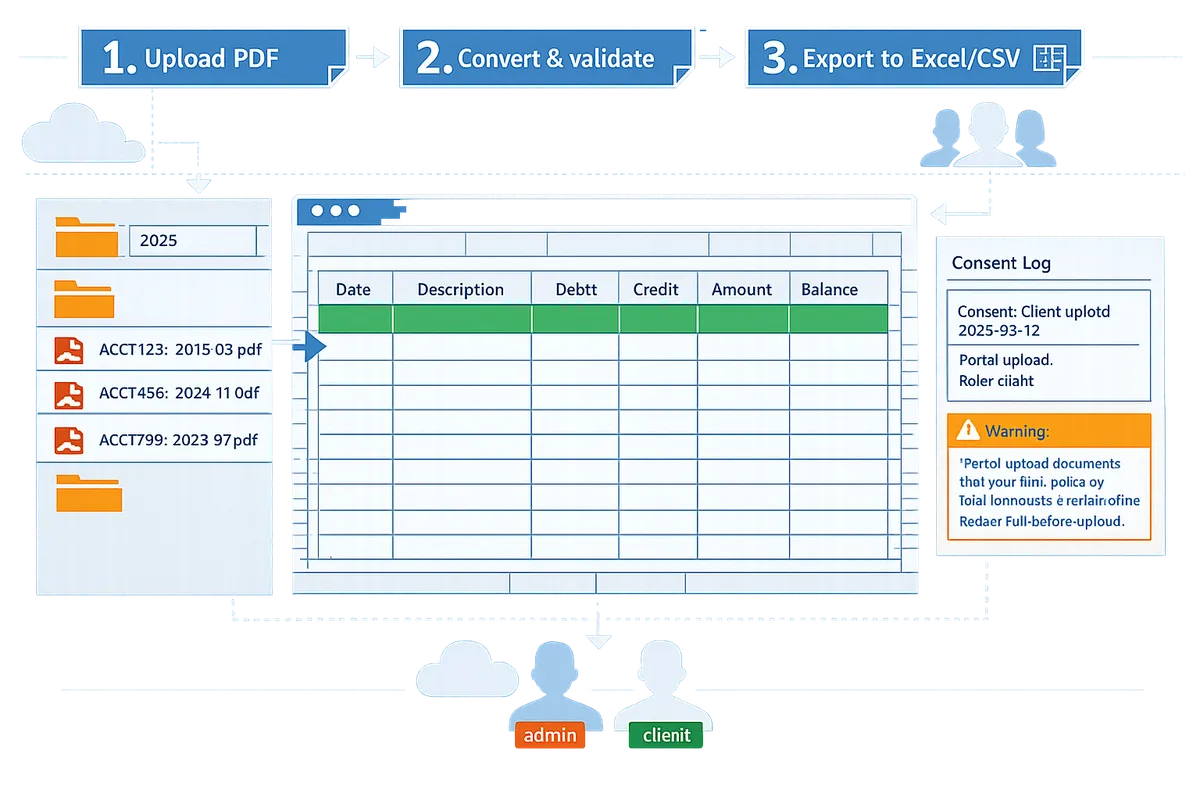
Acceptable inputs are PDF, JPG, and PNG files; name each file with a client code, year, and month (for example: ACCT123_2025-03.pdf) to keep batch processing predictable. Use single-file PDFs for each monthly statement to avoid split-page OCR errors; if a statement spans two physical pages, combine them into one PDF first. Scan images at 300 DPI and save them as full-page JPG or PNG files to improve text recognition. Example naming patterns that scale: ACCT123_2025-03.pdf, ACCT123_2025-04.pdf, ACCT456_2025-03.pdf. Consistent names let Rocket Statements run folder automation and reduce manual sorting.
Refer to our guide on converting statements for examples of problematic layouts and how filename patterns prevent duplicate imports: Convert Bank Statements in Excel.
Step 2: Set up your Rocket Statements workspace and client folders 🔐
Create a Rocket Statements workspace with one folder per client and subfolders by year for high-volume firms. Assign client-level access where clients should upload directly, and reserve admin seats for staff who validate extractions. Example structure: Clients / ACCT123 / 2024 / [statements], Clients / ACCT123 / 2025 / [statements]. This layout keeps exports searchable and simplifies year-by-year bulk downloads for tax preparation or audits. Use the client portal to let clients upload statements directly into the right folder; that removes email attachments and reduces file-misplacement risk.
Our Bank Statement Converter page explains how foldering, client portals, and team accounts work together to keep formats consistent across clients.
Step 3: Prepare a mapping template for spreadsheet fields 🧾
A mapping template is a worksheet that lists the exact Excel column names your firm requires, for example Date, Description, Debit, Credit, Amount, and Balance. Create one row that maps common vendor outputs to your ledger fields. Example mapping rules: if a bank provides separate Debit and Credit columns, keep both and use your import routine to reconcile; if the export uses a single Amount column with negative values, add a rule in your mapping template to split into Debit and Credit. Include sample rows showing how different bank formats should appear after conversion.
💡 Tip: Include alternate column headings your team encounters, like 'Transaction Date' or 'Post Date,' in the template so the add-in maps them automatically during bulk exports.
See our step-by-step conversion walkthrough for downloadable examples and template suggestions: How to convert your bank statements from pdf to excel.
Step 4: Privacy and redaction checklist ⚠️
Confirm client consent and local compliance rules before uploading statements to the Rocket Statements cloud, and redact highly sensitive personal health or legal details if your firm policy requires it. Rocket Statements stores documents in the cloud to enable folders and client portals, so document retention and sharing rules apply; if your firm's policy prohibits cloud storage, do not upload those files. Typical redaction items to consider: social security numbers, full ID numbers, and case-specific legal or medical notes that fall outside routine financial data. Keep a short consent log for each client upload to show permission if an auditor asks.
⚠️ Warning: Do not upload documents that your firm policy or local law requires to remain offline. Redact PHI or sealed-case notes before upload when necessary.
How do I install and activate the Rocket Statements Microsoft Excel add-in?
Install the Rocket Statements Microsoft Excel add-in from Excel's Add-ins store and sign in to link Excel to your Rocket Statements workspace. This connection lets you convert bank statement PDFs and images to spreadsheet-ready transaction data directly inside Excel. Follow the four steps below to install, verify access, and roll the add-in out to your team.
Step 1: Open Excel and locate the Add-ins store 🧩
Open Excel and choose Insert > Get Add-ins, then search for 'Rocket Statements.' Install the add-in from the Office Add-ins dialog so it appears on the ribbon. If your firm manages deployments centrally, request that your Microsoft 365 admin add Rocket Statements via the admin center and pin it to the ribbon for users. Expected outcome: a Rocket Statements button or panel shows on the Excel ribbon and opens the add-in pane when selected.
- Actionable steps:
- Open Excel (Windows or Mac).
- Select Insert > Get Add-ins.
- Search 'Rocket Statements' and select Install.
- What can go wrong: an organization policy may block installs. Recovery: ask IT to approve the add-in in the Microsoft 365 admin center and deploy it.
See our comparison of Excel workflows in the Convert Bank Statements in Excel article for when a manual Power Query route makes sense versus using the add-in.
Step 2: Sign in and connect to your Rocket Statements workspace 🔗
After installation, sign in with your Rocket Statements credentials so the add-in can list your workspace folders and recent uploads. The add-in uses your Rocket Statements account to surface client folders, recent uploads, and any shared subfolders you have access to. Expected outcome: the add-in pane shows a folder tree and a recent uploads list so you can open a PDF stored in your workspace or upload one from your machine.
- Actionable steps:
- Click the Rocket Statements ribbon button.
- Choose Sign in and enter your Rocket Statements email and password.
- Confirm the workspace and client folder you want to use.
- What can go wrong: a user account without the right permission sees only client-level views. Recovery: confirm the user is assigned the correct admin or client role in our website workspace settings.
Link to the Bank Statement Converter page for details on supported export formats and batch processing options available once your workspace is connected.
Step 3: Verify permissions and test with a sample statement ✅
Run one conversion from a sample PDF in a client folder to confirm the add-in can access the file and produce a structured sheet matching your firm template. Open a known-good sample (one scanned image and one digital PDF if possible), run the conversion, and export to Excel to check column names, date formats, and debit/credit placement. Expected outcome: a worksheet with Date, Description, Debit, Credit, and Balance columns that matches your import template.
- Actionable checklist:
- Select a sample PDF in the client folder.
- In the add-in pane, choose Convert and export to Excel.
- Compare column names to your firm's import template and adjust field mapping if needed.
- What can go wrong: OCR misreads on low-quality scans or non-English statements. Recovery: upload a higher-resolution scan, choose the correct bank format in the add-in if prompted, or fix mapping in the Rocket Statements workspace before exporting.
⚠️ Warning: Rocket Statements stores uploaded PDFs and conversion results in the workspace cloud. Confirm your firm's client consent and retention policies before uploading live client documents.
Step 4: Add the add-in to shared templates and train users 👥
Embed the Rocket Statements add-in in your firm's standard Excel template and require each user to complete an install-and-test checklist before processing client work. Create a short checklist that every user follows: install, sign in, run the sample conversion, verify mapping, and export to the firm's template format. Expected outcome: consistent exports across users with minimal cleanup.
- Deployment options and training:
- For small teams, have each user install from Get Add-ins and complete the checklist.
- For larger firms, have IT deploy and pin the add-in via the Microsoft 365 admin center and add the add-in to the firm template.
- Provide a 10-minute demo and a one-page checklist for new users.
- What can go wrong: exported column names vary between users if they use different templates. Recovery: standardize and lock the template, and include a step that verifies column headers before accepting a converted sheet.
For tax preparers and firms standardizing workflows, see our Bank Statements to Excel for Tax Preparers guide to see recommended templates and time-to-value benchmarks when using the add-in.
How do I convert bank statement PDFs to Excel using the add-in?
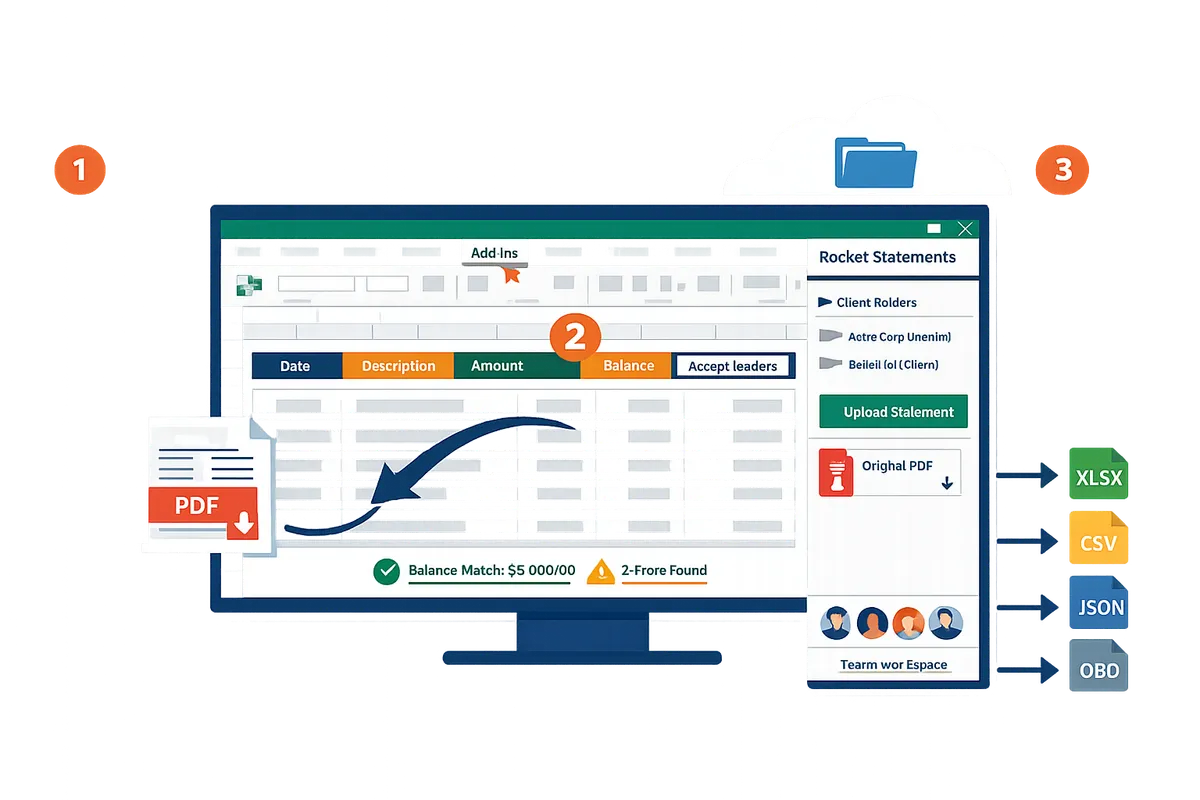
Use the Rocket Statements Excel add-in to select or upload PDF or image statements, extract and validate transactions, then export clean Excel or CSV files. This keeps the original PDF in your workspace while producing import-ready spreadsheets for bookkeeping. The workflow reduces manual transcription and creates a repeatable file structure for teams.
Step 1: Select a statement from the add-in or upload directly from Excel 📤
Open the Rocket Statements add-in panel in Excel and pick an existing PDF or upload a new file from your computer or network drive. Files you upload via the add-in land in your Rocket Statements workspace so teammates and clients can access the exact source later. Rocket Statements accepts PDF, JPG, and PNG inputs; expect a thumbnail of the uploaded file to appear in the add-in panel.
Upload problems usually stem from low-resolution scans or multi-page statements uploaded as separate files. If text looks garbled after extraction, re-scan at 300 dpi or upload the full statement as one PDF to preserve page order. For a quick reference on other Excel workflows, see our detailed comparison in Convert Bank Statements in Excel.
⚠️ Warning: Documents uploaded to Rocket Statements are stored in the cloud; set sharing and client portal permissions before granting access.
Step 2: Run extraction and validation ✅
Click Extract inside the add-in to run Rocket Statements' OCR and reconciliation so the add-in returns structured transactions and highlights balance mismatches. The add-in shows a progress indicator while it processes pages and then drops a validated transaction sheet into Excel. If the statement spans multiple pages, run extraction as a batch to keep transactions continuous and preserve running balances.
If extraction flags a page as unreadable, Rocket Statements surfaces that page and the likely issue so you can re-upload a clearer scan or mark the page boundary and re-run. For an overview of supported formats and batch options, see our Bank Statement Converter page.
Step 3: Review flagged transactions and correct mapping ✏️
Open the extracted sheet in Excel and resolve any rows Rocket Statements flagged for amount, date, or balance inconsistencies before exporting. The add-in marks problematic rows and shows suggested column mappings (date, description, debit/credit, amount, balance) so you can correct misaligned columns or split multi-line descriptions. Example fixes include swapping debit/credit columns, normalizing date formats to YYYY-MM-DD, and merging rows where a merchant name wrapped across two lines.
Expected outcome: a single worksheet per statement with consistent column headers ready for ledger import. If you maintain a firm template, load our mapping template so every client file uses the same field names and column order.
Step 4: Export to Excel, CSV, JSON, or download the source PDF 📥
Choose Export to save the validated transactions as Excel, CSV, JSON, or a QuickBooks-compatible file and optionally download the original PDF to your local drive. Use Excel or CSV for manual ledger imports and batch reconciliation, JSON for integrations, and the QBO/OFX-format exports when preparing files for accounting software import. Rocket Statesments produces import-ready files; it does not push transactions directly into QuickBooks, Xero, or Sage.
For batch jobs, select multiple converted statements to export them as a single workbook with one sheet per statement or as a zip of individual files. Verify delimiter settings and date formats on the first export to avoid rework when importing into your accounting system.
Step 5: Batch processing and client delivery 📦
Select multiple statements and run batch conversions to produce one workbook per client or a zip of individual files for client delivery. Rocket Statements stores outputs in client-specific folders and supports client portals so clients can upload statements directly into the right folder and download their exports.
Expected business outcome: less time spent juggling emailed PDFs, fewer manual entry errors, and a consistent folder structure that simplifies billing and audit trails. Use workspace sharing to grant client or colleague access at the folder level and keep exported files organized by client and period.
💡 Tip: Use our one-time 20-page trial to run a representative set of client statements and confirm the typical time savings and mapping rules before you commit to a plan.
Which is the best option for accountants: Excel add-in, Power Query, or standalone converters?
For accounting firms that import statements regularly, the Rocket Statements Microsoft Excel add-in reduces repetitive steps and ongoing cleanup compared with ad hoc Power Query workflows or one-off converters. Firms that need batch processing, client portals, and repeatable exports will see lower audit risk and less manual maintenance by using the add-in instead of rebuilding mappings for every client.
Comparison table: Add-in vs Power Query vs standalone converters 📊
The table below compares batch processing, accuracy checks, cloud storage, client portals, export formats, and maintenance overhead across the three approaches.
| Capability | Rocket Statements Excel add-in | Power Query (built-in Excel) | Standalone converters / one-off tools |
|---|---|---|---|
| Batch processing | Yes. Converts many statements in one run and stores results | Limited. Requires repeating the query per file or creating complex loops | Varies. Some offer batch, many are single-file only |
| Accuracy checks | Yes. Validates extracted transactions against statement balances | No built-in reconciliation; OCR errors can pass silently | Varies. Most do not reconcile to printed balances |
| Cloud storage & folders | Yes. Documents and exports live in a workspace with foldering | No. Files stay local unless you add cloud drives | Varies. Some cloud converters store files; others are local-only |
| Client portals | Yes. Clients can upload directly into the right folder | No native portal | Some vendors offer portals, but integration and audit trail vary |
| Export formats | Excel, CSV, JSON, QuickBooks-compatible files | Excel/CSV only unless you build exports | Usually Excel/CSV; format consistency varies |
| Maintenance overhead | Low once mapping and workspace are set | High if PDF layouts vary; mappings must be redone | Medium. One-off fixes or vendor tuning may be needed |
Key takeaway: Rocket Statesments centralizes mappings and stores results for auditability, while Power Query requires manual remapping when statement layouts change. For a practical walkthrough of a Power Query approach and the common failure modes to watch for, read our guide on converting bank statements in Excel.
Security and privacy considerations 🔒
Cloud-based converters store uploaded statements on remote servers, so firms must confirm client consent and internal policy alignment before using them. Rocket Statements stores documents in a workspace to provide foldering and client portals; that design improves collaboration and audit trails but requires due diligence on client consent and retention policies.
Confirm whether your firm policy allows cloud storage of client statements. Ensure clients sign consent forms where required and log who has access to each folder. Keep a local copy of originals if your policy requires it.
⚠️ Warning: Do not upload restricted health or legal documents without confirming client consent and compliance.
If you need a purely offline workflow for a small number of statements, Power Query with local OCR can avoid cloud storage but increases manual effort and the risk of silent OCR errors.
ROI and time-to-value benchmarks ⏱️
Estimate time savings by measuring current manual transcription time per statement and comparing it to automated extraction plus review. For example, a firm that spent 30 minutes transcribing a single statement may reduce that to 5–10 minutes for extraction and validation using the Rocket Statements add-in, plus a short review step.
How to benchmark quickly:
- Time 10 recent statements across 3 clients for full manual entry.
- Run the same 10 statements through Rocket Statements via the Excel add-in and time extraction plus review.
- Calculate hours saved per month by multiplying per-statement savings by monthly statement volume.
💡 Tip: Test a 10-statement sample covering different banks and scanned formats to capture real-world variance before committing to a workflow.
For tax teams preparing many client files, see our analysis on bank statements to Excel for tax preparers to compare billable-hour savings.
When to use DIY Power Query or built-in Excel tools 🛠️
Use Power Query for occasional imports when PDF layouts are consistent and volume is low. Power Query can work well for single-file conversions where you accept one-off mapping work and have the time to correct OCR misreads manually.
Choose Rocket Statesments when you need repeatable formatting, batch processing across many clients, or client portals that remove the email back-and-forth. Rocket Statements centralizes mapping, reconciles extracted transactions to printed balances so errors surface, and stores results for auditing—reducing the hidden maintenance cost of rebuilding Power Query steps when a bank changes layout.
If you want a step-by-step Power Query tutorial before you decide, our Convert Bank Statements in Excel guide shows typical failure points and when a managed add-in will save more time than it costs to implement. For firms evaluating conversion accuracy across many banks, review the bank support list on our bank pages for typical format coverage.
Frequently Asked Questions
This FAQ answers the practical questions accountants ask about using a Microsoft Excel add-in for bank statement conversion. Each answer tells you what to expect and gives a next step or example you can use immediately.
How accurate is OCR for bank statements? 🤖
OCR accuracy depends on the source file quality and the statement layout. Clean, high-resolution PDFs from major banks usually extract correctly, while phone photos, low-resolution scans, and handwriting generate more flagged items for review. For example, a 300 DPI greyscale PDF with clearly separated columns typically needs only minor column alignment; a 150 DPI photo often produces split or merged cells that require manual correction. To reduce cleanup time, upload the highest-quality PDF available and use Rocket Statements' workspace to reprocess pages that the add-in flags for review.
💡 Tip: Scan or export statements at 300 DPI and save as searchable PDF where possible to improve OCR results.
Can I batch-convert multiple clients at once with the Excel add-in? 📂
Yes. The Rocket Statements Excel add-in and workspace support batch processing across client folders. You can upload multiple PDFs or images, run extraction in a single job, and export results into client-specific subfolders. For example, a bookkeeping team can queue 25 client statements overnight and produce ready-to-import Excel or CSV files by morning. Set up client folders and use the add-in's bulk-export feature to drop each client's files into their workspace for review or handoff.
See our guide on Convert Bank Statements in Excel for a step-by-step batch workflow and time-saving tips.
Does Rocket Statements push transactions directly into QuickBooks or Xero? 🔁
No. Rocket Statements does not push transactions directly into QuickBooks, Xero, or Sage. Instead, Rocket Statements exports QuickBooks-compatible files and other formats that you import into your bookkeeping software manually. For example, export a QBO or CSV file from the add-in and then import that file into QuickBooks Desktop or Online following your normal import routine. This keeps control of ledger changes on your side while removing manual transcription work.
What file formats can I export from the add-in? 📤
The add-in exports structured transactions as Excel, CSV, JSON, and QuickBooks-compatible files, and you can re-download the original uploaded PDF. Use Excel when you need manual review, CSV for general imports, JSON for downstream automation, and QBO/OFX for QuickBooks-style imports. For instance, export Excel for client review and export QBO when preparing a batch import into desktop accounting software.
Refer to the Bank Statement Converter page for an overview of supported export formats and when to pick each one.
How does Rocket Statements handle validation and extraction errors? ✅
Rocket Statements validates extracted transactions by reconciling them against the statement balances so extraction errors surface instead of passing silently into your ledger. If totals do not match, the system flags the page or individual transactions for review and highlights discrepancies in the Excel preview. For example, a mismatched closing balance will display an error notice and a list of suspect lines, letting you correct or annotate entries before exporting. This workflow reduces the risk of undetected OCR mistakes entering client books.
Is the add-in suitable for multi-user accounting firms? 👥
Yes. Rocket Statements supports team accounts, multi-tenancy, and client portals so firms can organise work by client and share folders among staff. You can create a workspace per client, invite team members, and have clients upload statements directly into the correct folder. Note that Rocket Statements uses two permission levels: admin and client, and it does not offer custom role-based access beyond those two roles. For firms that need per-user role controls, plan your folder structure and admin assignments accordingly.
⚠️ Warning: Rocket Statements does not provide fine-grained role-based permissions. Use separate client workspaces and admin assignments to control access.
Next steps after converting statements in Excel
The Microsoft Excel add-in for bank statement conversion turns PDFs and images into spreadsheet-ready transaction rows inside Excel. This guide should leave you with a clear, repeatable process for moving client statements from file to reconciled worksheet without hours of manual entry. For firms that still use macros or copy-and-paste, the time savings show up as fewer billable hours lost and less cleanup during close.
If you want to test the workflow on real files, try Rocket Statements and start a free trial on the Bank Statement Converter page to convert your first statement into Excel. For more on choosing the right Excel workflow for an accounting team, read our feature comparison in Convert Bank Statements in Excel.
💡 Tip: Upload one representative PDF from a typical client to see how consistent the exported rows look across statements and months.
Start the free trial to verify the output in your accounting workflow and confirm the time you save on statement processing.