
Import Bank Transactions: QBO 24‑Month Backfill (2026)

Import Bank Transactions: QBO 24‑Month Backfill (2026)
A single miscategorized bank import can delay month-end by days and create mismatched balances for tax filings. Import bank transactions is a bookkeeping process that converts historical bank activity into QuickBooks Online-ready files. For firms planning a 24-month QBO backfill, automated PDF-to-QuickBooks conversion and live bank sync cut manual CSV mapping and reduce duplicate errors. Rocket Statements converts PDFs and images into spreadsheets, manages documents in cloud folders, and exports QuickBooks-compatible CSV, Excel, JSON, and PDF files. Its QuickBooks Online integration offers encrypted, PCI DSS compliant automated bank statement processing and supports a two-lane workflow to avoid duplicate entries. See how a 24-month backfill performs in practice and when Rocket Statements saves hours versus manual imports.
How to plan a 24‑month QuickBooks Online backfill to import bank transactions
Plan the backfill as sequential, account-by-account imports that preserve opening balances and limit overlap between live sync and historical uploads. This reduces reconciliation drift and avoids repeating cleanup work after a duplicate import. Use Rocket Statements to convert PDFs into consistent QuickBooks-compatible files and to pause or tag live sync windows while you upload historical months.
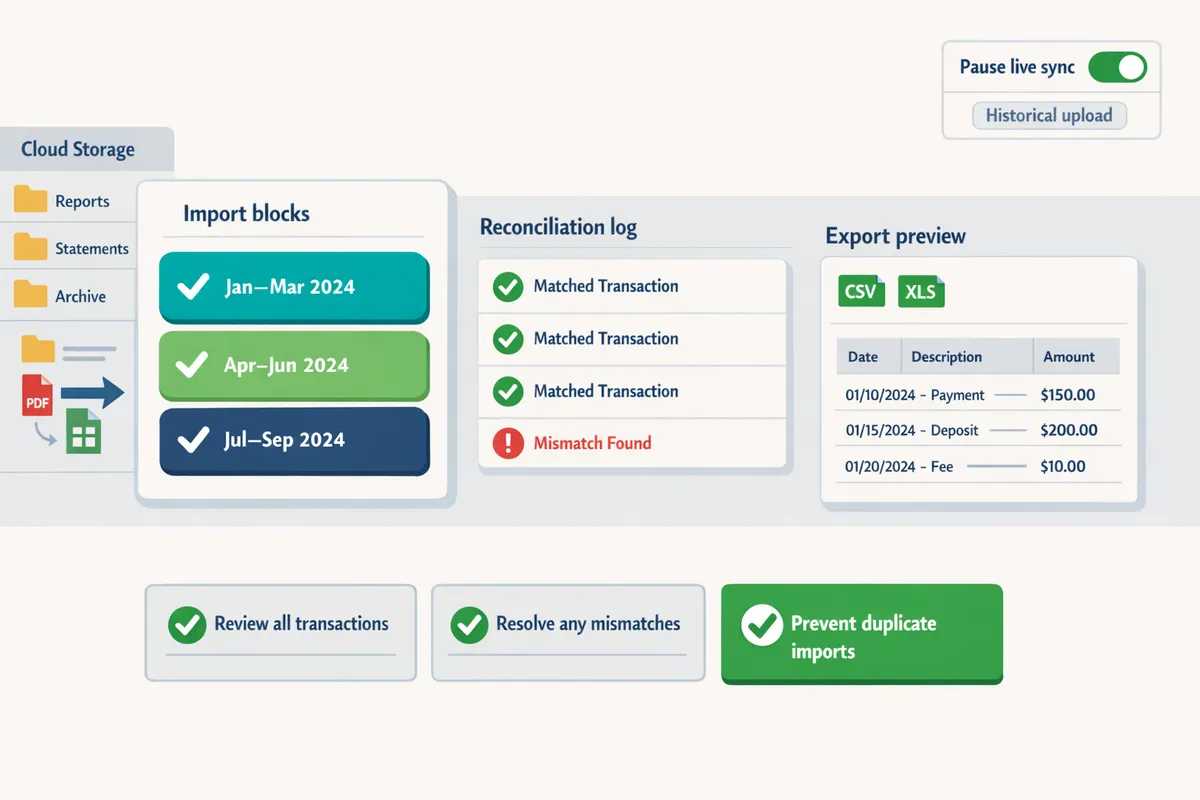
Define scope and import order 🗂️
Start with a single company file and one bank account, importing months in chronological blocks to prevent overlap. For high-volume accounts use 3-month blocks; for low-volume accounts use 6-month blocks. Example: an account with ~400 monthly transactions produces about 1,200 transactions per 3-month block. Document the import owner and the block order in a project sheet to avoid duplicated effort when multiple teammates work across accounts.
Numbered planning steps:
- List every bank account and assign an import owner.
- Tag accounts by monthly volume: High (>300 tx/mo), Medium (100–300), Low (<100).
- Set block size: High = 3 months, Medium = 4 months, Low = 6 months.
- Schedule blocks chronologically from oldest to newest.
- Run a pilot on one block and verify reconciliation time.
- Roll out remaining accounts in parallel only if different owners handle them.
Keep the project sheet linked to our Import Bank Transactions Into QuickBooks Online guide so owners reference common pitfalls like date mismatches and mapping rules.
Choose the import method: bank feed vs file import ⚖️
Use bank feeds for ongoing live capture and file imports for historical months because bank feeds prevent manual uploads while file imports avoid overlapping transactions. A bank feed is a live-sync service that pushes new transactions automatically; a file import is a one-off upload of historical activity in CSV, QBO, OFX, or QFX format. Rocket Statements offers both PDF-to-CSV conversion and QuickBooks-compatible QBO exports so you can use file imports for historical data and keep the feed running for live activity when safe.
Trade-offs and practical rules:
- OFX or QBO files preserve transaction IDs and reduce mapping work but require a bank export or a Rocket Statements QBO export.
- CSV gives you control over headers and categories but requires strict mapping.
- PDF-to-CSV conversion is useful when only PDFs exist; run a validation pass to fix date formats and negative amounts.
⚠️ Warning: Pause the QuickBooks bank feed or tag the feed's import window before uploading historical files to prevent duplicate transactions. Use Rocket Statements' two-lane workflow guidance to coordinate live sync with historical uploads.
Preserve opening balances and reconcile after each block ✅
Record and verify the opening balance before each import block and reconcile immediately after the import to avoid reconciliation variance later. Take the closing balance from the statement before the block as the next block's opening balance and log it in a reconciliation tracker. Reconciling block-by-block reduces the risk that a single misplaced date will cause a month-long discrepancy.
Practical reconciliation steps:
- Export the bank statement closing balance for the date before the block start.
- Enter or confirm the opening balance in QuickBooks Online if a mismatch appears.
- Import the block and immediately run QuickBooks reconciliation for the block end date.
- Record pre-import and post-import balances, who reconciled, and any adjustments in the reconciliation log.
💡 Tip: Keep a one-line reconciliation spreadsheet per account with columns: account, block start, block end, opening balance, closing balance, reconciled (Y/N), and owner. Rocket Statements export files with balance columns to speed the comparison.
Prepare file formats and mapping templates 📄
Use a single QuickBooks-compatible CSV or QBO template and a mapping checklist for every import to reduce mapping errors and rework. Example CSV header to standardize on: Date,Description,Amount,Payee,Memo,Account,Balance. Align date format to QuickBooks settings before import and always test with a small sample import of 30 to 50 transactions.
Mapping checklist:
- Required fields: Date, Amount, Payee/Description.
- Optional but recommended: Memo, Balance, Customer/Job, Class, Account.
- Date format must match QuickBooks (YYYY-MM-DD or MM/DD/YYYY).
- Debit/credit signs must be consistent.
- No merged rows or multi-line descriptions in CSV cells.
Quick process to create a reusable template:
- Export a sample transaction file from QuickBooks to capture header order.
- Configure Rocket Statements to output that header order for all historical exports.
- Validate a 50-transaction test and fix any date or amount formatting issues.
- Lock the mapping template and reuse it across accounts.
Reference our QuickBooks Bank Transaction Import 2026 guide for exact CSV/QBO specs and use Rocket Statements' QuickBooks Online integration to output files that match those specs.
For cross-platform projects or frequent imports, see our Automatically Sync Bank Transactions in 2026 playbook and the two-lane workflow article for strategies that reduce duplicate imports and mapping errors.
What proven techniques stop duplicates and ensure clean data when you import bank transactions?
Keep live bank feeds and historical imports in separate two-lane workflows so the same transaction cannot enter QuickBooks Online twice. Rocket Statements supports this approach by converting closed-month PDFs into QuickBooks-ready files while you continue daily bookkeeping with live sync. These practices cut reconciliation drift and reduce rollback risk during a 24-month backfill.
Two-lane workflow with Rocket Statements 🔁
A two-lane workflow isolates live bank feeds from historical PDF-to-CSV imports so the same transaction never enters the accounting ledger twice. Follow these steps to implement it safely:
- Identify closed months to backfill and mark those months as closed in QuickBooks Online so no live feed writes to that date range.
- Convert statements for those closed months in Rocket Statements and export QuickBooks-compatible files.
- Run Rocket Statements' pre-import validation and import the files into the closed months.
- Re-enable live bank feeds only after verifying balances and reconciling the imported months.
Real example: use live sync for current activity and only import PDFs for months with no expected incoming feed. See our two-lane workflow guidance for practical steps and common pitfalls.
💡 Tip: Run historical PDFs through Rocket Statements and mark those months as closed in QuickBooks before re-enabling bank feeds.
Links: read our two-lane workflow discussion and the QuickBooks Online integration page for details on export options.
Duplicate detection and mapping rules 🧾
Apply strict duplicate-detection rules on date, amount, and reference ID and run a pre-import review report to catch probable duplicates before import. Configure these checks in two passes: an exact-match pass (same date and amount) and a fuzzy-match pass (same amount within a 1-cent variance or identical reference numbers but different dates). Export a pre-import report from Rocket Statements that lists flagged rows, then have an accountant or senior bookkeeper confirm each flagged item before final import. Avoid automatic merge rules that delete or overwrite records; manual confirmation prevents accidental loss of vendor memos and payment references. For mapping, use a template that aligns Rocket Statements' Date, Payee, Memo, Amount, and Account columns to QuickBooks fields—this reduces misapplied transactions during import. See our CSV/QBO specs guide for header requirements and example mapping templates.
Common import errors and exact fixes 🛠️
Fix date-format mismatches, currency signs, and missing account codes before importing to prevent bulk rollbacks and reconciliation errors. Common problems and fixes:
- Date format mismatch. QuickBooks expects MM/DD/YYYY for CSV imports. Convert DD/MM/YYYY to MM/DD/YYYY in Rocket Statements' export settings or in a pre-import spreadsheet.
- Negative amounts and credits. Ensure credits use a negative sign in the Amount column or a separate Credit column depending on QuickBooks format.
- Missing account codes. Map unmapped transactions to a holding clearing account and assign correct account codes after import.
- Decimal and thousands separators. Standardize to a dot for decimals and remove thousands separators in export settings.
If QuickBooks rejects an import, export the rejected rows, correct the failing column shown in the error, and re-import only the corrected file. For header and field layouts, reference our QuickBooks Bank Transaction Import 2026 specs and the walk-through on importing bank transactions into QuickBooks Online.
Use standardized templates and QuickBooks-compatible exports 📊
Use QuickBooks-ready exports (CSV, QBO, or OFX) and a mapping template that aligns Rocket Statements' export columns with QuickBooks fields to minimize manual mapping and import failures. Below is a quick comparison to help choose a format:
| Format | Best use | Pros | QuickBooks notes |
|---|---|---|---|
| CSV | Backfills where you need full control over columns | Easy to inspect and edit before import | Requires exact header names and MM/DD/YYYY dates for QBO CSV import |
| QBO | Direct QuickBooks imports with bank transaction metadata | Preserves more metadata and avoids manual column mapping | Preferred for moving many transactions without per-file editing |
| OFX | Bank-style export for bulk transaction uploads | Good for account-level bulk imports | May require account number alignment in QuickBooks |
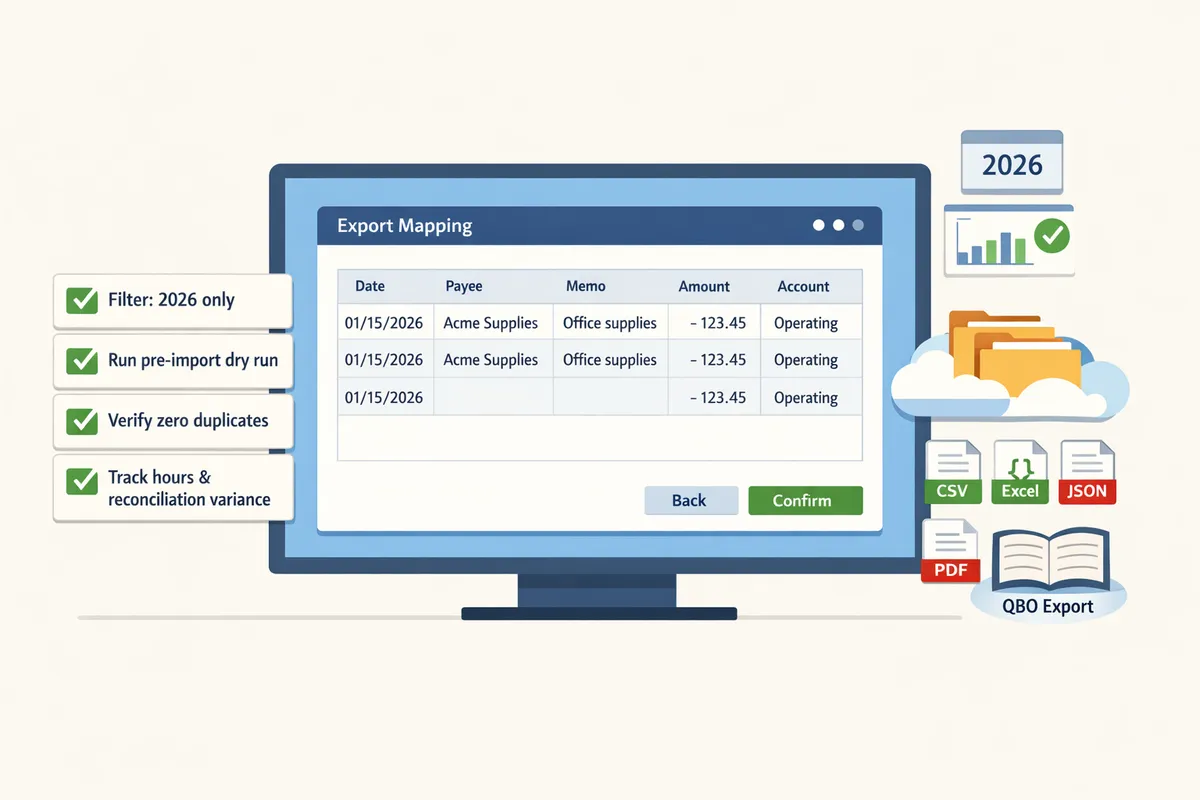
Use this simple mapping template when exporting from Rocket Statements: Date -> Date, Description -> Payee, Memo -> Memo, Debit/Credit -> Amount, Account -> Account. Generate the QuickBooks-ready file from Rocket Statements and run a pre-import dry run to validate field matches. For full header lists and sample templates, see our QuickBooks Bank Transaction Import 2026 guide and the main import bank transactions into QuickBooks Online article.
How to implement the imports, import only 2026 transactions, and measure success
Use controlled, date-filtered batches, verify zero duplicates after each upload, and track hours and reconciliation variance to prove the process worked. According to Rocket Statements, you can convert PDF statements into QuickBooks-compatible files and start with a 20-page trial to test a small backfill before committing. Back up the company file and plan imports so live bank syncs do not overlap historical uploads.
⚠️ Warning: Always back up your QuickBooks company file before bulk imports.
Step-by-step import checklist (repeatable)
Follow this repeatable checklist for every import batch to prevent reconciliation drift and keep an audit trail.
- Backup the QuickBooks Online company file and note the backup timestamp.
- Export source data covering only 2026 (see next subsection). Save originals in a dated folder inside Rocket Statements or your document repository.
- Convert PDFs to QuickBooks-compatible CSV/QBO using Rocket Statements and apply a 2026 date filter during conversion.
- Run a duplicate scan comparing date + amount + description against QBO recent transactions; mark suspected duplicates. Rocket Statements includes duplicate-detection tools you can use before export.
- Import the smallest sensible block (recommended: one calendar month or 250–500 transactions). Smaller blocks reduce rollback time if errors appear.
- Reconcile immediately for the imported account using the same statement closing date. Record reconciliation variance.
- Confirm zero duplicates and sign off on the batch (name, date, transaction count, reconciled Y/N). Store the signed checklist in your Rocket Statements folder for audits.
- Proceed to the next block only after sign-off.
For column templates and required headers, consult the QuickBooks CSV/QBO specs in our guide on QuickBooks Bank Transaction Import 2026: CSV/QBO/QFX Specs, Desktop EOL Playbook, and No‑Code Automations with Rocket Statements.
💡 Tip: Import monthly batches during a low-activity period (e.g., Friday evening) so you can complete reconciliation without interrupting daily bookkeeping.
How to import only 2026 transactions into QuickBooks Online 📅
Only include transactions dated in 2026 in the file you upload to QuickBooks Online to avoid accidental multi-year imports.
- From the bank portal, export statements or activity reports that strictly cover Jan 1–Dec 31, 2026. If the bank export bundles multiple years, use Rocket Statements to split by date during conversion.
- If starting from PDFs, group files by month (Jan 2026, Feb 2026, etc.). Upload a single-month PDF bundle into Rocket Statements and run the converter to QuickBooks-compatible CSV or QBO.
- Open the converted file and confirm every row has a 2026 date. Use a quick filter in Excel/Sheets: Date >= 1/1/2026 AND Date <= 12/31/2026. Remove any out-of-range rows.
- Follow QuickBooks Online’s Upload transactions flow: Banking > Upload transactions, select the converted file, map date/description/amount columns (refer to our QuickBooks import specs), then preview for duplicates.
- Import the file and reconcile the imported batch against the 2026 bank statement closing date.
If you use live bank syncs, keep a two-lane workflow so Rocket Statements handles historical PDFs while the bank feed handles current transactions. See our two-lane workflow guidance for avoiding duplicate entries.
Measure ROI and error rates with a simple table 📈
Track hours, hourly cost, and duplicates per 100 transactions to quantify time saved and reconciliation impact. Below is an illustrative template you can copy into a spreadsheet and populate with your team’s numbers.
| Scenario | Setup time (hours) | Processing time per 1,000 tx (hours) | Hourly cost ($) | Duplicates per 100 tx | Notes |
|---|---|---|---|---|---|
| Manual CSV reformat + upload (example) | 8 | 12 | 50 | 6 | Time includes manual mapping and fixes |
| Rocket Statements conversion + import (example) | 3 | 3 | 50 | 1 | Includes QA and reconciliation time |
| Estimated hourly savings per 1,000 tx | 5 | — | — | — | (Manual time 12h - Automated 3h) = 9h saved |
Example calculation: if your bookkeeper bills at $50/hr and you process 1,000 transactions, automating saves 9 hours = $450 per 1,000 transactions. Record the number of duplicates found per 100 transactions before and after to show quality gains and reduced reconciliation time.
Log these fields for each batch: account, date range, transactions imported, staff hours, duplicates found, reconciled (Y/N), notes. Use that log to calculate break-even on any subscription or setup cost.
Compare import methods: bank feed vs file import vs Rocket Statements
Compare setup time, duplicate risk, maintenance, and best-for scenarios to pick the right path for your backfill.
| Method | Setup time | Duplicate risk | Ongoing maintenance | Best for | Notes |
|---|---|---|---|---|---|
| Direct bank feed | Low | Medium (outages can cause re-sends) | Medium | Ongoing live reconciliation | See our reliability matrix for bank feeds and outage playbooks. |
| Manual file import (CSV/QBO) | Medium–High | High (format mismatches create duplicates) | High | Short ad-hoc backfills when data is already CSV | Requires careful mapping per QuickBooks specs. Refer to QuickBooks Bank Transaction Import 2026 specs. |
| Rocket Statements (PDF → QBO) | Medium | Low when using two-lane workflow | Low | Large historical backfills from PDFs and mixed-source batches | Rocket Statements converts PDFs, stores source docs, and exports QuickBooks-ready files; use two-lane workflow guidance to avoid dupes. |
Use the table above to pick the method that matches your team’s tolerance for manual work and audit control. If you must bring in six months or more of PDF statements, Rocket Statements reduces manual conversion time and centralizes original files for compliance.
For a full walk-through of importing bank transactions into QBO and the common errors that create reconciliation drift, see our guide on Import Bank Transactions Into QuickBooks Online and the QuickBooks integration overview on our QuickBooks Online integration page.
Frequently Asked Questions
This FAQ gives quick operational and technical answers accountants need while importing a 24-month backfill into QuickBooks Online. Use these entries to make immediate decisions during your project. Each answer points to specific workflows, common errors, and Rocket Statements features that reduce setup time and risk.
How do I import bank transactions into QuickBooks Online without duplicates? 🔍
Prevent duplicates by scanning the source file, keeping live bank syncs separate from historical uploads, and applying strict match rules on date and amount before any import. Run a duplicate scan on the raw export (look for identical date, amount, and description rows) and remove exact matches before conversion. Use a two-lane workflow that keeps Rocket Statements' live sync and historical CSV/QBO imports in separate lanes so the same transaction cannot enter QBO twice. Import in small, date-filtered batches and reconcile after each batch to catch duplicates early.
💡 Tip: Test each batch in a sandbox company and run a post-import duplicate report before you touch the production books.
Can I import only 2026 transactions into QuickBooks Online? 📆
Yes. Filter your bank export or converted CSV to include only transactions dated in 2026, then import that filtered file and reconcile immediately. Export directly from the bank portal with a date range limited to 1/1/2026–12/31/2026 or use Rocket Statements to convert PDFs while applying the 2026 date filter during export. Confirm opening balances for the affected accounts before import to avoid overlap with live feeds, and follow the staged approach described in our Import Bank Transactions Into QuickBooks Online guide when doing a multi-account backfill.
Which file formats does QuickBooks Online accept for bank imports? 📁
QuickBooks Online accepts QBO, OFX, and CSV for bank imports, with QBO/OFX preferred when available because they preserve bank metadata and reduce mapping errors. CSV works when you control column headers and formats, but it requires strict header names and consistent date/amount formats. See our QuickBooks Bank Transaction Import 2026: CSV/QBO/QFX Specs guide for required headers, example templates, and mapping tips. Rocket Statements can produce QBO and CSV exports, which lets you pick the format that minimizes rework for each bank.
Will Rocket Statements handle PDF bank statements and convert them for QuickBooks? 🔄
Yes. Rocket Statements converts PDF and image statements into spreadsheets and exports QuickBooks-compatible CSV or QBO files, and it also offers live bank sync for ongoing transactions. Use Rocket Statements to batch-convert archived PDFs, place converted files in cloud folders, and export QuickBooks-ready files to accelerate a 24-month backfill. For teams that mix live feeds and historical uploads, our two-lane workflow guidance explains how to avoid overlap and ensure clean imports while maintaining an auditable source-of-truth for each step. Refer to our QuickBooks Online integration page for details on automated export options and security features.
How do I fix date-format errors after import? 🗓️
Export the imported transactions, normalize dates to QuickBooks' expected format, then re-import only the corrected entries or update the mapping and re-import the affected batch. Typical fixes include converting DD/MM/YYYY to MM/DD/YYYY or ensuring consistent separators (slashes vs dashes). If you used CSV, adjust the header mapping and date column format in your spreadsheet tool, then import a small test batch to confirm mapping before reprocessing larger sets. Rocket Statements can set date-format rules during conversion to reduce these errors up front; compare results in a sandbox file before applying to production.
What security and compliance checks should I perform before uploading statements? 🔐
Verify the vendor uses bank-level encryption, PCI DSS compliance where applicable, regular security audits, and strict user access controls, and always keep a local encrypted backup of source files. Request documentation (SOC reports or audit summaries), check data retention and deletion policies, and confirm who in your organization can export or delete statement files. Use role-based access inside Rocket Statements and enable two-person review for file exports if the backfill covers sensitive customer data.
⚠️ Warning: Avoid uploading unredacted personal health information or Social Security numbers unless you have explicit, documented authorization and a clear retention policy.
Finish the 24-month QBO backfill by using a repeatable, two-lane workflow and a Rocket Statements trial.
The core takeaway is that a controlled process prevents duplicated ledgers and reconciliation drift when you import bank transactions into QuickBooks. Follow the pre-import checks in our Import Bank Transactions Into QuickBooks Online guide to catch date-format mismatches and mapping errors before they create a month of cleanup.
Rocket Statements is a platform that helps users save time and money by automating the process of converting their statements into spreadsheets as well as manage their documents in the cloud. If your priority is to import bank transactions into QuickBooks Online without duplicates, use the two-lane workflow guidance to run live sync alongside PDF exports and reconcile differences before final import. See practical steps in our Rocket Statements bank statement workflow with QuickBooks discussion.
💡 Tip: Start with the most recent month and validate mappings in QuickBooks. Fixing one month is faster than undoing 24 months of duplicates.
Start a free trial of Rocket Statements to run a 24-month backfill on a small account and confirm mapping rules before scaling to all accounts. For format specifics, review the QuickBooks Bank Transaction Import 2026 guide.