
Import Bank Statement CSV Into Xero: Step-by-Step Guide

Import Bank Statement CSV Into Xero: Step-by-Step Guide
To import a bank statement CSV into Xero, open the bank account, choose Import a Statement, upload a CSV that has at least a date and an amount for every row, map the columns, and check the preview before you confirm. The slow part is rarely the Xero screen. It is getting a clean CSV out of a PDF that a client emailed you.
This guide covers both halves: producing a CSV Xero accepts, and importing it. It is written for bookkeepers and small firms who receive statements as PDFs or photos and need them in Xero bank accounts. Rocket Statements has no direct Xero integration: it gives you a file, and you import that file yourself.
What does Xero need in a bank statement CSV?
Xero needs only two fields to create statement lines, a date and an amount, and everything else in the file is optional but makes reconciling easier. This is what Xero's own help page for CSV imports describes, so check it for your region before you build a standard process around it.
The Xero bank statement CSV format comes down to a short list:
| Item | What Xero expects |
|---|---|
| Date | One date per row. Several formats are accepted (such as DD/MM/YYYY, MM/DD/YYYY and YYYY/MM/DD). If a date could be read two ways, Xero asks you to confirm the format. |
| Amount | One column for money in and money out. Money in is positive, money out is negative (or in brackets). No commas as decimal separators. |
| Payee, description, reference | Optional. Useful for matching and for spotting a transaction later. |
| Balance columns | Remove opening and closing balance columns. Xero calculates the bank balance from the transactions. |
| Header row | Not strictly required, but if you add one it must be in row 1 and each column name must be unique. |
| Size | Xero's help page says a file over 100,000 rows cannot be imported. A single statement is nowhere near that. |
Two details cause most failed or wrong imports. The first is the sign of the amount: an outgoing payment that arrives as a positive number imports as money in, and Xero does not warn you. The second is the date format: when the day and month are both 12 or lower, a wrong format still imports and puts transactions in the wrong month. Spot-check a few dates against the statement.
How do I get a statement PDF into that CSV format?
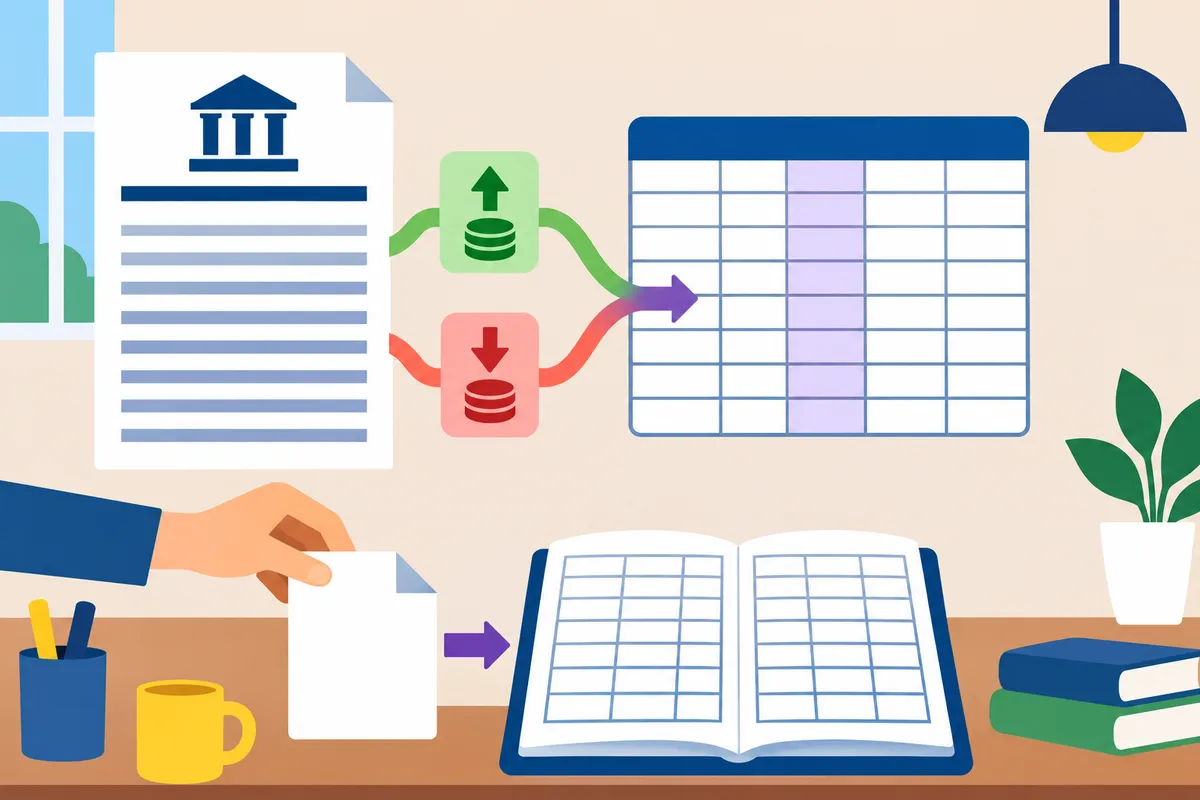
Convert the PDF to a spreadsheet first, then export or save it as CSV. For a statement that already came as a PDF or an image, retyping is the step to avoid, and pasting it into a general AI chat tool gives you output that can change in layout from one statement to the next. The comparison is covered in ChatGPT bank statement to CSV: where it breaks for firms.
With Rocket Statements the sequence is:
- Upload the PDF or image of the statement. Rocket Statements recognizes the bank's format automatically, so there is no template to set up per bank.
- Let it convert. It outputs only transaction data, normalized to standard transaction columns whatever the layout of the original statement, and it checks the extracted transactions against the balances printed on the statement so extraction errors surface instead of passing through quietly.
- Export as CSV. The same converted statement can also be exported in another format, such as Excel, without converting it again. The formats are listed in Bank statement to CSV, Excel, JSON and QuickBooks.
- Open the CSV once before you import it. Confirm the date column, that money out is negative in a single amount column, and that no balance columns remain. If your file splits money in and out into two columns, merge them in a spreadsheet first so Xero gets one signed Amount column.
Xero's mapping step lets you assign each column to a Xero field, so you do not need to rename headers to match a fixed list.
How do I import the CSV into Xero step by step?
In Xero you import a CSV from the bank account's own page: open the account, choose Import a Statement, select the file, map the columns and confirm. Menu names shift a little between regions and Xero releases, so follow the labels on your screen.
- In Xero, go to the Accounting menu and open Bank accounts. If the account is not there yet, add it first. The import option only appears on a bank account, not on a general ledger account.
- Open the account and choose Import a Statement. Xero also offers a template there if you want to see its expected layout.
- Select your CSV file and upload it.
- Map each column in your file to a Xero field: Date and Amount are required, and Payee, Description and Reference are worth mapping when you have them. Xero remembers the mapping for later files, so a client whose statements always look the same only needs this once.
- If Xero asks which date format the file uses, choose the one that matches the file. That choice also carries to future imports for the same layout, so get it right the first time.
- Review the preview. Compare the first and last rows with the statement, and check one outgoing payment to confirm it shows as money out.
- Confirm the import. The lines appear on the account's reconciliation screen, ready to match.
If Xero rejects the file, look in this order: the file is open in another program, a title or summary row sits above the headers, blank rows trail the data, or no column is mapped to Date or Amount. Re-saving as CSV UTF-8 fixes encoding problems.
What does this look like for a bookkeeper with many clients?
For a firm, the repeatable part is the conversion and the naming, not the import click. Take a bookkeeper who collects six clients' monthly statements, some as bank PDFs and some as phone photos of credit card statements, and imports each into that client's Xero file.
A workable monthly routine:
- Each client uploads that month's statement to their own place in the portal, rather than emailing it. Rocket Statements supports client portals and folders, which keeps each client's files separate. Client portals for accounting firms covers what to look for.
- The bookkeeper converts each statement and exports a CSV.
- They run the same three-point check on every CSV: date format, one signed amount column, no balance columns.
- They import into the matching Xero organisation and reconcile.
Because the output is laid out the same way for every statement and every client, the mapping Xero saved last month usually applies again. When a client changes banks, expect to map the columns once more. Team accounts let more than one person work in the same workspace. How a multi-tenant workflow handles many client statements goes into the folder setup.
When is a CSV import the wrong choice for Xero?
A CSV import suits statements that arrive as documents, and a bank feed suits accounts that Xero can connect to directly. If a bank feed covers the account, you may never need a file. Feeds often do not reach back far enough, and some clients only ever send paper or PDF statements, which is where converting to CSV earns its place. For a comparison of how the main accounting packages treat feeds and statement imports, see QuickBooks vs Xero vs Sage.
Xero also accepts other statement file types, such as OFX and QFX, which suit banks that offer them. A CSV from a converted PDF is the practical route when the bank offers nothing but a PDF.
FAQ
Can Rocket Statements send transactions straight into Xero?
No. Rocket Statements does not connect to Xero. It produces a file, and you import it into the bank account yourself.
What is the minimum a Xero CSV needs?
A date and an amount on every row. Payee, description and reference are optional.
Should money out be negative?
Yes. Put money in and money out in one Amount column, with money out as a negative number or in brackets.
Can I convert a scanned or photographed statement?
Rocket Statements accepts PDF and image files of statements, so a photo or scan can be uploaded for conversion.
Does Rocket Statements have a free trial?
Yes, a one-time trial of 7 days or 20 pages, whichever comes first. Try it on one client's statement and import the CSV into Xero to see whether the preview matches the statement before you change your routine.