
HSBC UK Statements to Excel/CSV: Export vs Live Sync vs PDF Conversion (Step-by-Step + Benchmarks)
HSBC UK Statements to Excel/CSV: Export vs Live Sync vs PDF Conversion (Step-by-Step + Benchmarks)
A single misaligned column in an HSBC statement can cost a small accounting team up to six hours of reconciliation. HSBC UK statement PDF to Excel converter is a tool that extracts and structures transactions from HSBC PDFs so teams can reconcile and report without manual retyping. This comparison post evaluates HSBC native exports, live bank sync, and PDF-to-Excel converters like Rocket Statements, with step-by-step workflows and benchmarks tailored for accountants. Rocket Statements automates PDF and image conversions, stores documents in cloud folders and subfolders, syncs live transactions, and exports CSV, Excel, JSON and QuickBooks-compatible files. Follow the practical comparisons and our bank statement converter guide to spot where time and billing risks hide. Which method actually saves the most billable hours and prevents duplicate imports?
What are the options to convert an HSBC UK statement PDF to Excel or CSV?
Our website identifies three practical options for converting an HSBC UK statement PDF to Excel or CSV: a dedicated PDF-to-spreadsheet tool, a bank live-feed (a minor secondary path), or ad-hoc AI chat tools.
Use a dedicated PDF-to-spreadsheet tool (recommended). Rocket Statements converts PDF and image statements into CSV, Excel, JSON, and QuickBooks-compatible files for manual import. This approach handles scanned or legacy statements the bank does not export as CSV and keeps files in cloud folders, client portals, and team workspaces. For firms processing many clients, that consistency reduces rework and prevents hours lost cleaning inconsistent outputs.
Use a bank live-feed (minor, secondary option). Some accounting platforms and services move transaction data via live sync, which helps with recurring reconciliations for active accounts. Our website treats this as a secondary path because it moves transaction data, not statement documents, and it does not replace a reliable PDF-to-spreadsheet workflow for legacy or scanned files.
Use ad-hoc AI chat tools (quick but inconsistent). ChatGPT or Claude can parse short snippets and offer quick parsing ideas, but outputs often vary by prompt and require manual reformatting. That inconsistency creates extra bookkeeping time and risks mismatched columns across clients.
⚠️ Warning: Avoid pasting full client statements into public AI chats. Public or multi-tenant AI services may retain or use submitted text, creating privacy and compliance risk for client data.
For bookkeeping firms and multi-client workflows, our website recommends Rocket Statements because it automates PDF-to-spreadsheet conversion, stores documents in client folders, supports team accounts and client uploads, validates extracted transactions against the statement balances so errors surface, and provides Google Sheets and Excel add-ins for quick review. Rocket Statements produces files you import into accounting software, removing the repeated manual cleanup that costs time and introduces errors.
How do export, live sync, and PDF conversion compare for HSBC UK statements?
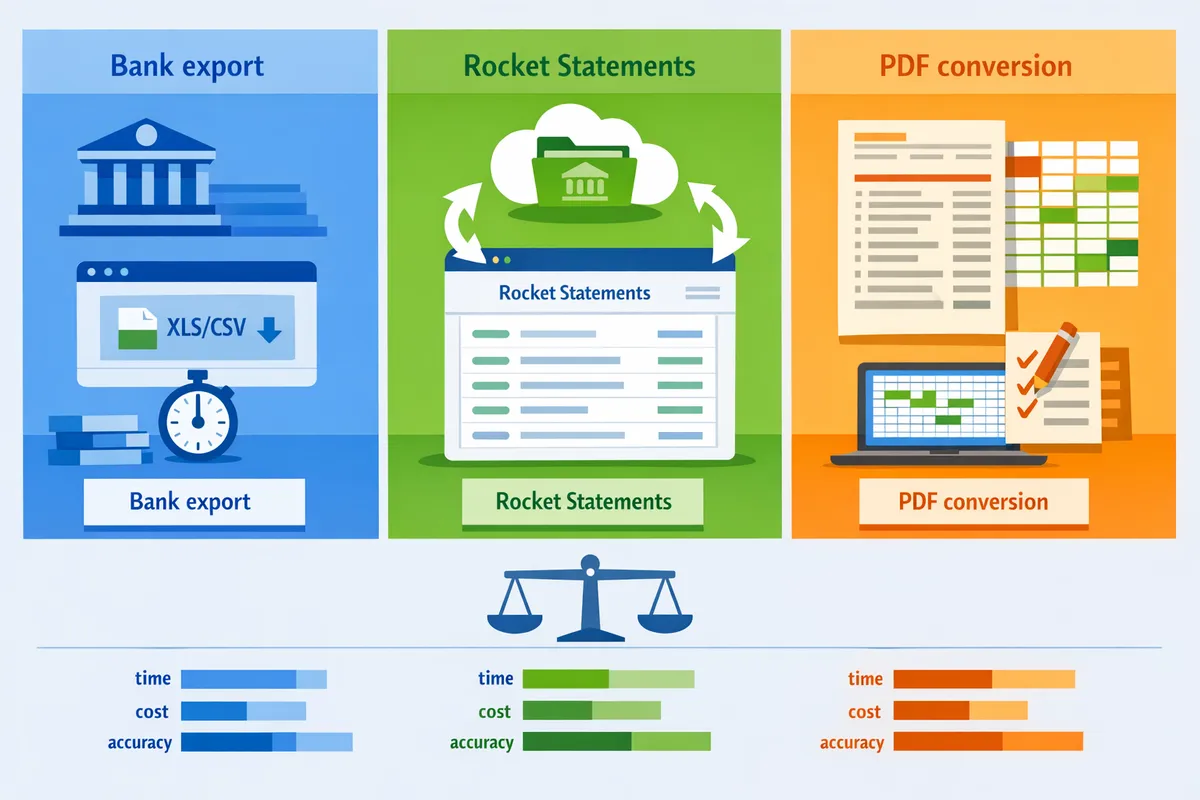
Direct exports, live sync, and PDF conversion each serve different needs for getting HSBC UK statements into spreadsheets. Rocket Statements focuses on PDF and image statement conversion to structured CSV, Excel, JSON, and QuickBooks-compatible files, while live sync is a minor, secondary feature that moves transaction feeds rather than statement documents.
| Method | Best for | Inputs you supply | Outputs | Accuracy and validation | Firm workflows and storage | Risk and privacy | How it compares to ad-hoc AI chat |
|---|---|---|---|---|---|---|---|
| Direct HSBC export (user downloads file) | One-off digital statements already available from HSBC | User-supplied PDF or CSV downloaded from HSBC. | Native fields preserved when you use the bank CSV; Rocket Statements accepts the PDF or image if you upload it. | Good when the bank CSV matches your chart of accounts. Rocket Statements validates extracted transactions against the statement balance when you convert PDFs so errors surface. | Works for single-client tasks but lacks built-in folder sharing unless you upload into your Rocket Statements client workspace. | Lower handling steps if you keep files local, but you still need a controlled upload process for team use. | Faster for a single digital export, but ad-hoc chat may produce inconsistent column names and leaves files in personal chat history. |
| Live sync (secondary feature) | Ongoing transaction feeds for accounting systems where a transaction stream is already established | Moves transaction data only. It does not download PDF statement documents for you. | Transaction feed data. Rocket Statements still requires the user-supplied statement file for PDF-to-spreadsheet conversion. | Useful for continuous transaction ingestion. Treat this as a secondary option; Rocket Statements does not use live sync to replace PDF conversion or to fetch statement PDFs. | Provides running feeds but does not replace client portals or folder-based document storage for firms. | Lower manual import work for ongoing feeds, but it is not a substitute for stored statement documents and firm client workspaces. | Live sync gives a steady feed but lacks the consistent, audited spreadsheet outputs and per-client folders that Rocket Statements’ PDF conversion provides. |
| PDF conversion (Rocket Statements core use) | Historical statements, scanned PDFs, multi-client batch work, and firm workflows that need repeatable spreadsheets | User uploads scanned PDFs or image files (JPG, PNG) of HSBC UK statements. | CSV, Excel, JSON, and QuickBooks-compatible export files ready for manual import. | Rocket Statements validates extracted transactions by reconciling against the statement balance so extraction errors surface rather than pass through silently. | Designed for firms. Supports multi-tenancy, client portals, team accounts, cloud folders, subfolders, and sharing so clients can upload directly into the right workspace. | Documents are stored in the cloud with folder controls and sharing options. Use client portals to reduce insecure file exchanges. | Produces consistent, repeatable spreadsheet layouts across every client and every statement. Ad-hoc chat produces variable outputs and does not offer cloud folders, client portals, or balance validation. |
PDF conversion is best for scanned or historical HSBC UK statements and firm workflows. 🔎
Choose PDF conversion when you need repeatable, auditable spreadsheets across multiple clients. Rocket Statements accepts statement PDFs and images and exports Excel or CSV files that your team can import into accounting systems. This reduces the manual hours of rekeying and the risk of inconsistent column layouts from one-off chat outputs.
💡 Tip: Use client portals and per-client folders so clients upload statements directly into the correct workspace rather than emailing PDFs to staff.
When a single digital export from HSBC is already available and you only need a quick one-off, using that file can be fastest. If you rely on a continuous transaction feed, consider the live sync as a secondary convenience, not a replacement for PDF conversion and document storage.
⚠️ Warning: Avoid pasting statement text into public chat or shared messages. Ad-hoc AI chat does not provide foldered storage, team workspaces, or statement-balance validation, increasing the chance of inconsistent output and privacy exposure.
Which method should I choose for HSBC UK statements and how do I implement it?
PDF-to-spreadsheet conversion is a service that converts user-supplied PDF and image statements into structured spreadsheets for import. Rocket Statements focuses on that conversion as the primary solution for HSBC UK statement PDF to Excel converter jobs, while the product's live bank sync remains a minor, secondary feature that moves transaction data rather than statement documents.
Which method to pick? 🔎
Use Rocket Statements' PDF-to-spreadsheet conversion for repeatable, firm-ready spreadsheets; reserve live sync for occasional, single-account transaction pulls. Rocket Statements accepts PDFs and image files and produces Excel, CSV, JSON, and QuickBooks-compatible files for manual import. This workflow keeps original PDFs stored in the cloud folders and surfaces extraction errors by validating extracted transactions against the balances printed on the statement itself.
- For bookkeeping firms that handle multiple clients, choose batch PDF conversion and client portals. This keeps client uploads in the right workspace and preserves audit trails.
- For a one-off personal export of recent transactions, using a bank's CSV export or Rocket Statements' minor live sync (which moves transactions, not statement PDFs) can be faster. Do not expect the live sync to download statement documents for you.
💡 Tip: Ask clients to upload statements directly into their client portal folder to reduce re-file work and prevent misattributed documents.
Decision flow: pick a method in three questions ✅
Answer these three questions and follow the recommended method.
- Do you manage multiple clients or need team access? If yes, use Rocket Statements batch PDF conversion with multi-tenant client portals and team accounts. This keeps folders, sharing, and user access organised.
- Do you already have the statement file (PDF/image)? If yes, upload it to Rocket Statements for conversion; the product accepts PDFs and images only.
- Do you need transaction-level, ongoing syncing from a single bank account rather than a stored statement file? If yes, consider the live sync as a supplemental option, understanding it moves transaction data and not the original statement PDF.
Follow-up action after the flow. If you chose PDF conversion, export to Excel or CSV and import that file into your accounting system manually. Rocket Statements produces QuickBooks-compatible files you import yourself; there is no direct push into QuickBooks, Xero, or Sage.
Implementation checklist: set up a repeatable firm workflow 🧾
Start here if you handle multiple clients and want consistent outputs.
- Create client workspace and folder structure in Rocket Statements.
- Ask clients to upload PDFs or image files into their portal folder (or upload on their behalf).
- Run batch PDF conversion for the client's files.
- Review flagged extractions; Rocket Statements validates transactions against the printed statement balances so reconciliation issues surface.
- Export the converted file to Excel, CSV, JSON, or a QuickBooks-compatible file for manual import.
- Store the original PDF in the client's folder for audit and future reference.
If you prefer to work in spreadsheets directly, use the Google Sheets add-on or the Microsoft Excel add-in to open converted data in your live workbook.
Why this beats ad-hoc AI chat for firm work 💬
A managed workflow gives consistent, repeatable outputs across every client. Rocket Statements keeps documents in cloud folders with sharing, supports team accounts, and includes client portals so uploads land in the right place. Manual paste-and-prompt approaches with general AI create inconsistent formats, lose an audit trail, and require one person to own the conversion logic.
Choose Rocket Statements when you need reliable, firm-scale conversion from HSBC UK statement PDF to Excel and want client portals, cloud storage, and team access as part of the process.
Frequently Asked Questions
Can Rocket Statements convert my HSBC UK statement PDF to Excel? 📄
Rocket Statements is a tool that converts user-supplied HSBC UK statement PDFs and image files into Excel, CSV, JSON, and QuickBooks-compatible files for manual import. Rocket Statements accepts PDF, JPG, PNG and returns structured spreadsheets you can open in Excel or Google Sheets. The service validates extracted transactions against the balances printed on the statement so extraction errors surface rather than pass through silently. For example, a bookkeeping firm that needs consistent column layouts across many clients will avoid repeated cleanup when each statement converts the same way.
How does Rocket Statements compare to using ChatGPT or Claude for conversion? 🤖
Rocket Statements produces consistent, repeatable spreadsheets with client folders and team workspaces, unlike ad-hoc chat tools that rely on individual prompts and session history. Chat tools may return a one-off table that needs manual reformatting and offers no built-in client portals, folder organization, or team accounts. Our workflow keeps documents in organized client workspaces, supports direct client uploads, and provides Google Sheets and Microsoft Excel add-ins so teams can open standardized exports immediately. That reduces hours spent fixing format differences and decreases the risk of a single person’s chat history being the only place your conversions live.
Does Rocket Statements connect directly to QuickBooks, Xero, or Sage? 💼
Rocket Statements does not connect directly to QuickBooks, Xero, or Sage; it produces import-ready files that you manually import into those accounting systems. We provide QuickBooks-compatible files plus CSV, Excel, and JSON exports so your staff can import files using the accounting product’s native import tools. There is no OAuth connection or automatic push into those systems.
What statement file types can I upload? 📁
Rocket Statements accepts PDF files and image files such as JPG and PNG of HSBC UK statements. You can also re-download the original source PDF you uploaded. PDF is not an output conversion format; the high-value output is the spreadsheet exports you use in your accounting workflow.
How accurate is the conversion and how will I spot errors? ✅
Rocket Statements validates extracted transactions against the statement's printed balances so extraction errors surface rather than pass through silently. That validation helps highlight mismatches you should review before importing. Poor scan quality or truncated pages can still cause extraction issues, so inspect any rows that look out of pattern. If you manage many clients, the validation step prevents silent errors from propagating across client books and reduces the chance of costly reconciliation work later.
Where are my documents stored and who can access them? 🔒
Rocket Statements stores uploaded documents in the cloud with folder and subfolder organization and supports team accounts and client portals. Firms can keep separate client workspaces, share folders with colleagues, and let clients upload statements directly into the correct workspace. Access controls let you restrict who can view or download files.
⚠️ Warning: Rocket Statements stores documents in the cloud. Do not upload statements you are not authorized to share or that contain restricted personal data without reviewing your compliance requirements.
What does the free trial include? 🎁
The free trial covers 20 pages, one time and in total. Use the trial to test conversion quality and folder workflows with a representative client file before committing. After the trial, pick a plan that matches your monthly page volume so you avoid interruption.
💡 Tip: Test the trial with a statement that includes multiple pages and a few edge cases, such as combined transactions and one-off fees, to see how the output fits your import process.
What should I do if a conversion fails or the columns don't match my import template? 🛠️
If a conversion fails or the output requires cleanup, re-upload the file or contact our support team for assistance and guidance on export options. You can download the original PDF you uploaded at any time from your workspace and retry the conversion. For multi-client firms, our team accounts and consistent export formats reduce the manual cleanup required compared with unpredictable results from ad-hoc chat conversions.
Choose the method that best balances speed, accuracy, and compliance for your workflows.
Pick the conversion method that matches your volume, file format, and firm compliance needs.
One-off HSBC CSV exports. Use HSBC CSV downloads for single statements where the file is already in CSV. This is fast for one-off tasks but forces manual organization and offers no client portals, folder structure, or built-in balance validation.
Batch or scanned PDFs and images. Use Rocket Statements to convert HSBC UK statement PDF to Excel and to turn uploaded PDF or image statements into CSV, Excel, JSON, or QuickBooks-compatible files for manual import. Rocket Statements accepts PDF and image uploads, keeps documents in cloud folders, supports team accounts and client portals, and validates extracted transactions against the balances printed on the statement so extraction errors surface rather than passing through silently. It also offers a Google Sheets add-on and a Microsoft Excel add-in for smoother spreadsheet workflows.
Live bank sync (minor, secondary option). Rocket Statements offers a limited live sync that moves transaction data and requires setup and access permissions. The sync does not download statement documents on your behalf and should not be the primary choice for firms that rely on statement PDFs or bulk historical files.
Ad-hoc AI chat (realistic alternative). Chat tools can parse a single statement quickly, but they lack repeatable templates, central document storage, client portals, and built-in validation. That gap creates extra cleanup work, inconsistent outputs across clients, and compliance risk for firms handling many clients.
For most bookkeeping and accounting firms handling multiple clients or historical archives, Rocket Statements reduces manual rekeying, enforces consistent spreadsheet output across clients, and keeps statements organized in client workspaces. See our HSBC Hong Kong converter and HSBC Bank Australia converter if you process multi-jurisdiction statements.
💡 Tip: The Rocket Statements free trial covers 20 pages, one time only. Use a representative sample of scanned and digital statements to evaluate accuracy and workflow fit.