
How to Find, Highlight, Count, and Prevent Duplicates in Google Sheets (Bank Transactions Edition)

How to Find, Highlight, Count, and Prevent Duplicates in Google Sheets (Bank Transactions Edition)
Duplicate bank transactions add 3–6 hours to monthly reconciliations and can hide material errors across client accounts. Highlight duplicates in Google Sheets is a method that flags identical bank transactions so you can count and remove duplicates before reconciliation. This FAQ-style guide shows step-by-step, snippet-friendly answers for highlighting, counting, and preventing duplicate bank transactions in Google Sheets, plus practical workflows that pair with Rocket Statements. Our Google Sheets integration automates PDF and image statement conversion into spreadsheets, stores documents in cloud folders, syncs live bank transactions, and exports CSV, Excel, JSON, and QuickBooks-compatible files. Which simple checks stop the most common duplicate import errors?
Which quick methods highlight duplicates in Google Sheets?
Use conditional formatting with COUNTIF for a fast visual check and a helper column when you need explicit counts or filtering. These copy-paste-ready approaches let you highlight duplicates in Google Sheets for bank transactions in under a minute and scale to larger imports from Rocket Statements.
How do I highlight duplicates in a single column using conditional formatting? 🔍
Apply a conditional formatting rule that uses COUNTIF to style any cell that appears more than once in the column. Steps to set this up quickly:
- Select the range you want to check (for example A2:A1000). Fixed ranges perform better than entire columns on big sheets.
- Open Format > Conditional formatting.
- Under "Format rules" choose "Custom formula is" and paste:
=COUNTIF($A$2:$A$1000,A2)>1. - Choose a fill color and click Done.
- If you imported statements from Rocket Statements, point the rule at the import range created by the integration so highlights update with each sync.
Note on ranges: use a fixed range like A2:A1000 for large ledgers. A:A is fine for small sheets but can slow down conditional formatting on multi-tab workbooks.
⚠️ Warning: Applying conditional formatting to entire columns on sheets with 100k+ rows often makes the sheet lag. Limit the rule range or use a helper column for large imports.
How do I use COUNTIF to identify and count duplicates quickly? 🧮
COUNTIF returns how many times a value appears inside a specified, absolute range so you can both spot and quantify duplicates. Quick examples you can copy:
- One-cell check for a known value:
=COUNTIF($A$2:$A$1000,"12345")returns how many rows contain transaction ID 12345. - Per-row duplicate count column: put
=COUNTIF($A$2:$A$1000,A2)in B2 and copy down. Any number greater than 1 is a duplicate count you can filter on. - Flag duplicates textually:
=IF(COUNTIF($A$2:$A$1000,A2)>1,"Duplicate","")shows an explicit label for reconciliation.
Always anchor the range with dollar signs ($A$2:$A$1000) to avoid accidental relative references when copying formulas. Combine this count column with conditional formatting to get both visual highlights and numeric evidence for reconciliations. For workflows that convert PDF bank statements into structured sheets, see our multi-account template with deduped imports in the Bank Statements to Google Sheets: Multi-Account Template, Deduped Imports, and Running Balances (2026 Guide).
When should I use a helper column instead of conditional formatting? 📝
Use a helper column when you need explicit counts, easy filtering, or pivot-table grouping of duplicates for reconciliation. Why choose a helper column:
- Filtering. Add
=IF(COUNTIF($A$2:$A$1000,A2)>1,"Duplicate","")and then filter that column to show only duplicates for manual review. - Pivoting. Use the helper column or the raw COUNTIF values as the values field in a pivot table to group transaction IDs and see how many times each appears.
- Cross-sheet checks. Helper columns can be referenced by formulas and scripts; conditional formatting cannot provide numeric outputs for other functions.
Example workflow for month-end reconciliation:
- Import or sync bank statements into a sheet (use our Google Sheets integration for scheduled imports).
- Add a COUNTIF-based helper column to the import range.
- Filter helper="Duplicate" and reconcile those rows against source PDFs or Rocket Statements' original file in the cloud.
If you need case-sensitive checks or duplicates across non-adjacent ranges, use a helper column as the staging area and apply the specialized formula you'll find in our advanced sections or the beginner's import guide: Bank Statements to Google Sheets (2026): Beginner’s Guide to Live Bank Sync, CSV Imports, Header Mapping, and Fixing Duplicates.
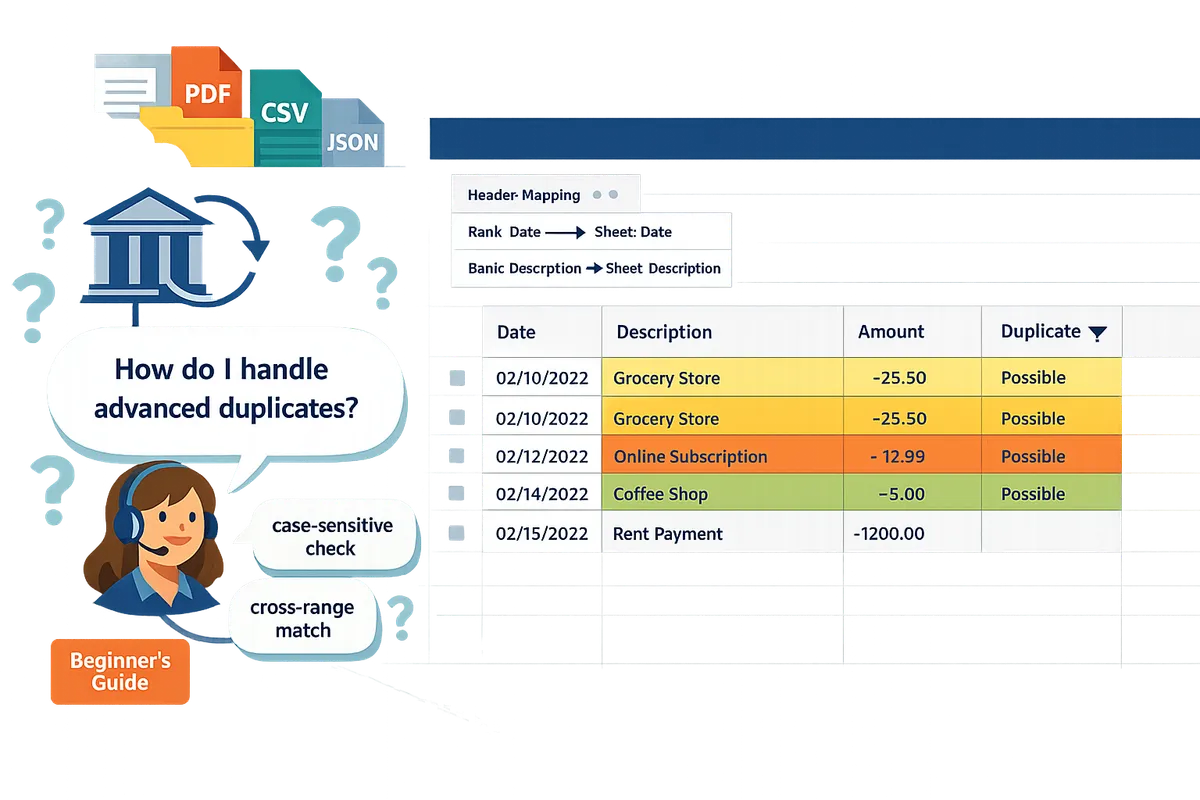
How do I handle advanced duplicate scenarios for bank transaction imports?
Use case-sensitive checks, cross-range matching, value normalization, and performance-minded helper columns to catch the real-world duplicates that basic methods miss. These techniques reduce false positives from formatting differences and flag true duplicates such as repeated reference numbers or mirrored imports. Rocket Statements can simplify the process by exporting consistent CSV/Sheets outputs that work reliably with the formulas below.
How do I highlight case-sensitive duplicates in Google Sheets? 🔠
Use EXACT combined with a counting function to flag rows that match only when case is identical. For example, in a helper column use the pattern: SUMPRODUCT(--(EXACT(A2, A$2:A$100)))>1 to return TRUE for entries that exactly match A2 including letter case. This method finds duplicates like "PAYROLL" and "Payroll" that standard COUNTIF would treat as two different values. Banks sometimes encode internal codes or vendor IDs using case, so missing a case-sensitive duplicate can hide reconciliation errors.
Steps to implement.
- Create a helper column titled ExactKey and fill with the raw text you must compare.
- Add the SUMPRODUCT(EXACT(...)) formula in the adjacent flag column and copy down.
- Apply conditional formatting to highlight TRUE rows.
According to Rocket Statements, exports keep original text case so your EXACT checks match source statements instead of normalized approximations.
How do I find duplicates across two columns or two sheets? 🔁
Compare a composed transaction key (date + amount + cleaned description) across the two ranges using MATCH or COUNTIFS to flag rows present in both places. Build a key in a helper column, for example: Date & "|" & TEXT(Amount, "0.00") & "|" & TRIM(Description), then use COUNTIFS on the other sheet to see if that key appears. Using the full transaction key reduces false positives from identical amounts or dates alone. For cross-sheet checks, reference the staging sheet explicitly (for example, COUNTIFS(Staging!$D:$D, $D2) ) so formulas stay readable and fast.
Practical note: inconsistent header mapping and layout differences increase false matches. See the Rocket Statements discussion on how different banks use unique statement designs for tactics to standardize inputs before matching.
How do I handle numbers with leading zeros, stray spaces, or inconsistent formats? 🧹
Normalize values first with TRIM, CLEAN, SUBSTITUTE, VALUE, and TEXT before running duplicate checks. For example, remove stray whitespace with TRIM and replace non-breaking spaces with SUBSTITUTE, then force account numbers to a fixed width using TEXT(value, "0000000000") when you expect ten digits. After normalization, use COUNTIF to highlight duplicates in Google Sheets on the normalized key rather than the raw field.
Prevent duplicates in Google Sheets with data validation by adding a custom validation rule that rejects entries already present in the normalized key column, for example requiring COUNTIF($D$2:$D$100, D2)=1. Business risk: formatting mismatches commonly hide duplicates and add hours to reconciliations; normalizing first saves time and reduces audit exposure. Rocket Statements can export fixed-format CSVs or mapped headers to reduce these mismatches during import.
How do I run duplicate checks across non-adjacent ranges and large datasets (performance tips)? ⚡
Use fixed ranges and helper columns instead of volatile full-column formulas for datasets over 10,000 rows to avoid slow Sheets performance. Decision rule: for under 10,000 rows, full-column conditional formatting and COUNTIF scans are usually acceptable; for over 10,000 rows, create a normalized key column, restrict formulas to the import range (for example, $D$2:$D$12000), and run COUNTIFS or MATCH on that fixed range. Split workflow into three tabs: Import (raw), Staging (normalized key + flags), and Ledger (final deduped rows). This structure lets you run heavy checks only on staging data and keeps the ledger responsive.
- Keep Rocket Statements exports in a separate working copy so you can re-run conversions and tests without altering the live ledger.
- Use sampling checks (random 1,000-row samples) before applying global dedupe rules.
- Archive older months to reduce active row counts.
⚠️ Warning: Full-column ARRAYFORMULA and volatile conditional formatting on very large imports can freeze Sheets or cause timeouts. Use fixed ranges and helper columns to avoid this.
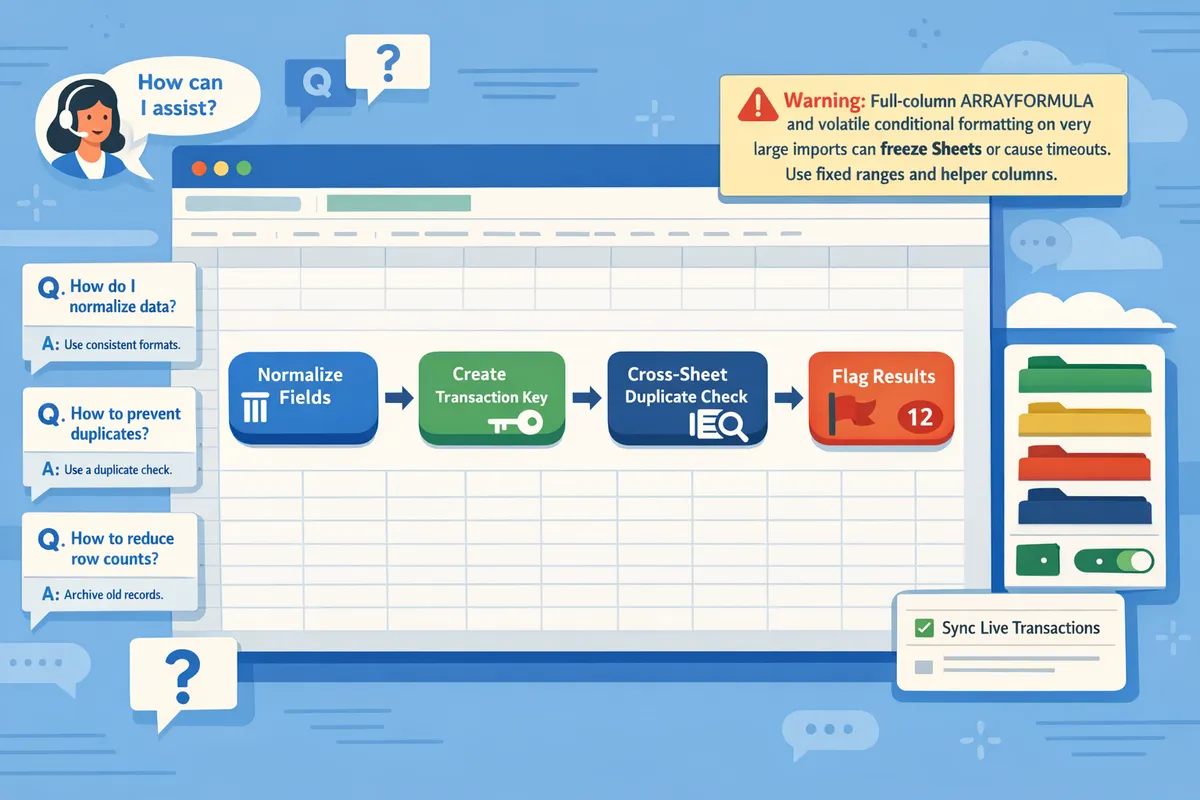
What prevention steps, templates, and automation stop duplicates from recurring?
Preventing recurring duplicates requires entry-level controls, post-import normalization, and an automated import that enforces unique transaction keys. Combining data validation, a reusable template set, and an automated statement-to-sheet workflow reduces manual hours, audit risk, and reconciliation delays.
How do I prevent duplicates in Google Sheets with data validation? 🛡️
Use a custom data validation rule that rejects any transaction ID already present in the target range. Apply this where your transaction ID or unique reference lives, not on free-text description columns.
Steps to set the rule.
- Choose the column with your transaction ID (example: column B).
- Data > Data validation.
- Set Criteria to "Custom formula is" and enter a formula that checks for existing IDs, for example: =COUNTIF($B:$B,$B2)=1.
- Set the action to "Reject input" and add a short help text explaining expected ID format.
This blocks simple duplicate entry at the point of input but does not solve duplicates caused by imports or formatting differences. Use a status column or an approval step for shared sheets so collaborators can request an override instead of being blocked.
💡 Tip: For shared edits, require a second-person approval column rather than forcing immediate rejection; that avoids blocking valid changes while preserving duplicate protection.
When should I use automation (Rocket Statements) instead of a DIY import? 🔧
Use Rocket Statements when your workflow requires repeatable imports, auditable backups, and consistent header mapping across multiple banks. Manual imports create variability in formats and cost teams time: small accounting teams often spend 8–15 hours per month consolidating multi-bank PDFs into one usable sheet.
Manual import costs and risks.
- Time lost to copy-paste and header fixes.
- Missed duplicates due to inconsistent transaction keys.
- Reconciliation delays when sources disagree.
How Rocket Statements changes that trade-off.
- Rocket Statements converts PDFs and images into structured rows and stores originals in cloud folders so you retain an auditable backup. - The product standardizes headers and can run dedupe checks during import, reducing the post-import cleanup that consumes bookkeeping hours. See our Google Sheets integration for setup details and the guide on automated multi-bank imports to compare workflows.
Which ready-to-use templates and downloadable workbook help practice these methods? 📥
Use three starter templates: single-column highlight, helper-column duplicate audit, and cross-sheet reconciliation sample. Each template demonstrates one common dedupe scenario and includes a notes tab that documents formulas and expected behavior.
Template details.
- Single-column highlight: Uses conditional formatting with COUNTIF to highlight identical transaction IDs and shows how to use COUNTIF to highlight duplicates in Google Sheets.
- Helper-column duplicate audit: Adds a helper column that returns counts, case-sensitive checks, and a reconciliation status flag for manual review.
- Cross-sheet reconciliation sample: Shows VLOOKUP/INDEX matches across account sheets and a sample script-free workflow for merging imports without doubling rows.
Downloadable practice workbook.
The workbook includes sample bank quirks such as leading zeros, merged descriptions, and date formats, plus ready-to-copy formulas and a documentation tab. Try the multi-account template and deduped imports walkthrough on our Bank Statements to Google Sheets: Multi-Account Template, Deduped Imports, and Running Balances (2026 Guide) and the free-method comparison in Convert Bank Statements to Google Sheets (2026): 5 Methods Compared + Free Template for extra practice files.
What checklist should I run after importing a batch of bank transactions? 📋
Run a six-step audit that normalizes fields, flags duplicates, and reconciles totals to the statement summary. Copy these steps into a documentation tab so every import follows the same review routine.
- Normalize formats. Convert all dates to YYYY-MM-DD and amounts to plain numbers (no currency symbols or commas).
- Trim and standardize text. Remove leading/trailing spaces, force consistent case for codes, and preserve leading zeros in account numbers.
- Run a duplicate check. Add a helper column with COUNTIF to highlight duplicates in Google Sheets (example check: =COUNTIF($B:$B,$B2)>1) and filter for counts > 1.
- Check cross-column duplicates. Use a combined key (for example, Date|Amount|NormalizedDescription) to catch duplicates that live across non-adjacent ranges.
- Reconcile totals. Sum imported credits and debits and compare to the statement summary; flag differences over your tolerance threshold.
- Archive originals and record actions. Save the source PDF/image in a cloud folder and mark rows as reviewed, corrected, or archived.
⚠️ Warning: Do not delete or permanently remove rows until reconciliation is complete; use a reviewed/archived flag to track deletions.
Further resources: for a full automated import and dedupe setup that runs these checks as part of the import, see our guide on Automatically Import Bank Statements into Google Sheets from Multiple Banks (Live Sync + PDF Backfill, No Duplicates) and the Google Sheets integration.
Frequently Asked Questions
This FAQ gives concise, actionable answers for highlighting, counting, and preventing duplicate bank transactions in Google Sheets. Use these answers to pick a method, validate imports, and set up a repeatable workflow that reduces reconciliation hours.
How accurate is OCR for bank statements? 🔎
OCR accuracy depends on the source file and layout; native digital PDFs usually produce clean, high-accuracy rows while low-resolution scans and complex layouts require manual correction. For example, a text-based PDF often yields correctly parsed dates and amounts, while a photographed statement with glare can produce swapped digits or merged columns. Always verify a sample of converted rows (I recommend spot-checking 50–100 rows across different pages) before trusting full imports. Rocket Statements' conversion preview shows parsed rows so you can correct header mapping and column types before final export to Google Sheets. See our comparison of conversion methods in Convert Bank Statements to Google Sheets (2026): 5 Methods Compared + Free Template for guidance on which input types need extra QC.
Can I highlight duplicates that match on date and amount but differ in description? 📅
Yes. Create a composite key column that concatenates normalized date and amount, then run COUNTIF or COUNTIFS against that key to flag matching transactions despite different descriptions. A composite key is a column that concatenates normalized date and amount to create a single unique identifier. Practical steps: normalize date to YYYY-MM-DD, strip currency symbols and commas from amount, concatenate with a delimiter, then use a helper COUNTIF to mark keys with count>1. Rocket Statements can output standardized date and amount fields during conversion, which reduces the normalization work you must do in Sheets. If you want a ready workflow, our multi-account template in Bank Statements to Google Sheets: Multi-Account Template, Deduped Imports, and Running Balances includes a prebuilt composite-key pattern and dedupe checklist.
Will conditional formatting slow down my sheet with 50k rows? 🐢
Yes. Conditional formatting that evaluates large ranges with volatile or complex formulas can slow Google Sheets when you approach tens of thousands of rows. Common performance hits come from applying rules to entire columns, using array formulas inside conditional rules, or recalculating on every edit. To keep responsiveness: (1) limit the rule range to the active data block rather than A:A, (2) move heavy formulas into helper columns that compute Booleans once, and (3) turn off conditional formatting during bulk imports and reapply afterward. If you use Rocket Statements for imports, choose the live sync or scheduled export settings that write only the active range or use the consolidated export to avoid creating enormous blank ranges. Read Automatically Import Bank Statements into Google Sheets from Multiple Banks (Live Sync + PDF Backfill, No Duplicates) for recommended import sizing and scheduling strategies.
How do I reconcile duplicates found in Google Sheets with my accounting system? 🔄
Export flagged duplicates with an audit column and match them in your accounting software using either CSV or a QuickBooks-compatible export. Practical workflow: filter duplicates, add columns for "reason flagged," "action taken," and "matched transaction ID," then export the filtered rows. Rocket Statements can export directly to QuickBooks-compatible files so you often avoid an intermediate CSV step. If you must reconcile manually, include the original statement file name and import ID in the export so auditors can trace each row back to source. Our beginner’s guide, Bank Statements to Google Sheets (2026): Beginner’s Guide to Live Bank Sync, CSV Imports, Header Mapping, and Fixing Duplicates, shows example reconciliation flows and the exact export settings to use for QuickBooks imports.
Can data validation prevent duplicates in shared sheets? 👥
Data validation can block manual duplicate entries but will not stop duplicates created by programmatic imports or concurrent edits. For shared environments, combine sheet-level validation with a centralized import process and periodic automated audits. Operational steps: enable validation on the entry column, require an "imported_by" or "source" column for bulk loads, and restrict import permissions to one steward or an automated tool. Rocket Statements offers a controlled import workflow that writes standardized rows and tags each import with a source ID, which reduces the risk of accidental duplicates from multiple contributors.
💡 Tip: Add a hidden "import_id" and "source" column to every import so you can filter programmatic duplicates quickly.
What should I do if conditional formatting stops working after a bulk import? ⚠️
Check for overwritten rule ranges, new header rows, hidden characters, and changed value formats; then restore rule ranges and normalize values before rerunning checks. Common causes: the import inserted a blank header row that shifted ranges, copied raw HTML or non-breaking spaces into cells, or overwrote helper formulas used by the conditional rules. Fixes in order: verify rule ranges, reapply anchoring where needed, run normalization (trim spaces, remove non-breaking characters, standardize dates), and then re-evaluate the conditional formatting. Rocket Statements' conversion preview and consistent export formats reduce the chance of format mismatches during bulk backfills.
⚠️ Warning: Bulk imports can overwrite hidden helper columns and conditional-format rules; back up your sheet or work on a copy before large backfills.
Take these next steps to find, count, highlight, and prevent duplicate bank transactions in Google Sheets.
The fastest way to stop duplicate-driven reconciliation is a repeatable workflow that flags and removes repeats before closing the books. Use conditional formatting and short formulas to highlight duplicates in Google Sheets, then filter and reconcile only the flagged rows. If you want a starter template that handles multi-account imports and deduped imports, see our Bank Statements to Google Sheets multi-account guide in the Sheets Bank Imports series.
COUNTIF to highlight duplicates in Google Sheets provides a simple numeric check you can pivot or filter to produce monthly duplicate counts.
Download the dedupe checklist and setup templates from Rocket Statements to apply these steps to converted data and live feeds. Rocket Statements is a platform that helps users save time and money by automating the process of converting their statements into spreadsheets as well as manage their documents in the cloud.
- Convert their PDF and image statements into spreadsheets
- Manage their documents in the cloud with folders and subfolders
- Sync live transactions data from bank accounts
- Transform their statements into CSV, Excel, JSON, and PDF files
- Transform their statements into Quickbooks compatible files
Get the checklist and templates from our Rocket Statements homepage, and review integration details on our Google Sheets integration page or the automatically import bank statements guide to complete your workflow.