
How to Download Bank Statements from 25+ Major Banks (2026): Direct Links, E‑Statements, and PDF Tips

How to Download Bank Statements from 25+ Major Banks (2026): Direct Links, E‑Statements, and PDF Tips
Missing three months of statements can delay a mortgage by weeks. How to download bank statements is a step-by-step process that shows direct e-statement links, PDF retrieval methods, and export options across major banks. This list of 25+ major banks provides direct links, e-statement paths, and practical tips for converting statements to spreadsheets and automating imports so you stop wasting hours on manual entry. Rocket Statements automates converting PDF and image statements into CSV, Excel, JSON, and QuickBooks-compatible files, manages documents in cloud folders and subfolders, and can sync live transaction data for ongoing bookkeeping. Learn more about our bank statement converter and which banks support one-click e-statements versus forced PDF downloads.
1) Where can I download bank statements for 25+ major banks?
You can download bank statements for 25+ major banks from each bank's online account portal, mobile app, e-statement emails, or by requesting copies via branch or support. E-stStatements are a digital statement delivery option that sends account activity as downloadable files or secure view links. Most retail banks publish PDFs; some online banks offer native CSV or OFX exports for direct accounting imports, while a minority surface image-only statements that require an extra PDF request or OCR.
What entry points do banks provide for statement downloads? 📥
Banks provide statement downloads via account portals, mobile apps, e-statement emails, and branch or phone requests.
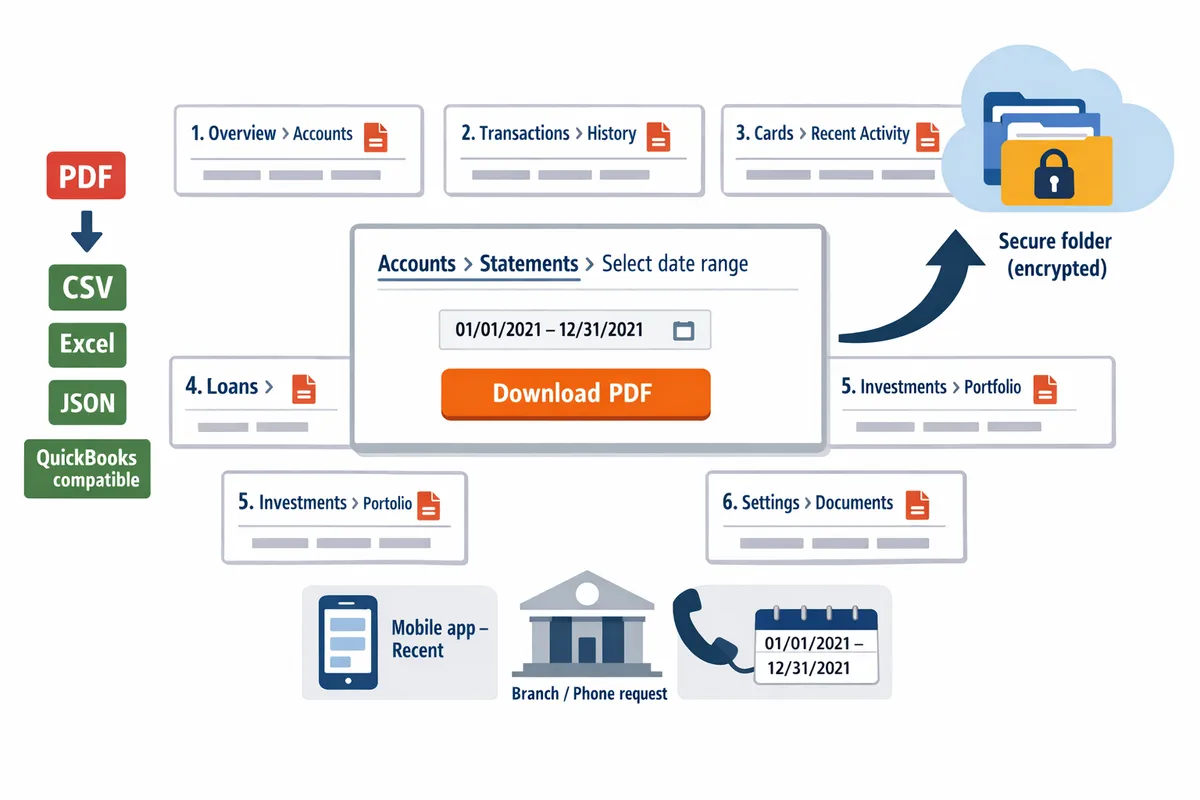
- Account portal. Look for menu items labeled 'Statements,' 'Documents,' or 'e-statements.' Desktop portals usually provide full PDF downloads and a date-range selector.
- Mobile app. Apps often mirror the web portal, but some banks show only an image preview and force a web download for a true PDF.
- E-statement email. Many banks send a monthly PDF or a secure link to the document center where you can download the file.
- Branch or phone request. Banks will produce official copies for older periods or for accounts not enrolled in e-statements; expect identity verification and occasional fees.
For example, large retail banks typically publish full PDFs, several online banks include CSV/OFX exports for accounting tools, and regional banks sometimes present scanned, image-only statements. Rocket Statements' bank-specific guides show where PDFs sit in each portal and what file types to expect before you convert.
What the roundup includes and how we organize bank pages 🌍
Our roundup lists 25+ banks with each bank's portal path, expected file types, enrollment requirement, and typical online lookback window.
- Region and bank grouping. We group entries by U.S., Canada, U.K., India, Australia, and major international retail banks.
- File-type flags. Each entry marks banks offering CSV/OFX exports, those that provide PDFs only, and those that present view-only images.
- Mobile vs web notes. Every page flags where the mobile app differs from the web portal and calls out banks that require web-only downloads.
| File type shown on portal | What it means | Business use case |
|---|---|---|
| PDF only | Statement available as a downloadable PDF or secure view link | Best for legal records and archival storage |
| CSV / OFX | Native transaction export for accounting software | Best for direct imports to QuickBooks, Xero, or spreadsheets |
| Image-only / scanned PDF | Viewable but not machine-readable without OCR | Requires conversion for transaction import; plan for extra processing time |
We link from each bank listing to a dedicated guide on our website with exact menu paths and sample screenshots so you can match your portal before you click.
How to use our website's bank pages to speed downloads 🚀
Open the bank-specific guide, match the screenshot to your portal, confirm e-statement enrollment, then download the file you need.
- Open the bank page and read the short 'where to click' path at the top.
- Match the screenshot to your portal to prevent mis-clicks that cost time.
- Download the PDF or export file for the date range you need.
- If the bank only offers images or scanned PDFs, upload the file to Rocket Statements to convert to CSV, Excel, JSON, or QuickBooks-ready exports.
If you plan to import into QuickBooks, follow our PDF Bank Statements to QuickBooks in Minutes guide for the minimal checks that prevent import errors.
Quick checklist before you download ✅
Confirm these items before a bulk download to avoid wasted time or failed imports.
- Account access and MFA. Verify your login and that two-factor authentication is reachable (phone or authenticator).
- E-statement enrollment. Confirm e-statements are turned on; some banks require enrollment to generate PDFs.
- Date range and pagination. Decide the exact start and end dates to avoid repeated downloads and missing pages.
- File format needed. Pick PDF for archival, CSV/OFX for direct accounting imports, or use Rocket Statements to convert PDFs into CSV/Excel/QuickBooks formats.
- Browser and device checks. Use a desktop browser for batch downloads; mobile often limits bulk export.
- Older or scanned statements. If a statement is a scanned image, plan to run OCR via Rocket Statements to extract transactions reliably.
⚠️ Warning: Do not store unencrypted statements on shared public folders. Keep downloaded statements in a secure cloud folder or upload them to Rocket Statements for encrypted storage and organized folders.
2) How do I download bank statements step-by-step using web portals, mobile apps, and branch requests?
Use the bank's web portal for full-date-range PDF exports, the mobile app for quick recent statements, and branch or phone requests for missing or historical records. Each channel has predictable limits: portals give the most export options, apps are fastest for single months, and branch requests handle suppressed or very old records. Follow the step templates below and use the comparison table to pick the fastest path for bulk downloads.
Web portal steps 💻
Use the bank's online portal when you need multi-month downloads, full date ranges, or CSV/OFX exports. Many banks place statements under a Statements, Documents, or e-Statements tab and offer a date-range selector and a Download PDF or Export CSV button.
- Log into the bank's secure website with multi-factor authentication.
- Open Statements or Documents and pick the account you need.
- Set the date range or select multiple months. Choose PDF, CSV, or OFX if available.
- Click Download. If the portal only shows single months, enroll in e-statements or use the portal's request/print function for batch pulls.
- Save files to a dedicated folder and upload them to Rocket Statements to convert PDFs to Excel, CSV, QuickBooks-ready files, and to store documents in organized cloud folders.
For Bank of America users, follow the portal steps then use our Bank of America PDF to Excel converter page for optimized extraction and batch processing. See our guide on how to convert your bank statements from pdf to excel format? (Updated: 2025) for step-by-step conversion after download.
Mobile app steps 📱
Use the bank mobile app for fast access to the most recent monthly statements and for on-the-go sharing. Mobile apps normally let you view and save individual monthly PDFs, but they rarely support multi-month batch exports.
- Open the bank app and authenticate.
- Tap Accounts or Documents, then Statements or e-Statements.
- Tap the month you want and choose Save, Share, or Export.
- Use Save to Files, email the PDF to your business address, or upload the file directly to Rocket Statements from your phone for conversion and cloud organization.
If you plan to download a large date range or many months at once, use the desktop portal. For Capital One bank statement download specifics, our Capital One guide walks through the portal and app differences and how to prepare files for conversion with Rocket Statements.
Branch, mail, and phone requests ☎️
Ask the bank by phone or at a branch when statements are missing from online archives or you need certified paper copies. Banks will verify identity and may charge for retrieval of older records.
- Call the bank support number or visit a local branch and explain the date range and account.
- Provide ID and account verification details. Ask whether they will email a PDF or mail a printed copy.
- Confirm fees and turnaround time. Ask for certified copies if required for legal or mortgage purposes.
- Scan any mailed paper statements or accept emailed PDFs and upload them to Rocket Statements to convert scanned statements into spreadsheets and store them in organized folders.
Expect longer wait times and potential fees for records older than 2 to 7 years, depending on the institution. Branch copies can be helpful when online records were suppressed or archived for compliance reasons.
Quick comparison: web portal vs mobile app vs branch
Use this table to choose the fastest option for bulk downloads, date-range coverage, and likely fees.
| Method | Ease | Date-range capability | Batch export | Typical fees | Best for |
|---|---|---|---|---|---|
| Web portal | Medium (requires login) | Full-range in most banks | Yes, often | Usually free | Bulk downloads, CSV/OFX exports |
| Mobile app | High (fast single-month) | Recent months only | Rarely | Usually free | Single-month access and quick shares |
| Branch / Phone | Low (requires verification) | Old or suppressed records | No, manual | Often charged for retrieval | Historical records, certified copies |
Troubleshooting common download issues 🛠️
If the PDF or download button is missing, clear your browser cache, try a different browser, or check pop-up and download permissions. Many portal issues stem from blocked pop-ups, browser extensions, or missing e-statement enrollment.
- Confirm you are enrolled in e-statements and that the account holder has document access rights.
- Try an incognito or private window to rule out extensions blocking downloads.
- Switch to a desktop browser if the mobile site hides export options.
- If the portal lists months but the Download button is inactive, contact bank support and request a portal reset or a manual statement export.
💡 Tip: If you plan bulk conversions, upload raw PDFs directly to Rocket Statements after download to convert statements to Excel or QuickBooks-ready CSV and to organize files in cloud folders.
3) How can I automate statement retrieval and convert PDFs into spreadsheets?
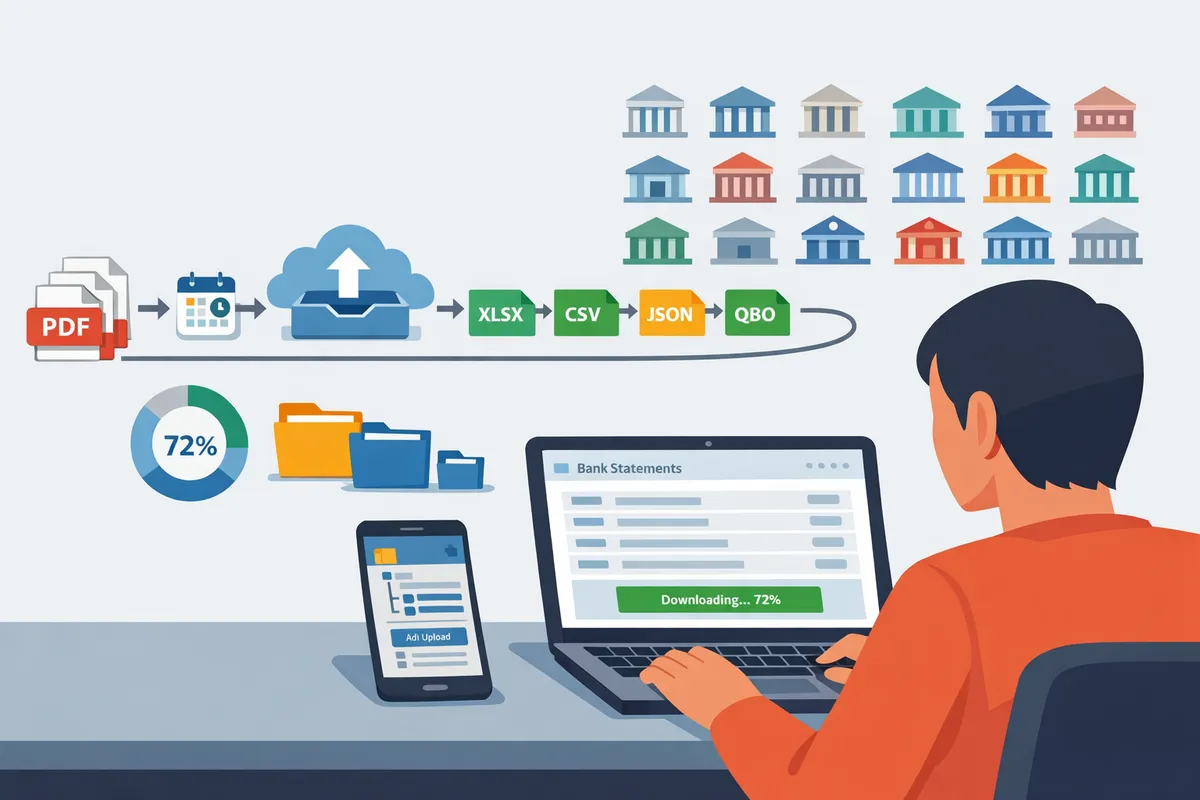
You can automate statement retrieval and convert PDFs into spreadsheet-ready files by using Rocket Statements to import bank feeds or batch-upload PDFs, then export CSV, Excel, JSON, or QuickBooks-ready files. Automating removes repetitive downloads, reduces copy-paste errors, and centralizes records for audits.
What is Rocket Statements and how does it work? 🛠️
Rocket Statements is a cloud platform that converts PDF and image bank statements into spreadsheet-ready files and stores them in organized cloud folders. The platform uses AI-driven extraction to locate dates, amounts, payees, and running balances, then normalizes column headers across different bank layouts. Rocket Statements also syncs live transaction feeds so you can reconcile converted PDFs with ongoing account activity. See the Bank of America statement PDF to Excel Converter for an example of bank-specific conversion guidance and layout handling.
How to set up automated imports and scheduled conversions ⏱️
Connect bank feeds or schedule batch PDF uploads in Rocket Statements, then pick the export format and conversion cadence. Follow these steps:
- Connect account or upload PDFs. Choose direct bank feed sync for live data or upload monthly e-statements as PDFs.
- Create conversion rules. Map how dates, amounts, and descriptions should appear in CSV or Excel outputs.
- Set a schedule. Run daily, weekly, or monthly conversions and specify email or cloud folder delivery.
- Choose export format. Select CSV for reconciliation, Excel for analysis, JSON for developer use, or QuickBooks-ready files for accounting import.
- Review and approve. Spot-check the first scheduled run to confirm column mapping and category assignments.
For step-by-step setup and example workflows, see our guide on converting bank PDFs to spreadsheets and the QuickBooks conversion tutorial.
Manual download vs Rocket Statements: comparison for SMBs 📊
For most small accounting teams, Rocket Statements reduces time spent and lowers error risk compared with manual downloads or custom scripts.
| Workflow option | Typical monthly time (SMB) | Error risk | Monthly cost | Bookkeeping readiness |
|---|---|---|---|---|
| Manual download and copy-paste | 6–20 hours. Example: four clients with monthly statements take 8–12 hours to extract and cleanup. | High. Manual entry introduces column misalignment and missed transactions. | Low direct cost but high labor cost. | Not ready. Requires manual cleanup before import. |
| Semi-automated scripts or tools | 2–6 hours. Example: scripts handle layout but need templates per bank. | Medium. Scripts fail when bank formats change. | Medium. Engineering or maintenance costs apply. | Partially ready. Exports often need normalization. |
| Rocket Statements | 0.5–2 hours. Example: batch 50-page PDFs convert with minimal review. | Low. AI normalizes layouts and flags anomalies. | Predictable subscription cost. | Ready. Exports are QuickBooks-ready or CSV/Excel for reconciliation. |
File formats and integrations to prioritize 📁
Prioritize CSV or Excel for reconciliation workflows and QuickBooks-ready exports for direct accounting imports. CSV and Excel files map directly to reconciliation columns and avoid the OCR quirks of raw PDF tables. JSON is useful when developers need structured payloads for integrations or custom dashboards. Rocket Statements exports to CSV, Excel, JSON, and QuickBooks-compatible files, and it can drop results into cloud folders or push them to accounting tools.
Practical tips:
- If you reconcile in Excel, set Rocket Statements to export Excel with a fixed column order.
- For QuickBooks imports, choose the QuickBooks-ready export to avoid manual column edits. See PDF Bank Statements to QuickBooks in Minutes for a full walkthrough.
- If you download a Bank of America online statement download as PDF, upload that PDF directly to Rocket Statements for bank-specific parsing.
Business consequences of DIY downloads vs using Rocket Statements
DIY downloads increase staff hours, reconciliation errors, and compliance exposure compared with centralizing conversions in Rocket Statements. For example, an accountant manually converting 50 PDF pages can spend 3–5 hours fixing column mismatches and duplicate rows before import. Centralized automation reduces that work and keeps historical statements organized for audits.
⚠️ Warning: Do not store unencrypted bank PDFs on shared drives. Use encrypted folders and retention policies within Rocket Statements or your cloud provider to meet record-keeping requirements.
For bank-specific conversion tips, see our Capital One download guide and the step-by-step PDF-to-Excel conversion article to reduce common import mistakes.
Frequently Asked Questions
This FAQ answers the most common questions small-business owners and bookkeepers have about downloading, converting, and storing bank statements. Each answer gives concrete steps, common failure points, and how Rocket Statements handles the task.
How do I download a Bank of America online statement as a PDF? 🏦
Log into Bank of America online banking, open Statements & Documents, choose the account and month, then select Download PDF. Steps that reduce friction:
- On desktop go to Accounts > Statements & Documents > select account > View statements. Choose the month and click the PDF download icon.
- If you only see an e-statement summary, enroll in e-statements under Document Delivery.
- Mobile apps often hide the full menu; use the app's Documents or Statements tab and switch to desktop if a full-range download is required.
For conversion and batch exports, our Bank of America statement PDF to Excel converter page shows the exact menu path and recommended filename conventions for bookkeeping. Rocket Statements can batch-import those PDFs and convert them into CSV or Excel for reconciliation, saving hours that manual copy-paste would cost.
How do I download my Capital One bank statement? 🧾
Sign into Capital One online banking or the mobile app, open Statements, pick the account and month, and download the PDF. Concrete tips:
- On desktop, go to Accounts > Documents or Statements, filter by account, then download the specific month as PDF.
- If a month is missing, confirm e-statement enrollment and check the account type (some business cards archive differently). Contact Capital One support for historical copies.
- Use the mobile app for quick recent months, but use desktop for multi-month exports.
See our step-by-step Capital One guide for screenshots and an export checklist: How to download your Capital One Bank Statement: A Simple Guide. Rocket Statements can then convert those PDFs into Excel or QuickBooks-ready files with automatic categorization.
How far back can I download bank statements? 📅
Most banks keep several years of online statements, but exact retention varies by bank and account type and older records often require a branch or support request. What to do next:
- Check the bank's Document Center or Help pages for the retention policy; many retail accounts keep 3 to 7 years online, while some business accounts keep shorter or longer windows.
- If the online portal lacks older months, call or visit a branch to request archived copies. Expect turnaround time and potential per-page fees.
- For missing historical data required for audits or lending, collect a written confirmation from the bank about available date ranges.
Use Rocket Statements to centralize downloaded PDFs and scanned archives in organized folders so you avoid repeated retrieval requests and can quickly export older sets into spreadsheets when lenders or auditors ask.
What file format should I use for bookkeeping? 📁
Use CSV or Excel for reconciliation and QuickBooks-compatible exports for direct import into accounting software. Why and how:
- CSV/Excel keeps columns separate (date, description, amount, balance), which speeds reconciliation and import.
- Keep original PDFs for audit trails; store them in a folder structure that matches fiscal years and accounts.
- For QuickBooks imports, use QuickBooks-compatible CSV or the platform's native import format to avoid field mismatches.
Rocket Statements converts PDFs and images into CSV, Excel, JSON, and QuickBooks-ready files and automates mapping common bank layouts so imports require minimal cleanup. See our conversion walkthroughs for step-by-step instructions: How to convert your bank statements from pdf to excel format? (Updated: 2025) and How to Convert Bank Statements to Excel (Fast & Free Guide). For QuickBooks-specific guidance, read PDF Bank Statements to QuickBooks in Minutes | Rocket Statements.
Is it secure to store statements in the cloud? 🔒
Storing bank statements in a reputable cloud service is secure when encryption at rest and in transit is enforced and access controls such as MFA and role-based permissions are used. Security checklist for small businesses:
- Use multi-factor authentication, role-based access, and least-privilege sharing for folders containing financial documents.
- Maintain a retention policy that removes or archives files after statutory retention periods.
- Audit access logs quarterly and enforce unique logins rather than shared accounts.
⚠️ Warning: Do not store long-term financial records in personal email or unprotected shared drives; those are common breach vectors.
Rocket Statements offers cloud document management with folders and subfolders, controlled sharing, and audit visibility so teams can store statements securely and export spreadsheet-ready data when they need it.
How accurate is OCR for bank statements? 🤖
Modern AI-driven OCR typically achieves high accuracy on standard, machine-generated PDF statements but accuracy decreases with scanned images, poor resolution, or unusual statement layouts. How to validate before automating:
- Run a 50-statement sample through the OCR to measure mismatch and extraction errors.
- Inspect a representative set of vendor names and split transactions to confirm mapping rules.
- Create templates or correction rules for recurring banks with unique layouts.
Rocket Statements uses AI extraction and automatic categorization with batch processing so you can validate a sample, correct mappings, and then process hundreds of files with minimal manual fixes. If you want a hands-on validation routine, follow our step checklist in How to convert your bank statements from pdf to excel format? (Updated: 2025).
Next steps to finish downloading and preparing your statements
These final steps show how to download bank statements across multiple banks and get them ready for reconciliation. Save original PDFs, use the direct e-statement links above, and convert files to spreadsheet formats so imports require minimal cleanup.
Rocket Statements is a platform that helps users save time and money by automating the process of converting their statements into spreadsheets as well as manage their documents in the cloud. For bank-specific walkthroughs, follow our Capital One bank statement download guide or see the step-by-step conversion process in How to convert your bank statements from pdf to excel. If you need QuickBooks-ready exports, refer to PDF Bank Statements to QuickBooks in Minutes for practical checks that prevent costly import errors.
💡 Keep original, high-resolution PDFs and name files by bank and date to speed batch processing and reduce manual matching.
Start a free trial of Rocket Statements to convert a sample statement and verify your export setup. Subscribe to our newsletter for conversion tips and bank-specific updates.