
How to Convert PDF Bank Statement Into Google Sheets

How to Convert PDF Bank Statement Into Google Sheets
Manually retyping 500 transactions from PDF bank statements can add six hours to every monthly reconciliation. This integration-guide shows how to convert pdf bank statement into google sheets and automate recurring imports using Rocket Statements. Rocket Statements is a platform that automates converting PDF and image bank statements into structured spreadsheets and manages those documents in cloud folders while syncing live transactions and exporting to CSV, Excel, JSON, QBO, and OFX. Our step-by-step instructions cover batch processing, automatic bank-format detection, scheduled imports, and QuickBooks-ready exports so recurring client statements appear in Sheets without manual cleanup. Learn setup and security details on our AI-powered bank statement converter and Google Sheets integration. Find which PDF layouts cause mapping errors and how to prevent them.
How does Rocket Statements connect PDF bank statements to Google Sheets?
Rocket Statements connects PDF bank statements to Google Sheets via the banktosheets add-on, which parses statements and writes structured rows into your chosen spreadsheet. This section lays out the integration architecture, the security controls you should verify, and the export formats supported so you can assess privacy and compliance risk before you enable automated imports.
banktosheets add-on: Google Sheets connector 🔌
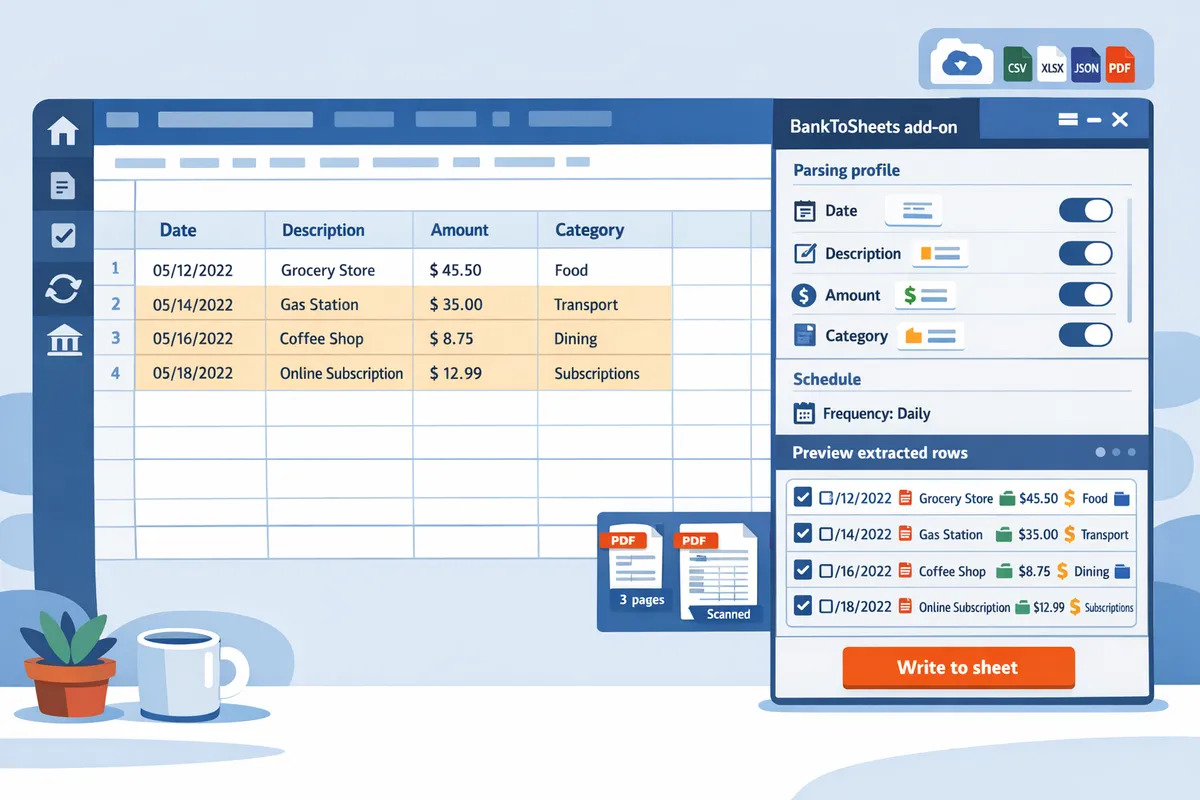
The banktosheets add-on is a Google Sheets connector that pushes parsed rows and headers from Rocket Statements into a target sheet while preserving table structure. Install the add-on from Google Workspace and open it from the Sheets Add-ons menu to start a mapping session.
- Install and authorize. Open Google Workspace Marketplace, install banktosheets, and grant OAuth access limited to the sheet or folder you choose.
- Map fields. Use the add-on UI to map statement fields (date, description, amount, balance) to your sheet headers and choose append or overwrite mode.
- Run import. Select one or more parsed statement jobs in Rocket Statements and send results to the sheet; the add-on preserves headers and table columns so you do not reformat each import.
Example: map the statement Date column to your Sheet's Transaction Date header, set import mode to append, and schedule nightly imports for recurring statements.
Read the step-by-step upload guide for a quick walkthrough on using the add-on and mapping templates in our guide on how to upload PDF bank statements to Google Sheets in minutes.
How secure is the Google Sheets integration? 🔒
Rocket Statements secures the Google Sheets integration with OAuth-limited access, bank-level encryption in transit and at rest, and role-based cloud folder permissions. According to Rocket Statements' Google Sheets Integration page, the service stores parsed outputs and source PDFs in cloud folders with access controls and audit logs so teams can collaborate without exposing raw documents.
- OAuth scopes. The add-on requests only the permissions required to write to the selected sheet or folder and can be revoked from your Google account at any time.
- Encryption and compliance. Data moves over TLS and is encrypted at rest. See the Google Sheets Integration page for compliance notes and audit procedures.
- Access controls. Use folder-level roles to limit who can view raw PDFs versus who can view sheet exports.
⚠️ Warning: Avoid uploading confidential PDFs to unknown third-party converters; use Rocket Statements' cloud folders and controlled sharing to reduce exposure.
Which file formats and banks does Rocket Statements support? 🗂️
Rocket Statements exports parsed statements to Google Sheets, Excel, CSV, JSON, QBO, and OFX and auto-detects common bank statement layouts while handling scanned images and multi-page PDFs. The platform provides batch processing and layout detection so you can convert dozens of statements in a single job without manual rekeying.
- File formats. Choose direct write to Google Sheets or export to Excel/CSV/JSON/QBO/OFX for downstream systems like QuickBooks.
- Layout handling. Automatic bank-format detection and OCR handle scanned pages, merged table cells, and differing date or currency formats; use the mapping step to normalize column formats before export.
- Bank coverage. Rocket Statements maintains bank-specific converters (for example, Bank of Singapore) and offers batch backfills and scheduled imports for recurring statements.
For a multi-account, recurring setup that avoids duplicate rows and performs live sync plus PDF backfill, follow the automated multi-bank import guide that shows configuration for scheduled imports, deduplication, and templates.

How do you set up automated PDF-to-Sheets imports step by step?
Set up automated PDF-to-Sheets imports by installing the banktosheets add-on, connecting your Google account to Rocket Statements, mapping a Sheets template to parsing rules, and scheduling recurring fetches. Follow the sequence below to reduce manual cleanup, catch multi-page and multi-bank edge cases, and receive alerts for failures.
What prerequisites and permissions do you need? 🛂
You need a Rocket Statements account, a Google account with edit rights on the destination Sheet, and permission to install Google Workspace add-ons. Confirm your Google account can install add-ons in your organization; if you are on a managed Google Workspace, request the admin to allow the banktosheets add-on. Grant Rocket Statements access to the cloud folder where you will upload PDFs or allow the service to access your email inbox if you plan to import attachments automatically. Recommended checks before you begin: ensure the target Sheet is owned or editable by the same Google account used for the add-on, create a dedicated cloud folder for statement PDFs, and verify folder sharing matches your team’s retention and access policies.
How to install the banktosheets add-on and connect accounts 🔗
Install the banktosheets add-on from the Google Workspace Marketplace and complete the one-time authorization so Rocket Statements can write to your selected Sheets and read your source folders. Steps:
- Open Google Sheets, choose Extensions > Add-ons > Get add-ons, and search for banktosheets. Install the add-on and accept permissions to view and manage your Google Drive files and spreadsheets.
- Open the banktosheets sidebar in your target Sheet and click Connect Rocket Statements. The add-on launches a one-time OAuth flow that links the Sheet to your Rocket Statements workspace.
- In Rocket Statements, confirm which cloud folder or email address will supply PDFs and grant folder-level read access. The connection screen shows a permissions checklist; confirm each item before proceeding.
- Run the sample connection test in the sidebar. Expected output: a confirmation banner in Sheets and a short log entry in Rocket Statements stating the connection succeeded.
If you need multi-bank imports or live sync with bank feeds, follow the multi-bank setup in our guide on automatically importing bank statements into Google Sheets.
How to configure parsing rules and templates ⚙️
Create a destination template in Sheets with an exact header row and save that template in Rocket Statements, then map statement fields to those headers in the parsing profile. Recommended header order and exact text: Date, Description, Amount, Balance, Category. Use Date formats that match the most common format across your statements (for example, YYYY-MM-DD or DD/MM/YYYY) and set a fallback parsing rule for alternate date patterns. Configure these parsing rules:
- Date mapping: select the primary format and enable alternate formats for edge cases.
- Amount mapping: strip currency symbols on import and set debit vs credit behavior (debits as negative by default).
- Split transactions: map split rows to a single transaction ID column so they aggregate correctly in Sheets.
- Multi-page tables: enable table continuation so Rocket Statements preserves headers on page breaks.
Save a bank-specific parsing profile when you have a recurring provider; Rocket Statements’ Bank Statement Converter can detect common bank formats automatically and let you apply a saved template to future imports. For bulk uploads or batch processing, assign the parsing profile to the folder so uploads inherit the correct rules.
How to schedule recurring imports and set alerts ⏰
Use Rocket Statements’ scheduler to fetch statement PDFs on a set cadence and append parsed rows to your target Sheet, while enabling duplicate protection and failure alerts. Scheduling steps:
- In Rocket Statements, open the folder or inbox you configured and choose Schedule > New Job.
- Select frequency: Monthly (1st or end-of-month), Weekly (specify weekday), or Daily with a time window. For bank statements, monthly at 02:00 in your accounting timezone is a common choice.
- Select the parsing profile and the destination Sheet template. Choose append mode to add rows or replace mode to refresh a period-range pull.
- Turn on Duplicate Protection to prevent repeated rows when PDFs are reprocessed. Set the dedupe key to Date + Amount + Description.
- Configure alerts: add an email address and/or a Slack webhook for failure notifications, and set retry attempts (recommended 3 retries with 15-minute intervals).
Expected behavior: the scheduler imports new PDFs, writes structured rows to the Sheet, and logs each job run in Rocket Statements with status (Success, Partial, Failed). For multi-bank or live-sync setups, see our multi-bank import guide for dedupe and backfill configuration.
How to test and verify import results ✅
Run a sample import with 1–3 statements representing your typical variations and validate each column against the source PDFs. Verification checklist:
- Row count and continuity: confirm all transaction rows from source PDFs appear in Sheets and that multi-page tables merged correctly.
- Date accuracy: spot-check 10 random dates across pages for correct parsing and timezone alignment.
- Numeric formats: ensure Amount and Balance are numeric (not text) and that negative values represent debits.
- Description fidelity: verify merchant names and split-transaction notes map into Description or a designated memo column.
- Currency handling: confirm currency symbols are removed and a currency column exists if you need multi-currency reporting.
- Dedupe and idempotence: re-run the same import and confirm duplicate protection prevents repeated rows.
If you find parsing issues, update the parsing profile or template header, then reprocess the sample PDFs until the Sheet output matches source documents. Check Rocket Statements’ job logs for parsing warnings and use the preview pane in the add-on to inspect extracted rows before they write to the Sheet.
💡 Tip: Use a small, representative sample of PDFs (different banks, multi-page statements, and image-based scans) when tuning parsing rules to catch edge cases early.
What use cases and optimization tips speed up bookkeeping with bank statements to Sheets?
This section lists the bookkeeping workflows and concrete optimization steps that cut hours from monthly reconciliations and recurring admin. Use cases include batch bookkeeping imports, month-end reconciliation, cash-flow reporting, and QuickBooks-ready exports; each use case benefits from templates, deduplication, and scheduled imports.
How can bookkeepers and small accounting firms save time? 💼
Bookkeepers save hours per month by batching PDF conversions and sending parsed transaction rows directly to client Google Sheets. For example, a firm processing 50 monthly statements can reduce post-import cleanup from several hours to minutes by applying parsing templates and duplicate protection before review. Practical steps: batch-upload raw PDFs into Rocket Statements, pick a parsing template that matches the bank format, map columns to the client Sheets template, and schedule a monthly import for each client. Our Rocket Statements platform stores PDFs in client folders and writes clean rows into Sheets so staff review only flagged or ambiguous rows instead of rekeying every transaction.
You can follow the automated multi-bank feed setup in our guide to create a single Sheets destination for multiple institutions: automated, multi-bank feed guide. For one-off uploads, see our quick upload walkthrough: upload PDF bank statements in minutes.
How does Rocket Statements handle edge cases like multi-page PDFs, merged cells, and currencies? ⚠️
Rocket Statements detects bank formats automatically and applies custom parsing rules to handle multi-page statements, split-line transactions, merged table cells, and variable date or currency formats. When the parser finds ambiguous rows—such as split-line descriptions or amounts placed across columns—it flags those rows for manual review in the web UI so your team maintains control. You can override automatic rules with a custom parsing profile for a given bank or statement type and save that profile as a template for future imports.
⚠️ Warning: Avoid uploading sensitive client PDFs to unknown converters. Our Rocket Statements integration uses secure cloud folders and bank-level protections; review your security settings on the Google Sheets integration page before enabling scheduled imports.
See our Google Sheets integration page for security and compliance details: Google Sheets Integration.
How do DIY methods compare to Rocket Statements (time, cost, and risk)? 📊
Rocket Statements reduces recurring cleanup time, lowers the chance of duplicate or misparsed rows, and centralizes document management compared with DIY OCR or manual CSV workflows. The table below summarizes typical trade-offs for small accounting teams evaluating options.
| Method | Typical time-to-clean (50 statements) | Recurring automation | Error rate / cleanup effort | Security & compliance | Typical monthly cost (example) |
|---|---|---|---|---|---|
| DIY OCR in Google Docs | 20–40 hrs | Low (manual steps) | High (format breaks, merged cells) | Medium (depends on storage) | Low software cost, high labor |
| Manual CSV export/import | 15–30 hrs | Low (manual exports) | Medium (date/currency formats fail) | Medium (sensitive files shared) | Low tools, high labor |
| Generic add-ons | 8–20 hrs | Partial (limited scheduling) | Medium-high (one-size parsers) | Varies by vendor | Moderate subscription |
| Rocket Statements (our platform) | 1–6 hrs | High (scheduled imports, dedupe) | Low (parsing templates, duplicate protection) | High (secure folders, audit logs) | Subscription + lower labor cost |
Use this decision framework: estimate current hours spent on rekeying and cleanup, multiply by your billed hourly rate, and compare that to subscription plus review time. For example, a 20-hour monthly reduction at $60/hr equals $1,200 saved in labor each month.
For a deeper method comparison and a free template, see our 2026 comparison post: Convert Bank Statements to Google Sheets (2026): 5 Methods Compared + Free Template.
How to use templates and post-import validation for immediate analysis
Apply ready-made Sheets templates and validation rules to convert imported transactions into reconciled ledgers, expense reports, or QuickBooks-compatible exports with minimal manual edits. Start by selecting a template that matches your chart of accounts or client reporting layout, then map parsed fields (date, description, amount, balance, currency) to template columns so imports land in the right place.
Follow these steps to implement a production-ready workflow:
- Select a template. Use our multi-account template for firms that track several client accounts: multi-account template and dedupe checklist.
- Map parsing fields in Rocket Statements to the template columns and save the mapping as a named profile.
- Configure validation rules in Sheets: normalize dates to YYYY-MM-DD, set currency columns to number format, and apply lookup tables for merchant name normalization.
- Enable duplicate protection and scheduled imports so new statements append without creating duplicates.
- Export reconciled data to QuickBooks-compatible formats when required or schedule recurring QBO/CSV exports for accounting uploads.
If you need a ready start, download our quick template and walkthrough: Convert bank statements to Google Sheets (2026) guide.
Frequently Asked Questions
This FAQ answers common operational, security, and accuracy questions about converting PDF bank statements into Google Sheets with Rocket Statements. Each answer tells you where to test or change settings in the integration and points to deeper configuration guides.
How accurate is OCR for bank statements? 🤖
OCR accuracy depends mainly on PDF quality and the statement layout. Rocket Statements uses AI-driven parsing and bank-format detection to reduce misreads and marks uncertain rows for manual review. For best results upload native, high-resolution PDFs (300 DPI or higher) and avoid angled phone photos; test accuracy by dropping a sample file into a staging folder and opening Parser Preview in the Rocket Statements dashboard. If you see frequent column shifts, open Settings > Parser Templates and adjust column anchors or create a bank-specific template. For a product-level overview of parsing capabilities and supported export formats, see the Bank Statement Converter documentation.
Can I keep original PDFs in cloud folders while writing data to Sheets? 📁
Yes; Rocket Statements stores original PDFs in your connected cloud folders and writes parsed rows to the destination Google Sheet. You can set folder structure, retention, and access controls from Dashboard > Documents > Folder settings so each account or client has its own audit trail. Enable audit logs and restrict folder access to finance roles to reduce exposure of personally identifiable information. For security details and compliance controls that apply to Google integration, consult our Google Sheets Integration page.
⚠️ Warning: Limit folder access and enable audit logs before importing production statements to prevent unauthorized access to raw PDFs.
What happens if the date or currency format is inconsistent? 📅
Rocket Statements detects inconsistent date and currency formats and applies parsing rules while flagging mismatches for review. You can create custom parsing rules per bank or statement type in Parser Templates (Dashboard > Parser Templates > Edit mapping) and then assign templates to accounts to avoid repeated format errors. To validate templates, run a small backfill into a test Sheet and inspect the Review Queue for flagged rows; adjust the template mapping until the parser no longer flags the common mismatches. For step-by-step validation and cleanup tips, see our guide on how to upload PDF bank statements to Google Sheets in minutes.
Can I automate monthly imports for multiple accounts? 🔁
Yes; Rocket Statements supports scheduled batch processing and can append parsed transactions to separate Sheets or tabs for each account. Create a template per account, set the destination Sheet and tab in the template mapping, then enable a monthly schedule in Scheduler (Dashboard > Scheduler). Test the workflow by running a manual backfill and checking the Review Queue and destination tabs for correct mapping and deduplication. For enterprise and multi-bank setups, follow the automated multi-bank feed configuration in our guide on automatically importing bank statements into Google Sheets from multiple banks.
How do I handle duplicate transactions across statement PDFs? 🔍
Enable duplicate protection in import settings to detect and skip transactions that match on date, amount, and description. Duplicate protection is a setting that compares incoming rows against previously imported records and either skips exact matches or moves suspected duplicates to the Review Queue for manual confirmation. Turn this on at Dashboard > Imports > Duplicate protection and choose the matching tolerance (exact match or fuzzy match on descriptions). Run a PDF backfill into a test Sheet to confirm the rule does not accidentally skip legitimate corrections.
💡 Tip: Use the Review Queue for suspected duplicates and run a weekly reconciliation report to catch edge cases where descriptions changed between PDFs.
Can I export parsed data to QuickBooks after importing into Sheets? 💼
Yes; Rocket Statements exports parsed transactions in QuickBooks-compatible formats (QBO and OFX) and can also write a Sheets template formatted for QuickBooks import. Configure exports at Dashboard > Exports and choose QBO or the Sheets QuickBooks template as the destination. To validate, export a small date range, import into a QuickBooks sandbox or a test company file, and confirm accounts and class mappings match your chart of accounts. For details on file formats and mapping best practices, see the Bank Statement Converter page that explains QuickBooks export options and sample workflows.
Next steps to get your sheets importing reliably.
Use Rocket Statements to automate PDF-to-Google Sheets conversion and schedule recurring imports. If you want a repeatable workflow for how to convert pdf bank statement into google sheets, test a small batch first and confirm column mappings and deduplication.
Rocket Statements is a platform that helps users save time and money by automating the process of converting their statements into spreadsheets as well as manage their documents in the cloud.
The product has the following features:
- Convert PDF and image statements into spreadsheets
- Manage documents in the cloud with folders and subfolders
- Sync live transactions data from bank accounts
- Convert statements into CSV, Excel, JSON, and PDF files
- Convert statements into QuickBooks compatible files
💡 Tip: Run a single-month import and compare totals before switching to scheduled runs to avoid duplicate rows and mapping errors.
Start a free trial of Rocket Statements and follow the Google Sheets integration guide to connect your first PDF and set up scheduled imports. For more setup options and multi-account templates, see the guide to automatically import bank statements into Google Sheets from multiple banks and the walkthrough on how to upload PDF bank statements to Google Sheets in minutes.
Subscribe to our newsletter for implementation tips and updates.