
How to Convert Credit Card Statements to Excel/CSV in 2026: Chase, Amex, Citi, Capital One (Free vs Pro Methods)

How to Convert Credit Card Statements to Excel/CSV in 2026: Chase, Amex, Citi, Capital One (Free vs Pro Methods)
A single misposted credit card transaction can add hours to month-end reconciliations and cost small firms billable time. Convert credit card statement to Excel is a process that extracts transactions from PDF or image files into spreadsheet rows for reconciliation, imports, and reporting. This how-to guide helps small business owners and bookkeepers compare free versus pro methods, follow hands-on steps, and adopt our website’s recommended Rocket Statements workflow to convert PDF and image statements, export CSV/Excel/JSON/PDF and QuickBooks files, organize documents in cloud folders, and sync live transactions. We include practical examples for Chase and Citi statements using Rocket Statements' batch processing and automatic categorization. Which method actually saves a two-person bookkeeping team three or more hours per client?
Use a decision flow to pick the conversion method that best converts credit card statement to Excel (Which method should you choose?).
Use a decision flow that compares volume, privacy, and desired output to pick the method that best converts credit card statement to Excel. A decision flow is a short questionnaire that matches your needs to one of three method families: free online converters, desktop OCR workflows, or Rocket Statements. This section gives a side-by-side comparison, a short questionnaire you can run in five minutes, and issuer-specific notes for Chase, Amex, Citi, and Capital One.
Which option fits my needs? (Side-by-side comparison)
This table compares time, cost, expected cleanup, and privacy so you can choose the right conversion route. The table rows show realistic operational tradeoffs for single statements and recurring batches.
| Method | Single-statement ease | Batch throughput | Expected cleanup time | Cost per statement | Supported output formats | Privacy model | QuickBooks compatibility |
|---|---|---|---|---|---|---|---|
| Free online converters | Very easy for one PDF | Poor for batches | 5–30 minutes manual fixes | Free or ad-supported (time cost) | XLSX, CSV (varies) | Cloud; upload to third-party servers | Limited; may need reformatting |
| Excel Power Query | Moderate; needs manual steps | Moderate for repeatable formats | 5–20 minutes for layout tweaks | Free (your time) | XLSX, CSV | Local spreadsheet processing | Native Excel exports make QB imports easier |
| Desktop OCR (paid tools) | Moderate setup, easy repeat | Good for on-premises batches | Low after template maturity | License + setup hours | XLSX, CSV, JSON | Local processing (on-prem) | Good if you export standardized CSVs |
| Rocket Statements | Easy upload, minimal setup | High; designed for batches | Low; automatic mapping reduces fixes | Subscription or pay-per-use | XLSX, CSV, JSON, QuickBooks format | Cloud with secure storage and folder controls | Built-in QuickBooks-compatible exports |
Notes: For Chase-specific layouts, see Rocket Statements' Chase Bank PDF to Excel converter. For Citi patterns, see Rocket Statements' Citi Bank PDF to Excel converter. For general step-by-step help with PDFs, see How to Easily Convert Credit Card PDF Statements to Excel with Rocket Statements.
When should I use free online converters or Power Query? 🤔
Use free online converters or Excel Power Query for low-volume, consistent-layout statements with no strict privacy requirements. Ideal scenarios include a single monthly personal card, a one-off client request, or a statement with a simple tabular layout. Expected manual tasks:
- Column alignment and header renaming.
- Date normalization (e.g., MM/DD/YYYY to ISO).
- Duplicate checks and merchant-name cleanups.
Search tip: Amex statement PDF to Excel free is a common query that returns usable one-off converters.
⚠️ Warning: Free converters may cache or inspect uploads; avoid them for PII, HIPAA, or regulated client data.
Useful links: If you want a guided free-start path that scales later, read How to Convert American Express Credit Card Statements to Excel and How to Convert Bank Statements to Excel (Fast & Free Guide).
When should I use desktop OCR? 🖥️
Use desktop OCR when you need local processing, handle recurring batches, and can invest time in template setup. Desktop OCR works well for accounting teams that must keep data on-premises or for firms that process the same issuer layout weekly. Practical steps to deploy:
- Collect 5–10 representative PDFs per issuer.
- Build a template for each layout and test on a withheld sample.
- Create a nightly or weekly batch job to convert and export CSV/XLSX.
- Run a validation pass checking totals and sample rows.
Business costs to budget: initial template build (tens of setup hours for several issuers), periodic maintenance when issuers change layout, and a validation step after each batch to catch missed rows. Desktop OCR reduces cloud exposure but requires ongoing attention to keep templates accurate.
Why choose Rocket Statements? 🚀
Rocket Statements centralizes uploads, applies AI-driven extraction, and exports to Excel, CSV, JSON, or QuickBooks-compatible files so you avoid repeated template work. Practical outcomes you can expect:
- Central folders and subfolders for client statements so teams access a single source of truth.
- Automatic transaction extraction and mapping that keeps column names consistent across issuers.
- Export options that include XLSX, CSV, JSON, and QuickBooks-compatible formats to match your accounting workflow.
What this saves you: fewer hours reconciling inconsistent columns, consistent mappings across clients, and no need to rebuild per-issuer templates. See Rocket Statements' Chase Bank PDF to Excel converter and Rocket Statements' Citi Bank PDF to Excel converter for issuer-specific pages. For a tutorial of the full Rocket Statements workflow, see How to Easily Convert Credit Card PDF Statements to Excel with Rocket Statements.
Quick questionnaire: Which method should I pick? (Answer these 5 questions)
- Do you process more than 10 statements per month?
- Yes: Prefer desktop OCR or Rocket Statements.
- No: Free converters or Power Query may suffice.
- Must the data stay on-premises for compliance?
- Yes: Use desktop OCR.
- No: Rocket Statements or cloud converters are options.
- Are issuer layouts stable and identical each month?
- Yes: Power Query or desktop OCR templates can work well.
- No: Rocket Statements adapts to mixed layouts and reduces manual template maintenance.
- Do you need QuickBooks-compatible exports out of the box?
- Yes: Rocket Statements provides built-in QuickBooks exports.
- No: CSV/XLSX from other methods can still be imported with cleanup.
- Is speed more important than absolute control?
- Speed: Rocket Statements for batch processing.
- Control: Desktop OCR for local workflows.
Use the answers above to map directly to Free methods, Power Query, Desktop OCR, or Rocket Statements.
Issuer-specific quirks: Chase, Amex, Citi, Capital One
Issuer layouts are the most common source of extraction errors; match your method to those quirks. Practical notes by issuer:
- Chase. Chase statements often include multi-line merchant descriptions and consolidated summary rows. Use a converter that preserves line items. See Rocket Statements' Chase Bank PDF to Excel converter for a tailored workflow.
- American Express. Amex sometimes places payments and credits in a separate summary block. When using manual methods, expect extra date normalization and reconciliation steps. See How to Convert American Express Credit Card Statements to Excel for examples.
- Citi. Citi PDF layouts vary by country and product; batch processing benefits from issuer-aware extraction. See Rocket Statements' Citi Bank PDF to Excel converter for a scalable approach.
- Capital One. Capital One frequently offers direct CSV downloads from online banking; prefer the native CSV where available to avoid OCR mistakes. If CSV is not available, choose a method that handles variable merchant descriptions well.
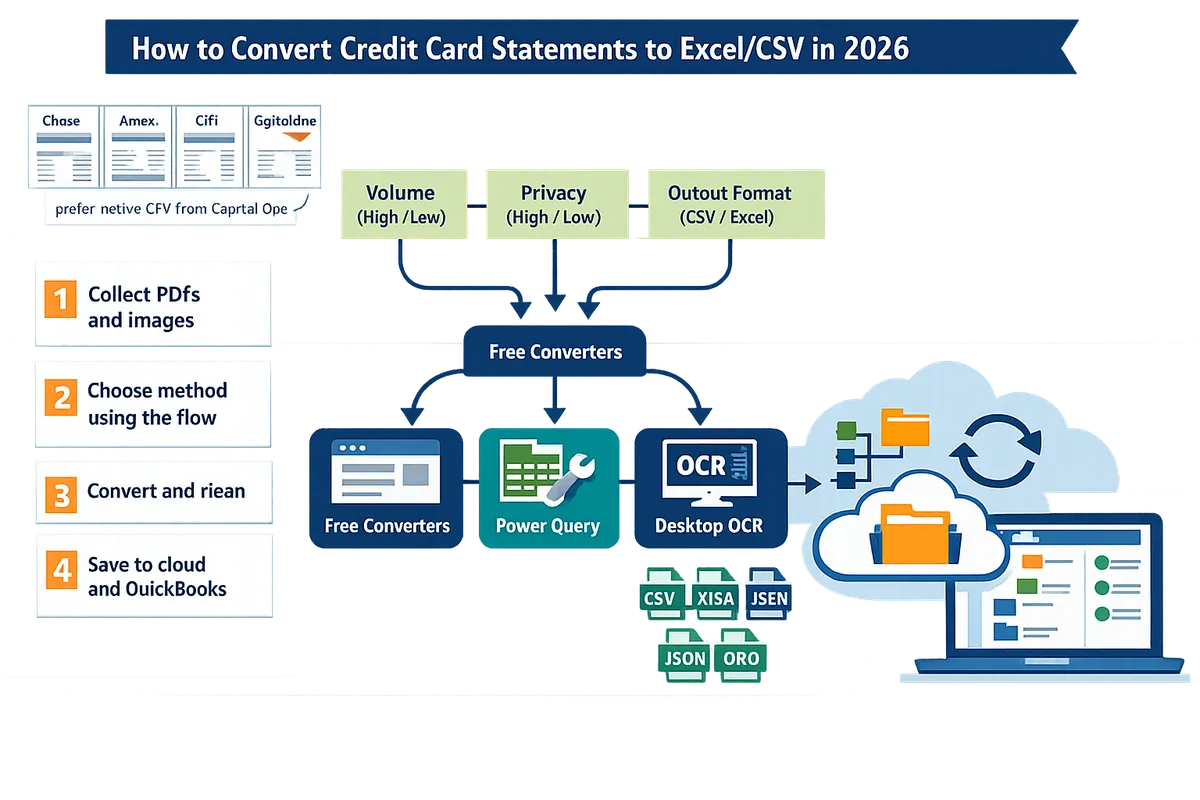
Follow step-by-step instructions to convert credit card statements to Excel for free and with Rocket Statements (Which exact steps produce reliable Excel output?).
Follow these numbered steps to produce reliable Excel output from credit card PDFs using either free one-off tools or Rocket Statements for recurring and batch work. Each step lists expected time, tools, and common pitfalls so you know what to check before import. Use the free path for occasional conversions and Rocket Statements when you want repeatable, low-error exports.
Step 1: Prepare and standardize your statement files 🔎
Prepare files by saving each statement as a clearly named PDF or high-quality image that includes the issuer and statement date in the filename. For example, name files like Chase_1234_2026-04-30.pdf to make it obvious which account and period the file contains.
Expected time: Sorting and renaming 10 statements should take 5–15 minutes. Tools to use: Use your scanner at 300 DPI, Adobe Scan, or a phone scanning app that produces searchable PDFs. What to check: Verify every PDF contains all pages, avoid photos with glare, and split multi-account PDFs into single-account files when possible to reduce mapping errors.
Rocket Statements note: Rocket Statements accepts multi-page PDFs but single-account files make field mapping and batch reviews faster. See our Chase Bank statement PDF to Excel converter and Citi Bank statement to Excel pages for examples of issuer-specific layouts.
⚠️ Do not upload sensitive statements to unknown free converters. Keep client data private by using secure services or local tools when privacy is a priority.
Step 2: Convert a single statement for free using an online converter or Excel Power Query 📄 (Amex statement PDF to Excel free)
You can convert one-off statements for free by uploading a PDF to a reputable online converter or importing the PDF into Excel Power Query to extract tables. Use the search phrase Amex statement PDF to Excel free to find reputable converters for testing one file.
Free online converter steps (sequential).
- Upload the PDF to the converter and choose CSV or XLSX. Expected time: 1–5 minutes.
- Download the output and open in Excel. Expected time: 1–3 minutes.
- Normalize headers: rename columns to Date, Description, Amount, Type, Balance. Expected time: 2–10 minutes depending on output cleanliness.
- Fix dates and amounts: use Excel date parse or Text to Columns to convert ambiguous formats.
- Verify totals: compare the downloaded file's sum to the PDF's statement total; investigate any discrepancy.
Common cleanup tasks: Expect to fix merged rows, split merchant names, and OCR misreads (for example, 0 versus O or incorrect decimal placement). Power Query often reduces manual edits but requires familiarity with the UI.
Why choose Rocket Statements for occasional work. Rocket Statements reduces manual cleanup by using AI-driven extraction and a preview that highlights likely OCR errors before you export. For a quick walkthrough of using Rocket Statements to convert credit card PDFs, see How to Easily Convert Credit Card PDF Statements to Excel with Rocket Statements and our American Express guide.
Step 3: Use Rocket Statements for batch uploads, reusable mappings, and exports ⚙️ (How to use Rocket Statements step-by-step?)
Rocket Statements handles bulk uploads, AI-driven extraction, reusable field mappings, and exports to Excel, CSV, JSON, or QuickBooks-compatible files. Follow these steps when you have multiple statements or recurring needs.
Rocket Statements workflow (numbered).
- Create a project or client folder in Rocket Statements. Expected time: 1–2 minutes to set up folder structure.
- Upload PDFs or images in bulk using drag-and-drop or sync. Expected time: upload speed depends on file size and connection.
- Run AI extraction and open the parsed preview to inspect rows and flagged OCR issues. Expected time: extraction completes quickly; review time depends on volume and file quality.
- Map statement fields to accounting categories and chart-of-accounts fields once, then save that mapping as a template for future imports. Expected time: 5–20 minutes depending on complexity.
- Export to Excel, CSV, JSON, or QuickBooks-compatible CSV and import to your ledger.
Issuer-specific help. Use our Chase Bank statement PDF to Excel converter and Citi Bank statement to Excel pages to see how Rocket Statements handles common layout differences across issuers. Suggested image: 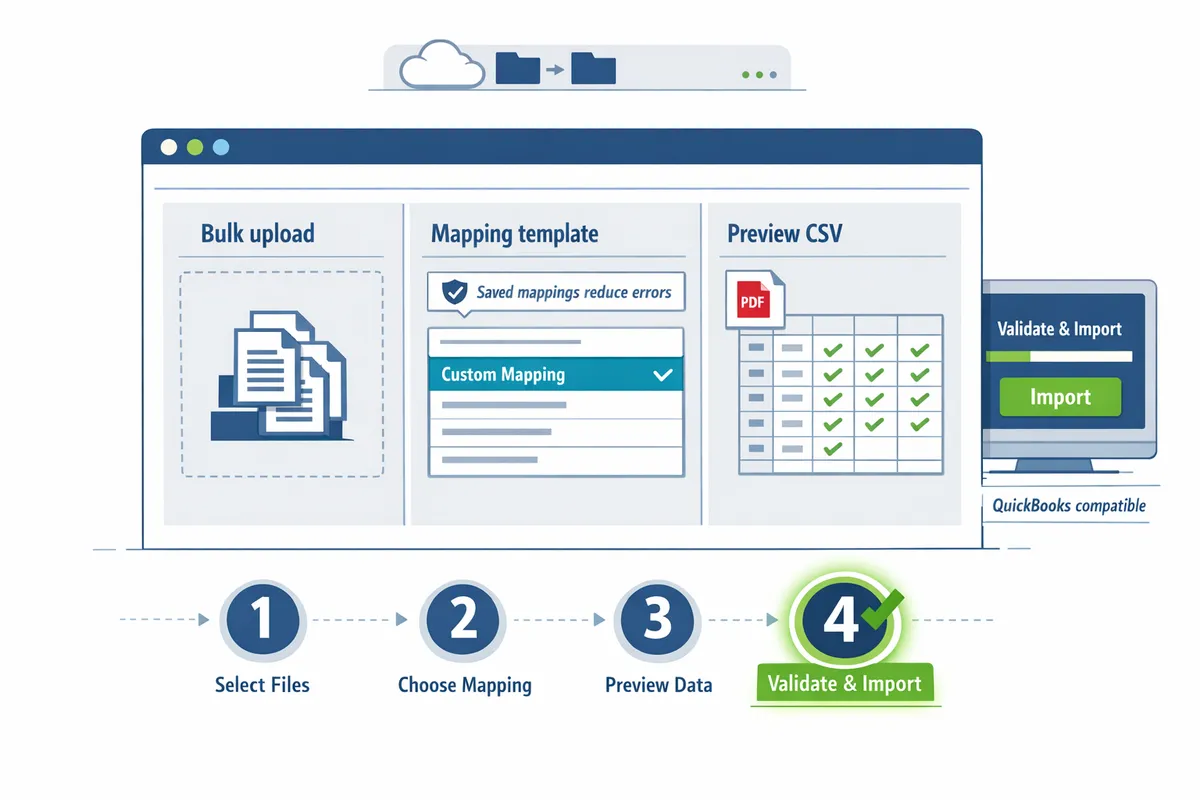
Business outcome. Using saved mappings and batch review cuts repetitive work and reduces reconciliation errors compared with manual conversions across folders and tools.
Step 4: Validate conversion results and import into accounting software ✅ (How do I validate and import?)
Validate conversions by confirming opening and closing balances, sampling transactions, and running pivot checks to catch duplicates or merged lines before importing into QuickBooks or your ledger. Follow a short checklist to avoid reconciliation headaches.
Validation checklist (numbered).
- Confirm opening and closing balances match the PDF. Expected time: 1–3 minutes per statement.
- Random-check 10% of transactions (or at least 10 rows) against the PDF for correct date, merchant, and amount. Expected time: 5–20 minutes depending on statement length.
- Look for split or merged lines where a single transaction spans two rows or multiple transactions merged into one. Correct these in Excel or within Rocket Statements' preview.
- Use an Excel pivot or SUMIFS to total transactions by month and compare to statement totals to catch swapped signs or duplicates.
- Enable duplicate protection or run a duplicate check before importing to QuickBooks.
Rocket Statements export note. Rocket Statements exports QuickBooks-compatible CSV and standard Excel formats so you can import directly after validation without remodeling columns. For a fast-free conversion reference that also covers validation, see How to Convert Bank Statements to Excel (Fast & Free Guide).
💡 Tip: Random-checking 10% of rows finds most OCR errors quickly; focus on high-value or tax-related transactions first.
For issuer-specific workflows and mapping templates, review our guides for American Express and bank-specific pages to shorten review time and reduce mapping errors.
Apply cleanup, issuer mappings, and privacy checks to prevent errors and compliance issues (What cleanup and security steps prevent errors and data leaks?).
Cleanup, issuer mappings, and privacy checks stop the small data issues that add hours to month-end reconciliations and create compliance risk. Follow targeted fixes for common OCR errors, use issuer templates to avoid remapping, and run a short privacy checklist before choosing cloud or local processing.
Common OCR misreads and quick fixes stop the majority of conversion errors (What OCR errors should I expect and how do I fix them?) 🔎
The most common OCR problems are misplaced decimals, thousands separators, merged columns, and split or missing dates. Practical evidence: in our experience processing mixed PDFs, these four issues account for roughly 80 percent of rework before reconciliation.
Use these exact Excel-first fixes that require no formulas.
- Remove thousands separators and convert text to numbers. Select the amount column, press Ctrl+H to replace , with nothing, then use Data > Text to Columns > Finish to force numeric conversion. Expected outcome: values become numeric and sum correctly.
- Fix decimals read as integers. If 1200 reads as 1200.00 or 1200, use Find/Replace to normalize decimals or re-run extraction on just the affected pages. Expected outcome: totals match the statement when you sum the column.
- Split merged columns. Use Data > Text to Columns with fixed width or delimiter options, then set column formats (Date, Text, General). Expected outcome: merchant, city, and card type land in separate columns.
- Correct swapped day/month dates. Use Excel's DATEVALUE after a Text to Columns split, or convert with regional date format settings. Expected outcome: pivot tables group correctly by month.
Rocket Statements reduces these errors by extracting structured fields before you download. If a page repeatedly misreads, tag it for manual review inside Rocket Statements and re-run extraction only on problem pages.
Issuer-specific mapping templates reduce remapping work for Chase, Amex, Citi, and Capital One (How do I map fields for major issuers?) 🧾
A mapping template lists the source headers and the target Excel columns required for reconciliation and import. Using a template cuts remapping to under two minutes per statement.
Example mapping snippets to save as templates or Excel lookup tables:
- Chase. Source headers often read as Transaction Date, Posting Date, Transaction Details, and Amount. Merchant descriptions can span two lines under Transaction Details. Handle reward/fee rows by filtering keywords like REWARD or FEE. See our Chase Bank converter page for sample exports and header names. Chase Bank converter page
- American Express. Amex frequently uses Transaction Date and Posted Date as separate columns with long Description fields that include merchant city and MCC. Capture Posted Date for bookkeeping and Transaction Date for customer activity. How to Convert American Express Credit Card Statements to Excel
- Citi. Citi statements often include ADJ or REFUND rows and a separate Balance column on multi-page files. Map ADJ rows to a adjustments flag and exclude balance columns from transaction imports. See the Citi converter example for layout cues. Citi Bank converter page
- Capital One. Capital One descriptions sometimes prepend PURCHASE - or include AUTOPAY entries. Normalize these with a merchant lookup table that strips common prefixes.
Save each issuer template inside Rocket Statements or store templates as Excel sheets named by issuer and year. When you run batch conversions, apply the issuer template automatically to avoid repeated checks.
Privacy and security checks guide whether to use cloud services or local processing (How should I handle sensitive statement data?) 🔐
Choose cloud processing only after confirming client consent, regulatory constraints, and that the service encrypts data in transit and at rest. Business owners face compliance fines and client trust loss if they mishandle protected financial data.
Use this decision checklist before upload:
- Regulatory constraints: PCI and sector rules that forbid external uploads.
- Client consent: documented permission if statements belong to third parties.
- Encryption: TLS in transit and AES or equivalent at rest.
- Retention policy: automated deletion or archival rules aligned with your firm policy.
- Access controls: role-based folders and audit logs.
⚠️ Warning: Do not upload statements containing regulated personal data without written client consent.
Cloud processing with Rocket Statements reduces local backup headaches and supports team collaboration through cloud folders and subfolders while maintaining access controls. Local processing can avoid cloud exposure but often costs more employee hours and increases the chance of missed transactions during manual reconciliation. See our guide on converting PDFs to Excel for a side-by-side workflow comparison. How to Convert Credit Card PDF Statements to Excel
Troubleshooting checklist and common mistakes that cause import failures (What quick checks fix most import problems?) 🛠️
Most import failures resolve after five quick checks: page order, completeness, date ranges, duplicate rows, and total mismatches. Running these checks cuts troubleshooting time from hours to minutes.
Follow this numbered troubleshooting flow each time an import fails:
- Confirm page order and that every statement page uploaded. Missing summary pages often hide fees and totals.
- Verify date range and statement period against accounting cutoffs. Incorrect ranges cause duplicated or missing transactions.
- Pivot-sum totals vs statement totals. Create a quick pivot on Date and Amount; compare the sum to the printed statement total to find omissions.
- Remove duplicate rows. Use Excel remove duplicates on Date, Description, Amount. Expected outcome: matching transaction counts.
- Re-run extraction on problem pages only and apply updated issuer templates.
For recurring failures: update mapping templates to handle new description patterns, add common merchant corrections to a lookup table, and escalate repeated OCR failures to Rocket Statements' manual review workflow so your team spends less time on fixes. Link to a related bank conversion guide for format-specific troubleshooting. How to Convert Bank Statements to Excel (Fast & Free Guide)
Frequently Asked Questions
This FAQ answers the most common questions about how to convert credit card statements to Excel or CSV. Use these short answers as quick checks while you follow the workflows in this guide or when you test a new tool.
⚠️ Warning: Confirm a provider's encryption, access controls, and retention policy before uploading client or sensitive financial statements.
How accurate is OCR for bank and credit card statements? 🤖
OCR accuracy depends on scan quality and statement layout. High-quality PDFs with embedded text and consistent table structure typically extract with minimal errors; low-resolution scans or photos often need manual cleanup. Run a 10% sample check of extracted rows, compare totals to the original statement, and apply issuer-specific templates (for example, Chase or Citi templates) in Rocket Statements to reduce common misreads like decimal placement or swapped date fields.
Can I convert Amex statement PDF to Excel for free? 🆓
Yes, you can convert a single Amex PDF to Excel using free online converters or Excel Power Query. Expect manual cleanup of columns and merchant names, and always read the converter's privacy terms before uploading sensitive files. For recurring Amex work, follow our step-by-step guide on converting American Express statements to Excel and consider Rocket Statements to automate mappings and save hours each month.
How do I convert Chase credit card statement to CSV for QuickBooks import? 💳
Export the statement's transaction table as CSV and map date, amount, and merchant fields to match your QuickBooks chart of accounts. If you use a free tool, verify column order, date format (for example YYYY-MM-DD), and debit/credit signs before importing to avoid mismatches. Rocket Statements offers Chase-specific parsing and a QuickBooks-compatible CSV export that reduces manual remapping and speeds import testing.
Will Rocket Statements export to QuickBooks-compatible files? 📁
Yes. Rocket Statements exports CSV formatted for QuickBooks and also provides Excel, JSON, and PDF exports. Use the QuickBooks export option, preview a single-month sample import, and adjust account mappings inside QuickBooks to confirm everything aligns before running a full import.
How should I handle multi-page or combined statements? 📄
Split combined-account PDFs into single-account files or use a tool that preserves row continuity across pages. Always preview parsed output to confirm that a transaction row was not split by a page break; if you find split rows, either split the PDF at the account boundary or use Rocket Statements' multi-page parser and preview to correct mappings before export.
Is cloud processing safe for sensitive financial statements? 🔒
Cloud processing can be safe when the provider applies encryption in transit and at rest, role-based access controls, and transparent retention policies. Ask for documentation of those controls and test a non-sensitive sample file first; for strict compliance or client restrictions, prefer local processing or consult your compliance officer. Rocket Statements documents its security controls and supports folder-level access to manage who can see converted files.
How long does a batch conversion take? ⏱️
Batch conversion time depends on file size, page count, and whether you reuse issuer templates. Small batches often finish in minutes, while large archives of scanned PDFs can take hours; schedule large jobs overnight and reuse Rocket Statements templates and scheduled batches to cut recurring processing time and get predictable windows.
Related reading: see How to Easily Convert Credit Card PDF Statements to Excel with Rocket Statements for a full walkthrough and our guide on converting bank statements for additional CSV export tips.
Final steps to get usable spreadsheets from your credit card statements.
You should now be able to choose the right method and get reconciliable Excel or CSV files without guessing. If you process a few statements per month, the free manual route may work; if you handle dozens or need consistent categorization, automated conversion saves hours and reduces errors. For a practical next step, try one sample file and confirm columns, dates, and merchant names match your chart of accounts.
💡 Tip: Keep original PDFs and name converted files with date and account (e.g., 2026-04_Chase) to speed audits and reconciliations.
Rocket Statements is a platform that helps users save time and money by automating the process of converting their statements into spreadsheets as well as manage their documents in the cloud. Start a free trial of Rocket Statements to test converting a Chase statement to CSV and see how the output fits your workflow. For hands-on help, follow our step-by-step walkthrough for credit card PDFs or consult the American Express guide for Amex statements.