
How to Automate Asset Valuation from Bank Statement Data

Manual extraction of transactions from bank PDFs slows monthly valuations and increases reconciliation errors that can delay reporting and obscure asset write-downs. Small accounting teams spending hours on copy‑paste work often miss revaluation windows and create audit headaches.
Automate asset valuation from bank statement data is a how-to process that converts transaction records in PDFs and images into structured fields for asset schedules and valuation models. This guide shows the exact steps you need and the expected outcomes. You will prepare statements, run OCR parsing, map fields to asset categories, validate values and exceptions, and export clean spreadsheets ready for accounting systems.
Our product, Rocket Statements, converts PDFs and image statements into spreadsheets, stores documents in the cloud, and syncs live transactions so your team focuses on exceptions and valuation decisions rather than manual entry. See our inventory management automation page for related workflows and examples.
- Prepare statement files and a simple account-to-asset mapping file.
- Parse PDFs/images to extract transactions and metadata.
- Map extracted fields to asset categories and valuation columns.
- Validate amounts, flag exceptions, and reconcile totals.
- Export validated schedules to spreadsheets or import into accounting.
💡 Tip: Scan paper statements at 300 dpi or use native PDFs when possible; cleaner source files reduce manual review time.
Understanding the Basics of Asset Valuation Automation
Asset valuation automation is a process that extracts transaction and balance data from bank statement files and applies valuation rules to calculate asset values. This process reads PDFs and images, pulls dates, amounts, descriptions, and balances, classifies transactions into asset categories, and outputs structured spreadsheets or database records.
According to Rocket Statements, the platform maps common merchant names and transaction descriptions to asset classes and flags exceptions for manual review. This reduces the hours staff spend on entry and lowers the chance of misclassification. For example, a small accounting firm that processes 100 monthly statements might cut manual extraction from roughly 20 hours to about 4 hours while catching more category errors for review.
Common benefits and capabilities:
- Automated extraction from PDFs and images into spreadsheet-ready rows.
- Normalization of dates, currencies, and amounts for consistent valuation.
- Classification of transactions into asset types with exception flags for ambiguous items.
- Validation checks and audit trails that support compliance and reporting.
Typical workflow to automate asset valuation from bank statement data:
- Ingest PDFs and images into the parser.
- Apply mapping rules and classification to assign asset categories.
- Review flagged exceptions and export final valuation spreadsheets.
Manual processing creates measurable business costs: wasted staff hours, delayed financial reports, higher audit risk, and missed asset recognition. Rocket Statements handles the extraction and routine classification so your team focuses on exceptions and valuation judgment rather than repetitive data entry.
💡 Tip: Standardize account names and pre-map the top 50 frequent payees before batch runs to improve automatic classification accuracy.
Step-by-Step Guide to Automating Asset Valuation
Follow these detailed steps to automate asset valuation using Rocket Statements effectively. By leveraging the power of our platform, you can streamline the conversion of bank statement data into actionable insights, saving both time and resources.
Step 1: Convert Statements to Spreadsheets Automatically
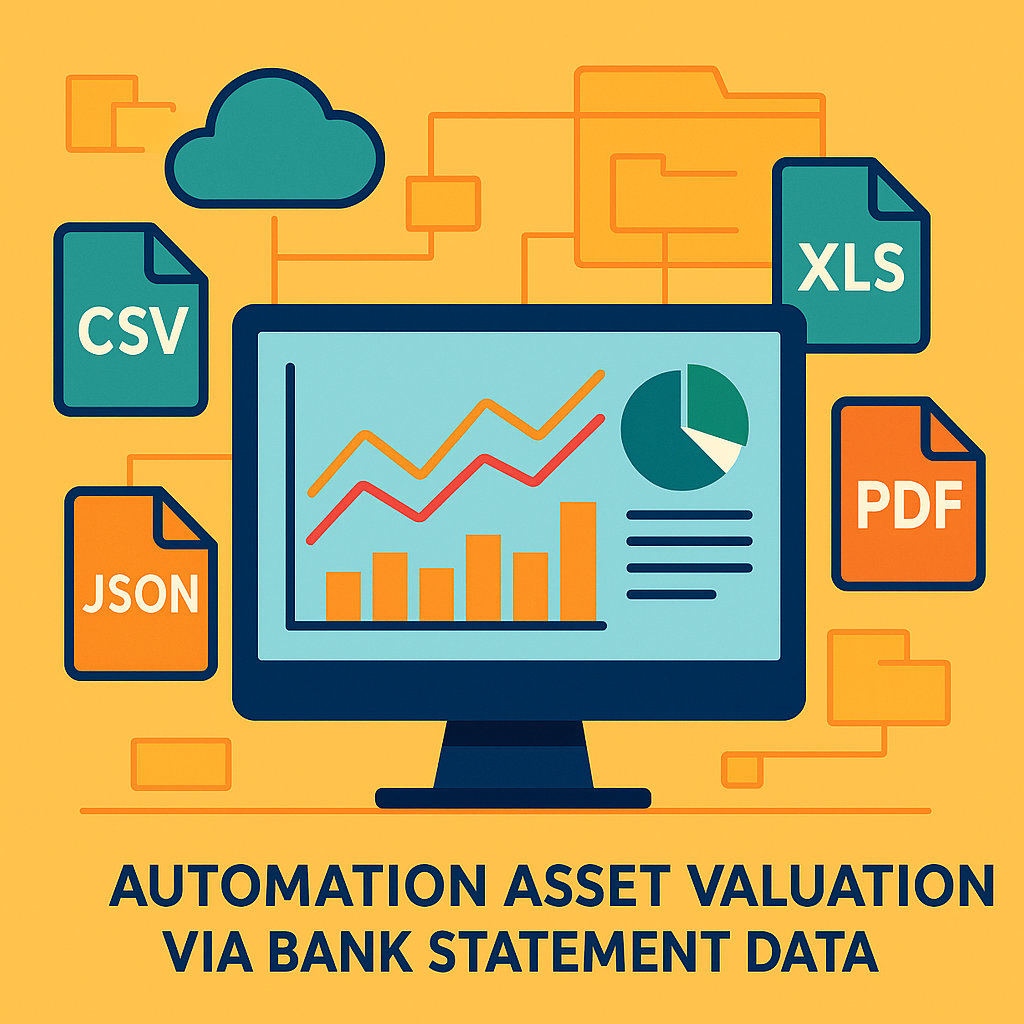
Start by uploading your PDF or image bank statements into Rocket Statements. The platform will automatically convert these documents into spreadsheets, allowing for easy data manipulation and analysis. This feature supports various formats, including CSV, Excel, JSON, and QuickBooks compatible files.
💡 Tip: Ensure your statements are clear and legible to optimize the conversion process.
Step 2: Sync Bank Transactions with Rocket Statements
Utilize Rocket Statements' capability to sync live transaction data directly from your bank accounts. This ensures that your asset valuation is based on the most current data available, eliminating the need for manual updates.
- Supports integration with major banks
- Provides real-time data updates
For more information on supported banks, visit our bank integrations page.
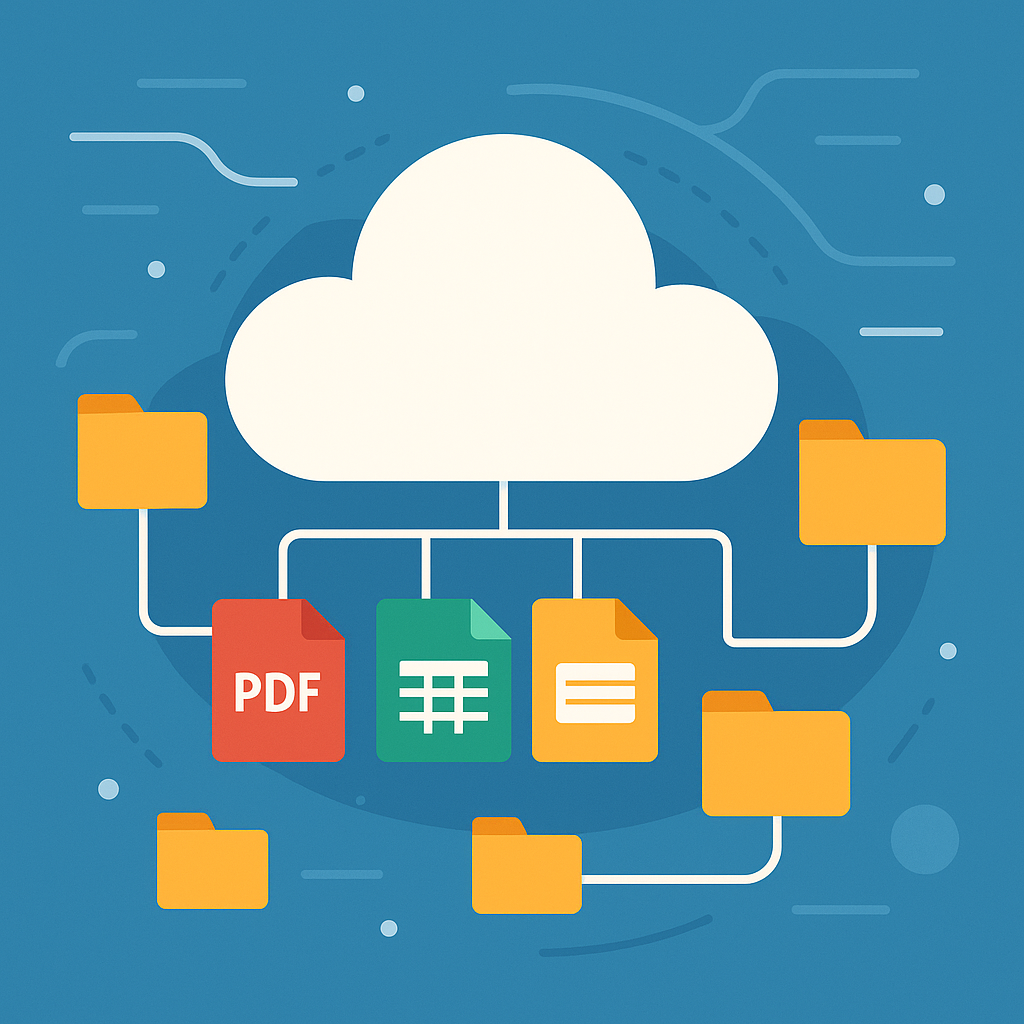
Step 3: Manage Your Documents in the Cloud
Organize your financial documents using Rocket Statements' cloud management feature. Create folders and subfolders to categorize your statements and ensure easy access for future reference. This step is crucial for maintaining an organized workflow and ensuring that all necessary documents are readily available for asset valuation.
⚠️ Warning: Regularly back up your data to prevent loss in case of technical issues.
By following these steps, you can automate asset valuation from bank statement data efficiently, leveraging the robust features of Rocket Statements. For a deeper dive into inventory and document management automation, explore our guide for business automation
Tips, Troubleshooting, and Common Mistakes
Automating asset valuation from bank statement data can streamline your financial processes, but it's essential to follow best practices to ensure accuracy and efficiency. Here are some tips and common pitfalls to watch out for:
Best Practices for Automation
- Utilize Cloud Management: Organize your documents using Rocket Statements' cloud folders and subfolders to keep your data structured and easily accessible.
- Leverage Data Formats: Convert your statements into multiple formats like CSV, Excel, or QuickBooks-compatible files to suit your analysis needs.
- Sync Live Data: Regularly sync live transactions from your bank accounts to ensure your asset valuations are based on the most current data.
Learn more about syncing bank transactions.
Troubleshooting Tips
- Check Data Consistency: Ensure that your converted data is consistent across different formats. Discrepancies can lead to inaccurate valuations.
- Monitor Conversion Quality: Use Rocket Statements' PDF converter to maintain high-quality data extraction. If you encounter issues, refer to our bank statement PDF converter guide.
Common Mistakes to Avoid
- Ignoring Data Security: Always prioritize the security of your financial data. Rocket Statements offers robust security features to protect your information.
- Overlooking Format Compatibility: Ensure that the converted files are compatible with your financial software. This is crucial for seamless integration and analysis.
💡 Tip: Regularly update your Rocket Statements software to access the latest features and improvements.
Unlock the Power of Automation with Rocket Statements
Rocket Statements helps businesses automate asset valuation from bank statement data by extracting transactions and balances from PDF and CSV statements and producing QuickBooks-compatible asset schedules and cloud-stored documents.
Manual extraction of asset data wastes staff hours, creates inconsistent records, and raises audit risk. For example, a small bookkeeping team that imports 200 monthly statements might reduce first-pass preparation from 6–8 hours to about 30 minutes, saving roughly 5.5–7.5 hours per cycle that can be reassigned to billable work or client advisory.
Rocket Statements handles importing, parsing, reconciliation, export, and basic audit trails so your team spends less time on repetitive entry and more time on analysis. See our financial appraisement tools for small businesses to compare workflows and output formats.
On our website, start a free trial and upload three sample statements to build your first asset schedule and confirm the output format before you roll the process out to the full team.
💡 Tip: When testing, include statements with deposits, transfers, and loan payments so you can check classification and reconciliation behavior before scaling.