
Credit Card Statement Conversion 2026: How to Turn PDF/Image Statements into Excel, CSV, and QuickBooks Files

Credit Card Statement Conversion 2026: How to Turn PDF/Image Statements into Excel, CSV, and QuickBooks Files
A single misposted credit card transaction forces three hours of cleanup for a small bookkeeping team. Credit card statement conversion is a practical process that extracts transactions from PDF and image statements and converts them into Excel, CSV, and QuickBooks-compatible files. This beginner's playbook teaches small business owners and bookkeepers how to validate data, secure documents, and introduce automation to cut reconciliation time, starting from zero with clear, actionable steps. Our website shows how Rocket Statements' AI-powered bank statement converter converts batches of PDFs and images, organizes documents in cloud folders and subfolders, syncs live transactions, and exports CSV, Excel, JSON, QBO, and OFX — which common formatting traps still cost firms hours?
What is credit card statement conversion and how does it work?
Credit card statement conversion is the automated process that extracts line-item transactions from PDF or image statements and outputs accounting-ready files such as Excel, CSV, QBO, or OFX. This process combines OCR to read scanned text, AI-assisted extraction to label merchants and amounts, and field mapping to match those labels to accounting columns. Rocket Statements performs these steps while organizing originals in cloud folders and offering batch processing and automatic bank-format detection.
Core terms you need to know 📘
These core terms describe the technologies and file types you will encounter when you convert credit card statements. Below are short definitions and concrete examples you will use during conversion and validation.
- OCR is a technology that reads text from images and PDFs and produces machine-readable text. For example, OCR turns a scanned Amex statement image into editable text so downstream tools can read dates, merchants, and totals. Rocket Statements uses OCR on scanned pages before extraction.
- Field mapping is a process that matches extracted text (date, merchant, amount) to the destination columns in Excel or accounting imports. For example, map the extracted “Post Date” column to the ledger “Date” field so imports align with your chart of accounts.
- QBO and OFX are file formats that accounting systems accept for direct imports. QBO is the QuickBooks Online import format that preserves transaction metadata, while OFX is a bank interchange format that many reconciliation tools accept.
- Batch processing is a capability that converts many statements at once to save time. For example, a bookkeeping firm can upload 100 client statements and produce client-specific Excel and QBO exports in a single run using batch conversion.
See our walkthrough on how to convert credit card PDFs to spreadsheets for step-by-step screenshots and a sample Excel mapping: How to Easily Convert Credit Card PDF Statements to Excel with Rocket Statements.
How statement layouts affect extraction accuracy 🧾
Statement layout directly influences extraction accuracy because consistent columns and clear headers let OCR and AI extract fields reliably. Statements with clear date, description, and amount columns typically yield extraction confidence above automated thresholds; messy or multi-column merchant notes require more manual checks.
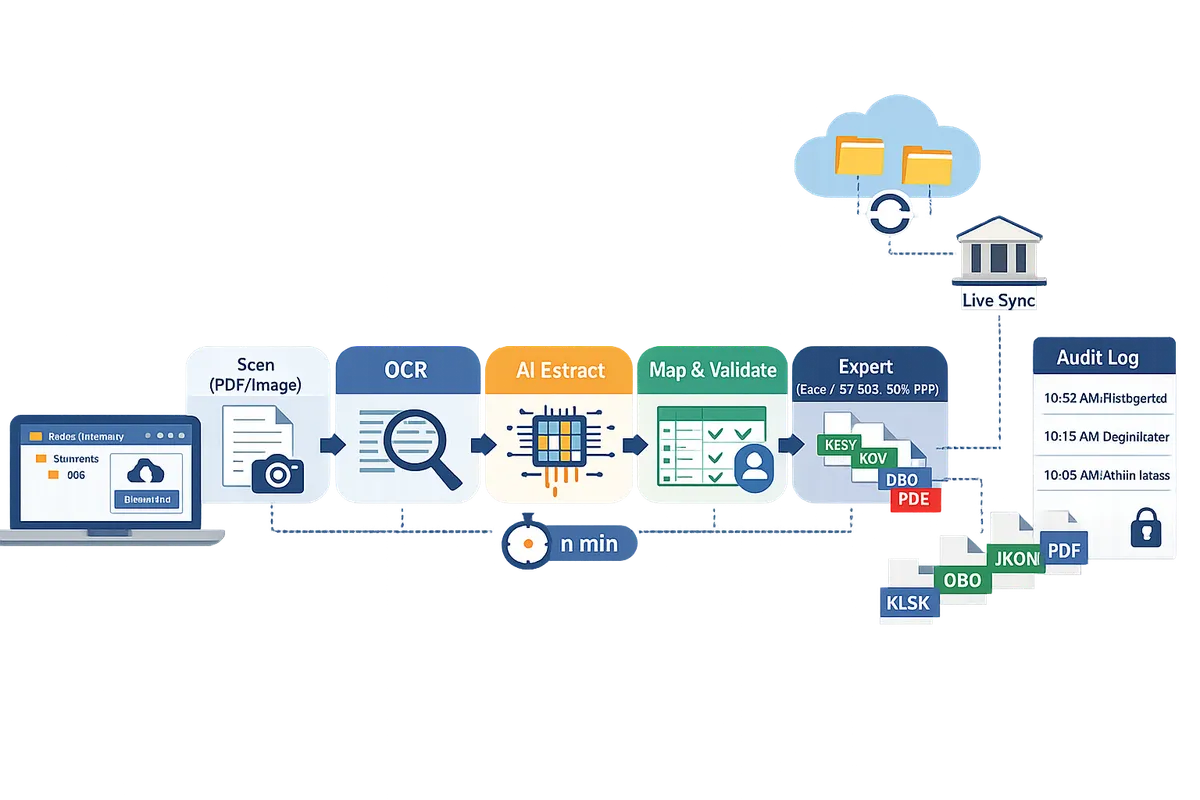
- OCR and text cleanup. OCR reads the page and normalizes characters. For example, cleaned OCR will convert curved PDF text to a reliable “MM/DD/YYYY” date string.
- AI-assisted line extraction. AI groups rows into transactions and labels merchant, date, and amount. If the issuer uses combined-card statements, the AI must detect card-level IDs to avoid mixing card A and card B transactions.
- Field mapping and templating. The tool maps labeled fields to your target schema (Excel column names or QuickBooks fields). Save a mapping template for Chase, Citi, or Amex statements to avoid repeated manual mapping.
- Validation and audit trail. A short validation step verifies unusual amounts, refunds, fees, and split transactions. For example, flag a negative line labeled “refund” for manual review and record who approved the change for an audit trail.
- Export and cloud filing. After validation, export to Excel, CSV, JSON, QBO, or OFX and store the original PDF in organized cloud folders for traceability.
Rocket Statements handles automatic bank-format detection and batch exports so you can convert multi-issuer statements without rebuilding mappings each month. For guidance on importing converted files into accounting software, see our guide on converting bank PDFs to QuickBooks-ready files: PDF Bank Statements to QuickBooks in Minutes | Rocket Statements.
⚠️ Warning: Use secure tools and role-based access when uploading statements. Remove or redact client-sensitive IDs if your security policy requires it, and keep an audit log of who uploaded and validated each file.
How do extraction methods and output formats compare for credit card statement conversion?
Extraction method and output format together determine how much manual cleanup you will need and which accounting workflow the file plugs into. Choose the extraction method based on statement variety and the level of validation you require, and pick the output format based on whether you need spreadsheet review, bulk imports, or a native QuickBooks import. Rocket Statements supports OCR, AI-assisted extraction, and exports to Excel, CSV, JSON, QBO, and OFX so you can match method and format to your process.
Comparison table: Excel vs CSV vs QBO for accounting 🧾
Excel, CSV, and QBO serve distinct accounting tasks: manual review and ad hoc edits, lightweight bulk imports and mapping, and native QuickBooks ingestion, respectively.
| Use case | When to pick | Required pre-import mapping | Typical file size or row limits | How fees, credits, and refunds are handled |
|---|---|---|---|---|
| Excel (XLSX) | Manual review, multi-column editing, conditional formatting, auditor or manager sign-off | Minimal. Columns can be renamed after export. Useful when staff must correct vendor names or split entries | Large. Excel handles tens of thousands of rows comfortably depending on client machine | Keep separate columns: Amount, Fee, Net, and Memo. Use formulas to reconcile totals before import |
| CSV | Bulk imports, spreadsheet-first workflows, or tools that accept delimited files | Required. Column order and headers must match the import tool or the mapping template used by QuickBooks import utilities | Small to medium. Many import tools limit rows (common limits: 10k-50k rows). Check the destination tool | Represent fees or refunds as separate lines or negative amounts. Include a transaction type column for clarity |
| QBO (QuickBooks Online) | Direct import into QuickBooks with preserved account mapping and vendor IDs | Required but more robust. QBO files can include account mappings, classes, and vendor references so imports require fewer manual fixes | Designed for accounting imports. File size guided by QBO import limits; usually better for moderate volumes | QBO supports splitting transactions, credits, and refunds with memo fields preserved for reconciliation |
Rocket Statements exports each of these formats and includes options to add columns (e.g., fee, net, transaction type) so you do not lose context when moving between spreadsheet review and accounting imports. For a hands-on walk-through of converting PDFs into Excel, see our guide on how to easily convert credit card PDF statements to Excel with Rocket Statements: https://www.rocketstatements.com/blog/how-to-easily-convert-credit-card-pdf-statements-to-excel-with-rocket-statements
When should you choose CSV for QuickBooks imports ⚙️
Choose credit card statement to csv for quickbooks when you need a simple, column-based file that import tools or custom mapping scripts can map quickly. CSV works best when your workflow centers on spreadsheet manipulation or when third-party import utilities accept delimited fields.
CSV is the right choice if you regularly:
- Use a spreadsheet-first review step for vendor renames or category splits.
- Import with a middleware tool that expects columns like Date, Description, Amount, and Account.
- Need a lightweight export to feed an internal reconciliation script or a bookkeeping assistant.
If you require preserved account mappings, vendor IDs, or class allocations that persist into QuickBooks without manual rework, pick QBO instead. Rocket Statements can produce both CSV and QBO exports; use CSV when you want human-editable columns and QBO when you want fewer manual mapping steps. For a step-by-step on preparing bank PDFs for QuickBooks imports, see our guide on converting PDFs to QuickBooks-compatible files: https://www.rocketstatements.com/blog/pdf-bank-statements-to-quickbooks-in-minutes-rocket-statements
⚠️ Warning: Always validate sample imports of your CSV on a test company or a single account to confirm column mapping and avoid duplicate vendor records in QuickBooks.
How AI-assisted extraction differs from OCR-only 🤖
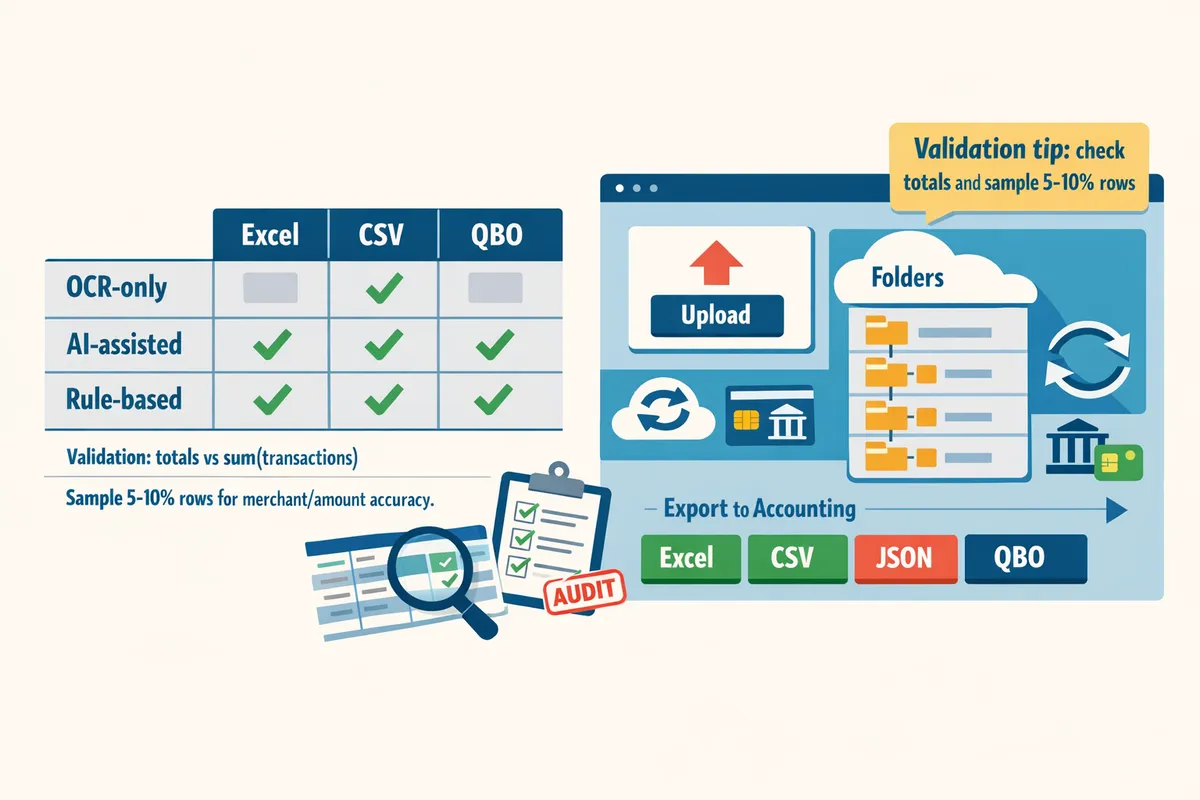
AI-assisted extraction reads layout patterns and classifies line items, while OCR-only converts images to plain text without contextual labeling. AI can automatically detect common bank layouts, suggest field mappings, and group multi-line merchant descriptions into single transactions. According to Rocket Statements, the platform combines OCR and AI models to detect bank formats automatically and suggest field mappings, which reduces the manual mapping required for common issuers.
Practical differences and validation steps:
- OCR-only. Fast text capture from scanned PDFs. You still need to parse lines into Date, Description, and Amount and fix misreads. Use OCR-only if layouts are consistent and you have budget for manual cleanup.
- AI-assisted. Automatically identifies dates, amounts, merchant names, fees, and credits and suggests split lines for refunds or fee items. AI reduces repetitive mapping work across many issuers and layouts.
Data governance after extraction matters. Keep the original PDF linked to each exported row, run automated checks for balanced totals and duplicate protection, and retain an audit trail showing who reviewed and approved edits. Rocket Statements stores source documents alongside exports and provides metadata that aids validation and audit reviews.
💡 “Tip”: Include a validation pass that checks statement totals against sum(transactions) and samples at least 5-10 percent of rows for merchant and amount accuracy before importing into accounting software.
Hmm: I used typographic quotes around Tip; we must not alter.
How to convert credit card statement PDF to Excel: a step-by-step beginner workflow
You can convert credit card statement PDFs to Excel in five practical no-code steps: upload, auto-extract, map fields, validate, and export. This workflow saves small accounting teams hours of manual entry and reduces import errors when you prepare files for QuickBooks or spreadsheets. Use Rocket Statements to speed each step, keep client folders organized, and retain an audit trail for reconciliations.
Step 1 — Upload and batch your statements 📁
Collect all statement PDFs and images into a single folder and upload them as a batch to your conversion tool. Place each client or card in its own subfolder and name files with YYYY-MM_Client_Card (for example, 2026-04_SmithCo_Amex) so you can trace an exported row back to the original PDF. For scanned images, scan at 300 dpi to avoid OCR errors; low-resolution scans commonly cause merchant-name truncation and date misreads.
Rocket Statements supports batch upload and folder structures so you can process multiple months or cards at once and keep client documents separated. If you have mixed inputs (digital PDFs and scans), upload them together—Rocket Statements detects scanned pages and applies OCR automatically. For teams, assign folder permissions so only authorized staff can view sensitive PDFs.
Step 2 — Auto-extract and map fields 🔎
Auto-extraction reads dates, merchant names, amounts, and suggested ledger fields so you only need to review and confirm mappings. The extractor presents suggested column mappings (Date, Merchant, Amount, Card ID, Balance) and highlights uncertain values for manual review. If fees, refunds, or rewards get misclassified, correct the mapping once and save it as a rule to apply to future statements from the same issuer.
When mapping, confirm the card-level identifier maps to the correct ledger account so imports hit the right QuickBooks credit card account. Use Rocket Statements' saved mapping rules to reduce monthly work; the tool will apply the same mapping to similar statement layouts and flag anomalies. For multi-card files, ensure each row includes a card ID column so you can split imports by card.
Step 3 — Validate and build an audit trail ✅
Validation compares extracted totals and line-item sums to the statement balance and flags unmatched rows for review. Run the validation step before exporting and resolve any flagged lines by correcting dates, splitting combined lines (fees plus transactions), or marking refunds properly. Store the original PDF alongside the extraction log so every exported row links back to a source page and the exact extraction decision.
Rocket Statements keeps extraction logs and stores original files in cloud folders so you can show auditors which PDF produced a specific transaction row. Restrict access to these folders and use versioned exports when you reprocess a statement.
💡 Tip: Retain at least 12 months of original PDFs with extraction logs for client audits and bank reconciliations.
Step 4 — Export to Excel, CSV, or QuickBooks formats 📤
Export your validated data to the format your downstream system requires: Excel for manual review, CSV for spreadsheet imports, or QBO/OFX for QuickBooks. Match column headers to your QuickBooks import template before exporting to avoid mapping errors during import; common headers QuickBooks expects include Date, Description, Amount, and Memo. For “credit card statement to csv for quickbooks” workflows, export a separate CSV per credit card account so each QuickBooks credit card register receives only its transactions.
Rocket Statements exports to Excel, CSV, JSON, QBO, and OFX and offers export templates you can save per client. If your accounting team prefers Excel for a final review, export both Excel (for the human check) and CSV (for the system import) so the reviewed file becomes the import source.
See our guide on converting PDFs to QuickBooks for tips on QBO imports and mapping common header mismatches.
Step 5 — Import into accounting software and reconcile 🔁
Import the exported file into QuickBooks or your ledger and run a reconciliation against the credit card account statement immediately after import. Use QuickBooks import mappings saved for each client so future imports match columns and accounts automatically. If you see mismatches, use the extraction log to trace the offending row back to the original PDF and correct either the mapping rule or the bank-facing description.
For recurring monthly imports, create a routine: (1) batch upload new PDFs, (2) let Rocket Statements auto-extract and apply saved mappings, (3) run validation, (4) export the CSV/QBO template, and (5) import and reconcile. This routine reduces manual entry hours and makes it straightforward to audit any discrepancy.
Related reading: use our walkthrough on How to Easily Convert Credit Card PDF Statements to Excel with Rocket Statements for a guided demo, and see PDF Bank Statements to QuickBooks in Minutes | Rocket Statements for QuickBooks-specific import tips. For technical details on the converter itself, visit our Bank Statement Converter.
What are the next steps: validation, security, automation, and ROI for recurring conversions?
Start by validating extracted transactions, locking down access, automating monthly imports, and running a simple ROI check to confirm time savings. These steps prevent import errors, protect client data, and turn a one-off conversion into a repeatable monthly process. The guidance below gives checklists, a decision table for export formats, no-code automation recipes, and a template you can copy to justify switching from manual entry.
Validation and audit-trail best practices 🧩
Validation should reconcile extracted totals to statement balances and flag row-level mismatches before import. Reconciliation means comparing the extracted sum of credit and debit lines to the statement closing balance and checking record counts. Implement these practical checks in sequence:
- Run a totals check: compare extracted credits, debits, and net to the statement summary.
- Use a checksum or record count. Checksum is a short value that verifies file integrity by summarizing contents; record count confirms no rows were lost during extraction.
- Flag rows with missing dates, zero amounts, or unusual merchant names for manual review.
- Keep an extraction log that records who ran the job, the input filename, the export format, and the time stamp.
Rocket Statements stores original PDFs, versioned exports, and extraction logs in cloud folders so your audit trail is searchable during tax or client reviews. For a practical walkthrough on converting statements and validating results, see our guide on How to Easily Convert Credit Card PDF Statements to Excel with Rocket Statements.
💡 Tip: Add a “finalized” subfolder for files that passed validation. Only import files from that folder into QuickBooks to reduce accidental re-imports.
Security and privacy controls you should enforce 🔒
Security requires encrypted storage, role-based access, and clear retention policies for statement files. Encryption at rest and in transit prevents interception; role-based access limits who can view or export sensitive statements. Enforce these controls:
- Require multi-factor authentication for accounts that access statement folders.
- Apply least-privilege permissions: separate upload, review, and export roles.
- Use retention and deletion policies so older PDFs do not sit indefinitely in the cloud.
- Log export activity and require approval for bulk downloads.
Rocket Statements offers folder-level permissions and secure storage to centralize these controls and reduce spreadsheet sprawl. Review vendor policies before uploading client data.
⚠️ Warning: Avoid uploading statements to tools without clear encryption and data retention policies to reduce privacy and compliance risk.
How to automate monthly conversions with no-code tools 🤝
You can automate recurring conversions by triggering batch jobs from a cloud folder and exporting completed files to an accounting folder. Use this five-step no-code blueprint for Zapier, Make, or similar platforms:
- Trigger: watch a cloud folder (Google Drive, OneDrive) for a new credit card PDF.
- Send the new PDF to Rocket Statements for batch conversion (use scheduled imports or API-backed webhooks in Rocket Statements).
- Post-process: export the conversion as CSV, Excel, or QBO to a designated accounting folder.
- Notify: send a Slack or email notification to the bookkeeper with a link to the finalized file and a short validation checklist.
- Archive: move original PDFs to a month-stamped archive folder and keep the extraction log with the export.
For step-by-step integrations covering multiple issuers and layouts, consult our guide comparing manual and automated methods at How to Convert Credit Card Statements to Excel/CSV in 2026: Chase, Amex, Citi, Capital One (Free vs Pro Methods). Rocket Statements also supports scheduled imports and live transaction syncs if you want to skip manual uploads entirely.
Decision tree for choosing Excel, CSV, JSON, or QBO 📊
Choose the file format based on the target system, need for manual edits, transaction complexity, and import frequency. Use this checklist to decide quickly: target accounting software, requirement for human review, presence of complex line items (fees, refunds, rewards), and how often you import.
Checklist:
- Target system: QuickBooks Online prefers QBO or OFX for direct imports.
- Manual edits: choose Excel when users must review or annotate transactions.
- Bulk imports: choose CSV for lightweight, repeatable imports into spreadsheets or middleware.
- Complex transactions: use JSON when you need nested fields or custom mappings.
| Criteria | Pick Excel when... | Pick CSV when... | Pick QBO/OFX when... | Pick JSON when... |
|---|---|---|---|---|
| Target system | Your team opens and adjusts rows before import | You import into a tool that accepts CSV columns | You import directly into QuickBooks Online | You push to a system needing structured records |
| Need for manual edits | Frequent human review or reporting | Minimal edits; bulk processing | Little to no manual cleanup expected | Need to preserve metadata or nested fields |
| Complex transactions | You want columns for fees, refunds, rewards | Simpler flat transactions | Preserves account mapping for QuickBooks | Custom integrations or automation scripts |
| Frequency | Monthly with review | High-frequency bulk | Monthly or quarterly direct imports | API-first workflows |
Rocket Statements exports to Excel, CSV, QBO, and JSON so you can standardize the team workflow once you pick the format. See our Bank Statement Converter page for supported export options.
Simple ROI template and time-savings example 📈
A simple ROI check multiplies average processing time per statement by monthly volume to estimate annual hours saved and potential cost reduction. Use this template:
- Average manual time per statement (minutes).
- Automated processing time per statement (minutes).
- Monthly statement volume.
- Hourly labor cost.
Calculation steps:
- Monthly hours saved = (manual minutes - automated minutes) * monthly volume / 60.
- Annual hours saved = monthly hours saved * 12.
- Annual cost savings = annual hours saved * hourly labor cost.
Example scenario. For a small bookkeeping firm processing 100 statements monthly: assume manual entry averages 12 minutes per statement and an automated workflow requires 2 minutes for review and final mapping. Monthly hours saved = (12 - 2) * 100 / 60 = 16.7 hours. Annual hours saved = 200 hours. If billable or staff cost is $35/hour, annual savings = $7,000. This example illustrates how simple changes in per-statement handling scale across volume.
For an automation-focused playbook that pairs these ROI checks with a repeatable workflow, see our walkthrough on converting bank PDFs to QuickBooks-ready files at PDF Bank Statements to QuickBooks in Minutes | Rocket Statements.
Frequently Asked Questions
This FAQ answers common practical questions about accuracy, file formats, security, and automating recurring credit card statement conversion. Each reply explains what to check during validation and how Rocket Statements fits into the workflow.
How accurate is OCR and AI extraction for bank and credit card statements? 🔍
Modern OCR plus AI typically extracts standard line items accurately but still requires a human validation step for unusual layouts and merchant-name anomalies. Accuracy falls when statements are low-resolution scans, use nonstandard column formats, or include multi-line descriptions. On our website, Rocket Statements uses automatic bank-format detection and lets you save mapping rules for repeated layouts, which reduces manual fixes on recurring statements. For best results, batch similar issuer PDFs together and reuse saved mappings so the system applies the same rules across pages.
Can I convert credit card statement PDF to Excel without manual retyping? 🧾
Yes. Automated tools extract text from PDFs and images and map it into spreadsheet columns so you rarely need to retype entries. Expect a short validation pass to confirm totals, handle multi-line merchant descriptions, and fix split transactions. Rocket Statements exports directly to Excel and supports batch processing and saved templates, which cuts hands-on time from hours to minutes for recurring clients. See our walkthrough on how to easily convert credit card PDF statements to Excel with Rocket Statements for a step-by-step example.
What is the best format to import into QuickBooks? 💾
QBO or OFX are the best formats for direct QuickBooks imports because they preserve account and transaction metadata required by the accounting system. CSV works when you prefer a spreadsheet-first workflow, but you will usually need to match QuickBooks' column layout and date/amount formats before import. Rocket Statements can export QBO, OFX, CSV, and Excel so you can pick the output that fits your QuickBooks workflow; our guide on PDF bank statements to QuickBooks shows common pitfalls and the column mappings QuickBooks expects.
How should I handle fees, refunds, and rewards on statements? 🔁
Tag fees, refunds, and rewards as distinct transaction types during mapping so they post to the correct ledger accounts at import time. Decide a consistent rule for credits and refunds—either negative amounts on the original line or separate credit lines—and apply that rule across statements. Rocket Statements lets you save those mapping rules and auto-apply them to future conversions, which prevents misposted fees and simplifies reconciliation. For example, treat chargeback fees as an expense account and merchant refunds as credits to the expense line they originally reduced.
Is it safe to upload credit card statements to a cloud conversion service? 🔒
Uploading statements can be safe when the vendor enforces encryption in transit and at rest, role-based access controls, and clear retention and deletion policies. Verify the service publishes security and privacy documentation, requires strong account controls, and provides audit logs and folder-level permissions. On our website, Rocket Statements offers cloud document management with folders and audit trails so teams can control who accessed or exported files. > ⚠️ Warning: Remove unnecessary personal identifiers and use client-specific folders with limited access when you handle sensitive client data.
Can I automate monthly statement conversions end to end? ⏰
Yes. You can automate monthly conversions with scheduled uploads or live bank syncs combined with a short human validation step after each run. A reliable automation blueprint looks like this: scheduled import or bank sync, automatic extraction and mapping, a 5-minute validation checklist, then export to the accounting folder. Rocket Statements supports scheduled imports, live syncs, and batch exports, which makes that blueprint practical for bookkeeping teams. > 💡 Tip: Keep a one-page validation checklist: confirm totals, transaction counts, three sample merchants, top 5 largest amounts, and that fees/refunds mapped correctly.
Action plan for converting statements
Follow these steps to complete credit card statement conversion from PDFs and images into Excel, CSV, or QuickBooks files. This article gave a practical, beginner-friendly playbook that reduces manual cleanup and prevents import errors during reconciliation.
Rocket Statements is a platform that helps users save time and money by automating the process of converting their statements into spreadsheets as well as manage their documents in the cloud. Use it to convert PDF and image statements into spreadsheets, keep documents organized in folders and subfolders, sync live transaction feeds, and export CSV, Excel, JSON, PDF, or QuickBooks-ready files. For a step-by-step walkthrough to convert credit card statement pdf to excel, see our guide on how to easily convert credit card PDF statements to Excel with Rocket Statements. If your goal is QuickBooks import, consult PDF Bank Statements to QuickBooks in Minutes for common checks that avoid reconciliation headaches.
💡 Tip: Run a small batch first and verify column mapping before bulk exports to avoid costly rework.
Create an account and try a sample conversion with the Bank Statement Converter to turn a test statement into an import-ready file. Subscribe to our newsletter for ongoing tips and export templates.