
Convert PDF Bank Statement to CSV Online Free
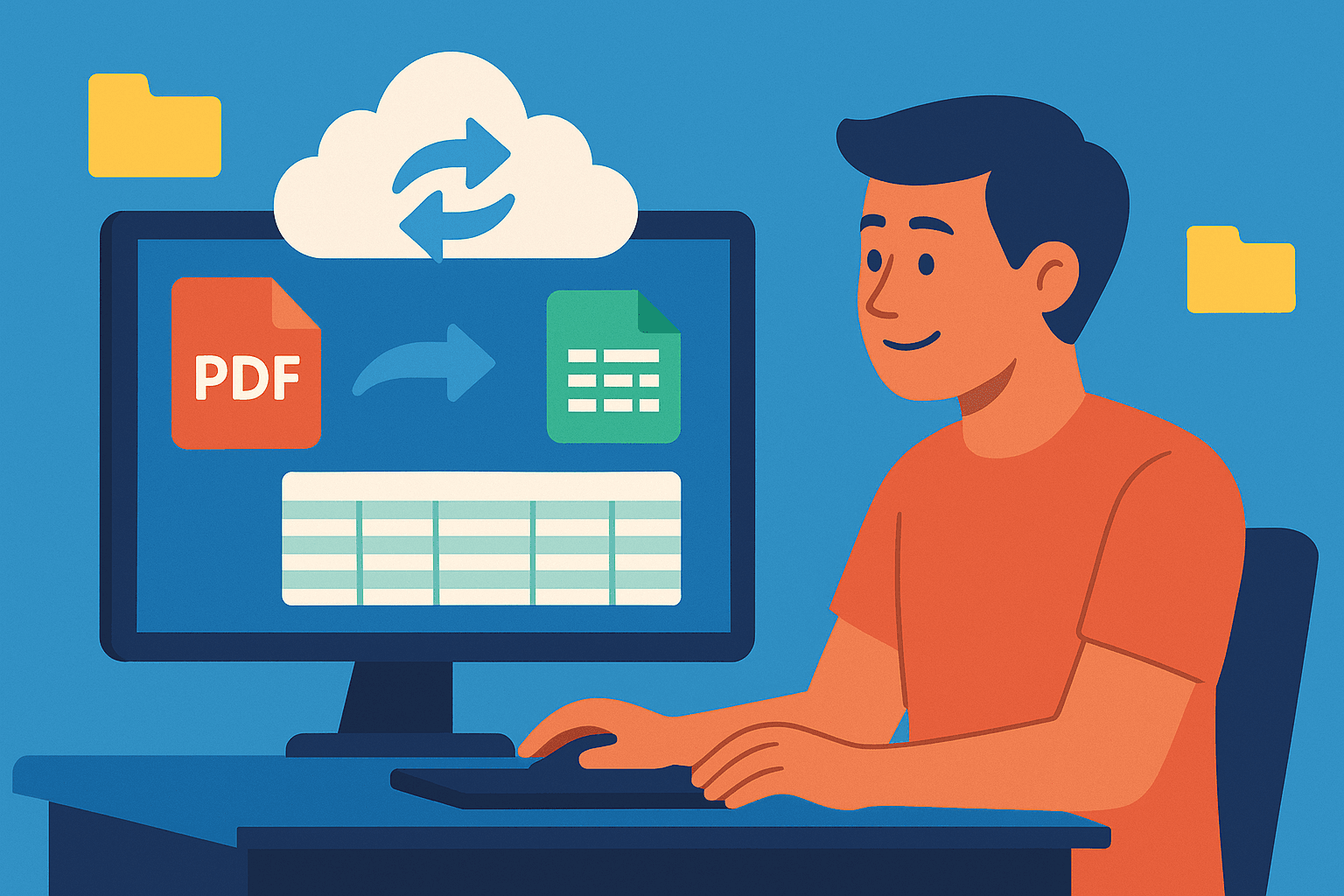
Convert PDF Bank Statement to CSV Online Free
Looking for a fast, free way to convert your PDF bank statements to CSV? Whether you're managing finances, reconciling accounts, or preparing taxes, converting PDFs into structured spreadsheets is a must.
- Rocket Statements* offers an easy way to upload, parse, and convert PDF bank statements—even scanned ones—into CSV or Excel format. No software downloads, no complex setup—just clean financial data, fast.

Why Convert a Bank Statement PDF to CSV?
Most banks export statements in PDF format, which makes it hard to sort, calculate, or import into bookkeeping tools. CSVs are:
- Editable: Open in Excel, Google Sheets, or import into accounting software
- Lightweight: Easy to store and share
- Automatable: Ideal for monthly reconciliation, taxes, and audits
How to Convert PDF Bank Statements to CSV (or Excel)
With Rocket Statements, converting your PDFs is simple—even if they're scanned image files.
🔹 Step-by-Step Guide
Sign up for a free Rocket Statements trial 👉 Start your trial here
Upload your PDF bank statement
- Supports scanned statements (OCR-powered)
- Works with multi-page and password-protected files
Preview the extracted table
- View before downloading
- Make edits or corrections if needed
-
- Choose your preferred format (CSV or XLSX)
🚫 Note: During the free trial, you can upload and preview conversions, but you'll need to upgrade to download the converted files.
CSV vs Excel: Which Format Should You Use?
Choose CSV for imports and automated workflows; choose Excel when you need human editing, formulas, or preserved layout.
CSV is a file format that stores tabular data as plain text with one row per line and fields separated by commas. This makes CSV universal for bulk imports and scripts. For example, most bookkeeping apps accept CSV because they parse plain text faster than binary files.
Excel is a spreadsheet format that stores multiple sheets, cell formulas, and visual formatting. Excel files keep formulas and cell types intact, which helps when accountants need to adjust calculations or preserve complex reports.
| Format | Best use | Date and number handling | Encoding and character sets | Multi-currency & line items | Common import risks | When to pick this format |
|---|---|---|---|---|---|---|
| CSV | Bulk imports, automated processing, bank-to-accounting ingestion | Plain text only. Dates must match the importer's expected format. Example: YYYY-MM-DD vs MM/DD/YYYY often breaks imports. | Save as UTF-8 to avoid corrupted characters. Exports in ANSI may drop non-ASCII characters. | Works for multi-currency if each row includes a currency column. Line items should be normalized into single rows per transaction. | Missing headers, stray commas, or wrong date formats cause failed imports. | Choose CSV when your accounting app imports file-based data or when you need scriptable workflows. |
| Excel (XLSX) | Manual review, formulas, multi-sheet reports, client-facing statements | Stores typed dates and numeric formats. Excel may auto-convert fields (e.g., leading zeros or date-like strings). | Supports Unicode inside cells. File is binary/packed, so some tools cannot read it directly. | Easier to present multi-currency ledgers and nested line items across sheets. | Automated tools may ignore formulas or fail if they expect CSV. Exports to CSV can lose formatting and formulas. | Choose Excel when human edits, formulas, or presentation matter more than direct importability. |
Key considerations before exporting or converting a PDF bank statement to CSV:
- Ensure date format matches your import target. Mismatched date formats cause reconciliation mismatches.
- Use UTF-8 encoding for non-English characters. Corrupt encoding breaks payee names.
- Include a consistent currency column for multi-currency accounts. Missing currency data leads to incorrect totals.
- Flatten multi-line transactions into single rows with clear category or line-item columns. Import tools expect one transaction per row.
💡 Tip: Save CSV exports as UTF-8 and include a header row with explicit field names (date, amount, currency, payee, category). This reduces parsing errors during imports.
Manual conversion from PDF to CSV adds hours to bookkeeping and increases the chance of import failures, reconciliation errors, and compliance mistakes. Our converter handles date normalization, UTF-8 encoding, multi-currency columns, and line-item extraction so you avoid repetitive clean-up work. For a step-by-step comparison of which format to choose for your accounting app, see our format choice guide for imports.
Free vs Paid Bank Statement Converters
Free bank statement converters is a category that extracts table data from PDFs without payment but often lacks OCR for scanned images, batch processing, or enterprise-grade controls. This summary compares common free options (for example Tabula, PDFtoExcel and free tiers of Smallpdf) with Rocket Statements so you can choose the fastest, safest path from PDF bank statement to CSV.
Typical differences follow. Free tools vary by project and often focus on native PDFs where table markers exist. Rocket Statements handles both native PDFs and scanned images, reducing manual cleanup and compliance risk for businesses.
| Feature | Typical free tools (examples) | Rocket Statements (our website) |
|---|---|---|
| Scanned PDF support | Often none or limited to basic OCR via a separate step. Tabula is open source and works well for digital PDFs but not scanned images. | OCR-powered processing that extracts text and table structure from scanned statements in a single workflow. |
| Table accuracy | Mixed. Many free extractors split columns incorrectly when tables use irregular spacing or bank-specific layouts. Example: multi-line descriptions frequently break rows. | Preserves column boundaries and numeric formatting to minimize row splits and manual fixes for common bank layouts. |
| Excel / CSV export | Some free tools export CSV but may drop formatting or require manual column fixes. File-size or daily-use limits may apply. | Direct CSV and Excel export with consistent column headers and number formats, ready for accounting import. |
| File previews and QA | Limited or absent; many services only return a download without an interactive preview or validation step. | Instant preview and quick QA tools so you can confirm mapping before downloading. |
| Security and data handling | Varies. Some free sites process files on third-party servers and may not offer clear deletion or access controls. | Files are encrypted in transit and at rest and processed with access controls to limit exposure during conversion. |
💡 Tip: If your statement is a scanned image, run an OCR-capable tool first; otherwise expect extra manual cleanup.
Our website recommends Rocket Statements when you need reliable CSV output, consistent formatting for imports, and clearer data handling controls. For occasional, simple extractions from native PDFs, a free tool like Tabula can work, but expect more hands-on correction and to manage security workflows yourself.
FAQs
Can I convert a scanned PDF bank statement?
Yes. Rocket Statements supports OCR, which means it can extract data even from scanned documents and images.
Is Rocket Statements really free?
You can upload and preview your converted statement for free. To download the CSV or Excel file, a paid plan is required.
What's the difference between CSV and Excel exports?
CSV is ideal for importing into apps and systems. Excel supports formatting, formulas, and manual adjustments.
Does this work with credit card statements?
Yes, Rocket Statements works with both checking and credit card PDF statements.
Final Thoughts
Converting a PDF bank statement to CSV requires four clear steps: upload the PDF, run OCR and field detection, export the CSV or Excel, and verify the results.
Follow these steps to complete a reliable PDF bank statement to CSV conversion:
- Upload the PDF. Choose a single page or multi-page statement and upload it to our website.
- Run OCR and review detected fields. Confirm the date, description, and amount columns and correct any OCR errors before exporting.
- Export the file. Download a sample CSV or Excel to check column names and formatting against your accounting software.
- Verify totals and sample transactions. Reconcile a handful of rows with the original PDF to confirm amounts and splits.
Rocket Statements handles OCR and standardizes date, description, and amount columns so you avoid manual column mapping and speed up imports. According to Rocket Statements, manual re-entry commonly produces duplicated transactions and missed splits, which increases reconciliation time and risks reporting errors.
DIY conversion often costs time and creates risk. Manual data entry can consume billable hours, introduce duplicated or missed transactions, and raise compliance exposure when sensitive data remains unredacted. For example, a small accounting firm processing 200 statements could spend dozens of hours per month on manual entry instead of client work.
Recommended next action: start a 7-day free trial on our website and upload one sample statement. Export the sample CSV, check the date, description, and amount columns, and confirm totals. If the sample matches your accounting format, proceed with batch conversion to reduce manual re-entry and lower reconciliation time.
⚠️ Warning: Remove or redact unnecessary sensitive personal information (for example, full Social Security numbers) before uploading PDFs.