
Convert Bank Statements to Google Sheets (2026): 5 Methods Compared + Free Template

Convert Bank Statements to Google Sheets (2026): 5 Methods Compared + Free Template
Rekeying 500 transactions from PDF bank statements can cost a bookkeeping team several unpaid hours each month. Convert bank statements to Google Sheets is a data-extraction process that reads PDF and image statements and outputs clean, spreadsheet-ready rows and columns. This comparison-post evaluates five practical methods to convert bank statements to Google Sheets, rating each for accuracy, cost, and security for accountants, bookkeepers, and small businesses. Rocket Statements, our platform, automates PDF and image conversions, stores documents in cloud folders and subfolders, syncs live transactions, and exports CSV, Excel, JSON, PDF, and QuickBooks-compatible files. Which method saves the most time while keeping data accurate and secure?
Which five practical methods convert bank statements to Google Sheets?
Five practical methods convert bank statements to Google Sheets: manual CSV export, OCR-based PDF conversion, bank API direct sync, CSV-first pipelines with Sheets add-ons, and automated platforms such as Rocket Statements. Each method trades off setup time, ongoing maintenance, and accuracy, so choose based on volume, security requirements, and how often statements change. Below are concise summaries, setup steps, and the operational pain points you will face if you build the workflow yourself.

Manual CSV export (when is it appropriate?) 🧾
Manual CSV export is best for occasional, low-volume imports where the bank provides clean CSV downloads. Typical setup steps: log in to the bank portal, download the CSV for the date range, import into Google Sheets, map headers, and apply date/amount normalization rules. This method works well for one-off reconciliation tasks or small accounts with stable CSV schemas. The main operational pain points are repeated manual downloads, inconsistent header names across banks, duplicate transaction detection, and maintaining a versioning process when multiple team members update the same sheet. Our website recommends manual CSV exports only for ad-hoc work; for scheduled imports consider the Rocket Statements Google Sheets™ add-on to automate header mapping and scheduled imports. See our guide on automating uploads in minutes for a step-by-step add-on walkthrough: How to Upload PDF Bank Statements to Google Sheets in Minutes.
OCR-based PDF conversion (how does it work?) 🔍
OCR-based PDF conversion extracts text from scanned or image PDFs and maps it into spreadsheet columns, but it requires rule tuning for layout variability. Typical steps: ingest PDFs, run an OCR engine (for example Google Cloud Vision or Tesseract), detect tables and line items, then map OCR fields to date, description, and amount columns. Expect to build post-processing rules for multi-page statements, running-balances, and split lines. The operational burdens include OCR misreads on faded scans, inconsistent column alignment across bank formats, and the need to continuously refine field-mapping logic. Our website notes that Rocket Statements handles PDF extraction, multi-page stitching, and header mapping out of the box, removing the need to maintain OCR templates. For a practical walk-through of PDF import into Sheets, see our hands-on guide: How to Upload PDF Bank Statements to Google Sheets in Minutes.
Bank API direct sync (what you must manage) 🔁
Bank API direct sync pulls transactions programmatically from institutions but requires robust credential, quota, and error handling. Setup steps include registering an application with the bank or aggregator, implementing OAuth consent and token refresh, scheduling pulls or webhooks, and mapping the bank's transaction schema to your Sheets schema. DIY builders must manage credential rotation, token refresh, rate limits and quota monitoring, retry logic with exponential backoff, idempotency for webhooks, and reconciliation of partial imports. These items create ongoing operational work: monitoring, alerting, and audit logs are necessary to avoid silent data gaps. Our website recommends Rocket Statements for live bank sync when you need continuous imports without building OAuth flows, token rotation, or webhook idempotency yourself. See community notes on managing client folders and live feeds: The Art of Balancing: Google Sheets Import Via Rocket Statements.
CSV-first pipelines and Sheets add-ons (who this suits) 🧰
CSV-first pipelines use exported CSVs plus Google Sheets add-ons or Apps Script to automate imports and minor transforms while still requiring scheduled exports and mapping maintenance. Setup typically involves exporting CSVs to Google Drive or SFTP, using an add-on or Apps Script to parse and normalize fields, and creating triggers for scheduled runs. This approach suits small accounting teams who can maintain Apps Script triggers and handle schema changes manually. Operational pain points include maintaining Apps Script triggers after updates, writing robust error handling (retry/backoff), dealing with CSV schema drift, and implementing cache invalidation when imports overlap. Our website recommends the Rocket Statements Google Sheets™ add-on when you want CSV automation without writing and maintaining Apps Script. Read the add-on announcement to see how it simplifies mapping and scheduled imports: Introducing Rocket Statements: Your Ultimate Google Sheets™ Add-On for Effortless Bank Statement Imports.
Automated platforms like Rocket Statements (what they solve) ⚙️
Automated platforms such as Rocket Statements provide end-to-end PDF extraction, cloud document management, and live bank sync so you avoid building OCR, retry logic, and mapping maintenance yourself. Typical user steps: upload PDFs or connect bank accounts, configure folder and output mappings, choose output format (Google Sheets, CSV, Excel, JSON, QuickBooks), and set a schedule for automated imports. Rocket Statements handles multi-page PDFs, folder-based document organization, and recurring syncs, reducing manual hours spent reconciling statement formats. If you tried a DIY OCR pipeline, you would still need to build monitoring, error alerts, and reconciliation dashboards; Rocket Statements centralizes those features. For converting statements to other formats or accounting imports, see our Excel and QuickBooks conversion guides: How to Convert Bank Statements to Excel (Fast & Free Guide) and How to convert your bank statements from pdf to excel format? (Updated: 2025).
⚠️ Warning: Bank statement PDFs and transaction exports vary widely; expect a nontrivial engineering effort to normalize dates, amounts, and multi-page statements across banks.
How do these methods compare on accuracy, cost, and ongoing maintenance?
Accuracy, recurring cost, and maintenance effort vary widely across manual CSV exports, OCR PDF tools, bank API syncs, CSV-first add-ons, and automated platforms such as Rocket Statements. The right method depends on document volume, required auditability, and how much engineering you want to run and monitor. The comparison table below highlights the trade-offs so finance ops and small accounting firms can pick a repeatable path.
📊 Side-by-side comparison table
The table below shows how five methods stack up on extraction accuracy, multi-page PDF handling, speed, recurring cost, security controls, monitoring, and total cost of ownership.
| Criteria | Manual CSV export | OCR-based PDF conversion | Bank API direct sync | CSV-first pipelines / Sheets add-ons | Rocket Statements (platform) |
|---|---|---|---|---|---|
| Extraction accuracy | High when banks provide clean CSVs. Banks that export CSVs avoid OCR errors. | Medium. OCR introduces line-level errors and misread characters. Example: check numbers and dates often need manual fixes. | High. APIs return structured transactions and metadata, reducing mapping errors. | High-to-medium. Accuracy depends on source CSV quality and mapping templates in the add-on. | High out of the box for PDFs and live syncs; includes field mapping and normalization to reduce post-processing. |
| Handling multi-page PDFs | Low. Requires manual split or manual rekeying across pages. | Medium. Multi-page parsing often needs custom templates per statement layout. | N/A. APIs return transactions, not page images. | Medium. Some add-ons accept multi-page PDFs but need pre-processing. | Built-in multi-page PDF parsing and folder-based batch imports. |
| Speed (per document) | Fast if CSV ready; otherwise very slow for rekeyed PDFs. | Fast to run, slower to validate. Example: OCR + cleanup often takes 2-8 minutes per statement. | Fast once connected; initial mapping takes time. | Moderate. Import plus manual mapping and clean-up. | Fast for bulk imports and scheduled syncs; uploads and conversion complete without manual rekeying. |
| Recurring cost | Low subscription cost; high labor cost if manual work continues. | Low-medium tool cost; higher review time cost. | Medium integration and developer cost; lower per-transaction labor. | Low-medium per-seat add-on fees plus maintenance. | Subscription fee covers conversions, storage, and syncs; reduces ongoing manual labor and folder management. |
| Security controls | Varies. You control storage; must implement encryption and access controls yourself. | Varies by vendor; many OCR tools do not include enterprise audit logs. | Strong when implemented properly; requires secure token handling and audit logs. | Varies by add-on; Sheets add-ons need OAuth scopes and access governance. | Includes managed credential storage, encryption in transit and at rest, role-based access, and audit logs for document access. |
| Monitoring & alerts | Manual. No built-in alerting; depends on spreadsheet checks. | Limited. Most OCR tools lack per-import monitoring and retry logic. | You must build quota monitoring, retry/backoff, and alerts. | Some add-ons provide basic logs; end-to-end monitoring usually missing. | Built-in monitoring, error reports, and scheduled job alerts for failed imports. |
| Ongoing maintenance / TCO | High labor and review costs; costly at scale. | Medium-high due to template maintenance and review. | High engineering overhead: token refresh, rate limits, quota handling, and schema changes. | Medium: add-on updates, mapping templates, and Sheets formulas to maintain. | Lower operational overhead; our product handles parsing updates, folder management, and sync health so your team focuses on reconciliation. |
For step-by-step instructions on an automated PDF-to-Sheets workflow, see our guide on how to upload PDF bank statements to Google Sheets in minutes.
⚙️ Benchmarks and real-world scenarios
Illustrative benchmarks show typical end-to-end time and error-review load for a firm processing 200 statements per month. These numbers are examples to frame operational planning, not guaranteed performance.
- Manual PDF rekeying. Expect 40-80 hours/month of human rekeying and reconciliation for 200 statements, depending on transaction volume. Human errors are rare per row but scale with volume and require spot checks. Example: a two-person bookkeeping team might spend three full days per week on rekeying alone.
- OCR-based PDF conversion. Expect 10-30 hours/month for OCR runs plus cleanup and date/amount fixes. Typical row-level error rates range from 2-8% depending on statement layouts and scanned image quality. OCR reduces typing time but increases validation time.
- Bank API direct sync. Expect 8-20 hours initial engineering and 1-3 hours/month maintenance. Common operational tasks: token refresh, quota monitoring, retry logic, and mapping changes when the bank alters fields. APIs reduce row errors but require engineering to keep stable.
- CSV-first pipelines with Sheets add-ons. Expect 6-12 hours/month for imports and mapping adjustments. Add-ons reduce manual upload steps but still require template updates and periodic formula fixes in Sheets.
- Rocket Statements automated platform. Expect under 5 hours/month for monitoring and reconciliation for the same volume in most setups because document parsing, multi-page handling, folder organization, and scheduled syncs are managed by the platform. Our product removes manual folder choreography and reduces recurring validation steps compared with OCR-only flows. For quick setup details, try our Google Sheets add-on overview.
Operational cost example. A small accounting firm billing $60/hour that moves from 40 hours/month of rekeying to a 5-hour/month review saves roughly $2,100 in labor each month after accounting for subscription fees and onboarding. Use this framework to model your own TCO: estimate hours saved, add subscription and integration costs, then include dev time for any DIY API work.
💡 Tip: Run a 30-day pilot with one client folder to measure your error rate and average review time before committing to a platform or building an integration.
🔒 Security and compliance comparison
Security responsibility differs: DIY and many OCR tools leave credential rotation, secure storage, and logging to you, while Rocket Statements provides managed credential storage, encryption, and auditability.
- DIY build obligations. You must implement secure credential storage, token rotation, encryption in transit and at rest, quota handling, retry logic, structured logging, and audit trails. You also need to plan for cache invalidation and race conditions when concurrent imports or manual edits occur. Monitoring requires alerting for failed imports, schema changes, and quota exhaustion.
- Common OCR and add-on gaps. Many OCR tools and simple add-ons do not provide enterprise-grade audit logs, folder-level access controls, or long-term encrypted archives. That forces teams to add logging layers and separate storage solutions.
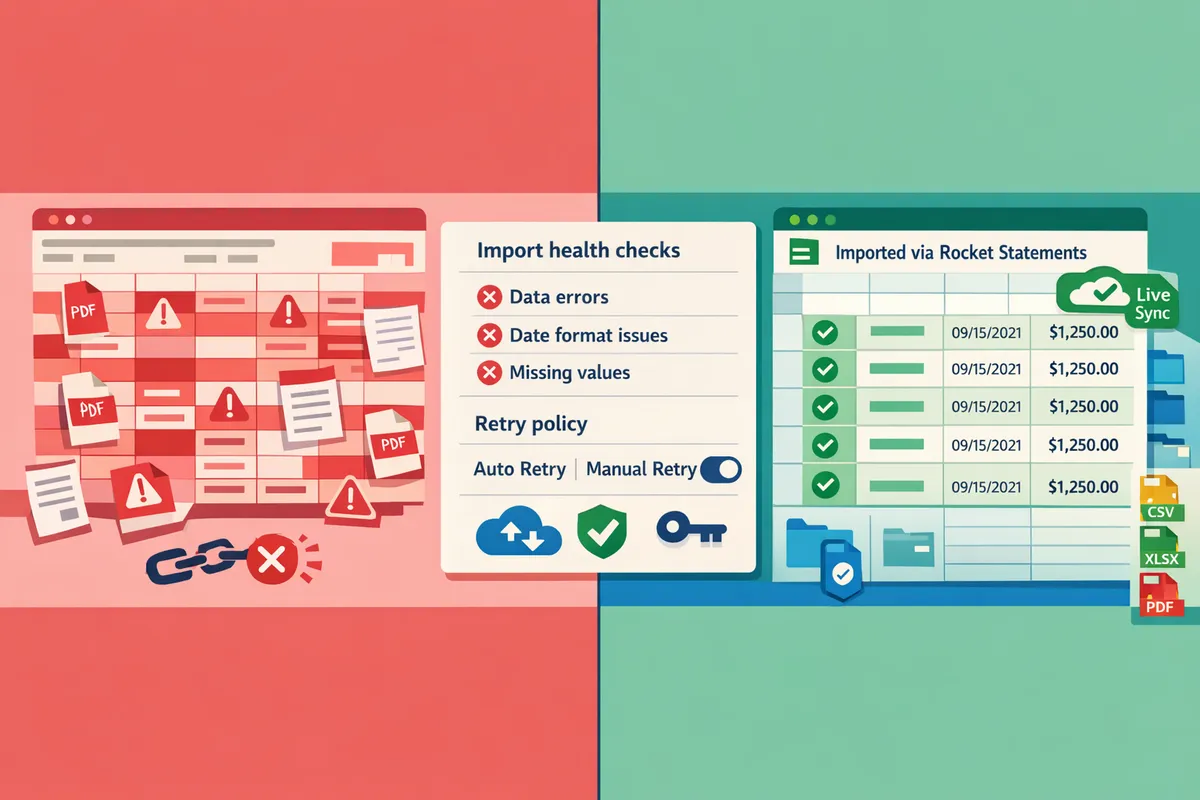
- How Rocket Statements helps. Rocket Statements handles token lifecycle management, enforces role-based access to folders, stores files encrypted, and exposes import logs and error reports so your compliance team can audit activity without building a custom logging stack. This removes the recurring engineering work of maintaining token rotation, retry policies, and import health checks.
For practical steps to harden imports, see our quick guide on uploading PDF bank statements to Google Sheets and the Google Sheets add-on announcement for integration-specific permissions and scopes.
Which option should small accounting firms pick and how to implement it?
Small accounting firms should usually pick an automated platform such as Rocket Statements when they need ongoing imports, PDF and image conversion, and low-maintenance QuickBooks-compatible exports. Rocket Statements reduces the recurring engineering and support burden of running extraction pipelines while still letting you import bank statements to Google Sheets on a schedule. If your firm has very low volume or a tight budget, a CSV-first or manual workflow can work but will require ongoing mapping and monitoring.
When to choose Rocket Statements 🚀
Choose Rocket Statements when your firm needs continuous imports, cloud document management, scheduled syncs, and QuickBooks-ready exports without building and maintaining extraction pipelines. Rocket Statements ingests PDFs and images, applies field mapping and normalization, stores documents in folder hierarchies, and exports to Google Sheets, CSV, Excel, JSON, or QuickBooks formats. According to Rocket Statements, the platform supports both PDF-to-spreadsheet conversion and live bank syncs for combined workflows.
Building an in-house pipeline requires handling credential management, token refresh, rate limiting, retry policies, OCR tuning for multiple bank layouts, and monitoring. Rocket Statements removes those operational tasks by centralizing ingestion, mapping templates, scheduled syncs, and failure alerts so your team focuses on review and reconciliation instead of engineering.
See our guide on how to upload PDF bank statements to Google Sheets for step-level tips and troubleshooting: How to Upload PDF Bank Statements to Google Sheets in Minutes.
When a DIY or CSV approach makes sense ⚙️
Choose a DIY or CSV-first approach only if you have very low monthly volume, few clients, and availability for manual mapping and recurring fixes. For example, a sole practitioner handling two clients with under 300 transactions per month may prefer exporting CSVs from online banking and cleaning them in Sheets to avoid subscription costs.
DIY forces you to build and maintain mapping rules, retry logic, cache invalidation, and monitoring. You will also need to tune OCR models for different statement layouts, rotate credentials and refresh tokens for any connected bank APIs, and handle rate limiting and concurrent-sync race conditions. These items create ongoing time costs and technical debt as volume grows.
If you try a hybrid route, consider the Rocket Statements Google Sheets add-on to reduce manual steps: Introducing Rocket Statements: Your Ultimate Google Sheets™ Add-On for Effortless Bank Statement Imports.
Implementation checklist: Import to Google Sheets with Rocket Statements ✅
Follow these seven steps to import bank statements into Google Sheets automatically using Rocket Statements.
- Create a Rocket Statements account.
- Choose your plan and set up single-sign-on or a dedicated service account for team access. Enable two-factor authentication for admin users.
- Connect bank accounts or upload PDFs.
- Use secure bank connectors for live syncs or drag-and-drop PDFs and images for historical statements. Rocket Statements accepts multi-page PDFs and common image formats.
- Configure folder structure and mapping rules.
- Create client folders and subfolders. Define mapping templates for date formats, debit/credit normalization, payee extraction, and category rules.
- Choose Google Sheets as an output.
- Select the Sheets destination, map columns to your template (date, description, amount, balance), and link the target spreadsheet or create a new one.
- Schedule recurring syncs.
- Set frequency (daily, weekly, monthly) and enable incremental imports to avoid duplicates. Use a staging sheet for verification before writing to production tabs.
- Set alerts and monitoring.
- Configure failure alerts via email, Slack, or webhooks and add runbook links that describe escalation steps for import errors.
- Test and validate with a sample month.
- Import one month per client, reconcile starting and ending balances, and verify date/amount normalization before enabling full scheduled runs.
💡 Tip: Import a single month and compare totals with the original statement before enabling recurring syncs to catch mapping errors early.
For implementation screenshots and a walkthrough that maps Rocket Statements outputs to Sheets, see our step-by-step import guide: How to Upload PDF Bank Statements to Google Sheets in Minutes.
Frequently Asked Questions
This FAQ answers the most common user questions about accuracy, security, pricing, and automating statement imports to Google Sheets. Read the short answer first, then follow the action step or example to apply the guidance quickly.
How accurate is OCR for bank statements? 🤖
OCR accuracy for bank statements depends on scan quality and statement layout and typically requires field mapping and validation rules for reliable results. Poor scans, rotated pages, or mixed layouts increase parsing errors; consistent, 300 DPI grayscale scans with cropped margins reduce mistakes. For variable bank formats expect manual correction of line-item parsing until rules are tuned or an automated platform handles layout variations. Rocket Statements provides layout templates and field-mapping tools so you can test extraction on a 10-20 statement sample and iterate until error rates drop to an acceptable level. Action step: run a batch of 20 representative PDFs through Rocket Statements, review unmapped fields, and save a custom template for future imports.
Can I automate bank statement import to Google Sheets on a schedule? 🗓️
Yes, you can automate scheduled imports so Google Sheets receives new transactions without manual steps. Automated platforms let you schedule folder scans, bank syncs, or watch an SFTP bucket and push CSV or Sheets-compatible files on a cadence. Rocket Statements supports recurring syncs and can push exports directly to a connected Google Sheet or generate CSV/Excel files that your Sheet imports automatically. Action step: connect your source (bank API or upload folder) in Rocket Statements, set a daily or weekly sync window, choose Google Sheets output, and enable email or webhook alerts for failures.
💡 Tip: Configure retry logic and failure alerts when you schedule imports so missed files trigger an immediate investigation.
Is it secure to import bank statements into Google Sheets? 🛡️
Import security depends on how credentials and data are stored and transmitted; you must enforce encryption, token rotation, and role-based access to remain secure. Storing passwords or raw account credentials in Sheets or plaintext files creates a persistent risk; use OAuth where possible and encrypt files at rest. Rocket Statements stores documents in a managed cloud folder, supports encrypted storage, and provides access controls and audit logs to show who downloaded or exported a file. Action step: avoid shared editable Sheets with full account numbers; use a dedicated service account with view-only access and audit logging for any Sheets that receive imported transactions.
⚠️ Warning: Do not store full account or routing numbers in shared Google Sheets without encryption and strict access controls.
How do I handle multi-page or aggregated PDF statements? 📄
Handle multi-page statements with extraction rules that detect repeated headers, page breaks, and running balances so line items consolidate correctly. Simple OCR that treats each page independently will duplicate headers or break transactions; you need rules to ignore header rows, detect continuation rows, and recompute running balances or ignore them in favor of transaction rows. Rocket Statements includes multi-page parsing and mapping controls that let you define header/footer patterns and merge transactions across pages into a single normalized table. Action step: create a rule set in Rocket Statements for the bank's statement sample that strips repeated headers and maps date/amount columns across pages, then validate against 5 multi-page examples.
Can I export Rocket Statements output to QuickBooks or CSV for Sheets? 📤
Yes, Rocket Statements exports to CSV, Excel, JSON, PDF, and QuickBooks-compatible formats so you can import into accounting software or Google Sheets. Exports include configurable date formats, negative vs positive amount handling, and optional Chart of Accounts mapping to line items for easier reconciliation. Action step: choose CSV or QuickBooks export in Rocket Statements, run a one-off export, then perform a test import into QuickBooks or a Google Sheet to confirm field mapping and date/amount formats. For a step-by-step upload example, see our guide on how to upload PDF bank statements to Google Sheets.
What are the ongoing costs compared to building an in-house pipeline? 💸
Ongoing costs for an in-house pipeline include engineering time for monitoring, OCR tuning, credential management, and handling bank API changes, while a managed platform converts those variable engineering costs into predictable subscription fees and operational support. Building internal tooling requires handling token refresh, quota monitoring, retry logic with exponential backoff, cache invalidation, race conditions on concurrent imports, schema migrations, and 24/7 alerts. Rocket Statements absorbs that operational overhead and provides versioned templates and support so your team avoids continual OCR retraining and endpoint break fixes. Action step: estimate monthly engineering hours for maintenance and multiply by your hourly rate, then compare that to Rocket Statements subscription and support costs to decide which is more cost-effective.
Pick the method that matches your volume, accuracy needs, and compliance requirements and then try Rocket Statements.
The core takeaway is that each method trades off accuracy, cost, and maintenance; DIY parsing forces you to handle credential management, token refresh, rate limiting, retry logic, and data validation. If you need to convert bank statements to Google Sheets reliably at scale, choose the approach that reduces ongoing maintenance and error-prone manual steps. For a hands-on PDF workflow, see How to Upload PDF Bank Statements to Google Sheets in Minutes. For direct spreadsheet integration, try Introducing Rocket Statements: Your Ultimate Google Sheets™ Add-On for Effortless Bank Statement Imports. For Excel workflows, consult How to Convert Bank Statements to Excel (Fast & Free Guide) and the updated PDF-to-Excel walkthrough from 2025. Community tips on folder and sync issues appear in The Art of Balancing: Google Sheets Import Via Rocket Statements.
Rocket Statements is a platform that helps users save time and money by automating the process of converting their statements into spreadsheets as well as manage their documents in the cloud. Create your first import by installing the Google Sheets add-on and importing a sample statement from the getting-started guide.
💡 Tip: Always verify opening and closing balances after any import to catch parsing errors early.
Subscribe to our newsletter for implementation tips and feature updates.