
Convert Bank Statements Into QuickBooks‑Ready Files
Convert Bank Statements Into QuickBooks‑Ready Files
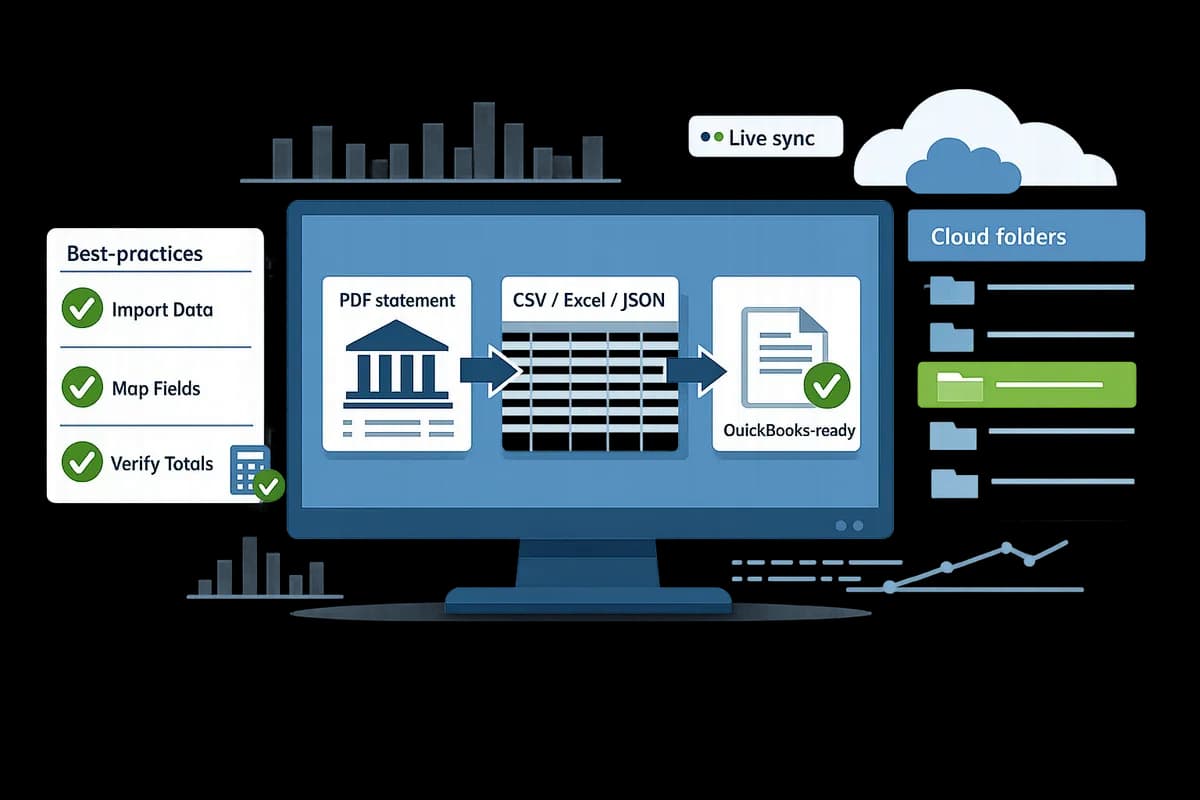
A single misformatted PDF bank statement can cost a small accounting team two to three hours of manual cleanup. This article shows how to convert bank statements into QuickBooks-ready files without manual entry, removing repeat data work and import errors. Bank statement conversion for QuickBooks is a workflow that extracts transactions from PDFs and images and outputs QBO, CSV, or Excel files formatted for direct import. Rocket Statements automates that workflow on our platform: it converts PDF and image statements to spreadsheets, manages documents in cloud folders and subfolders, syncs live transactions, and exports CSV, Excel, JSON and QuickBooks-compatible files. Follow this best-practices guide and our bank statement converter and QuickBooks integration guide to see which import format saves you the most hours?
What core principles ensure accurate conversion of bank statements into QuickBooks-ready files?
Accurate conversion requires reliable extraction, exact field mapping, secure document handling, and explicit exception rules. These four principles stop reconciliation mismatches and preserve audit trails. For example, a single misformatted PDF page can add two to three hours of cleanup for a small accounting team; our guide on PDF Bank Statements to QuickBooks in Minutes | Rocket Statements explains why those hours add up.
What are QuickBooks import formats 2026 CSV QBO QFX OFX? 📁
QuickBooks accepts CSV, QBO, QFX, and OFX for bank and transaction imports, and each format fits a different workflow. CSV is best for bulk backfills or custom spreadsheet edits because it exposes every column. QBO and OFX serve as bank-feed replacements and preserve transaction metadata so imports require less manual tagging. QFX originates from Quicken exports and sometimes works with desktop QuickBooks for single-client imports.
Common mapping concerns include date format mismatches, debit/credit signs, running balance columns, and merged description fields that hide payee vs. memo. For example, CSV imports fail when dates use DD/MM/YYYY but QuickBooks expects MM/DD/YYYY. Rocket Statements' Bank Statement Converter detects common bank layouts and exports QBO and OFX alongside CSV and Excel, reducing format-specific surprises. See our comparison of output options in Bank Statement to CSV, Excel, JSON & QuickBooks for sample workflows and when to use each file type.
What to check before you import:
- Confirm date format and regional settings in the target company file.
- Ensure amounts use a single convention (negative for refunds or separate debit/credit columns).
- Remove a running-balance column if present; QuickBooks may reject files with unexpected extra columns.
How should statement fields map to QuickBooks accounts and columns? 🧾
Map statement fields to QuickBooks by assigning statement date, ledger account, amount, payee, and memo to their exact QuickBooks columns before import. Incorrect mapping causes reconciliation mismatches and forces manual journal entries; many small firms report 3–5 hours of rework per client when mapping fails.
Use this mapping template as a baseline:
- Account selector (QuickBooks account to post transactions)
- Date (normalize to MM/DD/YYYY if necessary)
- Amount (single numeric column, sign convention standardized)
- Payee (cleaned and standardized names)
- Memo (optional details, fees, check numbers)
Handle split transactions by flagging lines that belong to the same bank entry and exporting a parent record plus child lines. For example, a vendor payment that covers two invoices should export as one bank debit with two allocation lines. Rocket Statements lets you save mapping templates per client so you reuse consistent mappings across months and reduce import errors. For deeper mapping examples and QuickBooks Online vs Desktop notes, see Can Rocket Statements export QuickBooks-compatible files? CSV for QBO and Spreadsheet Sync mappings explained (2026).
How does secure document management reduce compliance and audit risk? 🔒
Secure document management reduces compliance and audit risk by preserving immutable audit trails, enforcing access controls, and applying retention policies. Auditors expect a clear chain from source document to posted transaction; a cloud folder with version history and an exportable access log provides that chain.
Recommended folder structure and controls:
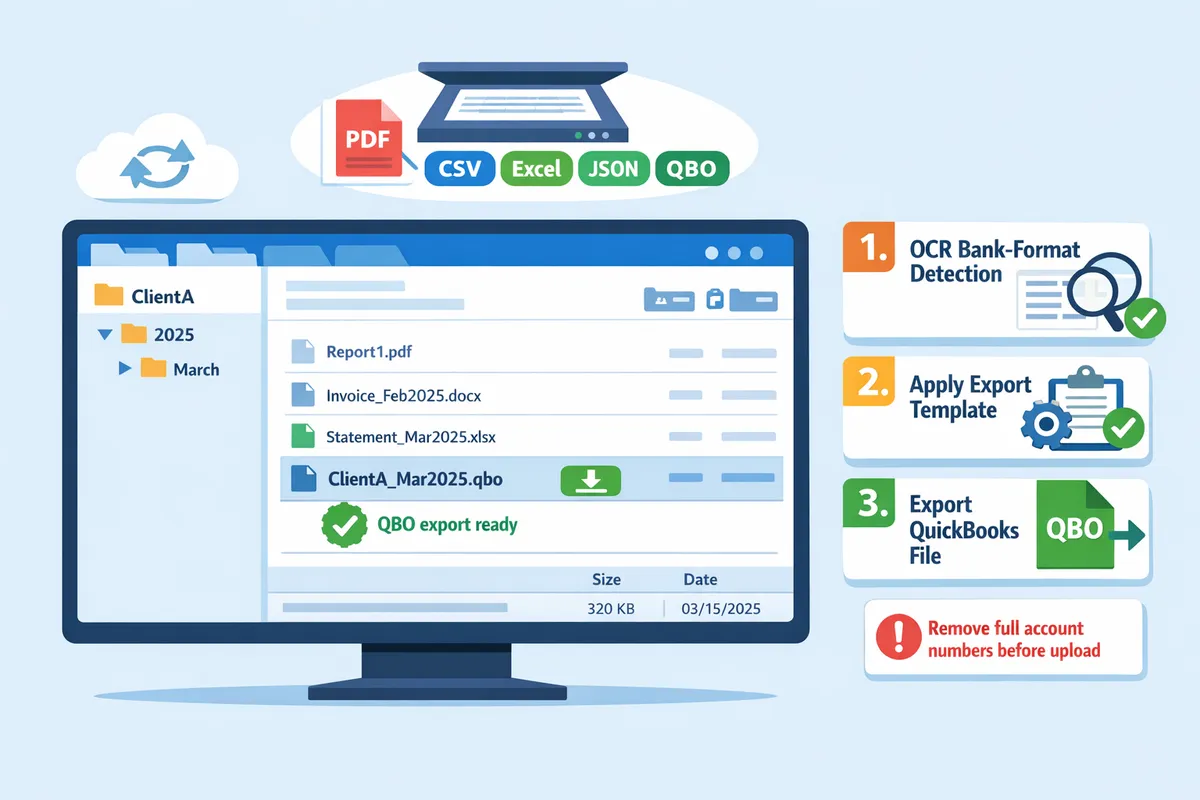
- Use client > year > month folders so statements and exported files live next to each other.
- Apply role-based access (billing vs. bookkeeping) and enable read-only for archived months.
- Keep an exportable audit log and version history for every converted file.
Example policy: store raw PDFs in /ClientA/2025/raw, processed CSV/QBO in /ClientA/2025/processed, set 7-year retention for archived tax years, and restrict deletion rights to senior finance staff. Rocket Statements supports cloud folders, subfolders, and per-folder permissions so you can enforce these rules while still exporting QuickBooks-ready files.
⚠️ Warning: Redact or remove sensitive personal identifiers (full account numbers, SSNs) from memo fields before uploading to shared folders to limit data exposure.
Suggested image:
Which proven strategies let you convert PDFs and images to QuickBooks-ready files without manual entry?
Automated OCR with bank-format detection and export templates converts PDFs and images into QuickBooks-ready files without manual entry. This approach cuts repetitive data entry, shortens client turnaround, and reduces reconciliation errors compared with pure manual workflows. Below are a practical comparison, a three-step decision framework for choosing a path, and concrete rules for handling edge cases so imports land cleanly in QuickBooks.
How do automated converters compare to DIY and hybrid workflows? 🧾
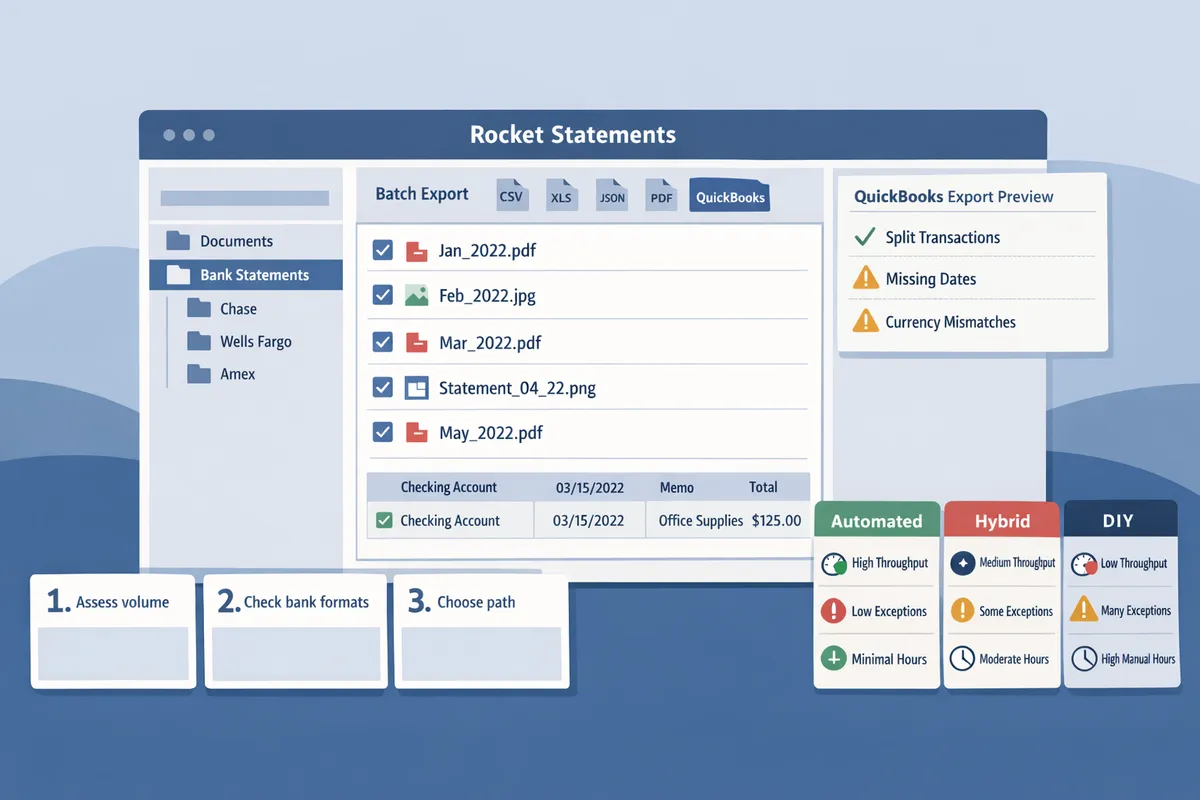
Automated converters typically deliver higher throughput and fewer exceptions than manual Google Sheets workflows while hybrid setups offer more control for unusual bank formats. The table below compares Rocket Statements, a typical pro converter, and a manual Google Sheets workflow across the criteria SMB accountants care about.
| Criteria | Rocket Statements | Competitor X (typical pro converter) | Manual Google Sheets workflow |
|---|---|---|---|
| Supported export formats | CSV, Excel, JSON, QBO, OFX | CSV, QBO, OFX (varies) | CSV, Excel (manual setup) |
| Batch processing | Yes, queued bulk exports | Usually yes, limits may apply | No, per-file manual work |
| Bank-format detection | Automatic detection across layouts | Detection with bank list or templates | Manual template creation per bank |
| Cloud document management | Folders, subfolders, versioning | Optional cloud upload | Local files or shared drives |
| QuickBooks-specific exports | QBO/OFX-ready exports and mapping assistance | QBO/OFX often available | Must prepare columns and mapping manually |
| Setup time | Low to moderate (templates prebuilt) | Moderate (bank templates needed) | High (build mappings for each bank) |
| Exception rate | Lower with built-in rules and review queue | Moderate, depends on bank coverage | High, human error and inconsistent formats |
| Ongoing maintenance | Low; updates pushed from platform | Medium; user must adjust templates | High; each new bank format requires manual fixes |
Our website article 'PDF Bank Statements to QuickBooks in Minutes' shows a step-by-step pilot that illustrates the time savings for typical monthly volumes. If you value consistent exports and cloud document control, Rocket Statements closes the gap between speed and accuracy.
What is the 3-step decision framework to pick the right conversion path? ✅
Pick the right path by measuring monthly volume, reconciliation risk, and internal capacity, then pilot to validate time and error savings. Follow these three steps with concrete thresholds and actions.
- Quantify volume and tolerance. Count statement pages and unique bank formats per month. Example: 200 pages across five banks with a one-hour exception tolerance suggests automation. Manual workflows suit under 20 pages monthly.
- Run a short pilot. Convert a representative 10% sample with Rocket Statements or a competitor and measure time per file and exception rate. Track hours saved and reconciliation mismatches in a spreadsheet. Use those numbers to calculate ROI versus headcount cost.
- Choose the path that meets your ROI and risk thresholds. If the pilot shows reduced exceptions and faster processing, adopt Rocket Statements for full batch processing; if exceptions remain high for niche banks, use a hybrid queue where automation pre-parses and staff resolve flagged items.
💡 Tip: During the pilot, include one complex statement (fees, transfers, multi-currency) to test exception handling rather than only clean examples.
See our comparison guide 'Bank Statement to CSV, Excel, JSON & QuickBooks' for sample pilot templates and ROI examples.
How should you treat edge cases like fees, credits, transfers, and partial statements? 🔎
Treat fees, credits, transfers, and partial statements with rule-based parsing, explicit exception flags, and a manual-review queue before importing into QuickBooks. Implement rules that map each case to how QuickBooks expects the data and catch mismatches early.
- Fees and service charges: Tag transactions where the description contains fee keywords and map to a dedicated expense GL code. Example: a 'Monthly Service Charge' entry becomes Expense > Bank Fees. Flag ambiguous amounts for review.
- Refunds and credits: Parse credit entries as negative amounts and ensure the date and reference match any related sale or payment. If a credit lacks a reference, route it to the review queue.
- Internal transfers: Detect identical amounts and near-matching dates with paired account numbers. Map transfers as transfers in QuickBooks, not income or expense, to avoid P&L distortion.
- Partial or truncated statements: Compare opening and closing balances. If the sequence or totals do not reconcile, mark the statement as incomplete and prevent import until the missing pages are uploaded.
| Edge case | Rule to apply before import | Example action |
|---|---|---|
| Fees | Keyword match + fee category | Auto-assign to Bank Fees and flag if amount > typical range |
| Credits/refunds | Negative amount + reference check | Auto-map to refund account; if no ref, send to review |
| Internal transfers | Match amount + cross-account pattern | Convert to transfer entry in QuickBooks format |
| Partial statements | Balance mismatch check | Hold import and prompt for missing pages or manual reconcile |
Rocket Statements supports batch processing with these rule types and a manual-review queue so staff only see true exceptions. For format-specific import checks and QuickBooks mapping guidance, consult our FAQ 'Can Rocket Statements export QuickBooks-compatible files?' and try the Bank Statement Converter to see how rules and flags behave on your statements.
⚠️ Warning: Importing statements with unresolved balance mismatches often creates reconciliation drift that takes hours to fix later.
For hands-on steps to prepare scanned statements and set up multi-bank exports, visit our guide 'PDF Bank Statements to QuickBooks in Minutes' and the practical walkthrough 'Easily Convert Bank Statements to Excel and Import into QuickBooks.'
How do you implement the conversion workflow and measure results inside QuickBooks?
Implement the conversion workflow as a staged five-step rollout and measure results with bookkeeping KPIs tied to hours saved, reconciliation exceptions, and close times. A controlled pilot validates mapping templates and prevents costly import mistakes; Rocket Statements provides the extraction, export and mapping tools you need at each stage.
What is the step-by-step implementation roadmap? 🛠️
Follow a five-step rollout to move from sample extraction to scheduled production imports. Start small and expand only after acceptance checks clear.
- Collect representative statements. Acceptance check: sample set covers all banks, statement layouts, multi-currency pages, and months with fees or transfers. Roles: billing lead + senior bookkeeper.
- Run extraction and save mapping templates in Rocket Statements. Acceptance check: 95% of columns map correctly for each bank layout (date, amount, type, memo). Roles: bookkeeper + operations.
- Import a pilot batch into QuickBooks (oldest month first). Acceptance check: no duplicate transactions and balances reconcile to bank PDF. Roles: bookkeeper + QA reviewer.
- Reconcile and refine mapping rules. Acceptance check: reconciliation exceptions drop to agreed threshold (e.g., <2% of transactions). Roles: senior bookkeeper + controller.
- Scale and schedule regular conversions. Acceptance check: automated job runs on schedule with alerting for exceptions. Roles: operations + client-facing bookkeeper.
💡 Tip: Include at least 10 statements per bank in the sample set to capture layout variations before finalizing templates. See our guide to convert bank PDFs to spreadsheets for preparation steps.
How do you backfill bank transactions into QuickBooks without bank feeds? 🔁
Backfill without bank feeds by exporting historical QBO, OFX, or CSV files from converted statements and importing them in controlled, non-overlapping date batches to avoid duplicates. Export oldest-first and import month-by-month so reconcilers can verify each period before proceeding.
Backfill checklist using Rocket Statements exports:
- Export format: choose QBO when available, OFX or CSV when QBO is not accepted. Rocket Statements supports these exports.
- Date-range rule: import 30–90 day chunks, starting from the earliest missing transaction.
- Duplicate protection: enable QuickBooks duplicate checks and tag imported batches (e.g., IMPORT_2026-01).
- Verification: confirm opening balance and running balance for each imported month match the original statement.
- Final sweep: run a reconciliation for the last imported month and document unmatched items.
⚠️ Warning: Do not import overlapping date ranges with existing bank feed data; QuickBooks will create duplicates that take hours to clean.
Refer to our FAQ on whether Rocket Statements exports QuickBooks-compatible files for format tips and common rejection causes.
How should success be measured and how do you calculate ROI? 📊
Measure success by hours saved per month, reduction in reconciliation exceptions, and faster close cycles, then convert those savings into staff-cost reductions to estimate ROI. Track baseline metrics for two months before the pilot and compare against the first three months after rollout.
KPI and ROI calculation steps:
- Baseline: record average time to process one statement manually (minutes) and baseline exception rate (percent).
- Pilot: measure time per statement using Rocket Statements and exceptions per period.
- Calculate monthly hours saved = (baseline minutes - pilot minutes) × statements per month / 60.
- Monthly cost savings = monthly hours saved × average hourly billing or staff cost.
- Break-even months = one-time onboarding effort hours ÷ monthly cost savings.
Worked example (illustrative). For 200 statements monthly: if manual cleanup averaged 45 minutes and automated processing averages 8 minutes, monthly hours saved = (45 - 8) × 200 / 60 = 123.3 hours. At $35/hour that equals about $4,316 saved per month. Use this method with your firm rates to project payback.
Document the measurement checklist in your bookkeeping SOPs and review KPIs monthly for the first quarter. For more comparisons and mapping guidance, see our Bank Statement to CSV, Excel, JSON & QuickBooks guide.
Frequently Asked Questions
Automated conversion works only when you validate accuracy, formats, and security before importing into QuickBooks. These FAQs give direct answers and short, actionable next steps you can use to run a safe pilot with Rocket Statements.
How accurate is OCR for bank statements? 🤖
OCR accuracy for bank statements depends primarily on the source quality and statement consistency. Modern converters correctly extract structured transactions from machine-generated PDFs most of the time, while low-resolution scans, photos, and handwriting require exception rules and human review.
Run these tolerance checks before importing: flag missing or zero amounts, dates outside chosen ranges, amounts that do not sum to statement totals, and rows with low confidence scores. In Rocket Statements, enable the review queue and set auto-accept for high-confidence rows; route flagged rows to a reviewer who confirms payee, date, and amount before export. See the Bank Statement Converter for batch processing tips and sample workflows.
Which QuickBooks format should I use for imports: QBO, OFX, QFX, or CSV? 📁
Choose QBO or OFX when you need direct QuickBooks transaction imports; use CSV or Excel when you must control column mapping for bulk uploads. QBO and OFX preserve bank metadata like transaction IDs and running balances, which reduces reconciliation mismatches.
Use CSV or Excel when your workflow requires custom columns (class, memo, department) or when QuickBooks Desktop mapping requires manual alignment. With Rocket Statements, export a small sample file in each format, import it into a sandbox QuickBooks company, and confirm column mapping. For mapping guidance and format tradeoffs, see our comparison guide on exporting to QuickBooks-compatible files.
Can Rocket Statements export files that QuickBooks accepts directly? 🔁
Yes. Rocket Statements exports QBO, OFX, CSV, Excel, JSON, and PDF and includes bank-format detection and batch export options to prepare QuickBooks-ready files. The platform detects common bank layouts and applies export templates that preserve date, amount, payee, and transaction ID fields where available.
Practical next steps: run a batch export to QBO or OFX, import into a QuickBooks sandbox, and note any rejected rows. Use Rocket Statements' bank-format templates to fix mapping mismatches, then retry the batch. For a walk-through of common import issues, read our blog post on QuickBooks-compatible exports and the Bank Statement Converter page for configuration examples.
How do I avoid duplicate transactions when backfilling? 🛡️
Avoid duplicates by importing non-overlapping date ranges, using QuickBooks duplicate protection, and checking unique transaction identifiers. Overlap in date ranges or missed checks on payee+amount+date are the most frequent causes of duplicates.
Pre-import checklist: (1) Export existing QuickBooks transaction dates and note the last imported date, (2) export Rocket Statements with a unique transaction ID column, (3) import a small backfill (7–30 days) into a sandbox company, and (4) reconcile opening balances. If duplicates appear, shrink the backfill window and compare transaction IDs before retrying. See the QuickBooks integration discussion for common backfill scenarios and recovery steps.
Is cloud document storage safe for financial statements? 🔒
Cloud document storage can be safe when the vendor enforces access controls, encryption, and clear retention and deletion policies. Proper configuration reduces exposure and simplifies audit trails compared with ad hoc local folders or shared drives.
Validate vendor controls before onboarding: request security whitepapers or compliance attestations, confirm at-rest and in-transit encryption, set role-based access and 2FA for users, and configure retention/deletion rules that match your audit policy. In Rocket Statements, use folders and subfolders with restricted access and enable the document-management audit log to track downloads and changes.
⚠️ Warning: Do not share account credentials or broad write permissions with temporary contractors; use role-based accounts instead.
What if bank descriptions are split across lines or use abbreviations? ✂️
Parsing rules that merge split lines and normalization dictionaries for common abbreviations improve payee recognition and mapping accuracy. Without these rules, QuickBooks imports often create duplicate payees or mismatched vendor names that break reconciliation.
Build a normalization dictionary that maps common tokens (for example, 'ATM WDL' → 'ATM Withdrawal', 'POS' → 'Point of Sale'). Configure Rocket Statements to merge continuation lines based on position and confidence and to flag ambiguous descriptions for manual review. Periodically export the payee list, collapse variants into canonical names, and import that dictionary back into Rocket Statements to reduce future manual fixes.
How long should a pilot run before full adoption? 🧪
A pilot should run for at least one full bookkeeping cycle and include enough statements to exercise your most common edge cases. Include samples that cover scanned images, multi-bank formats, recurring transfers, merchant credits, and any multi-currency activity your practice handles.
Set explicit acceptance criteria: error and exception rates below your threshold, reconciliation exceptions within acceptable limits, and a predefined manual-review workload per client. Start with a pilot size of 5–10 clients or 100–300 statement pages that reflect your typical caseload, review results weekly, and extend the pilot until templates and normalization rules stabilize.
💡 Tip: Include one high-volume client and one client with complex items (transfers, fees, refunds) in the pilot so you surface edge cases early.
Final checklist for QuickBooks import readiness
Exporting a validated, mapped file and importing it into QuickBooks completes the workflow and prevents common import errors. Rocket Statements is a platform that helps users save time and money by automating the process of converting their statements into spreadsheets as well as manage their documents in the cloud. Use Rocket Statements to transform bank statements into QuickBooks-ready files without manual entry. This approach cuts hours of manual cleanup and reduces reconciliation delays for small accounting firms and SMB finance teams.
Start by validating one client batch, confirm column mappings, then run a full export to the QuickBooks-friendly format you need. Our guide on 'PDF Bank Statements to QuickBooks in Minutes' explains which checks save the most time. If you need a practical conversion step, try the Bank Statement Converter page to run a test export and confirm mappings before a full rollout.
💡 Tip: Begin with a single month of statements and a single client to validate import mappings before scaling to batches.
Start a free trial of Rocket Statements and create your first project to see how much time you reclaim.