
Convert Bank Statements in Excel

Convert Bank Statements in Excel
Two hours per statement is often wasted when teams try to convert bank statements in excel from PDFs, thanks to OCR misreads, multi-column layouts, and silent extraction errors. Converting bank statements to Excel is a process that turns PDF or image statements into structured, spreadsheet-ready transactions for reconciliation and import. This feature-deep-dive compares Excel add-ins, Google Sheets workflows, and dedicated converters so accounting firms can pick a low-risk, high-throughput path. Our Rocket Statements workflow adds cloud folders, client portals, and Excel and Sheets add-ins to keep formats consistent across clients. We also show the time costs of manual macros and free tools, and which workflows avoid repeated cleanup. Which approach delivers reliable Excel-ready transactions fastest?
What causes round-trip friction when you convert bank statements to spreadsheets?
Round-trip friction is a workflow inefficiency that arises from repeated downloads, per-statement reformatting, and manual copy-paste between PDF statements and spreadsheet reconciliation templates. These repetitive steps create measurable costs: lost hours per month, higher transcription error rates that require rework, and missed billable items for firms.
Where time is lost in manual conversions ⏱️
Most time is lost on repetitive, per-statement steps: download the PDF, open it, copy rows, paste into the correct tab, and fix column alignments. For example, a small accounting team that spends 45 minutes cleaning one monthly statement will spend 37.5 hours a month if they process 50 statements. Those minutes multiply across clients and months and often sit in non-billable work buckets.
Many Excel-only workflows hide this cost because the macro or query only runs after someone finishes the tedious copy-paste and column fixes. Rocket Statements removes those repeat steps by converting uploaded PDFs into structured Excel-ready files and storing them in client folders, so teams no longer redo the same formatting work for each statement. See our bank statement converter for accounting firms to compare one-off converters with managed workflows.
Business risks from manual copy-paste ⚠️
Manual copy-paste increases transcription errors, missed reconciliations, and client billing disputes. A single miscopied amount can create a reconciliation mismatch that takes an hour to trace and correct; repeated mistakes create recurring rework and longer month-end closes. According to our experience, firms that rely on manual entry see more frequent client queries during close and elevated time spent on audit trails.
Human errors also create compliance and reporting risk when statements are used for tax or loan documentation. Rocket Statements helps reduce that exposure by validating extracted transactions against the printed statement balance so extraction errors surface rather than passing silently. Read more about why accounting firms benefit from a dedicated bank statement converter for accounting firms.
⚠️ Warning: Confirm your document retention and client-consent policies before uploading statements to any cloud tool. Keep client portals and folder permissions aligned with your firm’s data governance.
Why Excel-only DIY tools still fall short 🧩
Power Query and ad-hoc macros reduce some manual steps but fail when input formats vary between banks. For example, a macro built for one bank statement layout breaks if a client switches banks or the bank changes its column order, requiring ongoing maintenance and training for staff. That maintenance time shows up as indirect cost and interrupts billing cycles.
Excel add-ins and queries also do not centralize documents or client uploads, so teams still juggle files across email, local drives, and shared folders. Rocket Statements standardizes outputs across clients, offers both a Microsoft Excel add-in and a Google Sheets add-on, and keeps PDFs and converted spreadsheets organized in client folders. For step-by-step conversion options and where Rocket Statements fits in an accounting workflow bank statement to spreadsheet, see our guide on how to convert your bank statements from pdf to excel format? (Updated: 2025) and the fast, free guide on converting bank statements to Excel.
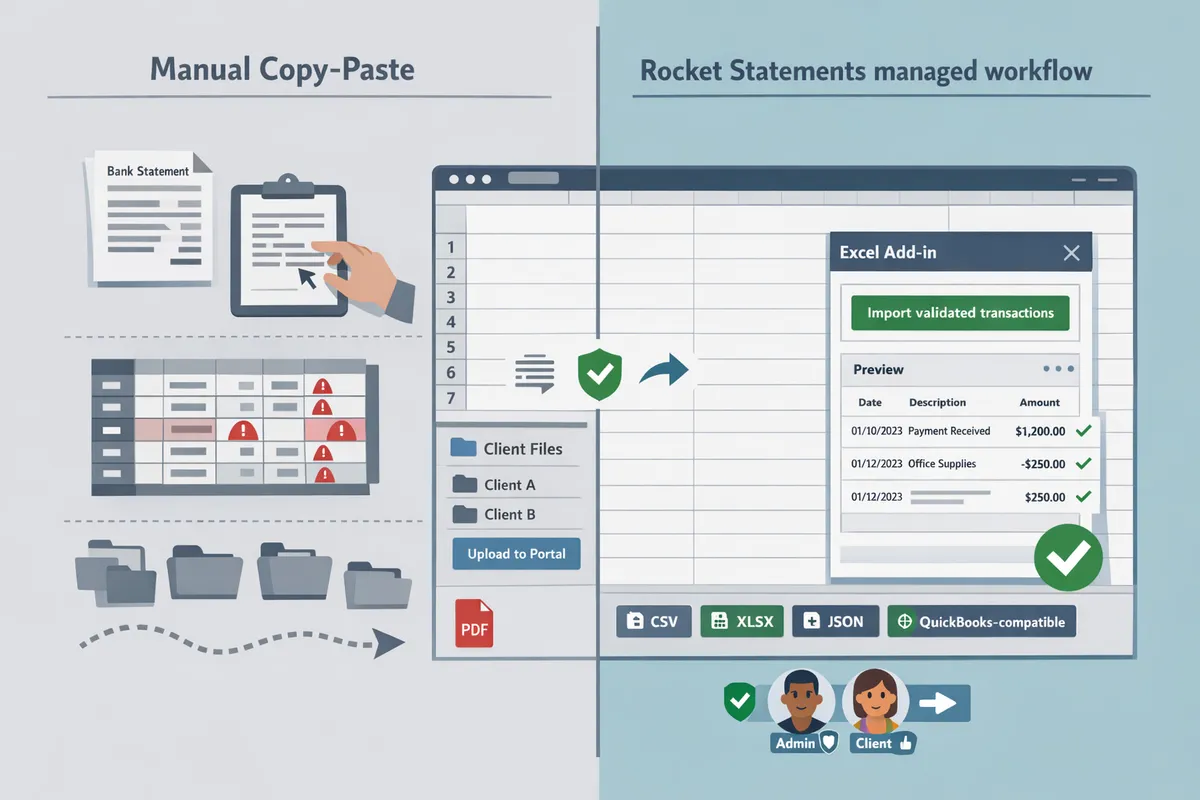
How does working inside Excel with an add-in remove conversion friction?
Working inside Excel with an add-in removes conversion friction by pulling validated, structured transaction tables directly into the active workbook. This stops repeated downloads, reformatting steps, and the risk of silent OCR errors by delivering consistent tables where accountants already work. Our Rocket Statements Excel add-in accepts uploaded PDFs or images, returns reconciled rows, and keeps source documents in cloud folders and client portals for repeatable team workflows.
What is Rocket Statements?
Rocket Statements is a managed workflow that converts user-supplied PDF and image statements into structured, spreadsheet-ready transaction data. The service stores source PDFs in organized cloud folders, supports client portals and team accounts, validates extracted transactions against printed balances, and exports Excel, CSV, JSON, and QuickBooks-compatible files for manual import. For accounting teams deciding between one-off converters and managed workflows, our Bank Statement Converter for Accounting Firms explains why a foldered, repeatable process reduces reconciliation time and error rates compared with ad hoc tools.
How the Excel add-in works inside your workbook 📥
The Excel add-in inserts validated transaction tables into the active workbook so users avoid separate downloads and manual column mapping. From Excel you pick a client workspace or folder, choose the converted statement, and the add-in populates a standardized table (date, description, amount, balance) into the sheet you select. Example workflow: 1) open the reconciliation template, 2) choose client folder, 3) select statement, 4) click Insert to add the validated table, 5) run your pivot or reconciliation formulas. Because Rocket Statements validates extracted rows against the statement's printed balances, extraction issues surface before they reach your reconciliation template. If your team prefers Google Workspace, Rocket Statements also offers a Google Sheets add-on that follows the same folder-and-portal workflow.
Cloud document management, client portals, and team sharing
Rocket Statements stores uploaded PDFs and converted outputs in cloud folders with client portals and two permission levels to support team workflows. Admins create client workspaces and set folder hierarchies so every converted file lives next to its source PDF. Clients upload directly into their portal, which reduces email attachments and ensures files land in the right workspace for consistent conversions. Team accounts share the same workspace formats so bookkeepers and senior accountants work from identical table layouts across clients.
💡 Tip: Require clients to upload statements to the client portal to avoid email attachments and ensure files land in the correct folder for consistent conversions.
Export formats and accounting import considerations
Rocket Statements exports Excel, CSV, JSON, and QuickBooks-compatible files that you import into your accounting system; plan export mappings to match the destination import template. The add-in and portal produce a consistent column set (date, description, amount, running balance) so you map once and reuse the mapping across clients. Important practical points:
- Rocket Statements does not push transactions directly into QuickBooks, Xero, or Sage; you must import the produced file into the destination product. See our guide on How to Convert Bank Statements from PDF to Excel for step-by-step import tips.
- Before import, confirm your target template: many systems expect debit/credit split columns or a single signed-amount column. Prepare a simple mapping sheet that aligns Rocket Statements' output to the import format.
- For QuickBooks-compatible flows, export the QBO/QFX file and use the accounting app's import tool; our article on Easily Convert Bank Statements to Excel and Import into QuickBooks shows a common mapping checklist.
Suggested image:
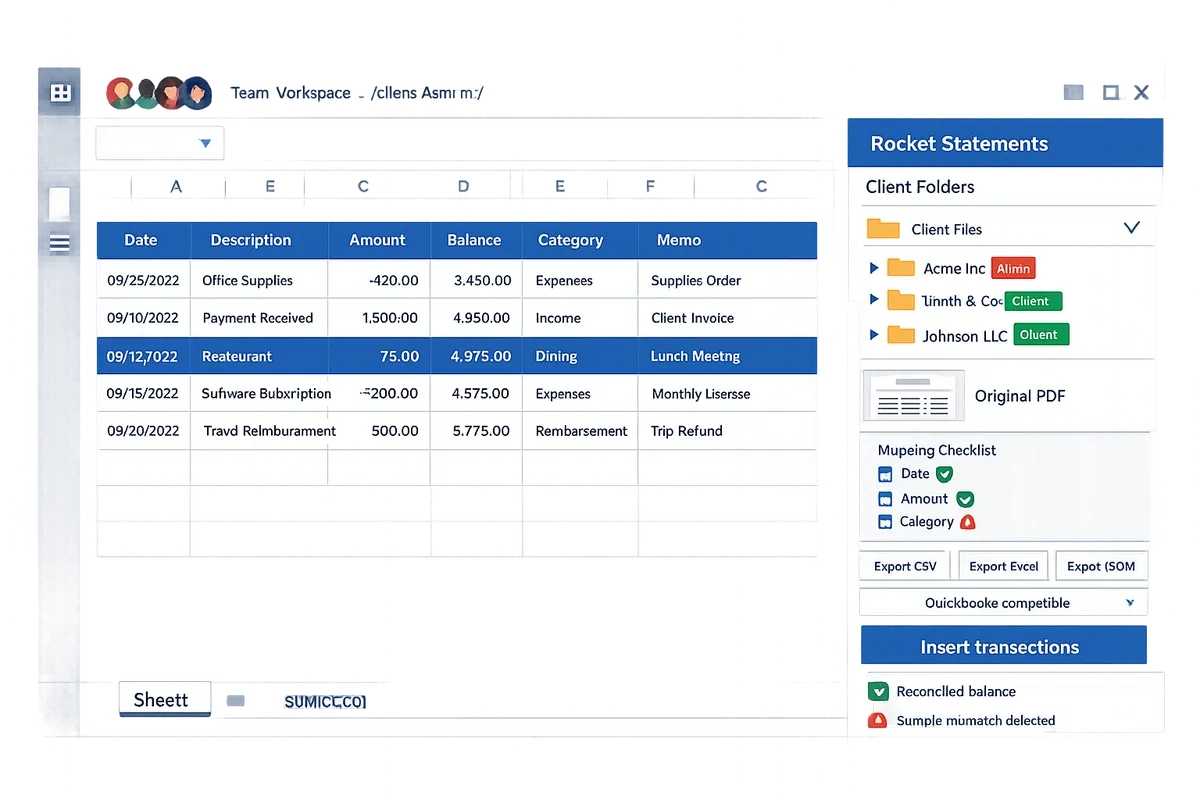
How do you convert a bank statement inside Excel step-by-step with Rocket Statements?
You convert a bank statement inside Excel with Rocket Statements by uploading the source PDF, inserting the converted transaction table via the Excel add-in, mapping your reconciliation columns, validating balances, and saving a reusable mapping template. This walkthrough gives the exact steps, a paste-ready mapping table, and a practical ROI example for a small accounting firm. If you want a broader comparison of managed workflows for firms, see our Bank Statement Converter for Accounting Firms.
Step 1: Upload PDF or image to Rocket Statements 📤
Start by uploading the client's PDF or a photographed statement into the client folder or have the client upload through the Rocket Statements portal. Rocket Statements accepts PDF, JPG, and PNG files and stores the original in the client folder for auditability. Use consistent file naming (ClientID_YYYYMM) so staff find files quickly and reduce time spent hunting documents. Multi-tenant folders let you separate clients and assign client-level upload permissions to simplify inbound collection.
💡 Tip: Keep the original PDF in the client folder and include the statement end date in the filename. That one habit cuts document search time during month-end.
Step 2: Pull converted transactions into Excel with the add-in 🔁
Open Microsoft Excel and launch the Rocket Statements add-in, then select the converted statement and insert the standardized transaction table into your reconciliation tab. The add-in presents processed statements in the client workspace so you do not have to export, re-open, and import manually; you can place the table into an existing reconciliation sheet or create a new one. Choose whether to append rows or insert a new table; for recurring clients we recommend inserting into a sheet named Client_Recon_YYYYMM so historical versions remain intact. This workflow supports teams that want to import bank statement pdf to excel add in without leaving Excel. For alternate approaches, see our step-by-step guide on how to convert your bank statements from pdf to excel.
Step 3: Map columns and reconcile using balance validation ✅
Map Rocket Statements output fields to your reconciliation columns and run the built-in balance validation so extraction mismatches surface immediately. Use the mapping template below to align Date, Description, Amount, and Running Balance to your model, then run the validation. Rocket Statements flags rows that do not reconcile to the statement's printed balances so you can fix OCR misreads before they enter ledgers. Example: if a running balance is off by one cent due to a decimal misread, the system flags that row and shows which field likely needs attention.
| Rocket Statements field | Reconciliation template field |
|---|---|
| Date | Date |
| Description | Payee |
| Amount | Amount |
| Balance | RunningBalance |
Paste that mapping directly into your reconciliation workbook and save it as a mapping profile.
Step 4: Export, save templates, and reuse mappings 💾
Save any successful mapping as a reusable template and export the reconciled table to Excel, CSV, JSON, or QuickBooks-compatible files for manual import into accounting systems. Rocket Statements stores mapping profiles per client so you can apply the same mapping to next month with one click, reducing per-statement setup time. When you need files for downstream tools, export the required format and then import into QuickBooks or another package following that tool's import routine. See our guide on importing bank statements to QuickBooks for recommended export settings.
Standard mapping table for reconciliations 🔢
Use this two-column standard to keep outputs consistent across clients and statements so your reconciliation model always receives the same fields. Copy-paste this into your mapping panel to avoid per-statement adjustments.
| Rocket Statements field | Reconciliation template field |
|---|---|
| Date | Date |
| Description | Payee |
| Amount | Amount |
| Balance | RunningBalance |
ROI example: estimated time saved for a small firm ⏱️
A firm processing monthly statements for 20 small clients can save multiple hours per month by removing repeated downloads and manual fixes. For example, if manual cleanup and reformatting took 90 minutes per statement and Rocket Statements plus a 15-minute review reduces cleanup to 15 minutes, the firm saves 75 minutes per client per month. For 20 clients that example equals 25 hours saved each month, which frees staff time for higher-value review and client advice rather than repetitive data cleanup.
Which solution fits your accounting workflow: add-in, cloud converter, or desktop tool?
Match the converter type to your primary constraints: volume, security needs, repeatability, and how many people touch the files. Our website recommends Excel add-ins when teams need consistent, in-workbook outputs; desktop tools when firms require fully offline processing; and cloud converters when you need batch jobs, client portals, and shared folders.
Below is a side-by-side comparison to help you scan which option fits typical accounting workflows.
| Feature / Need | Excel-based add-in | Cloud converter (managed workflow) | Desktop app |
|---|---|---|---|
| Accuracy (real-world) | High for standard, consistent bank formats; best when you validate inside the workbook. | High and scalable across many bank formats; validation and balance checks surface extraction errors. (See Rocket Statements validation.) | Moderate to high depending on OCR engine; accuracy varies by vendor and updates. |
| Batch processing | Limited; typically one or a few files at a time within the workbook. | Strong; designed for bulk uploads and queueing across clients and folders. | Varies; some desktop apps support batch but often require manual scheduling. |
| Multi-client support | Good for multi-client firms using shared templates and a team add-in license. | Strong multi-tenancy, client portals, and folder organization for accounting firms. Rocket Statements supports client uploads and team accounts. | Weak; desktop tools usually sit on a single machine and need file-sharing workarounds. |
| Repeatable formatting | Excellent; mapping templates live inside the workbook and apply per client. | Excellent; centralized templates and export presets create consistent outputs across clients. | Variable; repeatability depends on manual template export/import. |
| Security controls | Data stays in the workbook; risk depends on your network and file-sharing practices. | Cloud storage, sharing, and permission settings; requires vendor review and retention policy. | |
| Files stay local; reduces cloud exposure but increases risk from device loss or backups. | |||
| Workflow friction (time to finalize) | Low when you convert and reconcile inside Excel. | Low for volume work when set up; initial setup and policies cost time but scale well. | Moderate; offline checks and manual exports add steps for multi-client teams. |
Decision framework: pick by volume, security, and team structure 🔎
Match your priority to a converter type and test that scenario with real files. For low volume and a single user who wants to keep everything inside Excel, an add-in reduces handoffs and keeps formatting repeatable. For firms processing dozens or hundreds of statements per month and needing client portals, a cloud converter offers better scaling and centralized templates; for example, an accounting practice batching month-end statements for 50 clients will save time with a cloud queue and client upload portal. For highly sensitive accounts or firms that cannot store documents in a third-party cloud, use a desktop app so files remain on local infrastructure.
Practical checklist to decide quickly:
- Volume: under 20 statements/month → consider Excel add-in; over 100 statements/month → consider cloud converter.
- Team size: single bookkeeper → add-in or desktop; multi-staff or multi-client firm → cloud converter with client portals. Rocket Statements supports team accounts and client uploads for multi-user work.
- Security posture: strict no-cloud policy → desktop app; acceptable cloud with documented controls → cloud converter with retention policies.
- Repeatability: need identical column order and mapping across clients → choose add-in or cloud converter that saves mapping templates.
Security, retention, and compliance checklist ✅
Treat cloud-stored statements as persistent business records and apply documented policies before you onboard any converter. Our website recommends auditing vendor retention, access controls, and client upload flows before moving live clients into a cloud workflow.
Checklist items:
- Confirm how long uploaded files are retained and how you can request deletion. Review vendor documentation and contract terms.
- Verify folder and sharing controls. Limit client permissions to upload-only where possible.
- Use admin accounts for staff and client accounts for external uploads; Rocket Statements uses admin and client permission levels—plan your account assignments accordingly.
- Require secure client upload (password-protected portals or authenticated accounts) instead of email attachments.
- Document an internal retention schedule that matches your compliance needs and the vendor's retention behavior.
⚠️ Warning: Storing sensitive financial documents in the cloud requires a documented retention and access policy. Confirm how long files are retained and how admin and client permissions apply.
Pilot, template roll-out, and trial steps 🚀
Run a focused pilot with a small set of real client statements, save mapping templates, and train two staff before broad rollout. Start with 5 to 10 representative statements that include different bank layouts, scanned PDFs, and multi-page statements.
Pilot steps:
- Select sample clients and collect one month of statements covering typical variations.
- Convert each sample and save mapping templates for the reconciliation columns you use (date, description, amount, balance).
- Validate converted outputs against printed balances and one reconciliation per client.
- Document the folder structure and client upload instructions, then train two team members to repeat the process.
- Decide go/no-go on scale based on time saved and error rate during the pilot.
Our website suggests testing Rocket Statements for the pilot because it supports in-workbook add-ins and cloud portals that match this workflow. The Rocket Statements free trial covers 20 pages one time in total so you can run a limited pilot and verify mapping templates before any purchase.
For a firm-focused comparison and rollout notes, see our Bank Statement Converter for Accounting Firms and for a step-by-step conversion inside Excel consult How to convert your bank statements from pdf to excel format?. To review product export formats and workflow examples, see our Bank Statement Converter page.
Frequently Asked Questions
This FAQ answers common buyer questions about accuracy, file types, cloud storage, validation, integrations, and onboarding. Each answer is concise and focused on the practical steps or trade-offs you will face when you convert bank statements in Excel.
How accurate is PDF-to-Excel conversion for bank statements? 📊
Accuracy depends on source quality and layout; modern converters extract most line items and mark uncertain values for review. Rocket Statements extracts structured transaction rows from PDFs and scanned images, then flags rows or amounts that fail internal checks so you can correct them before reconciliation. Test with 5–10 representative statements from each bank to benchmark real-world accuracy for your caseload. Our website recommends running a small sample set because accuracy varies by multi-column layouts, scanned image resolution, and atypical line breaks.
💡 Tip: Use three typical statements per client (one clean, one scanned, one multi-account) to measure error rates and time saved.
Can I import a bank statement PDF to the Excel add-in directly? 📥
Yes. You upload the PDF or image to Rocket Statements, and the Excel add-in pulls validated transactions into the active workbook. After conversion the add-in inserts a mapped transaction table that preserves dates, descriptions, amounts, and balances so you can use your reconciliation templates immediately. If you follow the step-by-step guide, the workflow is: upload source file, confirm field mapping in the web app, then open Excel and insert the validated table. See our practical walkthrough for detailed steps in how to convert your bank statements from pdf to excel format.
Does Rocket Statements push transactions directly into QuickBooks or Xero? 🔁
No. Rocket Statements does not push or sync directly into QuickBooks, Xero, or Sage; it exports files you import into those systems manually. Export options include Excel, CSV, JSON, and QuickBooks-compatible files (QBO/QFX style) so your accountant or bookkeeper can import according to the destination product's import routine. For firms that want an import-ready Excel file followed by a QuickBooks upload, see our guide on easily converting bank statements to Excel and importing them into QuickBooks for recommended export settings and mapping templates.
Are uploaded statements stored in the cloud or kept local? ☁️
Uploaded source PDFs and converted outputs are stored in Rocket Statements cloud folders with admin and client permission levels. The cloud folders support multi-tenancy, client portals, and shared team workspaces so your firm can keep clients separated and let clients upload directly into the correct folder. Review your firm policy on retention and vendor risk profiling before onboarding clients because files remain in cloud storage by design.
⚠️ Warning: Treat cloud storage like any vendor-controlled repository: verify retention, deletion policies, and client-level permissions before moving sensitive or regulated records.
How does validation and reconciliation work if I see mismatches? 🔍
Rocket Statements reconciles extracted transactions against the printed balances on the statement so extraction errors surface instead of passing through silently. When the extracted sum does not match the statement's printed balance the conversion flags the discrepancy and highlights rows that cause the difference in the workbook. Common next steps are: review flagged rows, correct OCR or mapping mistakes directly in the sheet, then re-run the conversion or export a corrected file for import. This prevents silent mismatches from reaching month-end close.
Which file types does Rocket Statements accept and export? 📁
Rocket Statements accepts PDF and common image files such as JPG and PNG, and exports Excel, CSV, JSON, and QuickBooks-compatible files. Choose Excel when you will do in-workbook reconciliation or want to keep formulas and mappings. Choose CSV for bulk imports into ERP or BI tools. Choose a QuickBooks-compatible export when you need a QBO-style file for manual import into QuickBooks. For a comparison of converter workflows for firms, see our bank statement converter for accounting firms article.
How does billing and the free trial work? 💳
Rocket Statements offers pay-as-you-go, subscription plans with volume allowances, and custom quotes; the free trial covers 20 pages one time in total. After the trial you can switch to pay-as-you-go for occasional conversions or a subscription if you process high monthly volumes. Contact sales for a custom quote if you manage many clients and need volume allowances or folder provisioning for client portals.
Next steps after converting statements
Use a managed PDF-to-spreadsheet workflow to convert bank statements in excel and avoid repeated manual cleanup. Our website recommends Rocket Statements as the practical next step because it replaces time-consuming transcription and keeps conversions consistent across clients and months. This reduces reconciliation headaches and frees billable hours for analysis rather than data entry.
If you prefer working inside the spreadsheet, test the Excel add-in to convert bank statements without leaving excel and check how batch uploads fit your firm’s month-end routine.
Start a free trial with Rocket Statements to test converting real statements; the free trial covers 20 pages one time so you can evaluate batch results and folder organization before you commit. For guidance on which workflow suits an accounting practice, see our Bank Statement Converter for Accounting Firms and the product overview on the Bank Statement Converter page.
💡 Tip: Use the trial to run a typical client’s statements through the system so you can confirm formatting and error surfacing before scaling up.
Subscribe to our newsletter for implementation tips and conversion best practices.