
Client portal for accounting firms

Client portal for accounting firms
Two hours per client per month is the average time small accounting firms spend converting bank PDFs to spreadsheets. A client portal for accounting firms is a secure cloud workspace that collects bank statements and financial documents, automatically routes uploads, and converts PDFs into structured Excel, CSV, or JSON. On our website, Rocket Statements handles PDF and image-to-spreadsheet conversion, foldered document management, live transaction syncing, and exports to CSV, Excel, JSON, PDF and QuickBooks-compatible files. This beginner's guide compares features, migration steps, security controls, and ROI so firms can weigh real operational costs versus expected savings. Which portal features actually shorten onboarding time and stop recurring reconciliation headaches for teams managing dozens of clients?
What is a client portal for accounting firms?
A client portal for accounting firms is a secure platform that centralizes document exchange, client communication, and automated bank-statement conversion. This definition sets expectations: the portal handles intake, e-signing, messaging, workflow routing, and turning PDF or image statements into structured spreadsheets. Our examples and screenshots of these workflows are available on the Client Portals for Collecting Bank Statements & Financial Documents page.
Core functions of accounting client portals 📂
Core functions include secure file upload, e-signature routing, messaging, workflow routing, and statement conversion to structured data. Secure file upload replaces email attachments and cuts back-and-forth by routing client documents directly into named folders and subfolders. E-signature routing sends engagement letters and consent forms in sequence, removing printing, scanning, and manual tracking. Messaging inside the portal preserves audit-ready threads tied to particular files, avoiding lost context across email threads.
Statement conversion automates the step that often costs firms hours: OCR converts PDF and image statements into Excel, CSV, or JSON that accountants can reconcile. For example, Rocket Statements converts PDF statements into QuickBooks-compatible CSVs and Excel files, so a bookkeeper can import transactions instead of retyping them. Folder-based document management keeps uploads organized by client and period, which speeds review and billing.
💡 Tip: Create a consistent folder naming convention (clientID_year_month) before onboarding clients to avoid later reclassification work.
Security and compliance basics 🔐
Security basics include encryption in transit and at rest, role-based access, audit trails, and data residency controls. Encryption protects files during upload and while stored, which reduces exposure in case of a breach. Role-based access ensures only assigned staff view sensitive records; audit trails record who accessed or changed a file and when, which supports regulatory audits and client inquiries. Data residency controls let firms choose where files are stored to meet local privacy rules and contractual obligations.
Rocket Statements supports role-based permissions and secure audit logging so firms can produce access records during reviews. For firms handling trust or escrow accounts, these controls cut compliance risk by providing clear evidence of who handled each statement.
⚠️ Warning: Avoid sending unredacted tax IDs or banking details over unsecured email; require uploads through the portal instead.
How portals integrate with accounting workflows 🔄
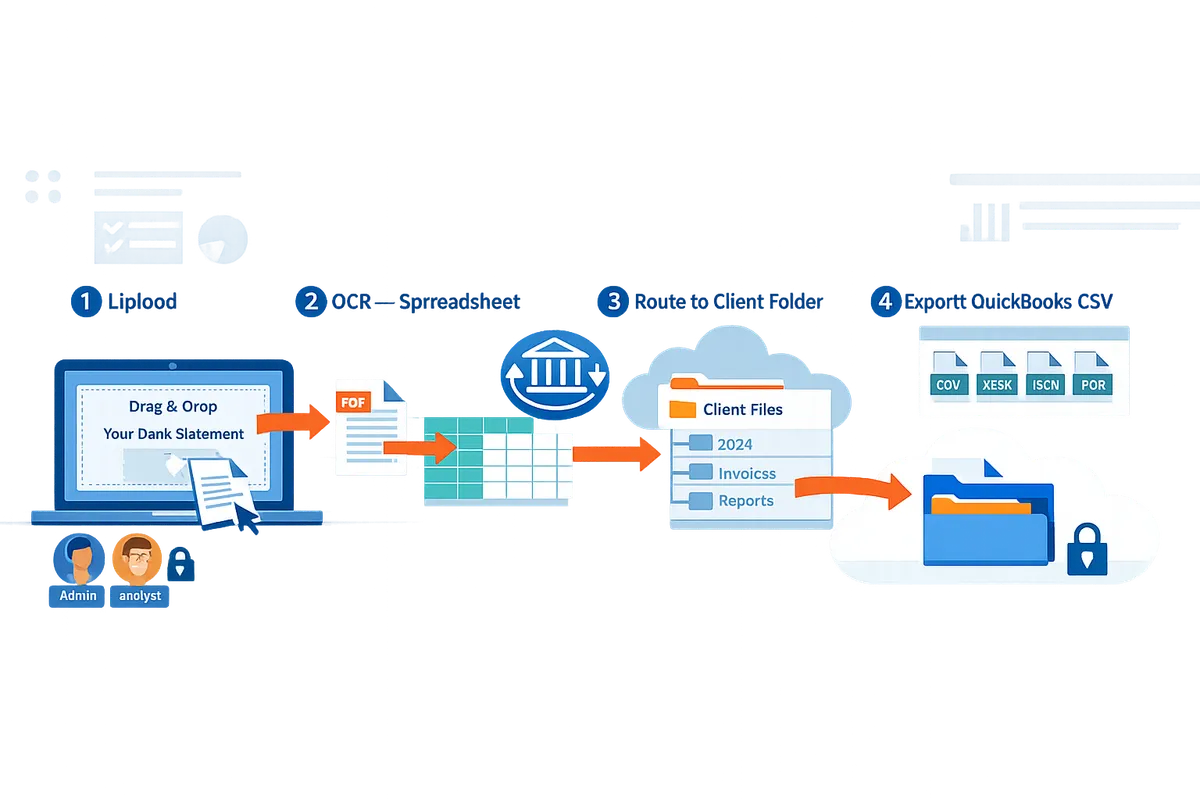
Portals integrate with accounting workflows by exporting standard formats, syncing live transactions, and connecting to accounting software to avoid manual rekeying. A common workflow looks like this: the client uploads statements -> the portal routes the file to the correct client folder -> OCR converts the statement to Excel/CSV/JSON -> the accountant exports a QuickBooks-compatible file or syncs live transactions into the ledger. That sequence removes repetitive transcription and reduces reconciliation errors.
Rocket Statements provides CSV, Excel, JSON, and QuickBooks-compatible exports and can sync live transaction feeds where allowed, which shortens month-end close and reduces time spent on data entry. For firms building onboarding playbooks, see our guide on Streamlining Client Onboarding: Why Accounting Firms Need Bank Statement Conversion Tools and our Accounting & Bookkeeping page for industry-specific examples and export workflows.
Which features should small accounting firms prioritize when choosing a client portal?
Small accounting firms should prioritize secure document intake, automated statement-to-spreadsheet conversion, role-based collaboration, and native exports to accounting software. These features reduce time spent on manual processing, cut reconciliation errors, and make migration easier to justify to partners or practice managers. Use the checklist below to score vendors on functionality, migration support, and total cost of ownership.
Feature checklist for small firms 📝
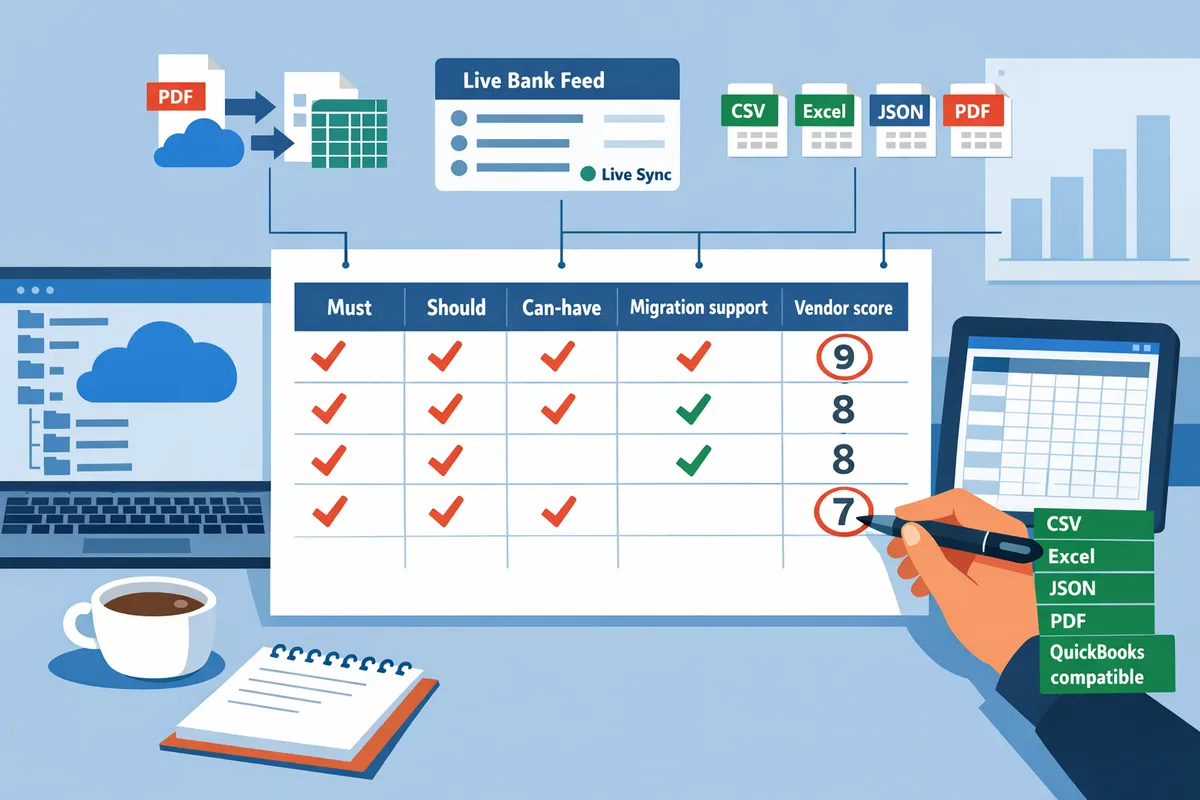
A concise feature checklist helps small accounting firms score client portal vendors on intake, conversion accuracy, security, and exports. Use a table or spreadsheet with columns for Must / Should / Can-have, a migration-support note, and a hidden-fees column.
- Must: Secure document intake and flexible upload methods. Include web upload, email dropbox, and mobile uploads. Example: require automatic routing to client folders and virus scanning on upload.
- Must: Automated PDF and image statement conversion to usable data. Measure conversion accuracy on 20 sample statements across common banks. Rocket Statements converts PDFs and images into Excel, CSV, JSON, and Quickbooks compatible files, which simplifies reconciliation.
- Must: Role-based permissions and audit logs. Confirm that admins can restrict file access by staff role and that every upload, edit, and export records a timestamped audit entry.
- Should: Native exports to accounting software and CSV/Excel formats. Verify export templates match your tax and bookkeeping workflow to avoid rework.
- Should: Folder structures and client hubs that mirror your chart of accounts or engagement types.
- Can-have: Client messaging, e-signing, or live bank transaction sync. These help onboarding but are optional for firms focused on statement conversion.
Scoring example: give Must items 3 points, Should 2 points, Can-have 1 point. Add a column where you note vendor migration assistance and potential hidden fees for extra storage or API access. Use the client portal workflow documentation to compare how vendors handle routing and conversion.
See our deeper coverage of a cloud-based client portal for collecting bank statements and financial documents for practical examples.
ROI and total cost of ownership for portals 💰
ROI for a client portal comes from hours reclaimed on document processing, fewer reconciliation corrections, and reduced onboarding friction. Calculate ROI with a simple, reproducible model: measure baseline hours, estimate automation savings, and convert saved hours to billable or avoided-cost dollars.
Step-by-step ROI model:
- Measure baseline. Track the average prep time per statement for 30 days (include download, rename, convert, and cleanup).
- Estimate savings. Multiply baseline time by expected automation reduction (for example, a 60% time reduction is a conservative starting estimate).
- Convert to dollars. Multiply hours saved by your blended staff hourly rate to get monthly savings.
- Include migration costs. Add one-time migration hours, training time, and any onboarding fees; amortize over 12 months.
Example calculation (illustrative): if a firm processes 150 statements monthly, baseline prep is 1.5 hours per statement, and automation cuts that to 0.6 hours, the firm saves 135 hours per month. At $70/hour blended rate that equals $9,450 monthly savings before migration costs. Use this kind of worked example to justify migration to partners.
💡 Tip: Track baseline document processing hours for 30 days before migration to measure ROI precisely.
For onboarding-specific savings and real-world workflow examples, see our article on streamlining client onboarding and our accounting & bookkeeping page for operational use cases.
Why DIY multi-tool setups cost more in the long run ⚠️
DIY assemblies of cloud storage, standalone OCR tools, and manual exports typically increase operational overhead, error rates, and compliance risk. Firms that piece together several point tools spend more time reconciling formats, retraining staff, and troubleshooting broken integrations.
Business consequences:
- Wasted billable hours. Switching between apps and cleaning inconsistent CSVs adds routine, non-billable work. Example: three team members spending 30 minutes daily reconciling formats equals 22.5 hours a month lost for a small team.
- Higher error rates. Manual copy/paste and mapping lead to reconciliation mismatches that cause tax filing rework and client frustration.
- Fragmented audit trails and compliance exposure. Multiple storage locations make audits slower and increase the chance of missed retention policies.
A single platform that centralizes intake, conversion, folder management, role-based collaboration, and native exports avoids those costs. Rocket Statements centralizes statement intake, converts PDFs and images into structured spreadsheets, and offers team collaboration with role-based permissions and audit logs so your firm keeps one source of truth. For teams that need parallel processing and a centralized client hub, review our Team Processing for Firms documentation.
⚠️ Warning: DIY setups can expose client data to unsecured third-party apps and complicate audits.
How to set up a client portal for your accounting firm
A deliberate 30- to 60-day rollout reduces disruption by staging configuration, testing, and migration tasks. Use owner-assigned checklists, sample validation, and phased client onboarding to catch compatibility issues before they affect billing or compliance. Rocket Statements helps with folder templates, PDF-to-spreadsheet conversion, and export mapping during each phase.
Step-by-step setup checklist (first 30 days) 🛠️
Complete these owner-assigned tasks in the first 30 days to configure folders, permissions, and QuickBooks export mapping.
- Create account hierarchy and client hubs. Owner: Practice manager. Acceptance criteria: each client has a unique hub with firm ID, billing code, and primary contact listed.
- Build folder templates and naming rules. Owner: Operations lead. Acceptance criteria: template applied to 10 pilot clients and filenames follow "YYYY-MM_ClientName_Bank" pattern.
- Define permission roles and approval flows. Owner: Senior accountant. Acceptance criteria: at least two role levels (viewer, processor, approver) tested with audit log entries.
- Configure statement conversion and export mapping. Owner: Systems admin. Acceptance criteria: Rocket Statements converts 5 sample PDFs to Excel and exports to QuickBooks-compatible format without missing columns. See Rocket Statements' client portals feature for routing and conversion details.
- Set notification and SLA rules. Owner: Client services lead. Acceptance criteria: upload notifications and 48-hour processing SLA trigger for test uploads.
- Run sample uploads and exception scenarios. Owner: Processing team lead. Acceptance criteria: 10 varied statements (images, multi-page PDFs, scanned bank forms) processed with documented exceptions and remediation steps.
- Prepare client-facing materials. Owner: Marketing or client services. Acceptance criteria: one-page guide and email template drafted and approved for pilot.
Data migration and change management ⚙️
Migrate historical documents in batches and validate converted outputs against reconciled months to prevent labeling and reconciliation errors.
Start by exporting historical statements with original file names and account metadata. Import in small batches (for example, 25 clients at a time) and validate OCR/CSV outputs against at least one reconciled month per client. Common migration risks include mis-labeled files, lost metadata, and reconciliation mismatches. Mitigate these by enforcing consistent naming rules, keeping a mapping sheet for legacy account numbers, and flagging any converted CSVs that change transaction counts.
Use Rocket Statements to automate PDF-to-spreadsheet conversion and preserve folder structure during import. Run parallel checks: have an accountant reconcile a converted month while another verifies file labels and dates. Document every mismatch and roll back the batch if more than 5% of files require manual edits.
💡 Tip: Validate converted spreadsheets against a reconciled month sample before updating live client links. That single check catches most mapping and OCR issues.
Train staff and onboard clients smoothly 👥
Run role-specific staff training and a staged client onboarding that combines templated emails, a one-page guide, and a short recorded walkthrough.
For staff, run two 60-minute sessions: one on permissions and exception workflows, another on export and reconciliation steps. Provide quick reference cards: "How to re-run a conversion," "How to escalate an exception," and "How to export to QuickBooks." Use Rocket Statements' team collaboration features to assign parallel processing tasks and track status in real time; link to Team Processing for Firms for role-based workflows.
For clients, send a three-step onboarding sequence: 1) brief welcome email with secure portal link, 2) one-page upload guide, and 3) 90-second recorded walkthrough. Example email subject and first sentence: "Portal invited: Upload your bank statements to [Firm Name] — here’s a 90-second guide." Include an FAQ covering file types, privacy assurances, and support contacts. Reference our article on streamlining onboarding to explain how automated statement conversion reduces back-and-forth during setup.
💡 Tip: Record a 90-second screen walkthrough showing a single upload and the confirmation screen. Clients who watch a short video open fewer support tickets.
For more on configuring client intake workflows and document routing, see Rocket Statements' client portals for collecting bank statements and the accounting-specific guidance in our Accounting & Bookkeeping resources.
What advanced practices improve portal ROI and uptime?
Prioritizing automated statement conversion, parallel team workflows, scheduled exports, and native integrations increases portal ROI and uptime. These practices cut turnaround time, reduce billing hours spent on manual data entry, and lower the chance of month-end reconciliation delays. Firms that adopt them typically reduce cost per engagement by shortening review cycles and avoiding repeated client requests.
Parallel processing and team workflows 👥
Splitting client batches across reviewers with role-based permissions reduces turnaround and creates an auditable trail. Our Team Processing for Firms feature shows how to assign reviewers, approvers, and admins so work moves simultaneously rather than waiting on a single person. Role-based permissions limit who can edit raw imports, who can sign off on reconciliations, and who can export final files to QuickBooks or CSV. Real-time status tracking highlights bottlenecks by client and by reviewer, which lets managers reassign work and keep SLAs on schedule. Rocket Statements supports centralized client hubs, parallel processing, and secure audit logs that capture who changed what and when; see the Team Processing for Firms page for a step-through of those controls.
💡 Tip: Require at least two roles for sign-off on high-risk accounts (data reviewer and approver) to reduce reconciliation mistakes.
Side-by-side vendor comparison table 📊
A concise vendor matrix helps you score options on the accounting features that affect ROI and uptime. Compare security, statement automation, export formats, integrations, migration support, pricing model, and SLA commitments. Below is a starter table you can use when evaluating vendors; score each column 1–5 based on your firm’s priorities.
| Vendor | Security features | Statement automation | Export formats | Integrations | Migration support | Pricing model | SLA / Uptime |
|---|---|---|---|---|---|---|---|
| Rocket Statements | End-to-end cloud management, role-based access, audit logs | PDF/image to Excel/CSV/JSON conversion and live sync | CSV, Excel, JSON, QuickBooks-compatible, PDF | QuickBooks-compatible exports, live transaction syncs, practice tools | Migration assistance and folder mapping | Subscription per firm or per seat | Published SLA and uptime commitments |
| Vendor B | Encryption at rest, SSO | Manual import; limited OCR | CSV, Excel | Limited accounting integrations | Email-based migration support | Tiered seat pricing | 99.9% claimed |
| Vendor C | Basic encryption, user roles | OCR plugin with human review | CSV only | API-based integrations | Self-serve CSV import | Usage-based pricing | No SLA listed |
| DIY / Multi-tool setup | Varies by tool | Manual conversion or mixed tooling | Varies; likely manual rekeying | Point-to-point scripts | High migration effort, internal IT | Hidden integration costs | No formal SLA |
How to score vendors for accounting firms:
- Weight statement automation and QuickBooks-compatible exports highest if you process bank statements daily.
- Prioritize migration support and folder mapping to avoid weeks of manual cleanup.
- Score security and audit logs for compliance-sensitive clients.
- Penalize unclear SLA or hidden integration fees; these increase total cost of ownership.
Use the Client Portals for Collecting Bank Statements & Financial Documents page to verify a vendor’s intake and conversion workflow before shortlisting.
Integrations and export strategies 🔗
Choose live transaction syncs when you need continuous reconciliation and batch exports when you need controlled monthly uploads. Live syncs minimize rekeying and speed up reconciliation for high-volume firms; however, they require mapping governance and bank consent. Batch exports (daily or monthly) work well for smaller portfolios and make auditing easier because each export snapshot is time-stamped. Rocket Statements offers both live transaction syncs and scheduled exports, plus native QuickBooks-compatible files to prevent manual re-entry.
Use this export-field mapping checklist before you hit Export:
- Confirm account IDs and ledger codes match your accounting chart of accounts.
- Map transaction date, amount, payee, and transaction type to the target fields.
- Validate cleared versus pending flags so reconciliations match bank statements.
- Test one client export end-to-end and import into your accounting software before rolling out firm-wide.
💡 Tip: Keep a standard export template and require a one-client pilot to catch mismatches before month-end.
Related reading: our Accounting & Bookkeeping overview explains common export scenarios and the Streamlining Client Onboarding article shows how automated statement conversion reduces client friction.
Frequently Asked Questions
This FAQ answers the most common buyer questions about accuracy, migration, security, and total cost for a client portal for accounting firms. Use these answers to build a vendor short-list and design trials that measure conversion accuracy, migration effort, and real-world cost. The links below point to practical resources on our website for testing and migration planning.
How accurate is OCR for bank statements? 🤖
OCR is optical character recognition technology that extracts text from PDFs and images, and its accuracy for bank statements depends on statement quality, file format, and vendor processing. Modern OCR pipelines that combine character recognition with rule-based parsing and validation typically yield high line-item accuracy after human review. For a reliable estimate, sample a representative set of 50 statements across client types during a trial; this reveals issues like scanned artifacts, multi-column layouts, and nonstandard line items. Rocket Statements processes bank PDFs into structured Excel, CSV, or JSON and includes validation tooling to surface ambiguous lines so staff only review exceptions. See our Client Portals for Collecting Bank Statements & Financial Documents for details on the conversion workflow and supported formats.
💡 Tip: Sample 50 statements during a vendor trial to measure real-world accuracy for your client mix rather than relying on vendor claims.
Can a portal export directly to QuickBooks? 📁
Yes. Many portals produce QuickBooks-compatible exports or CSV templates mapped to transactions and accounts, and Rocket Statements specifically offers QuickBooks-compatible file exports to reduce manual mapping during reconciliation. Confirm which QuickBooks variant the export targets (Online vs Desktop) and whether the portal preserves memo fields, dates, and cleared status. During a trial, import the exported file into a sandbox QuickBooks company to verify account mapping and reconciliation behavior. Our Client Portals for Collecting Bank Statements & Financial Documents page explains how Rocket Statements formats exports and syncs transaction data to simplify downstream reconciliation.
What security controls should I require from a portal? 🔐
Require encryption in transit and at rest, role-based access controls, immutable audit trails, and explicit data residency and retention policies. Ask vendors for SOC 2 or equivalent audit reports, details on access logging (who viewed or downloaded a file and when), and procedures for incident response and data deletion. Rocket Statements supports role-based permissions, centralized client hubs, and secure audit trails to help firms meet client confidentiality and regulatory needs. Review our Team Processing for Firms article to see how role separation and audit logging work in practice.
How long does migration usually take? ⏱️
Typical staged migrations for small to mid-sized firms complete in 30 to 90 days depending on firm size and historical data volume. A staged approach starts with a pilot group of representative clients, verifies folder structures and export mappings, and then onboard clients in batches to limit disruption. Migration work commonly surfaces mapping issues (account codes, custom payees, statement variations) that you should resolve during the pilot to avoid rework. Rocket Statements recommends phased rollouts and provides migration support and parallel processing so staff can continue client work while historical files move into the portal; see our Team Processing for Firms page for recommended rollout patterns.
What hidden costs should I watch for? 💸
Watch for per-user seat fees, per-upload processing charges, export or API access costs, and professional services or migration fees that are billed separately from the base subscription. These fees can turn an inexpensive base subscription into a higher total cost of ownership if you process many statements or require custom integrations. For budgeting, list expected monthly uploads, number of staff accounts, and any recurring API calls, then request a sample invoice scenario from vendors. Rocket Statements lists processing and export capabilities on our client portals page so you can compare likely line items during procurement.
⚠️ Warning: Per-upload or per-conversion fees and API access charges are common hidden costs; ask vendors for a modeled monthly bill using your historical upload counts.
How do I evaluate vendors during a trial? ✅
During trials, test statement conversion accuracy, folder and permission setups, export mappings, migration support responsiveness, and time saved on core tasks. Score vendors on a simple rubric: conversion accuracy (sampled statements), time to produce reconciliable exports, ease of folder and permission configuration, security documentation provided, and vendor responsiveness to migration questions. Run a hands-on task set: upload 50 mixed-format statements, convert to Excel/CSV, import into QuickBooks sandbox, and time the full cycle. Rocket Statements provides tools for conversion testing and collaborative team processing; our Streamlining Client Onboarding: Why Accounting Firms Need Bank Statement Conversion Tools article outlines trial tasks that produce measurable ROI signals.
If you want a vendor checklist that maps trial tasks to procurement questions, we link to practical templates and migration checklists across our Client Portals and Team Processing pages.
Next steps for choosing a client portal
Choose a portal that reduces manual statement entry and secures client files.
You now know which features matter and the business trade-offs to weigh. A client portal for accounting firms should cut billable hours, lower reconciliation errors, and simplify client onboarding. Compare routing, permissions, and conversion workflows on our Client Portals for Collecting Bank Statements & Financial Documents and review team collaboration in Team Processing for Firms to see how parallel processing and audit trails affect throughput.
💡 Tip: Map your folder structure and role permissions before migration to avoid rework and speed up client onboarding.
Rocket Statements is a platform that helps users save time and money by automating the process of converting their statements into spreadsheets as well as manage their documents in the cloud. The product has the following features:
- Convert their PDF and image statements into spreadsheets
- Manage their documents in the cloud with folders and subfolders
- Sync live transactions data from bank accounts
- Transform their statements into CSV, Excel, JSON, and PDF files
- Transform their statements into Quickbooks compatible files
Create your first client portal in Rocket Statements by following the Client Portals for Collecting Bank Statements & Financial Documents guide. Subscribe to our newsletter for implementation tips and product updates.