
ChatGPT Bank Statement Extraction: Stop Hallucinations

ChatGPT Bank Statement Extraction: Stop Hallucinations
A single hallucinated transaction in a client's statement can add 3–5 hours of reconciliation and increase audit risk. ChatGPT bank statement extraction is a method that asks a general AI to extract transactions but often returns hallucinated or mislabelled entries. Rocket Statements replaces manual transcription by converting user-supplied PDF and image statements into consistently formatted, spreadsheet-ready transaction data stored in cloud folders and client portals. Our managed workflow reconciles extracted transactions against the printed balances so errors surface, and exports CSV, Excel, JSON and QuickBooks-compatible files for manual import. Try a one-time 20-page free trial on our pricing page to compare methods and see which approach keeps records auditable and avoids phantom transactions.
What goes wrong when you use ChatGPT for bank statement extraction?
Using ChatGPT for bank statement extraction often produces silent errors such as invented transactions, omitted rows, and numeric transpositions. These mistakes commonly pass into CSVs or spreadsheets with confident but incorrect summaries, creating reconciliation, audit, and client-billing risk. Teams that rely on ChatGPT-only workflows often only find these errors during downstream reconciliation, which multiplies billable hours and client friction.
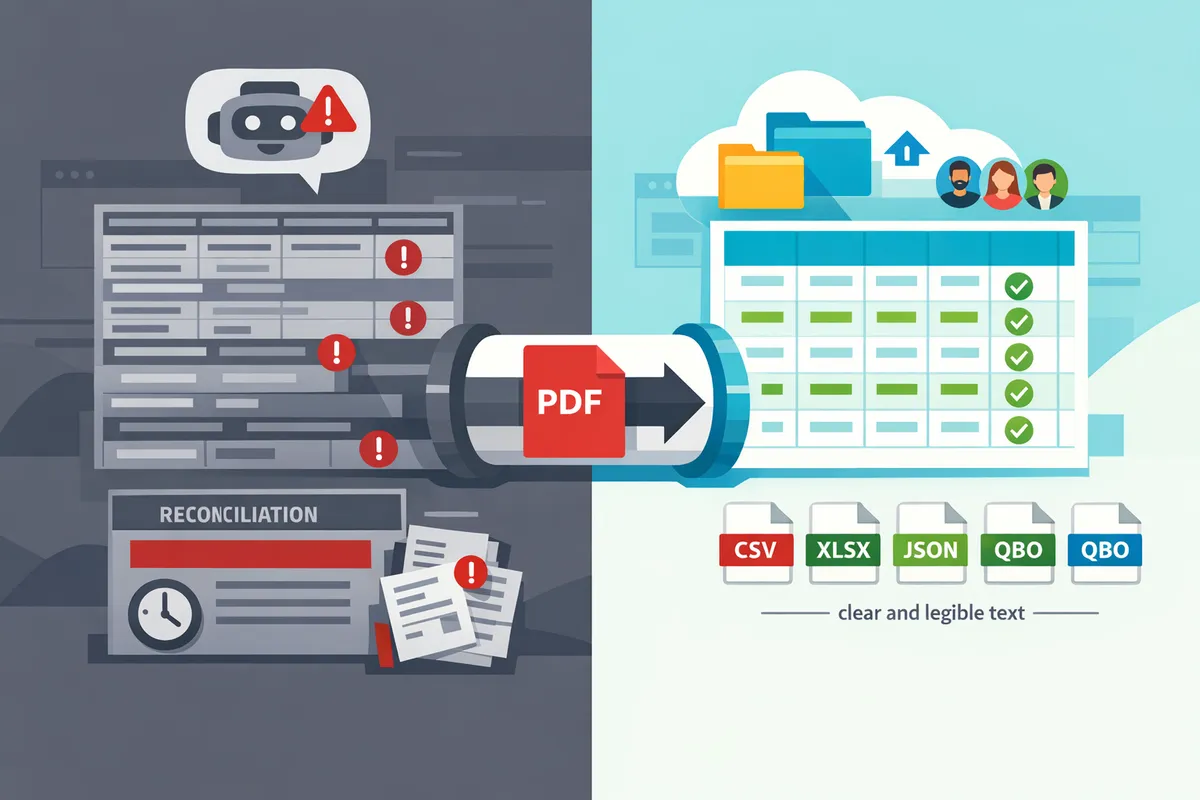
What are the common hallucination types and symptoms? 🤖
Hallucination is a class of extraction error that invents, omits, or alters transaction data when parsing bank statements. Common, repeatable patterns include:
- Invented transactions. The model may add a vendor or debit line that never appears on the PDF. For example, a pasted page might gain an "ACME Supplies" line not present in the original, creating a phantom expense.
- Omitted rows. Rows that sit under repeated headers or near page breaks disappear from the final CSV instead of being transcribed.
- Merged or split rows. Two adjacent rows become one entry with a wrong date or amount, or a single transaction split into two incomplete rows.
- Digit transpositions. Cents and dollars can swap positions so $12.34 becomes $123.40, silently changing totals.
- False-confidence summaries. The model returns an accurate-looking total while hiding row-level errors.
You can test for these patterns by comparing row counts and totals against the printed statement balance and sampling a few raw PDF lines. Rocket Statements validates extracted transactions against the statement's printed balances so extraction errors surface instead of passing through silently, and exports easy-to-review CSV and Excel files. For a deeper workflow that prevents hours of cleanup, see our bank statement to CSV comparison and the multi-account Google Sheets template.
💡 Tip: Always compare the number of extracted rows and the statement's printed ending balance before importing into accounting software.
How do silent errors affect accounting workflows? 🧾
Silent extraction errors create reconciliation bottlenecks, extra staff hours, and increased client disputes. A single missing or invented transaction forces a bookkeeper to stop the import, open the original PDF, and manually reconcile the mismatch. That manual investigation typically takes 20 to 90 minutes per incident depending on statement complexity and team experience. Repeated incidents reduce throughput across clients and increase the chance of billing disputes when invoices rely on extracted numbers.
Practical consequences small firms report include delayed month-end closes, additional client queries, and time-consuming ad-hoc fixes that block higher-value advisory work. Manual approaches such as prompting ChatGPT or copying OCR text into Sheets often shift the risk to the reviewer rather than eliminating it. Rocket Statements focuses PDF-to-spreadsheet conversion as a managed workflow with folder organisation, client portals, and validation so your team sees reconciliation mismatches early and spends less time on fixes. If you need a ready-to-use Google Sheets import, our multi-account template and dedupe checklist show exactly where manual imports lose hours.
Why do multi-page and bank-format issues cause dropped rows? 📄
Page breaks, repeated headers, and diverse bank layouts break simple row mapping and commonly cause missing or duplicated transactions. When a transaction spans a page break, the line can split so the date sits on one page and the amount on the next. Generic prompts or naive OCR pipelines then either drop the partial line or merge fragments into an incorrect entry.
Other layout issues that confuse extraction include header rows that repeat every page, footers that contain page totals, and column misalignment caused by varying font spacing. Different banks format dates, amounts, and descriptions in many valid ways; a one-size-fits-all ChatGPT prompt will misinterpret less common formats. These layout-driven failures hide inside clean-looking CSVs until reconciliation fails.
Rocket Statements detects common bank-format variations and applies format-aware conversion and balance validation so multi-page and layout problems produce flagged mismatches rather than silent data loss. For a method comparison that highlights which layouts create the most mapping errors, see our Convert Bank Statements to Google Sheets comparison and the feature benchmark checklist.
What checklist stops hallucinations: verification steps any workflow can use?
Use a short verification checklist that checks row counts, closing balances, page coverage, diffs, and audit logs before importing any extracted file. These five checks catch most silent errors that occur with ChatGPT bank statement extraction and other AI-assisted converters. Rocket Statements implements the same checks inside a managed workflow so teams find errors before they hit ledgers.
⚠️ Warning: Do not upload client bank statements to public chatbots or shared channels without written client consent and a clear retention policy.
Verify row counts and transaction totals ✅
Compare the number of extracted rows to the printed transaction lines on the statement and subtotal transaction columns by page. Start by counting printed transaction lines on the PDF (or use the PDF page-level counts shown by Rocket Statements), then compare that to the CSV row count for the same date range. If the CSV has fewer or more rows, flag the file and mark which page or date range mismatches occur. Example: a 3-page statement with 120 printed lines should produce 120 transaction rows; a result of 118 or 122 indicates omitted or duplicated lines and requires re-extraction or manual review.
Confirm the extracted closing balance matches the statement 🧾
Ensure the exported running or closing balance equals the printed closing balance on the statement before any import. Reconcile the CSV closing balance to the statement closing balance; any difference, even by cents, indicates a missing or mis-read transaction that must halt imports. For convenience, use the closing-balance reconciliation view in Rocket Statements to surface balance mismatches immediately rather than searching manually.
Ensure every page was read and processed 📄
Check exported files for explicit page markers, repeated headers, or missing date ranges to confirm all pages were processed. Look for broken transactions at page breaks where a single long description split across two pages may appear as two rows. Rocket Statements stores the original PDF alongside the extracted rows so you can open the source and jump directly to the suspect page for a one-minute manual check.
Re-run extracts and diff the outputs 🔁
Re-run the conversion and use spreadsheet diffs to isolate changed rows when results look wrong. Produce a fresh CSV, then use a simple row-by-row compare (date, amount, description) to find inserted, deleted, or altered lines. Small differences often reveal why an earlier run introduced an invented or omitted line; for example, a one-character OCR error in a transaction date can shift grouping and create apparent duplicates. Rocket Statements keeps conversion logs and versioned outputs to make diffing fast.
Keep the source document, logs, and version history 🗂️
Store the original PDF, every converted file, extraction logs, and user notes together so each change is auditable and reversible. Retain a single folder per client month and export a CSV snapshot that matches your accounting import format. This reduces dispute resolution time and satisfies most client governance rules. Rocket Statements manages cloud folders and version history so teams can retrieve the exact PDF and CSV pair used for a specific import.
Suggested quick checklist you can copy into a review workflow:
- Count printed transaction lines on PDF and compare to CSV rows.
- Reconcile CSV closing balance to statement closing balance.
- Confirm page markers and date ranges cover all pages.
- Re-run extraction and diff if any mismatch appears.
- Archive original PDF, converted CSV, and conversion log together.
For teams moving extracted rows into spreadsheets, see our guide on converting bank statements to Google Sheets for templates and deduplication techniques: Bank Statements to Google Sheets: Multi-Account Template, Deduped Imports, and Running Balances (2026 Guide). For CSV and accounting exports, consult our comparison of export formats and workflows: Bank Statement to CSV, Excel, JSON & QuickBooks.
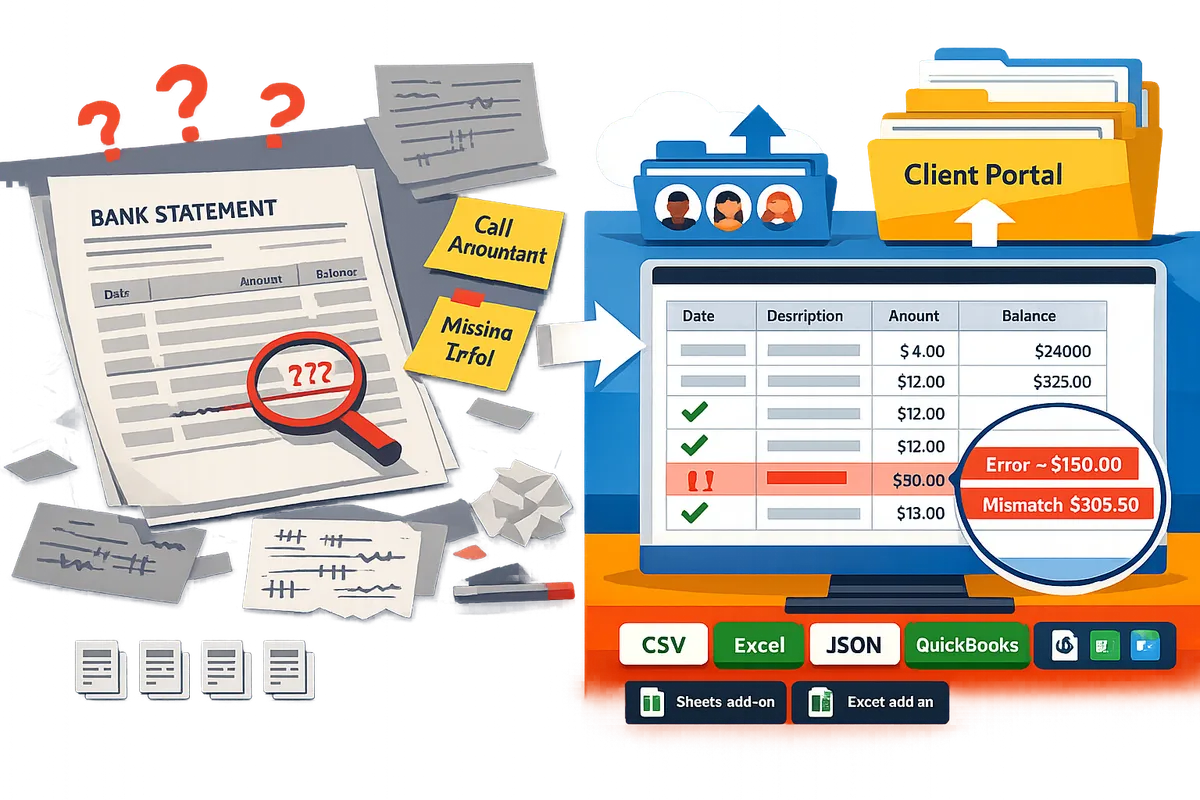
Why a purpose-built converter and managed workflow beats a ChatGPT-based DIY approach?
A purpose-built converter plus a managed workflow produces repeatable, validated transaction rows and centralized governance so extraction errors surface instead of passing through silently. This directly reduces verification time, audit risk, and the billable hours lost to fixing mis-parsed statements.
Side-by-side comparison: ChatGPT, OCR tools, and Rocket Statements 📊
This table compares a ChatGPT-based DIY method, generic OCR tools, and Rocket Statements across accuracy, validation, governance, and export formats so you can pick the right trade-offs for an accounting team.
| Capability | ChatGPT + manual OCR | Generic OCR tools | Rocket Statements (Bank Statement Converter) |
|---|---|---|---|
| Accuracy parsing complex layouts | Variable. Often misses split rows or multi-column statements. | Good for clear, single-column statements; struggles with irregular bank formats. | Designed for statement layouts and keeps structured rows across banks and statement variants. |
| Balance reconciliation | None unless you build manual checks after export. | No native reconciliation; requires custom scripts or manual review. | Validates extracted transactions by reconciling against printed statement balances so errors surface before export. |
| Cloud storage & folder organization | None by default. Files live locally or in shared drives you manage. | Some offer cloud storage but not client-folder governance. | Stores documents in folders and subfolders with sharing and retention controls. |
| Multi-tenancy / client portals | DIY or insecure workarounds. Hard to scale across clients. | Limited in most OCR services. | Supports client portals and multi-tenant team accounts for repeatable client workflows. |
| Available exports (CSV, Excel, JSON, QBO) | Depends on your export steps and manual formatting. | Often CSV or Excel only with inconsistent columns. | Exports CSV, Excel, JSON and QuickBooks-compatible files for manual import. |
| Spreadsheet add-ins | None. You copy/paste or upload CSVs manually. | Rare. Mostly batch download. | Google Sheets add-on and Microsoft Excel add-in for direct imports and live refresh. |
Refer to our comparison guide for a broader checklist on formats and benchmarks: Bank Statement to CSV, Excel, JSON & QuickBooks.
How Rocket Statements reduces verification steps and business risk ✅
Rocket Statements is a managed workflow that converts uploaded PDFs and images into structured transactions, retains the original PDF, and reconciles extracted totals against the printed balances so extraction errors surface early.
- Example outcome: a batch conversion flags mismatched closing balances before you import into the ledger, preventing silent errors from entering client books.
- Practical controls: folder-based storage, subfolders for clients, team accounts, and client portals keep naming and retention consistent across engagements.
- Daily work: use the Google Sheets add-on or Excel add-in to pull converted rows directly into your templates and apply running balances without rekeying. See our multi-account template and setup steps in Bank Statements to Google Sheets: Multi-Account Template, Deduped Imports, and Running Balances (2026 Guide).
These features cut verification steps by causing mismatches to appear as discrete flags rather than buried spreadsheet errors that take hours to hunt down.
What are the real costs of a DIY approach? 💸
DIY extraction often looks cheap per file but produces recurring costs in staff hours, delayed reconciliations, and increased audit exposure as volume grows.
- Staff time. A single hallucinated or mis-parsed transaction can add 3–5 hours of investigation and correction for a small accounting firm. For teams rekeying hundreds of transactions monthly, that multiplies into dozens of unpaid hours.
- Delayed deliverables. Manual fixes push month-end close and client reports, which can delay billing and financial decisions.
- Compliance and retention risk. Ad hoc storage and inconsistent retention policies create audit gaps and increase regulatory exposure.
⚠️ Warning: Do not upload client bank statements to public chat tools. Public LLM chats do not provide the folder-level client controls and retention rules that firms require for audits and data governance.
For a cost-comparison model and benchmarks on cleanup time, see our feature checklist: Bank Statement Converter Features in 2026: Free AI Tools vs Pro Workflows (Benchmarks + Checklist).
How to evaluate Rocket Statements with a one-time 20-page trial 🧪
You can test Rocket Statements using the one-time 20-page trial to verify conversion fidelity, reconciliation detection, folder organization, and export formats before adopting a managed workflow.
Follow these steps to run an effective trial:
- Gather a representative 20-page sample that includes simple, multi-column, and scanned-image statements.
- Upload the batch and run a conversion. Confirm that the tool preserves original PDFs for audit and that extracted transactions appear in consistent columns.
- Check reconciliation flags against printed statement balances so you see how errors surface.
- Export CSV, Excel, JSON, and QuickBooks-compatible files and open them in Sheets or Excel using the add-ins to confirm column mapping matches your templates. See How to Convert PDF Bank Statement Into Google Sheets for testing with Sheets.
- Test folder and client-portal workflows by simulating a client upload and verifying that documents land in the correct client folder and inherit access rules.
The trial is one-time and covers 20 pages total. Use it to measure how much verification work a managed workflow saves on a real client set before you change processes.
Frequently Asked Questions
This FAQ answers the operational, security, and integration questions finance teams ask when comparing chatgpt bank statement extraction and purpose-built converters. Use these answers to compare risks, validation steps, and Rocket Statements features so you can choose a secure, auditable workflow.
How accurate is OCR for bank statements? 🤖
OCR accuracy varies with PDF quality and statement layout. Machine-generated PDFs with selectable text and consistent column alignment usually produce near-perfect line extraction. Scanned images, photocopies, or low-resolution prints increase character recognition errors such as digit transpositions, split description lines, and mis-located dates. Always validate OCR output with row counts and closing-balance checks before any import. For recurring clients, Rocket Statements reduces manual layout mapping by detecting common bank formats and running batch conversions so you spend less time correcting OCR layout problems. See our Bank Statement Converter for examples of layouts that commonly cause errors.
How do I verify a bank statement CSV extraction before importing? ✅
Verify extractions by running five mandatory checks before importing. 1. Confirm row count matches the number of transaction lines printed on the statement. 2. Match the extracted closing balance to the statement's printed closing balance. 3. Sample 5 to 10 high-value and random transactions against the source PDF to catch numeric and description errors. 4. Run a diff between two conversion runs or between the same statement run twice to spot silent changes. 5. Check file metadata and the conversion audit log for who uploaded and processed the file. Rocket Statements includes reconciliation and audit workflows that surface these checks and make them part of your import gate. For CSV and accounting export guidance, review our Bank Statement to CSV, Excel, JSON & QuickBooks guide.
Is it safe to paste bank statements into ChatGPT or other public LLMs? 🔒
No. Pasting client bank statements into public chat tools creates data governance, retention, and exposure risk unless your organisation has an explicit, approved policy for that tool. Public chat LLMs may retain prompts or model inputs and do not provide the folder, client portal, and permission controls most firms require for client data. For firm-level control and auditability, use managed conversion workflows like Rocket Statements that keep documents in organised folders, support client portals, and record who accessed each file.
⚠️ Warning: Avoid uploading client bank data to public chat tools unless your firm has a clear, documented exception approved by compliance.
Does Rocket Statements push transactions directly into QuickBooks or Xero? 📁
No. Rocket Statements exports CSV, Excel, JSON, and QuickBooks-compatible files for manual import and does not push transactions via OAuth into QuickBooks or Xero. Use the exported QBO, OFX, CSV, or Excel file to import into accounting software on your schedule. Rocket Statements also offers a Google Sheets add-on and a Microsoft Excel add-in to streamline review and template-based imports. For export workflows and recommended file formats, see Bank Statement to CSV, Excel, JSON & QuickBooks.
How does reconciliation surface extraction errors? 🔍
Reconciliation highlights any mismatch between the extracted transaction totals and the statement's printed balances so discrepancies become actionable items. If the extracted closing balance differs from the printed closing balance, reconciliation marks the file for review and creates a traceable exception for reconciliation owners. That makes silent defects visible instead of allowing them to pass into client ledgers. Rocket Statements validates extracted rows by reconciling against the statement balances and presents flagged items for human review.
Where are uploaded statements stored and who can access them? 📂
Uploaded statements are stored in the cloud with folder and subfolder organisation and access controlled by team and client-portal permissions. Firms can create separate client workspaces, invite team members, and allow direct client uploads into specific folders. Each upload retains the original PDF and the converted outputs so reviewers can re-check source pages without chasing email attachments. Rocket Statements supports multi-tenancy and client portals so you keep client documents organised and auditable. If you plan to push results into Google Sheets, our Bank Statements to Google Sheets guide shows folder and workspace patterns that reduce misfiled imports.
What does the free trial include? 🎟️
The free trial provides a one-time allowance of 20 pages in total so you can evaluate conversion quality, exports, and folder workflows. Use those pages to test a mix of machine PDFs and scanned images, export to CSV/Excel/QBO, and run the verification checklist above. The trial is page-based and one-time, not a time-limited period, so plan your test batch accordingly. For comparisons of DIY methods versus managed workflows and a checklist you can follow during the trial, see Bank Statement Converter Features in 2026: Free AI Tools vs Pro Workflows.
Use a managed PDF-to-spreadsheet workflow to stop hallucinations.
Manual copying or pasting statements into a general AI chat often produces inconsistent rows, missing fields, or invented totals; that is why ChatGPT bank statement extraction alone rarely gives an auditable result. Choose a repeatable, reconciled process so reconciliation errors surface instead of passing through silently.
💡 Tip: Reconcile extracted transactions against the statement's printed balances to catch extraction errors early.
Rocket Statements replaces the manual work of transcribing transactions off a bank, credit card, or financial statement into a spreadsheet. The user uploads a statement PDF or image they already have; the product converts it into structured, spreadsheet-ready transaction data. It is a managed workflow, not a one-off conversion: documents live in the cloud with folder organisation, clients upload directly through client portals, results are consistently formatted, and teams share one workspace.
Try Rocket Statements now by starting a free trial on the Bank Statement Converter to convert a PDF to spreadsheet and verify bank statement csv extraction for a real client. Subscribe to our newsletter for implementation tips and updates.