
Can Rocket Statements export QuickBooks-compatible files? CSV for QBO and Spreadsheet Sync mappings explained (2026)

Can Rocket Statements export QuickBooks-compatible files? CSV for QBO and Spreadsheet Sync mappings explained (2026)
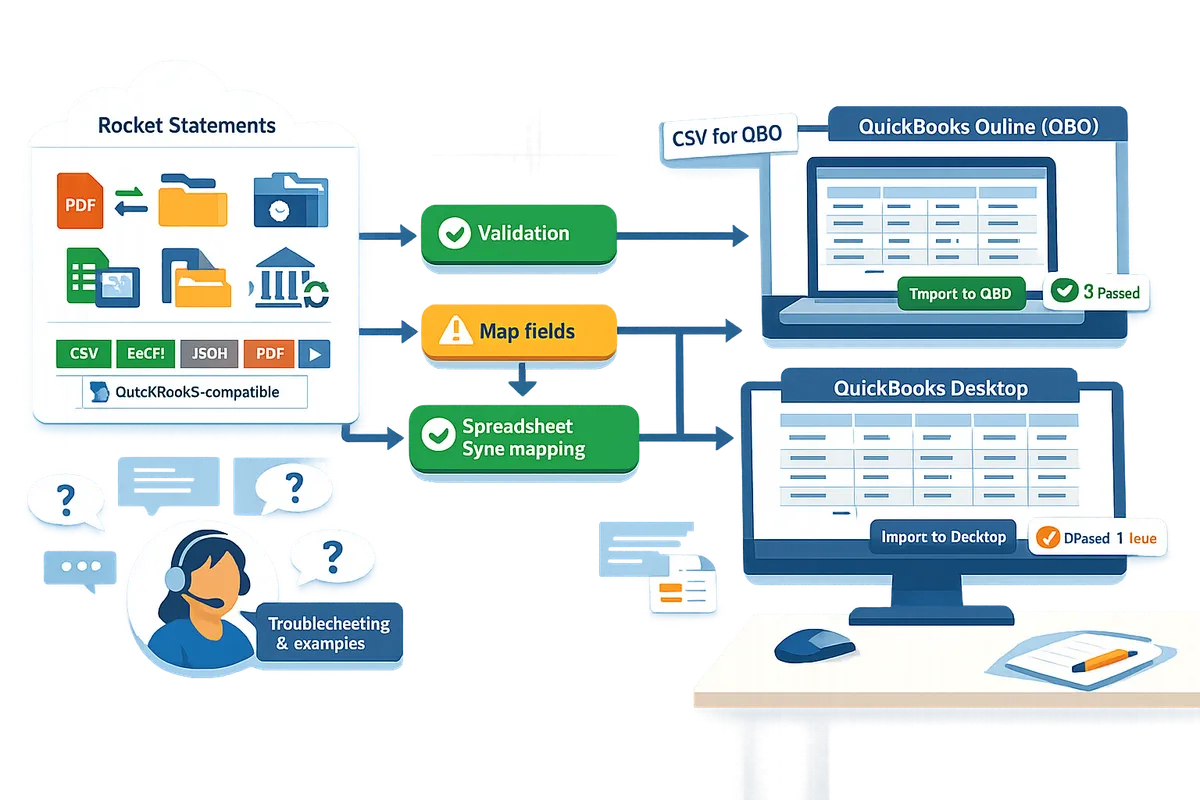
Accounting teams often spend 3–6 hours per client fixing CSV and spreadsheet layouts before QuickBooks will accept imported transactions. can rocket statements export to quickbooks compatible files is the most frequent question from bookkeepers who need predictable QBO and Desktop imports. Rocket Statements is a platform that converts PDF and image bank statements into spreadsheets, manages documents in cloud folders and subfolders, syncs live bank transactions, and exports CSV, Excel, JSON, PDF and QuickBooks-compatible files. This FAQ-style article explains whether our platform produces files QuickBooks accepts and walks through practical mapping steps for QuickBooks Online and QuickBooks Desktop import workflows. See common format issues discussed in the community and our Rocket Statements homepage for feature details. Which fields still require a manual pass and when will QuickBooks reject the file?
Can Rocket Statements export files that QuickBooks will accept?
Yes. Rocket Statements can export bank-statement data into QuickBooks-compatible formats and spreadsheet layouts ready for import. This matters because picking the wrong export type or mapping can turn a 10-minute import into hours of manual cleanup.
Which export formats does Rocket Statements produce? 📁
Rocket Statements exports CSV, Excel, JSON, PDF, and QBO-style files where available. Rocket Statements' export menu offers multiple formats so you can choose a QuickBooks-ready QBO when supported or a CSV/Excel file for more control.
| Format | QuickBooks import readiness | Best use case | Notes on mapping |
|---|---|---|---|
| QBO-style | High for supported banks | QuickBooks Online and Desktop imports that accept web-connect files | Reduces column mapping but may omit nonstandard memo fields |
| CSV | Medium; requires mapping | Custom imports and templates, bulk edits before import | You must match QuickBooks columns (date, amount, payee, memo, account) |
| Excel (XLSX) | Medium; convert to CSV or use Excel import tools | Manual review and multi-sheet exports | Useful when reconciling multiple accounts in one workbook |
| JSON | Low; for integrations | Automated pipelines or third-party converters | Requires a conversion step into CSV/QBO for QuickBooks import |
| None for direct import | Archive or human review | Use Rocket Statements to convert PDF to CSV/XLSX first |
See our guide on PDF Bank Statements to QuickBooks in Minutes | Rocket Statements for a step-by-step walkthrough of converting scanned statements and choosing the right export.
Does Rocket Statements export direct QBO files or rely on CSV conversion? 🔁
Rocket Statements can output both direct QBO-style files and CSV/Excel files for import workflows. QBO-style exports reduce manual column mapping but may not include every custom field; CSV and Excel exports give full control at the cost of extra mapping.
Trade-offs to consider:
- QBO-style: faster setup for standard bank layouts and fewer required adjustments on import. Use when your bank layout is supported and you only need standard fields.
- CSV/Excel: necessary when you need to add classes, custom memos, or split transactions before import. You will need to match QuickBooks column names or use QuickBooks import templates.
Community posts such as Why Can’t Export Workflows Just Get Along? document cases where teams prefer CSV because QBO files lacked specific memo or class fields.
QuickBooks Online vs QuickBooks Desktop: what changes? 💡
QuickBooks Online and QuickBooks Desktop accept different file layouts and field sets, so you must choose the export format that fits the target product. Rocket Statements lets you pick the format before export and includes notes on required adjustments for each QuickBooks product.
| Platform | Accepts QBO? | Accepts CSV/Excel? | Common differences to plan for |
|---|---|---|---|
| QuickBooks Online | Yes (web-connect indirect) | Yes, via import templates | Online prefers specific CSV columns and often requires the quickbooks online csv import template bank transactions format for bank data |
| QuickBooks Desktop | Yes (Web Connect/QBO) | Yes, via IIF or CSV conversions | Desktop imports often need precise account IDs or an IIF intermediate step; Desktop can be stricter about duplicates |
Practical steps:
- Select your target platform in Rocket Statements before export.
- If using CSV, download a QuickBooks sample CSV or use the quickbooks online csv import template bank transactions to align columns.
- Run a small test import (10–20 lines) to confirm mappings and date formats.
Refer to Easily Convert Bank Statements to Excel and Import into QuickBooks for common column layouts and examples.
What are the common reasons QuickBooks rejects converted bank-statement files? ❗
QuickBooks most often rejects imports for incorrect date formats, duplicate transactions, malformed amounts, and missing account identifiers. These four issues account for the majority of failed imports and are usually fixable before you run the import.
Common rejection causes and how Rocket Statements helps:
- Date format mismatch. QuickBooks expects specific date formats. Rocket Statements can normalize dates but you must match the chosen QuickBooks import template.
- Duplicate transactions. QuickBooks blocks imports that appear to re-add an existing transaction. Use Rocket Statements' duplicate detection or run the small test import to verify.
- Malformed amounts. Commas, currency symbols, or inconsistent decimal separators cause errors. Export CSV from Rocket Statements with plain numeric amounts to avoid this.
- Missing account or payee fields. QuickBooks often needs a destination account or recognizable payee. Map bank statement payees to your Chart of Accounts or add a default account in the export.
💡 Tip: Follow the Pre-import sanity check for RS → QuickBooks (my quick list) before large imports: verify balances, transaction counts, date formats, and duplicate flags.
If you hit repeated import errors, review community threads such as PDF to QuickBooks - Why is this so fiddly? and QuickBooks & Rocket Statements Sync—Hiccup or ID10T Error? for troubleshooting tips and real-world examples.
How do you map Rocket Statements exports into QuickBooks Online CSV import template and Spreadsheet Sync?
Map Rocket Statements exports by matching each exported column to the QuickBooks Online CSV fields and by creating persistent Spreadsheet Sync mappings for repeated imports. This reduces manual edits and prevents header mismatches that turn a 10-minute import into hours of cleanup. Our website provides checklist templates and example column orders so bookkeepers can prepare an import-ready CSV quickly.
How do you map Rocket Statements CSV to the QuickBooks Online CSV template? 🧭
Map date, description, amount, payee, and memo columns in that order to match QuickBooks Online CSV import expectations. 1) Export the transactions from Rocket Statements as CSV or Excel. 2) Open the QuickBooks Online CSV import template for bank transactions and place columns in this order: Date, Description, Amount, Payee, Memo, Account (if required). 3) Normalize amounts so withdrawals use negative values and deposits use positive values; QuickBooks reads a single Amount column more reliably than separate Debit and Credit columns. 4) Run a quick sample import of 5–10 rows to confirm column alignment before processing the full batch. Our guide on converting PDFs to QuickBooks-ready files shows a starter CSV layout you can reuse: PDF Bank Statements to QuickBooks in Minutes | Rocket Statements.
What are the recommended Rocket Statements columns vs QuickBooks fields? 🔎
Use an exact column name match between Rocket Statements exports and QuickBooks CSV headers to minimize manual edits. The table below lists recommended Rocket Statements column names, the QuickBooks Online CSV field to map them to, and an example value you can copy into your template.
| Rocket Statements column | QuickBooks Online CSV column | Example value | Notes |
|---|---|---|---|
| Transaction Date | Date | 2026-03-15 | Use yyyy-mm-dd or match QuickBooks regional date format. |
| Description | Description | POS PURCHASE - STARBUCKS | Put short vendor text here; save longer text for Memo. |
| Amount | Amount | -42.75 | Use negative for payments, positive for deposits. |
| Payee | Payee | Starbucks | QuickBooks will match vendors to payees during reconciliation. |
| Memo | Memo | Client meeting | Optional; useful for billable notes or categories. |
| Account Number | Account | 123456789 | Use for multi-bank imports so QuickBooks assigns transactions to the correct account. |
| Reference / Check No. | Reference | 987654 | Optional; map when you need audit references. |
If your Rocket Statements CSV uses separate Debit and Credit columns, convert them to a single Amount column first. See our step checklist in Easily Convert Bank Statements to Excel and Import into QuickBooks for an example workflow.
How does QuickBooks Spreadsheet Sync CSV mapping automate repeated imports? 🔗
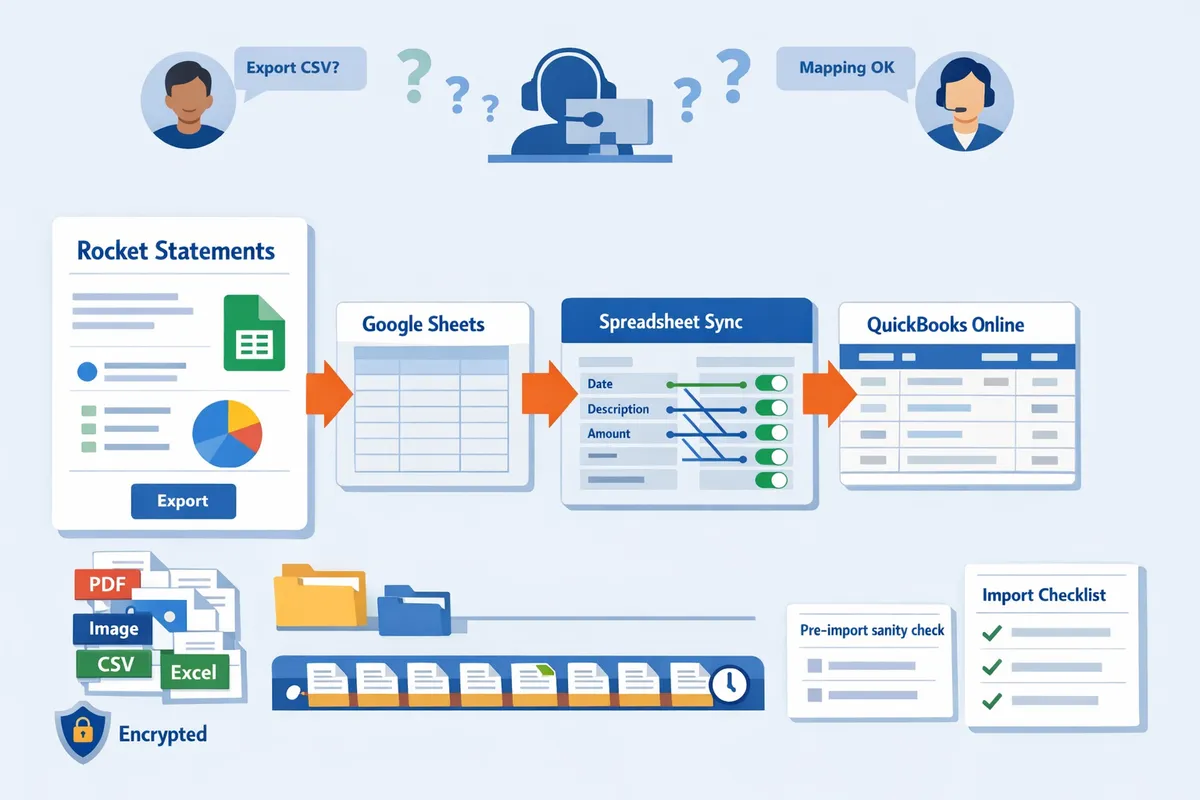
Spreadsheet Sync maps columns in Google Sheets or Excel to QuickBooks fields so you can push imports automatically without re-mapping each month. Set up a persistent mapping once: choose the sheet, match headers to QuickBooks fields, then save the mapping as a template. Lock the Date, Amount, and Account columns to prevent accidental shifts, and set Spreadsheet Sync to run on a schedule or trigger it when Rocket Statements writes a new export to the sheet. For feeds that run monthly, Rocket Statements can export directly to a Google Sheet, which then becomes the single source Spreadsheet Sync imports from. This reduces repeated manual import steps and cuts verification time.
💡 Tip: Lock header rows and the Amount column in your Google Sheet before saving Spreadsheet Sync mappings to avoid accidental column shifts during automated exports.
What are common mapping pitfalls and how do you avoid them? ⚠️
The most frequent errors are swapped debit/credit columns, inconsistent date formats, and missing account identifiers; fix these before import. Quick fixes: convert Debit/Credit to a single Amount column with signs; standardize dates to yyyy-mm-dd or match QuickBooks regional settings; add an Account column when importing multiple bank accounts so QuickBooks assigns transactions correctly. Validate totals by comparing the imported transaction count and ending balances to the original statement. Our pre-import checklist covers these validation steps in detail: Pre-import sanity check for RS → QuickBooks (my quick list).
⚠️ Warning: Always run a small test import and reconcile totals before importing large batches. Recovering from a bad multi-client import wastes far more time than a 5-row test.
Can you show a sample mapping for a small accounting firm preparing monthly bank imports? 📁
Yes. For a small accounting firm processing monthly statements, map Rocket Statements 'Transaction Date' to QuickBooks 'Date' and 'Description' to 'Memo' to speed reconciliation. Example workflow: 1) Run Rocket Statements export for a client and save to Google Sheets. 2) Use the mapping table above to reorder columns to Date, Description, Amount, Payee, Memo, Account. 3) Apply your saved Spreadsheet Sync mapping, lock key columns, and run a 10-row test import. 4) Verify transaction count and ending balance against the bank PDF, then complete the full import. For clients with recurring monthly imports, this flow typically reduces manual column fixes and verification time; see our practical guide for converting PDFs and the import checklist for step-by-step templates: PDF Bank Statements to QuickBooks in Minutes | Rocket Statements and Pre-import sanity check for RS → QuickBooks (my quick list).
What are practical workflows, limitations, security, and troubleshooting steps for exporting and importing at scale?
Exporting and importing at scale works best when you enforce a repeatable conversion, validation, batching, and controlled import routine. Rocket Statements converts PDFs into spreadsheet-ready files and organizes exports into folders so teams can apply persistent mappings and run staged imports. The following FAQ-style guidance shows who does each step, how to size batches, the security checks to run, and a short troubleshooting checklist you can follow.
How do I build an end-to-end Rocket Statements → spreadsheet → QuickBooks workflow? ⚙️
Use Rocket Statements to convert PDFs, store exports in a project folder, apply a saved column mapping, then import via QuickBooks Online or QuickBooks Desktop.
- Convert and organize. A preprocess step owner (bookkeeper or admin) uploads PDFs to a Rocket Statements project folder and runs batch conversion to CSV/Excel or QBO. Link exported files to a folder per client or month.
- Apply mappings. The bookkeeper opens the exported spreadsheet, applies the QuickBooks CSV template mapping or Spreadsheet Sync mapping, and saves a persistent template for future imports. See our guide on PDF Bank Statements to QuickBooks in Minutes | Rocket Statements for mapping examples.
- Validate and import. A reviewer performs balance and row-count checks, runs a 10-row test import into QuickBooks, and then runs the full import. For QuickBooks Desktop, export to Excel/CSV and use Desktop import tools; for QuickBooks Online use the CSV template or Spreadsheet Sync. For repeated imports, save column mappings in Spreadsheet Sync to avoid manual remapping.
What batch sizes and monitoring practices work best when handling large volumes of statements? 📦
Manage throughput by batching conversions and importing in staged groups to reduce error surface and manual rework.
- Recommended batch approach. Start with batches small enough to troubleshoot quickly, for example 50–200 statements per conversion job for firms new to batch exports, and increase once process stability is proven.
- Parallelization and folders. Run parallel conversions across separate project folders to isolate failures and to let different team members validate in parallel. Rocket Statements' folder structure helps separate banks, clients, or months for parallel processing.
- Monitor progress. Track export job status, file counts, and export logs in Rocket Statements. Schedule imports during off-peak QuickBooks hours and watch QuickBooks import limits or throttling when using direct sync tools. If you see repeated failures, reduce batch size and re-run the failing subset.
What security and compliance checks should I run before exporting financial data? 🔐
Require encrypted storage, strict folder permissions, and an audit trail before moving exports into accounting systems.
- Minimum controls. Ensure Rocket Statements folders are restricted to least-privilege users, use SSO and 2FA for accounts, and keep exports encrypted at rest and in transit.
- Data hygiene. Redact or truncate full account numbers when not needed for reconciliation, and avoid storing unencrypted exports on shared drives. Keep audit logs of who exported, downloaded, and imported each file.
- Vendor due diligence. Verify vendor security attestations before routing live bank data; request SOC 2 or equivalent documentation when required by your compliance policy.
⚠️ Warning: Do not email CSV or Excel exports with full account numbers unless the file is encrypted and the recipient expects it.
Read how Rocket Statements supports small business workflows and document management here: Small Business Owners.
What quick troubleshooting steps fix most QuickBooks import errors?
Verify date formats, remove duplicate transactions, confirm account names or codes, and test with a 10-row sample to resolve most import failures. Follow this checklist in order:
- Sample test. Import 10 rows to check field mapping and account matching.
- Date and number formats. Normalize dates to the QuickBooks-expected format and remove thousands separators from amounts.
- Account mapping. Match exported account names exactly to QuickBooks chart of accounts or use account codes; mismatches cause rejects.
- Duplicates and blanks. Remove duplicate lines and fill required fields (e.g., Date, Amount, Account).
- Special characters and memo length. Trim overly long memos and remove stray non-ASCII characters.
- Reconcile totals. Confirm file totals match bank balances or expected statements before final import. Rocket Statements provides export previews and validation that surface many of these issues before you download the file. See community tips in Pre-import sanity check for RS → QuickBooks (my quick list) and troubleshooting insights in QuickBooks & Rocket Statements Sync—Hiccup or ID10T Error?.
💡 Tip: Always run a 10-row test import and keep a copy of the pre-import file for quick rollback if something fails.
How do DIY costs compare to using Rocket Statements for repeatable QuickBooks exports?
Manual conversion and repeated mapping typically consume hours per client each month, while Rocket Statements centralizes conversion and reduces repetitive edits and reconciliation risk.
- Example scenario. A small practice that spends several hours fixing CSVs per client can easily accumulate dozens of staff hours monthly; centralizing conversion with Rocket Statements shifts work from manual cleanup to quick validation, freeing bookkeeping time for reconciliations.
- Error and compliance cost. Manual workflows increase the chance of mismatched accounts, duplicate imports, and audit gaps that create costly reconciliations. Rocket Statements reduces that risk by producing QuickBooks-compatible exports and providing folder-level organization for audit trails.
- Pricing and limits. QuickBooks-export formats (CSV, Excel, QBO) are available from Rocket Statements, but exact export limits and plan features vary by subscription. Check account plan details or contact support to confirm available formats and export volume limits before scaling.
Frequently Asked Questions
This FAQ answers whether Rocket Statements can produce QuickBooks-compatible files and how to map those exports into QuickBooks Online and Spreadsheet Sync. It focuses on practical steps, common rejection reasons, and who to contact when an export fails.
Can Rocket Statements create QBO files that import directly into QuickBooks Online? 🗂️
Yes. Rocket Statements can output QBO-format exports, but direct import success depends on matching QuickBooks' expected field set and file structure. QBO is a bank Web Connect file format that QuickBooks accepts for bank downloads. QuickBooks Desktop and some QuickBooks Online workflows accept QBO; however, QuickBooks Online sometimes requires CSV or Spreadsheet Sync for smooth imports. Test with a 10-transaction sample file to confirm import behavior. If QuickBooks rejects the QBO, export a mapped CSV from Rocket Statements and follow the QuickBooks CSV template instead.
How do I use the QuickBooks Online CSV import template with Rocket Statements exports? 📊
Use Rocket Statements exports by downloading QuickBooks Online's CSV template, mapping Rocket Statements columns to the template fields, and validating dates and amounts before import. Steps:
- Export a CSV from Rocket Statements with consistent headers.
- Open QuickBooks Online's import template and map columns (Date, Description/Payee, Amount, Debit/Credit, Account, Memo).
- Normalize date format to match your company file (for US files, MM/DD/YYYY) and remove currency symbols from Amount.
- Run a small test import of 10–20 rows and check the bank balance and transaction counts.
Follow our guide on converting PDFs to spreadsheets for step-by-step examples: PDF Bank Statements to QuickBooks in Minutes | Rocket Statements.
What is the QuickBooks Spreadsheet Sync CSV mapping process? 🔁
Spreadsheet Sync is a QuickBooks Online feature that maps spreadsheet columns to QuickBooks fields and preserves that mapping for repeated imports. Use Rocket Statements to produce a clean, consistently structured CSV and then create a persistent Spreadsheet Sync mapping so imports require minimal manual edits. Practical steps:
- Export a canonical CSV from Rocket Statements with stable column names.
- In QuickBooks Online, choose Spreadsheet Sync and map each column to the target field (Account, Date, Amount, Payee, Memo, Class).
- Save the mapping and run a test import. Spreadsheet Sync reduces repeated layout fixes but still requires periodic checks when bank formats change.
See our walkthrough on converting bank PDFs to Excel for examples of stable column headers: Easily Convert Bank Statements to Excel and Import into QuickBooks.
Why did QuickBooks reject my Rocket Statements CSV import? ❌
QuickBooks rejects CSV imports most often because of wrong date formats, duplicate transactions, malformed numbers, or missing required fields. Check these items first:
- Date format mismatches. Match the company file format (MM/DD/YYYY vs YYYY-MM-DD).
- Duplicate detection. Remove duplicates or include a consistent unique identifier.
- Number formatting. Strip currency symbols, use a period for decimals if QuickBooks expects it, and ensure negative values use a minus sign or separate Credit column.
- Required fields. Ensure Date, Amount, and Account or Bank Name are present and correctly named.
⚠️ Warning: QuickBooks can accept an import that looks correct but creates duplicate ledger entries if the import mapping does not include a stable unique identifier. Use a short test batch and compare counts to avoid reconciliation headaches. For troubleshooting tips and community examples, see QuickBooks & Rocket Statements Sync—Hiccup or ID10T Error? and our pre-import checklist: Pre-import sanity check for RS → QuickBooks (my quick list).
Can I automate recurring imports from Rocket Statements to QuickBooks? ⚙️
Yes. You can automate most recurring imports by scheduling Rocket Statements exports, keeping a persistent Spreadsheet Sync mapping, and using QuickBooks import workflows while performing manual validation during initial cycles. Recommended automation routine:
- Schedule monthly or weekly exports in Rocket Statements with consistent file naming and headers.
- Maintain a saved Spreadsheet Sync mapping in QuickBooks Online.
- Automate the file delivery to a secured folder QuickBooks can access or a bookkeeping pipeline.
- Review the first two automated cycles manually to catch bank format changes or new memo patterns.
Automating reduces repetitive work but plan for occasional manual checks when banks change statement layouts. See our beginner guide for repeatable workflows: PDF Bank Statements to QuickBooks in Minutes | Rocket Statements.
How does Rocket Statements handle sensitive bank statement data during export? 🔒
Rocket Statements stores documents in cloud folders with folder and subfolder access controls and supports exporting statements into CSV, Excel, JSON, and QBO formats while recommending encrypted storage and limited user access for exported files. Best practices:
- Keep exports in encrypted destinations and remove files after import when not needed.
- Limit export and import permissions to a small set of bookkeeping users.
- Use Rocket Statements folder permissions to restrict who can download raw statements.
⚠️ Warning: Avoid including full account numbers or personal ID data in memo fields that will be imported into QuickBooks.
Read how Rocket Statements supports small business workflows and document management here: Small Business Owners.
Who should I contact if a Rocket Statements export keeps failing in QuickBooks? 📞
Start with Rocket Statements' troubleshooting guide and mapping examples, and contact Rocket Statements Support with a sample export and the QuickBooks error message if the export keeps failing. When you open a support case include these items:
- A 10–20 row sample CSV or QBO file exported from Rocket Statements.
- The exact QuickBooks import error or screenshot.
- The mapping you used (Spreadsheet Sync or CSV template) and the import date range.
Providing a minimal sample and the error text speeds diagnosis. For peer troubleshooting and common fixes, consult community threads and our pre-import checklist: PDF Bank Statements to QuickBooks in Minutes | Rocket Statements and Pre-import sanity check for RS → QuickBooks (my quick list).
Finish QuickBooks-ready exports with Rocket Statements.
If you asked "can rocket statements export to quickbooks compatible files," the practical answer is yes: Rocket Statements produces CSV and Excel exports that QuickBooks accepts once you apply simple column mapping and a pre-import check. Users reduce manual formatting and catch common import errors before they reconcile.
Rocket Statements is a platform that helps users save time and money by automating the process of converting their statements into spreadsheets as well as manage their documents in the cloud. The product has the following features:
- Convert their PDF and image statements into spreadsheets
- Manage their documents in the cloud with folders and subfolders
- Sync live transactions data from bank accounts
- Transform their statements into CSV, Excel, JSON, and PDF files
- Transform their statements into Quickbooks compatible files
💡 Tip: Run the checklist in "Pre-import sanity check for RS → QuickBooks (my quick list)" to verify balances, dates, and duplicate protection before import.
Download the QuickBooks CSV import template and step-by-step mapping guide from our PDF Bank Statements to QuickBooks in Minutes post and follow the examples in Easily Convert Bank Statements to Excel and Import into QuickBooks to speed setup. Start by downloading the template and testing a small batch export.