
Best tools to import bank transactions into Google Sheets (2026): Avery vs BankToSheets vs Tiller vs BudgetSheet vs Rocket Statements

Best tools to import bank transactions into Google Sheets (2026): Avery vs BankToSheets vs Tiller vs BudgetSheet vs Rocket Statements
Accountants spend up to 10 hours per month cleaning exported bank PDFs before they can analyze transactions. Picking the right tool to import bank transactions to Google Sheets affects data quality, security, and total cost of ownership. This comparison post in our Bank Data Import series evaluates Avery, BankToSheets, Tiller, BudgetSheet, and Rocket Statements across PDF conversion accuracy, live sync reliability, data mapping flexibility, security controls, and ongoing costs. Rocket Statements is a platform that converts PDF and image statements into spreadsheets, stores documents in cloud folders, syncs live transactions, and exports CSV, Excel, JSON, PDF, and QuickBooks-compatible files. See our Google Sheets integration for security and automation details and the consolidated export feature for merged reports. Which trade-offs will shift your monthly workload and budget?
Which tools should you consider for importing bank transactions to Google Sheets in 2026? A concise vendor overview.
Consider Avery, BankToSheets, Tiller, BudgetSheet, and Rocket Statements depending on whether you need PDF and image conversion, live bank feeds, CSV-first control, or a hybrid approach. Each tool targets a different tradeoff between automation, data control, and setup time. Below we summarize who each tool suits, how they deliver data to Sheets, and the practical tradeoffs you will face when consolidating multiple banks.
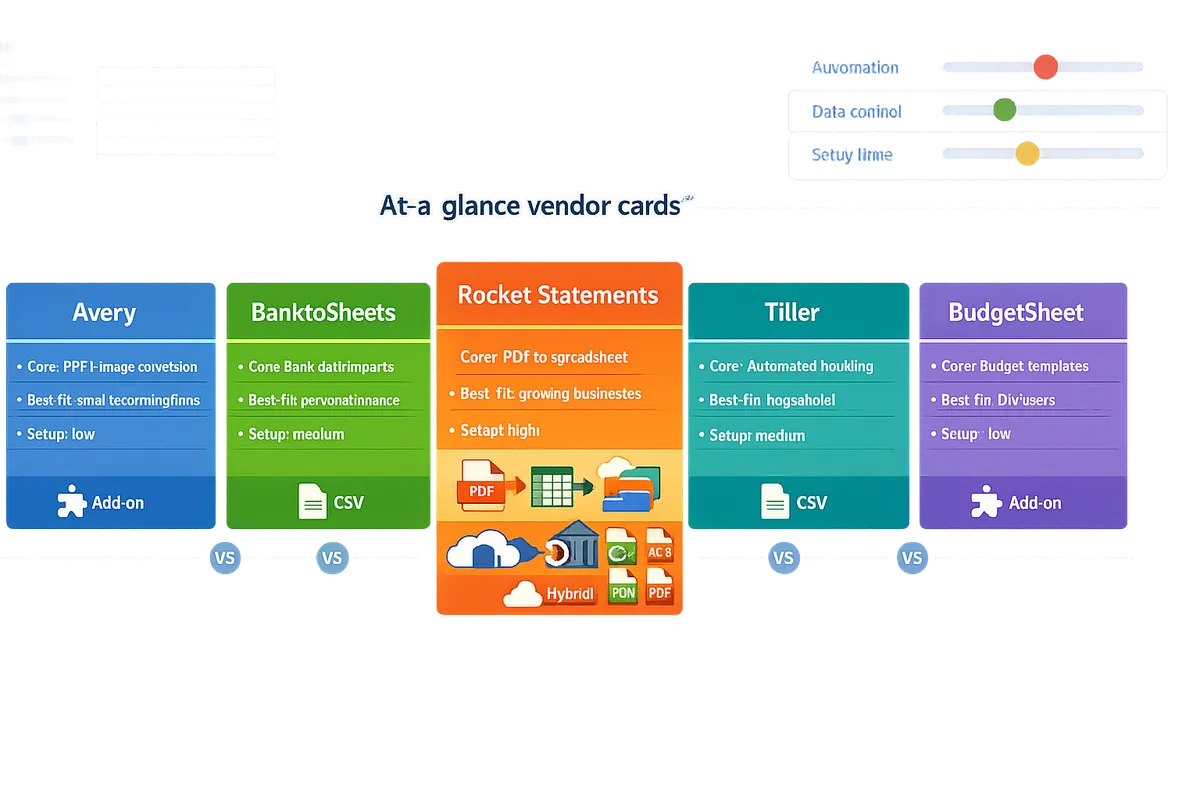
At-a-glance vendor cards 🗂️
Below are concise summary cards showing core capability, best-fit user, and typical setup time for each vendor.
Rocket Statements — Core capability: PDF and image statement conversion plus live transaction sync and cloud document management. Best-fit user: small accounting firms and finance ops that need PDF backfill plus scheduled feeds. Typical setup time: 1–4 hours for single-account onboarding, longer for multi-bank backfill. See our Google Sheets add-on overview for setup details.
BankToSheets — Core capability: Google Sheets add-on that focuses on direct bank connections and scheduled imports. Best-fit user: bookkeepers who want live or nightly sync inside Sheets. Typical setup time: 30–90 minutes per account, with occasional reauth for MFA.
Tiller — Core capability: CSV-first bank feeds and customizable templates inside Sheets. Best-fit user: users who prefer full control over CSV imports and rules-based categorization. Typical setup time: 1–3 hours to configure feeds and templates; manual CSV backfill may add hours.
BudgetSheet — Core capability: Sheets add-on with live syncing and bulk export features aimed at small businesses. Best-fit user: sole proprietors and small firms with a handful of accounts. Typical setup time: 30–60 minutes for initial sync; expect more time if you need historical imports.
Avery — Core capability: hybrid add-on with both live connections and bulk export utilities for statement batches. Best-fit user: finance teams that mix automated feeds with occasional PDF uploads. Typical setup time: 1–5 hours depending on document cleanup needs.
For detailed side-by-side comparisons and additional vendor notes, see our comprehensive comparison of top sync tools.
Which tools convert PDFs and images into structured spreadsheets? 📄
Rocket Statements and several add-ons perform PDF and image conversion directly, while Tiller emphasizes CSV-first imports and requires manual or third-party OCR for PDFs. Rocket Statements converts PDFs and images into normalized rows and supports exports to CSV, Excel, JSON, and QuickBooks-compatible files. Avery and BudgetSheet provide bulk export features that help with batch processing but usually expect cleaner input files.
| Tool | PDF & Image Conversion | Best use-case | Common failure modes |
|---|---|---|---|
| Rocket Statements | Yes. Direct OCR + normalization and cloud document management (backfill/export). | Firms needing automated PDF backfill into Sheets or QuickBooks. | Low-quality scans cause OCR errors; occasional bulk download glitches during high volume. |
| Avery | Limited. Bulk export tools for processed statements. | Teams that already have extracted CSVs and need batch exports. | CSV formatting differences that require mapping in Sheets. |
| BudgetSheet | Limited. Bulk export and template-driven imports. | Small businesses with consistent statement formats. | Missing columns or header mismatches during CSV import. |
| Tiller | No direct OCR. CSV-first approach; third-party OCR needed for PDFs. | Users who prefer direct control over CSV files and templates. | Manual rekeying or poor OCR results from third-party tools. |
| BankToSheets | Primarily live sync; PDF conversion not core. | Bookkeepers who rely on direct bank feeds. | When banks do not expose historical PDFs, backfill fails without CSVs. |
User reports show recurring failure modes: bulk download glitches that interrupt batch exports and CSV import errors when columns shift between banks. Our discussion thread on Google Sheets import experiences documents intermittent CSV import glitches and syncing gaps with live feeds. For a methodical comparison of PDF conversion approaches, see our comparison of conversion methods and free template.
Which tools offer direct live bank sync and scheduled imports? 🔁
Rocket Statements, BankToSheets, Avery, and BudgetSheet offer direct bank sync or scheduled imports while Tiller commonly relies on CSV bridges or third-party connectors for live feeds. Rocket Statements supports live transaction sync plus PDF backfill; BankToSheets and BudgetSheet provide add-on-based scheduled imports; Avery blends live feeds with bulk exports for mixed workflows.
| Tool | Live sync available | Scheduled imports (cadence) | When CSV fallback is required | Practical reliability note |
|---|---|---|---|---|
| Rocket Statements | Yes. Live and scheduled syncs plus PDF backfill. | Near-real-time to nightly depending on bank. | When bank restricts programmatic access or MFA is required. | Good for multi-bank setups if you run an initial backfill and monitor MFA sessions. |
| BankToSheets | Yes. Add-on with scheduled syncs. | Nightly or configurable. | For banks that block aggregator access or older institutions. | Expect reauth when banks change login flows; test each institution. |
| Avery | Hybrid. Live where supported, otherwise batch exports. | Nightly or on-demand. | For legacy banks or when statements are only available as PDFs. | Useful when mixing live feeds and uploaded statements. |
| BudgetSheet | Yes. Add-on-based syncs. | Nightly. | For accounts that require manual CSV exports. | Works well for small sets of accounts; watch for duplicate rows across imports. |
| Tiller | Typically no direct OCR-based live sync; uses CSV bridges. | Depends on connector or manual schedule. | When you need consistent historical backfill from PDFs. | Best where you want full control over CSVs and reconciliation rules. |
Practical advice: test live sync for each bank before switching workflows. Multi-bank setups commonly fail because of MFA prompts, credential rotations, or institution-specific file formats. For step-by-step multi-bank setups and deduplication, see our guide on automatically importing bank statements into Google Sheets from multiple banks.
Trial, pricing model, and onboarding effort
Expect a mix of free trials or freemium tiers, subscription plans with per-account or per-user pricing, and onboarding times that depend on how many accounts and historical PDFs you must process. Rocket Statements advertises a free trial on the Google Sheets integration page, which helps you validate PDF conversion and live sync before committing to a subscription.
| Tool | Trial availability | Pricing model | Typical onboarding hours | Likely hidden costs |
|---|---|---|---|---|
| Rocket Statements | Free trial available (see add-on page) | Subscription; tiered by volume and features. | 1–8 hours for single account; 4–24 hours for multi-bank backfill. | Historical data imports, heavy OCR cleanup, extra folder organization time. |
| BankToSheets | Trial or limited free tier common | Marketplace add-on subscription; some charge per account. | 1–4 hours per account to connect and verify. | Reauth work, enterprise connector fees. |
| Tiller | Trial available; subscription model | Subscription with templates and CSV control. | 1–6 hours to configure feeds and templates; manual CSV backfill adds time. | Manual reconciliation, third-party OCR fees. |
| BudgetSheet | Free tier or trial options | Add-on subscription, sometimes per-user. | 30 minutes to 3 hours for small setups. | Extra cost for bulk historical imports or account limits. |
| Avery | Trial or demo likely | Hybrid pricing (add-on + export features). | 1–8 hours based on document cleanup needs. | Mapping time for inconsistent exports, additional support for large batches. |
💡 Tip: Before buying a full plan, run a trial import for one representative account and a small PDF backfill. Confirm how many historical months are included and whether audit logs are accessible for reconciliation.
Hidden costs are often not in the monthly fee. Expect manual reconciliation time when PDFs need OCR cleanup, fees for importing long histories, and additional hours to map varied CSV layouts into your budget or bookkeeping templates. For a practical comparison of total cost and time, see our conversion methods article and the top tools comparison.
For vendor-specific setup guides and the Rocket Statements add-on walkthrough, consult our add-on introduction and multi-bank import how-to articles.
How do these tools compare side-by-side on coverage, data mapping, security, and ongoing maintenance? A decision-ready comparison table.
Coverage, data mapping, security posture, and maintenance effort differ enough between Avery, BankToSheets, Tiller, BudgetSheet, and Rocket Statements that buyer priorities will tip the choice. Use the table below to match a vendor to your needs (live feeds, PDF backfill, or CSV control), then read the short notes after the table to align trade-offs with budget, compliance, and staffing.
Comparison table 📊
| Vendor | Delivery method | Bank coverage (notes) | Sync cadence | Supported exports | Fields mapped (date, amount, merchant, category, statement ID) | Security / compliance (publicly documented) | Cost model | Trial |
|---|---|---|---|---|---|---|---|---|
| Avery | Add-on / PDF convert | Public coverage statements limited; often targets common consumer banks | Daily or manual (depends on bank API) | CSV, Excel | Date, amount auto; merchant and category often require rules or manual tagging; statement ID varies | Encryption in transit; limited public audit details | Subscription (per-user tiers) | Free trial / freemium reported |
| BankToSheets | Add-on (live sync focus) | Broad bank network claimed; vendor pages list many regions but exact list can be opaque | Live or nightly sync | CSV, Excel, JSON | Live feeds map date, amount, merchant automatically; PDF backfill less consistent for statement IDs | Standard OAuth + TLS; public SOC/PCI statements vary by plan | Subscription, per-account tiers | Free trial available |
| Tiller | CSV-first (spreadsheet-first model) | Coverage depends on banks that export CSV or allow third-party connections | Manual import or scheduled CSV pulls | CSV, Excel, Google Sheets native | Date and amount reliable from CSVs; merchant and category depend on user rules; statement ID usually not preserved | Uses Google account security; data stored in user's Sheets | Subscription (monthly) | 30-day trial historically |
| BudgetSheet | Add-on | Positions as Google Sheets add-on with broad connections; public coverage details limited | Nightly / scheduled sync | CSV, Excel | Maps date and amount; merchant/category auto varies; statement-level IDs uncommon | OAuth based connections; limited public compliance details | Freemium + paid tiers | Freemium tier exists |
| Rocket Statements | Hybrid (PDF/image conversion + live sync + cloud docs) | Live bank sync plus PDF/image backfill; public per-bank list not exhaustive — see notes below | Live sync for connected accounts; manual or scheduled backfill for documents | CSV, Excel, JSON, QuickBooks-compatible, PDF | Date, amount, merchant, category and statement ID are included in consolidated exports; statement-level IDs preserved when present | Bank-level encryption, end-to-end protection, PCI DSS compliance and documented audits on our Google Sheets Integration page | Subscription (tiered); per-document and account options | Free trial available |
Notes on coverage data gaps. Vendor marketing often lists "broad" or "many" banks without an exportable, up-to-date bank list. Ask vendors for a downloadable coverage report for the exact regions and business bank types you need before buying.
How detailed is data mapping and reconciliation with each tool? 🔍
Mapping depth varies: live feeds usually map core fields automatically while PDF conversion often needs a validation pass. Live connections from BankToSheets and BudgetSheet typically populate date, amount, and merchant automatically, then apply category rules you configure. Tiller relies on cleaned CSVs, so reconciliation accuracy depends on how well the exported CSV preserves merchant strings and IDs.
Rocket Statements automates more of the PDF path by normalizing multiple statement layouts into one export. Example workflow: 1) Upload up to 12 statement PDFs into Rocket Statements folders. 2) The platform extracts transactions, normalizes merchant names, and preserves statement IDs when present. 3) Export a single CSV/Excel/QuickBooks file with deduplicated rows and a statement ID column for reconciliation. This reduces manual matching time for bookkeeping teams that otherwise rekey or VLOOKUP across files. See our step-by-step guide for automated multi-bank backfill in the article on automatically importing statements into Google Sheets for a setup that minimizes duplicates.
How do security and compliance practices differ between vendors? 🔐
Security practices differ by vendor and by whether the tool stores documents, only reads via an OAuth connection, or both. Many add-ons rely on OAuth to access accounts and use TLS in transit, but public documentation on encryption at rest, audit processes, and data residency varies.
Rocket Statements documents bank-level encryption and end-to-end protections on our Google Sheets Integration page and performs regular security audits and PCI DSS controls where relevant. For other vendors, validate three items before you sign: encryption at rest and in transit, access control (who can revoke connections and audit logs), and data residency or export controls. If you have strict compliance needs, request written evidence of audits or a security whitepaper before on-boarding.
What does ongoing maintenance look like and what can fail? 🛠️
Ongoing maintenance typically involves reconnecting expired OAuth tokens, fixing failed imports, resolving format drift when banks change statement layouts, and cleaning duplicates after backfills. Expect the following recurring tasks:
- Reconnect accounts when tokens expire or MFA rules change. 2. Investigate failed nightly syncs and rerun backfills. 3. Reconcile merchant name variations and category mismatches. 4. Remove or merge duplicate rows after a bulk PDF backfill.
Vendor-specific notes:
- Rocket Statements: Live sync reduces repeated manual imports; document management helps trace back to the original PDF when reconciliation fails. User reports in "The Art of Balancing" discussion note intermittent bulk-download and CSV import glitches that can appear during large backfills; our platform provides a retry and consolidated export to simplify fixes. Link to the add-on announcement for setup tips when installing the Google Sheets add-on.
- BankToSheets and BudgetSheet: Users praise hands-off nightly imports but report occasional missing historical transactions during initial backfills.
- Tiller: Low maintenance once CSV rules are stable, but manual CSV exports add recurring labor when banks change file formats.
- Avery: Strong for one-off PDF conversions but requires manual review for merchant/category consistency after conversion.
💡 Tip: Always enable duplicate detection and schedule a small-scale backfill first. That reduces the risk of creating thousands of duplicate rows during full-account imports.
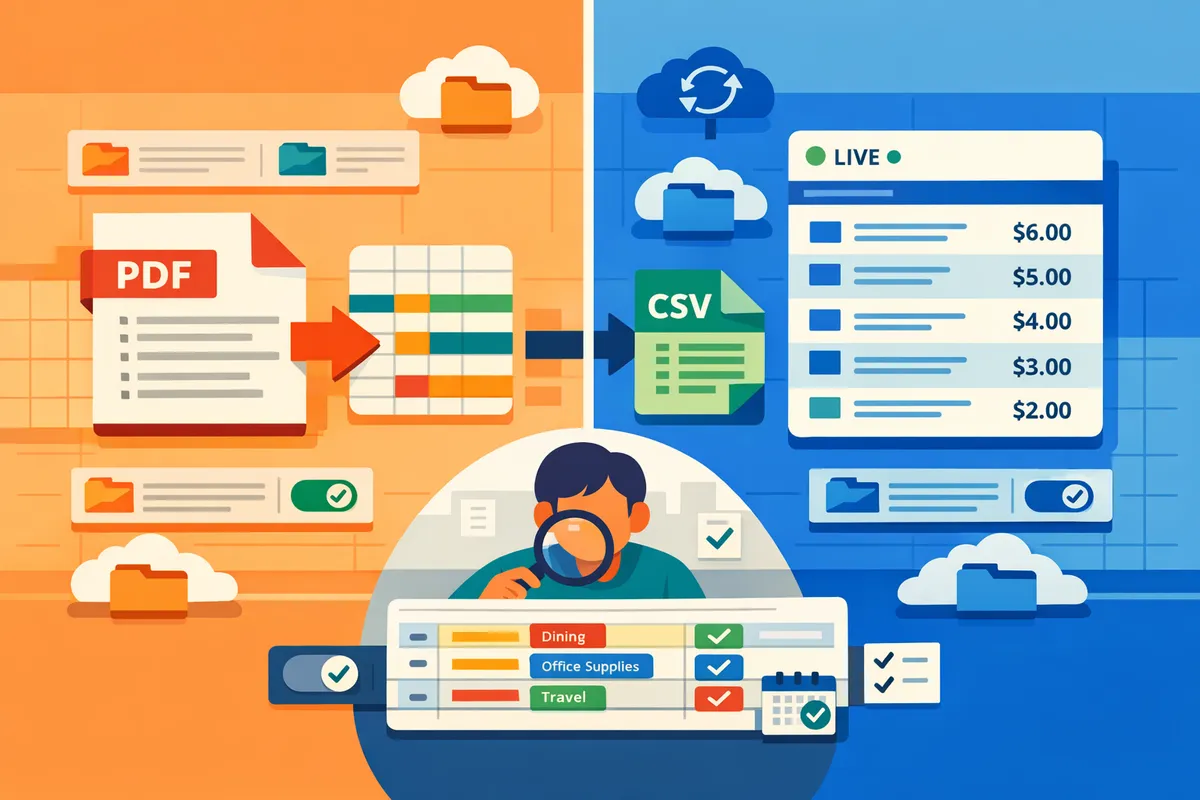
Related reading: see our practical setup guide for automatic bank statement import to Google Sheets with live sync and PDF backfill, and our comparison of five conversion methods with a free template to test mapping accuracy.
Which option should your small business choose for bank transactions to Google Sheets? A practical recommendation and decision path.
Choose an add-on if you need frequent live feeds from one or two banks and have low PDF volume; choose a CSV-first workflow if you want strict control over raw files and import only a few times per month; choose Rocket Statements when you must combine PDF and image conversion, cloud document management, and live transaction sync across multiple banks. This decision affects monthly hours, error rates, and audit risk. The rest of this section gives you a step-by-step decision flow, a prioritized implementation checklist, a sample total cost of ownership, and the specific reasons to pick Rocket Statements for mixed workflows.
Decision tree: add-on, CSV-first, or hybrid — which fits your team? 🌲
Match your choice to five concrete criteria: number of banks, import frequency, PDF conversion need, compliance requirements, and available headcount. Start by counting bank relationships. If you connect to 1–2 banks and need near-real-time activity in Sheets, an add-on such as BankToSheets or a dedicated Google Sheets add-on usually suffices. If you have intermittent imports (monthly or quarterly), need absolute control of raw files, and your team can spend hours cleaning CSVs, a CSV-first workflow (Tiller or manual CSV imports) fits better. If you manage 3+ banks, receive many PDF/image statements, require cloud document organization, and want automated backfill plus live sync, Rocket Statements is the recommended choice. For a full how-to that sets up multi-bank feeds with PDF backfill and deduplication, see our guide on automatically importing bank statements into Google Sheets from multiple banks.
Implementation checklist and common troubleshooting steps ✅
Follow this prioritized checklist to get a reliable import running and avoid common mistakes: 1) Pick the vendor and confirm the Google Sheets integration; 2) Test a single account import with one month of data; 3) Validate mapped fields (date, amount, description, running balance) against the source; 4) Enable scheduled sync and set a maintenance window; 5) Run a 30-day reconciliation trial with duplicate detection on. Test imports should flag mismatched dates and amounts so you can correct mappings before scaling.
Quick fixes for common problems:
- Missing transactions after a backfill. Re-run the PDF conversion for that statement and compare counts by date range.
- Duplicate rows from live sync plus PDF backfill. Use transaction IDs and amount/date pairs to deduplicate, or enable the add-on's built-in dedupe option.
- Partial imports or truncated descriptions. Increase the parser tolerance in the vendor settings or request a different export format from the bank.
💡 Tip: Run the 30-day reconciliation trial in a copy of the production sheet. That prevents accidental overwrites and makes it easy to measure time saved.
⚠️ Warning: Store raw PDFs under restricted access only. Uncontrolled file sharing increases audit and privacy risk.
Total cost of ownership and time-savings example 💰
A realistic small-team example shows where hours and costs concentrate. Example scenario: a bookkeeping team processes five bank relationships and 1,200 transactions per month. Manual CSV workflow typically takes 12 hours per month for exports, cleanup, and reconciliation. An add-on with live sync reduces that to about 4 hours monthly by automating imports and many mappings. Rocket Statements' combined PDF conversion and live sync cuts cleanup further, to about 2 hours monthly, because it removes the separate PDF-to-CSV step and centralizes document storage. These are example figures for planning, not guaranteed outcomes.
| Workflow | Monthly hours (example) | Typical recurring cost | Primary business risk |
|---|---|---|---|
| Manual CSV exports and cleanup | 12 hrs | Low subscription or none; high staff time cost | Human error, missed transactions, audit gaps |
| Add-on live sync (single-bank focused) | 4 hrs | Mid subscription; low staff time | Limited PDF backfill, gaps if bank unsupported |
| Rocket Statements all-in-one workflow | 2 hrs | Subscription including PDF conversion and sync | Vendor dependency; requires initial setup |
For more method comparisons and a downloadable planning template, see our comparison of methods to convert bank statements to Google Sheets (2026).
Why pick Rocket Statements for mixed PDF and live-feed workflows? 🔁
Rocket Statements combines PDF and image conversion, cloud document management, and live transaction sync so teams avoid juggling separate tools. According to Rocket Statements' Google Sheets Integration page, the product includes bank-level encryption and automated conversion to common formats, which reduces manual handling and preserves an auditable trail. That means your team can ingest legacy PDF statements, store them in organized folders, and enable nightly syncs to keep Sheets current without manual rekeying.
Practical outcomes you should expect when using Rocket Statements: faster month-end close because PDFs are converted automatically; fewer reconciliation exceptions because live feeds fill gaps; and simpler audits because original statements remain linked to processed rows. For step-by-step setup that removes duplicate rows and backfills historical statements, see our multi-bank import guide.
Frequently Asked Questions
This FAQ answers accuracy, security, multi-bank imports, reconciliation, and pricing for moving bank transactions to Google Sheets. These questions focus on OCR quality, live-sync reliability, mapping consistency, and total cost of ownership so you can compare Avery, BankToSheets, Tiller, BudgetSheet, and our website's Rocket Statements. Use the linked how-to guides for step-by-step setup and conversion checks.
How accurate is OCR for bank statements? 📄
OCR accuracy depends primarily on scan quality, statement layout, and whether the file is a native PDF or a photographed image. Native, text-based PDFs usually convert with few errors; low-resolution photos, multi-column layouts, or heavy logos reduce accuracy and increase manual review. Our website's Rocket Statements flags low-confidence fields for correction, supports manual correction workflows, and can batch reprocess multi-page PDFs to improve consistency. For a practical comparison of extraction methods and sample checks, read our Convert Bank Statements to Google Sheets comparison.
How reliable is automatic bank statement import to Google Sheets? 🔁
Automatic imports are generally reliable but availability varies by provider, bank, and credential method, and occasional failures happen due to expired logins or multi-factor authentication prompts. Typical providers offer daily or near-real-time sync; many use scheduled nightly pulls to avoid rate-limit problems. Our website's Rocket Statements provides live transaction sync plus PDF backfill and monitors for sync errors; community posts describe intermittent bulk-download gaps and how support resolves them. When evaluating providers, verify retry behavior, alerting for failed syncs, and how historical backfills are triggered.
How do I import bank statements to Google Sheets from multiple banks? 🔗
You can consolidate multiple banks into Google Sheets using a multi-bank add-on, a PDF-to-CSV converter plus manual merge, or a hybrid platform that supports both live feeds and PDF backfill. 1) Multi-bank add-on: best if most banks support live feeds; expect per-bank connection limits and simpler ongoing maintenance. 2) PDF-to-CSV then merge: gives strict control over raw data but costs manual hours to normalize fields. 3) Hybrid platform (recommended for mixed sources): combines live sync, PDF conversion, and field normalization so you get consistent columns across banks. Our step-by-step guide on automatically importing statements from multiple banks shows a Rocket Statements configuration that removes duplicates and backfills historical PDFs.
Is it safe to connect bank accounts to Google Sheets via a third-party tool? 🔒
Connecting bank accounts can be safe if the vendor enforces encryption in transit and at rest, maintains compliance certifications, and limits access with least-privilege controls. Check for published security practices such as bank-level encryption, PCI DSS or SOC attestations, audit logs, and clear data residency policies before you connect production accounts. Our website's Rocket Statements documents bank-level encryption, end-to-end protection, and security audits on the Google Sheets integration page.
⚠️ Warning: Verify audit logs, admin access controls, and data residency before connecting production accounts.
How much does it typically cost to maintain automated imports to Google Sheets? 💸
Costs vary by number of accounts, history depth, export formats, and required support, so estimate both subscription fees and the labor you no longer pay for manual imports. Typical cost drivers include:
- Number of connected accounts and per-account fees.
- Volume of historical PDF or image backfill and per-document processing.
- Export formats needed (CSV, Excel, JSON, QuickBooks-compatible) and any transformation rules.
- Support tier and SLAs for uptime and troubleshooting.
Estimate ROI by multiplying hours saved per month by your bookkeeper's hourly rate and comparing that to subscription and backfill fees. Our website's Rocket Statements offers flexible exports and backfill options; review plan limits for historical imports when you calculate total cost of ownership.
How do I handle duplicate or missing transactions after import? 🔍
Fix duplicates or gaps by validating field mappings, running deduplication rules, and reprocessing source documents when discrepancies persist. Follow these steps:
- Sample-check: compare original PDF lines to imported rows (date, amount, transaction description).
- Deduplicate: remove rows using a statement ID or a merchant+date+amount key.
- Reprocess: resend problematic PDFs or images through your converter and re-export the corrected file.
- Automate checks: enable alerts for import anomalies and schedule periodic reconciliation runs.
Our website's Rocket Statements includes built-in deduplication and a combine-export feature to normalize transactions from up to 12 documents, which shortens reconciliation when you consolidate multiple banks. See the multi-bank import guide for a reconciliation workflow and deduplication examples.
Choose the tool that matches your priorities for PDF conversion, live sync, data mapping, and total cost of ownership.
The core takeaway is simple: pick the tool that removes manual cleanup while matching your security and budget requirements. For reliable bank transactions to Google Sheets, prioritize a solution that converts PDFs and images, deduplicates backfilled rows, and keeps live feeds synced. See our guide on automatically importing bank statements from multiple banks for a step-by-step setup and common failure modes.
Rocket Statements is a platform that helps users save time and money by automating the process of converting their statements into spreadsheets as well as manage their documents in the cloud. It converts PDF and image statements into spreadsheets, manages documents with folders and subfolders, syncs live transactions, and exports CSV, Excel, JSON, PDF, and QuickBooks-compatible files. Schedule a consultation with Rocket Statements to map how the integration will fit your workflows and reduce month-end work; start by visiting the Google Sheets integration page to arrange a consultation. For a closer comparison of conversion methods, read our convert bank statements to Google Sheets guide.