
Bank Statements to Sheets PDF: Free Google Sheets Method

Bank Statements to Sheets PDF: Free Google Sheets Method
Manually copying three months of PDF bank statements into spreadsheets can take a small business owner several hours. This step-by-step how-to shows how to convert bank statements to sheets pdf for free using Google Sheets, plus a practical alternative with Rocket Statements. Bank statements to sheets pdf is a process that converts PDF or image statements into structured Google Sheets rows for reconciliation and reporting. On our website, this guide covers a zero-cost manual import and mapping workflow and explains when switching to Rocket Statements' AI-powered bank statement converter makes business sense. Rocket Statements also offers a secure Google Sheets integration and cloud document folders for ongoing imports. Which approach saves your firm the most billable hours?
Prepare PDFs for Sheet import. How do I prepare PDF bank statements for Google Sheets?
Prepare bank statement PDFs by verifying they contain selectable text, removing any passwords, splitting combined statements into single-month files, and choosing whether to use Google Drive OCR or an automated converter before importing to Google Sheets. These steps reduce cleanup time, prevent misdated imports, and protect sensitive data during processing. If you prefer an automated path, Rocket Statements handles batch detection, conversion, and direct sync to Sheets.
Confirm the PDF has selectable text. 🔎
Open the PDF and try selecting or searching for a word to confirm whether it contains selectable text. If you can highlight lines and use the search box to find "balance" or a merchant name, the file contains machine-readable text and you can copy rows or export to text without OCR. If the PDF is image-only, Google Drive OCR or a converter must run OCR and the result will need validation for line breaks and column alignment. Steps to check:
- Open the PDF in Chrome or Adobe Reader. Try to drag-select a transaction line.
- Press Ctrl-F (or Cmd-F) and search for a common word like "Deposit."
- Right-click the file and view Properties or Document Info to see if it lists text layers.
Text-based PDFs usually import with far less cleanup than scanned images. For a side-by-side comparison of methods and expected cleanup time, see our article that compares five conversion methods and includes a free template.
Remove passwords and split combined PDFs. 🗂
Remove passwords using the original bank download or a bank portal export, and split multi-month statements into single-month PDFs before importing. Banks often offer per-period downloads; using those avoids exposing encrypted files to third-party unlockers. If you must split locally, use Adobe Acrobat or a trusted local PDF utility to extract pages by statement date into separate files.
Step-by-step splitting and decryption:
- Re-download the statement directly from the bank portal without applying a password.
- If the only copy is password-protected and you know the password, open in Acrobat Reader and save a decrypted copy.
- Split by page ranges so each file matches one statement period; label files YYYY-MM for traceability.
⚠️ Warning: Avoid uploading password-protected or highly sensitive statements to free web unlock services. That creates unnecessary privacy and compliance risk. Rocket Statements stores files in organized folders and offers secure batch processing if you prefer not to manage local decryption and splitting.
Choose a free OCR path or use Rocket Statements. 💡
Use Google Drive OCR for occasional, single-file conversions; choose Rocket Statements for recurring batch imports with bank-format detection and scheduled Sheets sync. Google Drive OCR is zero cost and works by uploading a PDF, opening it with Google Docs, and copying the extracted text or table into Sheets. Expect basic extraction but plan for manual cleanup of dates, amounts, and merged cells.
Compare the two paths:
| Feature | Google Drive OCR | Rocket Statements |
|---|---|---|
| Cost | Free | Subscription with trial available |
| Best for | One-off conversions, ad-hoc fixes | Recurring monthly imports, multi-account feeds |
| Automation | Manual upload and copy | Batch conversion, scheduled sync to Sheets |
| Accuracy cleanup | Moderate. Manual corrections required | Bank-format detection reduces mapping errors |
Quick Google Drive OCR steps:
- Upload PDF to Google Drive.
- Right-click, Open with > Google Docs.
- Copy table or text into Sheets and clean date/amount columns.
Expected outcome for Drive OCR: a usable draft that usually needs 10–30 minutes of cleanup for a 200-row statement. Expected outcome for Rocket Statements: automated, repeatable imports into Sheets with less manual validation. For setup and security details about automated imports, see our Google Sheets integration and the Bank Statement Converter page.
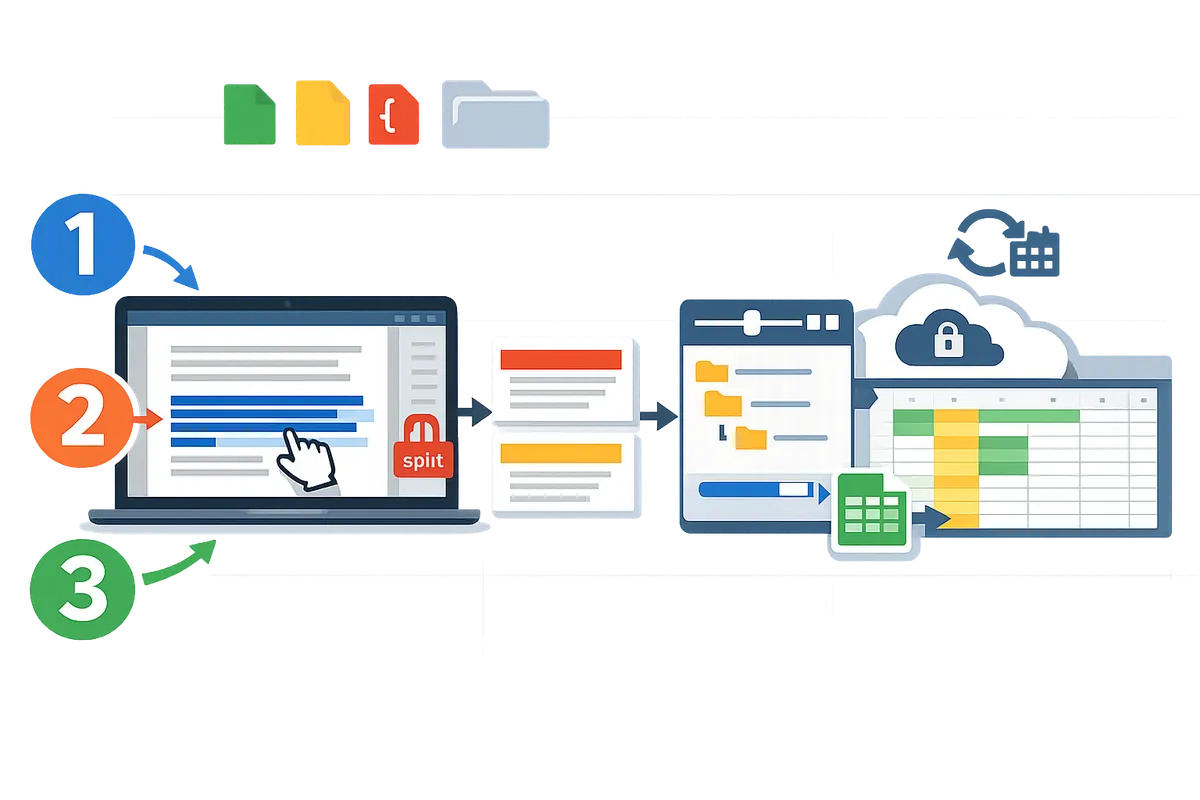
Convert PDFs into a clean Sheet using Google Drive OCR or a free pipeline. How do I convert PDF bank statements to Google Sheets for free?
You can convert PDF bank statements to Google Sheets for free by running Google Drive OCR, cleaning the extracted text in Google Docs, and pasting parsed columns into Sheets. Follow the numbered steps below to make the process repeatable each month and reduce manual rekeying errors.
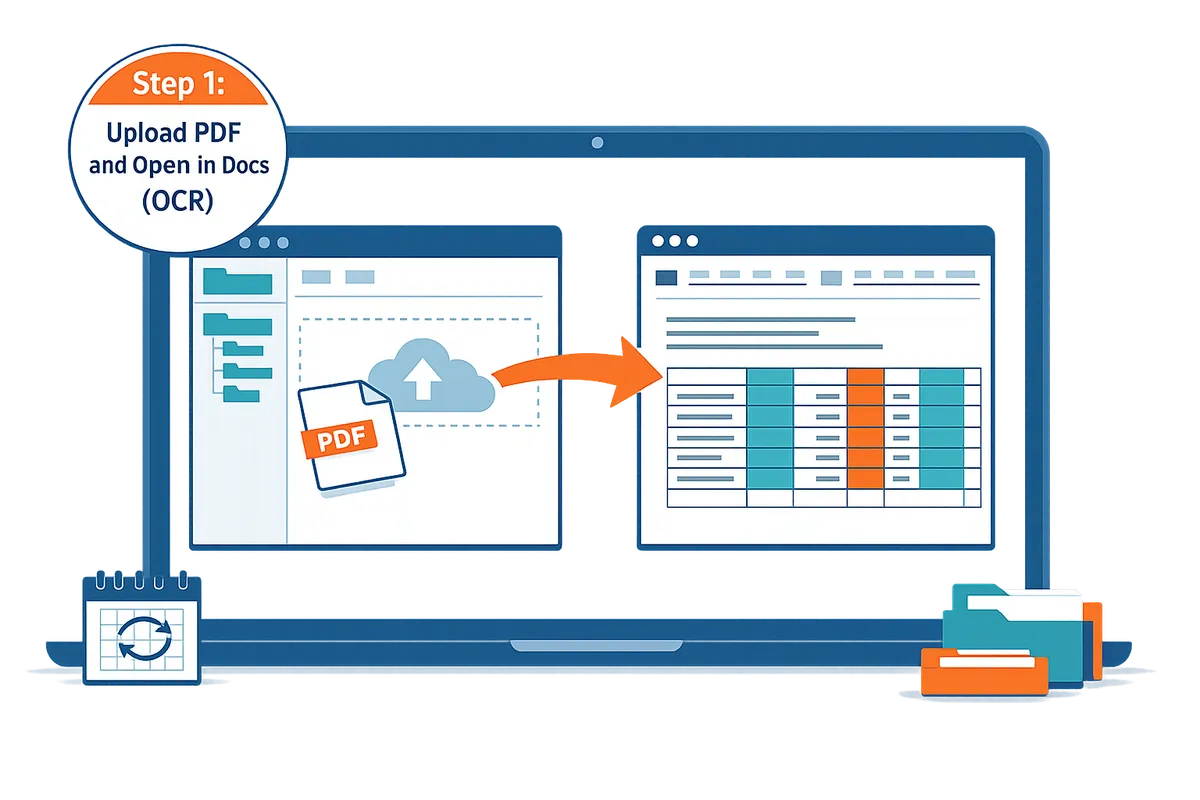
Step 1: Use Google Drive OCR to extract text. 📝 How do I run OCR in Drive and create a Google Doc from the PDF?
Open Google Drive, upload the PDF, right-click the file and choose Open with > Google Docs so Drive runs OCR and returns editable text in a new Doc. Expect the Doc to place plain text where Drive could read characters and an image where it could not.
- Upload the statement PDF to the folder you use for reconciliation. Expected outcome: file appears in Drive and inherits the folder's sharing and retention settings.
- Right-click the PDF and select Open with > Google Docs. Expected outcome: Google Docs creates a new document and runs OCR automatically.
- Scan the new Doc for OCR indicators: garbled dates, merged columns, missing amounts, or images where text should be. If the PDF is password protected or very low resolution, OCR will return images instead of text.
Rocket Statements can replace this manual step by extracting text with bank-layout detection and returning structured rows. See our Bank Statement Converter for batch processing options and the trade-offs of DIY OCR.
Step 2: Clean and normalize the extracted text. ✂️ How do I format transaction lines into consistent columns?
Remove headers and footers, join broken transaction lines, standardize dates, and mark each line as debit or credit before importing into Sheets. Those four checks remove roughly 80% of common OCR errors and cut downstream reconciliation time.
- Delete the bank header, page numbers, and any legal text at the top or bottom. Expected outcome: only transaction rows remain.
- Rejoin lines where descriptions wrapped mid-transaction. Tip: look for a date pattern at the start of the next line to confirm a broken row.
- Standardize date formats to YYYY-MM-DD or MM/DD/YYYY consistently across the document. Expected outcome: DATEVALUE in Sheets will parse every date.
- Convert parentheses or CR/DR markers into a clear Debit/Credit or negative-amount convention so amounts import reliably.
⚠️ Warning: Do not share Docs that contain full account numbers or unredacted personal data. If your process requires team review, redact or mask sensitive digits first.
If you prefer an automated, audit-friendly route that preserves folder structure and access controls, our website's Rocket Statements handles normalization and stores results in cloud folders for team review. For a side-by-side look at manual OCR versus automated converters, read Convert Bank Statements to Google Sheets (2026): 5 Methods Compared + Free Template.
Step 3: Import cleaned text into Google Sheets and parse columns. 🔢 How do I convert pasted text into Date, Description, and Amount columns?
Paste the cleaned Doc into a single column in Sheets, then use Split text to columns or the SPLIT function plus DATEVALUE and VALUE to create Date, Description, and Amount columns. This produces a consistent ledger layout ready for reconciliation.
- Copy the cleaned text and paste into A1 of a new Sheet. Expected outcome: each transaction occupies one row.
- Use Data > Split text to columns or a SPLIT formula to separate fields by a delimiter you created (for example, a pipe |). Expected outcome: Date, Description, Amount appear in separate columns.
- Convert the date column with DATEVALUE and amounts with VALUE, then apply a numeric format. Expected outcome: Sheets recognizes dates and numbers for sorting and formulas.
- Add a Running Balance or Account column if you manage multiple accounts, and run a quick dedupe by transaction ID, date, and amount.
For a ready-made multi-account layout and dedupe checklist, use our Multi-Account Template and Running Balances guide. If you want automation that pushes structured rows directly to Sheets instead of pasting, see our Google Sheets Integration.
Step 4: Automate future conversions with Rocket Statements. 🚀 How do I move from manual steps to scheduled imports?
Switching to Rocket Statements lets you schedule recurring PDF conversions, detect bank-specific layouts automatically, and push structured results straight into Google Sheets. That reduction in manual steps saves bookkeeping time and lowers the risk of mapping errors.
- Sign up for Rocket Statements and connect the folder where you store monthly PDFs. Expected outcome: Rocket Statements can batch-process existing and new PDFs placed into that folder.
- Map the first statement's fields once and save the mapping as a template for that bank or account. Expected outcome: future statements from the same bank import without re-mapping.
- Enable scheduled imports to run monthly and allow Rocket Statements to push rows directly to your chosen Google Sheet. Expected outcome: Sheets receives parsed Date, Description, Amount, and Account columns automatically.
- Turn on automatic deduplication and cloud folder organization to keep your source PDFs and export CSVs together for audit trails.
💡 Tip: Start with a single test month and compare Rocket Statements' output to your manual Sheet to confirm column mappings before enabling full automation.
If you prefer to explore alternatives and trade-offs before switching, our step-by-step guide on How to Convert PDF Bank Statement Into Google Sheets outlines batch processing, bank-format detection, and scheduled imports so you can see where Rocket Statements removes repetitive work.
Prevent errors and keep statements secure. What common mistakes and fixes should I know for bank statement to Sheets workflows?
Common mistakes include OCR misreads on amounts, inconsistent field mapping, and weak privacy controls; fixes are targeted validation checks, a reusable mapping template, and strict retention policies. These steps cut reconciliation time and reduce costly manual edits when you convert bank statements to sheets pdf. Use the checks below each month to catch issues before they become reconciliation problems.
🔧 How do I find and correct amount and currency mistakes?
Reconcile totals, flag outliers, and normalize decimal and currency markers to find OCR amount and currency mistakes. 1) Reconcile totals. Compare the sum of the Amount column in Sheets to the PDF statement closing balance and the statement subtotals. If the sums differ, identify which rows push totals off by sorting largest amounts first. 2) Flag outliers. Use conditional formatting to highlight amounts above a threshold or unexpected signs (positive versus negative). 3) Standardize separators. Convert commas and periods to a single decimal format (for example, 1,234.56) before numeric parsing. 4) Check currency symbols. Create a Currency column and map common symbols (S$, £, €) to a currency code so exchange-related errors stand out.
Expected outcome: mismatches go from a blind spreadsheet problem to a short list of candidate rows to fix. Common recovery: if OCR misreads a decimal, edit the raw extracted text and re-run the calculation for the affected rows. Rocket Statements reduces these errors with automatic bank-format detection and pre-parsed numeric fields, which shortens this validation step (see the Bank Statement Converter for automated extraction options).
🗺️ How do I map statement lines to Date, Description, Amount, and Category?
Field mapping is a template that assigns each statement column to ledger fields so imports land in the right columns every time. Start by creating a header row with Date, Description, Amount, Debit/Credit (optional), Balance, and Category. Steps: 1) Sample three different PDFs from your common banks and copy one page of extracted rows into a staging sheet. 2) Identify multi-line descriptions and collapse them into one cell using a join rule (for example, the pattern matches a date). 3) Normalize dates to YYYY-MM-DD to avoid locale parsing errors. 4) Create a Category lookup sheet that maps common description keywords (for example, "PAYROLL", "STRIPE", "ATM") to a category code; use a VLOOKUP or INDEX/MATCH style approach in Sheets.
Expected outcome: monthly imports require only a quick verify step rather than full rekeying. For a repeatable workflow, save this mapping as a template and reuse it each month. See our multi-account template and dedupe checklist on the Bank Statements to Google Sheets guide for examples and downloadable templates.
🔒 What security steps protect sensitive bank data during conversion?
Use least-privilege sharing, two-factor authentication, short retention windows, and encrypted transfers to protect bank PDFs during conversion. Practical steps: 1) Store PDFs in a locked folder in Google Drive and grant edit access only to the user who runs the import. 2) Enable two-factor authentication on accounts that access Sheets and Drive. 3) Keep temporary files for a defined retention window (for example, 24 to 72 hours) and then permanently delete local and cloud copies that are not needed for audits. 4) Prefer services with end-to-end encryption and documented compliance controls when you need a cloud processor.
⚠️ Warning: Revoke shared links and delete temporary copies immediately after you finish imports to reduce exposure from stale access.
Rocket Statements provides folder-based organization and access controls and documents bank-level encryption and audits on our Google Sheets Integration page, which helps teams meet internal retention and access policies.
📊 How do free methods compare to Rocket Statements for recurring processing?
Free DIY methods usually cost less in licensing but take more time, carry higher error risk, and lack automated audit logs compared with Rocket Statements. The table below compares typical outcomes for a small accounting team processing five monthly statements.
| Metric | Free DIY (Google Drive OCR + Sheets) | Rocket Statements (automated) |
|---|---|---|
| Time per month | 2–8 hours (depends on volume and cleanup) | 15–45 minutes (initial setup plus quick review) |
| Error rate risk | Moderate to high (manual mapping, OCR variability) | Lower (automatic format detection and parsing) |
| Audit trail | Manual (file timestamps, manual notes) | Automated import logs and versioning |
| Privacy controls | Manual (depends on user discipline) | Built-in access controls and documented encryption |
| Recurring cost | None to low (time is the main cost) | Subscription (predictable monthly cost) |
If you want a side-by-side method comparison and templates to try the free route first, our post Compare methods and download the free template at Convert Bank Statements to Google Sheets (2026): 5 Methods Compared + Free Template. For schedules and live sync that avoid duplicates on recurring imports, read Automatically Import Bank Statements into Google Sheets from Multiple Banks.
Answers to common conversion questions. Frequently Asked Questions
This FAQ gives concise, extractable answers to common questions about converting bank statement PDFs to Google Sheets. Our answers compare a free Google Drive pipeline with the time-saving automation available from Rocket Statements.
How accurate is OCR for bank statements? 🤖
OCR accuracy for bank statements depends primarily on scan resolution, whether the PDF contains selectable text, and how regular the statement tables are. High-resolution scans (300 DPI or higher) and native PDFs with selectable text typically yield far fewer numeric errors than photographed or low-DPI scans. Test a sample of 50 lines: count misread amounts and misaligned columns to estimate cleanup effort; if more than 2–3% of numeric lines need fixes, expect manual cleanup to add significant time. Rocket Statements detects common bank layouts and applies extraction rules to reduce those layout-related errors compared with generic OCR.
Can I use Google Drive OCR to convert bank statement PDFs to Sheets for free? 🆓
Yes. Google Drive OCR can extract text from PDFs and that text can be pasted into Google Sheets without a paid tool. Practical steps: upload PDFs to Drive, open each with Google Docs (Drive will run OCR on images), copy the table text into Google Sheets, then run column splits and numeric-cleaning formulas. Monthly manual tasks include splitting combined PDFs, fixing misaligned columns, validating amounts against totals, and mapping bank-specific line items to your ledger fields. For teams with recurring imports or high volumes, Rocket Statements automates those repetitive steps and schedules imports to cut bookkeeping hours; see our How to Convert PDF Bank Statement Into Google Sheets guide for a staged workflow.
Will my bank statement data remain private when using free tools? 🔒
Free tools can keep data private, but they require strict handling because Drive and public converters expose files if permissions are loose. Best practices: store statements in a private Drive folder with restricted access, enable two-factor authentication, delete or archive raw PDFs after extraction, and avoid sharing converted Sheets with broad audiences. Services that provide end-to-end encryption and role-based access controls remove much of this operational risk; our Google Sheets Integration page outlines Rocket Statements' encryption and access controls and how they reduce exposure during automated imports.
⚠️ Warning: Do not place live bank statements in folders shared with external contractors or public links. That is the most common cause of accidental data exposure.
How do I handle multi-page or combined bank statements? 📄
Split or clearly label multi-page statements so each import preserves consistent line formats for a single accounting period. Practical steps: split combined PDFs into single-month files named YYYY-MM, confirm page order before OCR, and run batch OCR for files from the same bank so column positions stay consistent. If your statements vary by month, run a quick mapping preview on the first two pages; adjust column splits before processing the batch. Rocket Statements includes automatic bank-format detection and batch processing to keep page order and layout consistent, which reduces manual splitting for recurring imports; see the multi-account template in our bank statements to Google Sheets: multi-account template guide for examples.
Use automation to cut manual rekeying after converting PDF statements.
If you followed the free Google Drive OCR method, you now have a repeatable way to pull rows from a few PDFs into Sheets, but that approach adds hours when volumes grow. The bank statements to sheets pdf workflow works for one-offs and learning the mapping. For ongoing monthly imports or multiple accounts, you should reduce manual cleanup to save bookkeeping hours and avoid reconciliation errors. See our comparison of methods in Convert Bank Statements to Google Sheets (2026): 5 Methods Compared + Free Template for when to switch approaches.
Rocket Statements is a platform that helps users save time and money by automating the process of converting their statements into spreadsheets as well as manage their documents in the cloud.
- Convert their PDF and image statements into spreadsheets
- Manage their documents in the cloud with folders and subfolders
- Sync live transactions data from bank accounts
- Transform their statements into CSV, Excel, JSON, and PDF files
- Transform their statements into Quickbooks compatible files
Try Rocket Statements now with the Bank Statement Converter getting-started guide to move from manual OCR to scheduled imports. Subscribe to our newsletter for implementation tips and product updates.