
Bank Statements to Google Sheets: Multi-Account Template, Deduped Imports, and Running Balances (2026 Guide)

Bank Statements to Google Sheets: Multi-Account Template, Deduped Imports, and Running Balances (2026 Guide)
A single miscategorized transaction can cost a small accounting firm four hours of reconciliation. bank statements to sheets is a workflow that converts PDF and image bank statements into structured Google Sheets with multi-account templates, automated deduplication, and running balances. This beginners-guide starts from zero and walks bookkeepers and accountants through a reliable setup that cuts manual hours and reconciliation errors.
Rocket Statements is a platform that automates PDF and image statement conversion, stores documents in cloud folders, syncs live transactions, and exports CSV, Excel, JSON, PDF, and QuickBooks-compatible files. Find setup templates on our Rocket Statements homepage. The step-by-step multi-account template and dedupe checklist show where Bank Data Import workflows silently lose hours.
What is a bank statement to Google Sheets workflow and which components matter?
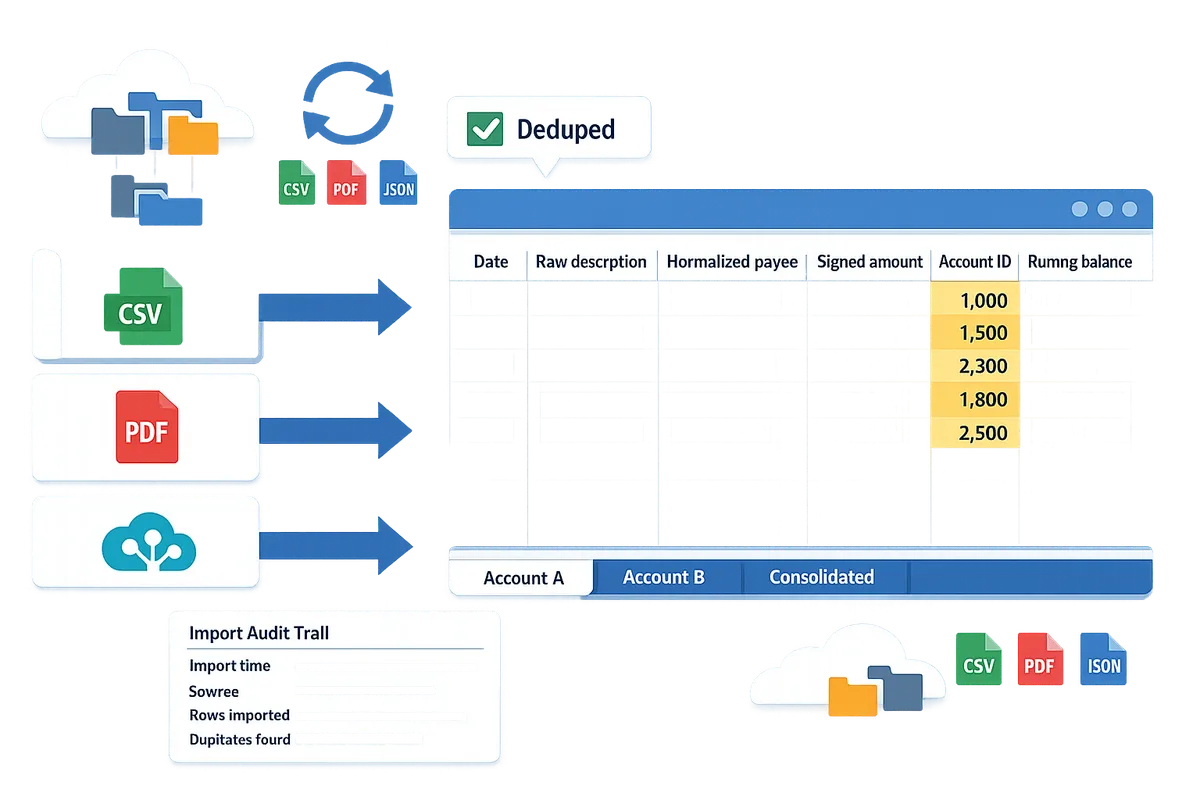
A bank statement to Google Sheets workflow is a repeatable process that converts raw bank statements into standardized, auditable spreadsheet rows and keeps those rows current. Our website recommends planning five core components: input formats (CSV, PDF, API), field mapping, duplicate protection, multi-account tabs with running-balance logic, and an import audit trail. Each component reduces time spent fixing imports and prevents reconciliation drift that creates incorrect P&L timing.
What fields should each imported transaction include? 🧾
Each imported transaction should include date, raw description, normalized payee, signed amount, account identifier, running balance, and a unique transaction ID. Add separate columns for reconciliation status, category, and source-file reference so auditors and rule-based matching can find the original document quickly. Our Rocket Statements converter can map extracted fields directly into this template to avoid manual rekeying.
Field-mapping checklist (map common bank export columns to template columns):
- Bank CSV/OFX "Transaction Date" -> Template: Date
- Bank CSV "Description" or PDF field -> Template: Raw Description
- Bank CSV "Payee" or parsed merchant -> Template: Normalized Payee
- Bank CSV "Credit" / "Debit" or signed "Amount" -> Template: Amount (positive/negative)
- Account number or mask -> Template: Account ID (used for multi-account tabs)
- Running balance column -> Template: Running Balance (calculated or imported)
- Statement file name / page -> Template: Source File Reference
See our free template and step-by-step CSV import guide for a ready mapping you can copy into your Sheets: How to Input Bank Statements into Google Sheets (Step‑by‑Step CSV Import with Free De‑Dupe and Running‑Balance Logic).
How do deduped imports work and what is duplicate protection? 🔍
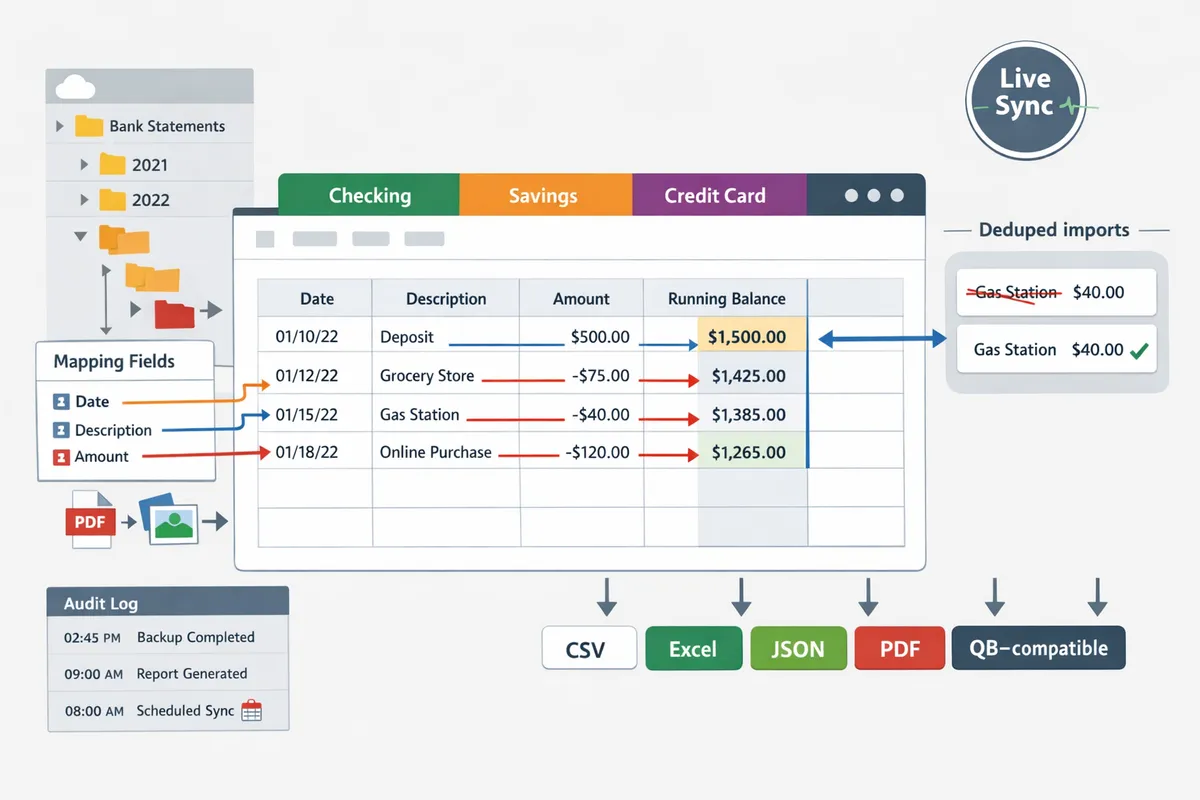
Deduped imports detect and skip duplicate rows by comparing unique transaction IDs, normalized descriptions, dates, and amounts against existing sheet rows. Matching rules typically run in tiers: first check for exact unique ID matches, then fuzzy-match description plus amount within a configurable date window, and finally flag ambiguous rows for manual review. Set a conflict policy per import: skip duplicates, update existing rows, or import and tag for review.
Failing to dedupe results in inflated balances and wasted reconciliation hours; accountants report extra month-end work when duplicate rows push cash totals out of sync. Our Rocket Statements platform applies duplicate protection during live syncs and PDF backfills so you avoid those errors; see the multi-bank live-sync setup for recommended matching rules and automated backfill: Automatically Import Bank Statements into Google Sheets from Multiple Banks (Live Sync + PDF Backfill, No Duplicates).
⚠️ Warning: Importing the same PDF or a live feed twice without dedupe will overstate cash and produce reconciliation drift that takes hours to correct.
What input formats should I expect and how does PDF extraction fit the workflow? 📂
Expect three input formats: exported bank CSV/OFX for direct deposits and statement lines, PDF or image statements when banks only provide downloadable statements, and live API feeds when you need up-to-the-minute transactions. Choose CSV/OFX for predictable exports and simple month-by-month imports. Choose live API feeds when you need continuous sync and lower manual maintenance. Choose PDF extraction when a bank supplies only statement PDFs or you need historical backfill from mailed statements.
PDF extraction requires field detection and a review step because descriptions and layouts vary by bank. Our Rocket Statements Bank Statement Converter reads PDFs in batches, detects the bank format automatically, extracts rows to the same template columns used for CSV and API imports, and stores original PDFs in cloud folders so your Sheet always links back to source files. For a side-by-side comparison of methods and when to pick each one based on volume and accuracy needs, review our comparison post and free template: Convert Bank Statements to Google Sheets (2026): 5 Methods Compared + Free Template.
If you manage multiple banks and need live sync plus PDF backfill without duplicates, our Google Sheets integration details the security and automation controls to keep data current and auditable: Google Sheets Integration.
How do I set up a multi-account 'bank statements to sheets template' and import data?
Choose the input method, create a fixed multi-account template, test with a small batch, validate running balances, then schedule recurring imports. Our website recommends this order because it minimizes rework and prevents duplicated rows across accounts. The examples below include ready-to-use field mappings and links to a downloadable template plan for checking, savings, and credit card accounts.
How to choose the right input method for your volume and accuracy needs 🔀
Choose CSV exports for low-volume manual work, PDF OCR for moderate-volume batch backfill, and live API sync for high-volume or near-real-time needs. Our website matches methods to three decision factors: monthly statement count, staff cleanup time, and compliance sensitivity.
Decision tree (quick):
- 0–5 statements per month and staff can rekey if needed: choose CSV export.
- 6–100 statements per month or you need historical backfill: choose PDF OCR with batch processing.
- 100+ statements per month or you need near-real-time data: choose live API sync.
Comparison table of common methods:
| Method | Best for | Expected accuracy | Setup time | Ongoing maintenance | Auditability |
|---|---|---|---|---|---|
| CSV export | Small teams, manual uploads | High if bank CSV is consistent | Low | Low | Good (file records) |
| PDF OCR | Batch backfill, multiple banks | Moderate to high after mapping | Medium | Medium (map updates) | High (stored PDFs + logs) |
| Live API sync | High-volume, up-to-date reporting | High for transactions, depends on bank | Higher | Low (once configured) | High (sync logs + tokens) |
For a side-by-side tool comparison including free templates, see our guide on Convert Bank Statements to Google Sheets (2026): 5 Methods Compared + Free Template. Rocket Statements supports all three input modes and can simplify the choice with automatic format detection.
Step-by-step: Import a batch of PDF statements into a template 📥
To import PDFs into a multi-account Sheets template, upload the statement files, run the extractor, map detected fields to the template, review a sample, then commit the batch and record the import. Follow these numbered steps to avoid common errors.
- Pre-import checks. Confirm each PDF has the account number or nickname, statement period, and opening/closing balances. Create fixed tabs in your Sheet for each account type (Checking, Savings, Credit Card).
- Upload and run extraction. Upload 5–20 PDFs to Rocket Statements for the first test batch and run the extractor. Let automatic bank-format detection tag likely fields.
- Field mapping examples. Map these extracted fields to your template columns: Date → Date, Description → Payee/Notes, Amount → Debit/Credit signed, Balance → RunningBalance. Use a consistent date format (e.g., YYYY-MM-DD) across accounts.
- Review a sample. Manually check 10–20 rows across accounts. Match totals on the statement to the Sheet summary and do a running-balance spot check for one account.
- Commit and log. Accept the batch into the Sheet and record the import in your audit log with file names, upload time, and operator initials.
- Post-import validation. Reconcile opening and closing balances and run a duplicate check keyed on date+amount+description snippet.
💡 Tip: Always run a 20-row sample and verify the running balance before committing large batches.
For a CSV-focused workflow with de-duplication and running-balance logic, see our step-by-step CSV import guide. Our website's Rocket Statements can backfill PDFs into Google Sheets while retaining original PDFs in organized cloud folders for audit trails.
How Rocket Statements helps reduce setup time, errors, and compliance risk 🚀
Rocket Statements automates PDF extraction, stores statements in organized cloud folders, and pushes structured transactions into your Google Sheets template to reduce manual work and audit risk. The platform detects bank formats automatically, applies saved field mappings, and runs scheduled syncs so teams do not re-map every bank each month.
How this matters in practice:
- Reduced setup time. Saved mapping templates plug into new accounts so you do not re-map similar statements from the same bank. Use our downloadable template plan to accelerate initial setup.
- Fewer errors. Automatic extraction plus a staged review prevents manual rekeying mistakes that cost hours of reconciliation.
- Compliance and auditability. Rocket Statements stores original PDFs and logs each import, providing a clear file trail for audits and version history for your Sheets.
- Flexible exports. If you prefer CSV, Excel, or QuickBooks files for bookkeeping, Rocket Statements exports structured data into those formats and connects directly to the Google Sheets integration to push rows into your template.
Read more about live sync and deduplication workflows in Automatically Import Bank Statements into Google Sheets from Multiple Banks (Live Sync + PDF Backfill, No Duplicates) and check our Google Sheets integration page for security and sync details.
How do I maintain, scale, and audit a bank statements to Sheets workflow for bookkeeping and dashboards?
Maintain, scale, and audit the workflow by combining scheduled imports, deterministic running balances, robust dedupe rules, and a retained import-level audit trail. Our website recommends building governance (permissions and version history) around the Sheet and using Rocket Statements to automate PDF conversion, cloud document management, and live sync into Google Sheets. This approach reduces manual reconciliation time and makes every row traceable to a source file.
Running balances and protection against out-of-order transactions 🔁
Use a deterministic running balance that sums transactions ordered by an import timestamp or sequence number so out-of-order rows cannot break totals. Running balance is a cumulative calculation that adds each transaction amount to the previousbalance in a fixed order. For Sheets, add a helper column with Rocket Statements' import timestamp or sequence id, keep imports unsorted in place, and compute running totals by referencing rows ordered by that sequence. This prevents sorting the Sheet from changing the computed balance.
Checks that spot ordering problems and mismatched opening balances include:
- Flag when the first running balance in a month differs from the bank's opening balance for that period.
- Flag negative jumps where a later running balance is less than an earlier one unless a legitimate large withdrawal explains it.
- Compare the imported closing balance against the bank-stated closing balance on every import.
Our website recommends using Rocket Statements' live sync where possible because live sync appends transactions with a reliable timestamp, reducing the frequency of out-of-order imports compared with manual batch CSV uploads. For CSV backfills, follow the step-by-step de-dupe and running-balance logic in our guide on how to input statements into Sheets for a reproducible process.
💡 Tip: Include columns for source file name, uploader, and import timestamp on every row so auditors can jump from a Sheet row to the original PDF in Rocket Statements.
Governance, version history, and import audit trails 🛡️
Implement role-based folder permissions, an import log that records the source file and user, and retained version history so auditors can trace every change. Import audit trail is a record that links each spreadsheet row back to the original statement file, the user who triggered the import, and a timestamp. Our website recommends a folder structure with separate folders for raw PDFs, processed exports, and the live Sheet, all guarded by role-based access (view, comment, edit).
Practical steps to enforce governance:
- Use Google Drive permissions and create a locked reconciliation tab that only finance leads can edit. Link this to the live Sheet created by Rocket Statements' Google Sheets integration. See our Google Sheets integration for recommended security controls.
- Record every import in an "Import Log" tab that includes source filename, uploader, import id, timestamp, and dedupe status. Rocket Statements stores cloud document timestamps and file metadata which you can reference in the log.
- Retain a read-only month-end snapshot (exported PDF) for audit. Combine Google Sheets version history with Rocket Statements' document timestamps to show who changed what and when.
⚠️ Warning: Avoid putting full account numbers or other unnecessary personal identifiers into shared Sheets. Mask or truncate sensitive fields before wide distribution.
Calculating ROI and total cost of ownership (TCO) 📊
Calculate ROI by comparing staff hours saved on manual entry and reconciliation against subscription, setup, and ongoing error-correction costs. Total cost of ownership is the sum of subscription fees, implementation time, maintenance, and the hidden cost of manual errors over a defined period.
Use this step-by-step mini‑calculator to estimate payback:
- Inputs to collect. Monthly number of statements, average transactions per statement, time per transaction for manual entry or review (minutes), hourly labor rate, expected error-reduction percentage, one-time setup hours, and monthly product cost.
- Monthly manual cost. Multiply transactions by time per transaction, convert to hours, then multiply by hourly rate.
- Monthly net savings. Subtract the monthly product cost from the monthly manual cost adjusted by expected error-reduction savings.
- Payback period. Divide one-time setup cost by monthly net savings to get months to payback.
For example, a small practice processing 500 transactions monthly at 1 minute each (8.3 hours) at $30/hour incurs about $250 in monthly manual labor. If Rocket Statements subscription and cloud management cost $100/month and setup takes 10 hours of internal time, the practice can estimate months to payback by dividing the one-time setup expense by the reduced monthly labor cost. Use our comparison post and template to test several scenarios quickly: see Convert Bank Statements to Google Sheets (2026): 5 Methods Compared + Free Template and the automated import guide to model live sync versus batch backfills.
Maintenance checklist and escalation rules (step-by-step):
- Daily. Confirm live sync completed, check the import log for failures, and review flagged negative jumps. Pause sync if daily mismatches exceed threshold.
- Weekly. Run a duplicate detection sweep, verify that new folders have correct permissions, and archive raw PDFs into the month folder in Rocket Statements.
- Monthly. Perform formal bank reconciliation against the bank statement, export a read-only month snapshot, and lock the reconciliation tab.
- Escalation rules. If a mismatch exceeds a dollar threshold you define (for example, $1,000) or more than 2% of monthly volume is flagged, immediately stop automated writes to the reconciliation tab, notify the finance lead, and reprocess the affected import through Rocket Statements' backfill tools.
For an end-to-end setup that covers live sync plus PDF backfill with built-in deduplication, see Automatically Import Bank Statements into Google Sheets from Multiple Banks (Live Sync + PDF Backfill, No Duplicates).
Frequently Asked Questions
This FAQ answers the recurring operational questions small bookkeeping teams ask when moving bank statements to Google Sheets. Our website focuses on practical steps, common failure modes, and which parts Rocket Statements automates to save time and reduce errors.
How accurate is PDF OCR for bank statements? 🔍
PDF OCR accuracy varies by statement layout, image quality, and the extraction model used. For well-formatted digital PDFs from a single bank, most line items often require only quick verification; scanned images, low-resolution scans, or statements with handwritten notes need more cleanup. Our platform Rocket Statements auto-detects common bank formats and applies template rules to reduce manual mapping time, and we recommend running a 50-100 statement test batch to measure how many rows need manual edits before you scale.
Is it secure to store bank statements and exports in Google Sheets? 🔐
Storing bank statements in Google Sheets can be secure when you apply strict access controls, two-step verification, and encrypted transfers. Our Google Sheets integration documents the encryption, audit logs, and permissions best practices Rocket Statements uses to protect data during import and at rest. ⚠️ Warning: Avoid keeping unmasked full account numbers or raw PDF copies in publicly shared Sheets; keep full PDFs in encrypted document storage with per-file audit history and use masked identifiers in spreadsheets.
Can Rocket Statements export data in formats QuickBooks accepts? 🧾
Yes. Rocket Statements exports structured transactions to QuickBooks-compatible formats such as QBO and CSV. Exports include the usual import fields (date, description, amount, debit/credit, and balance) so you avoid manual rekeying when uploading to QuickBooks Online or Desktop. See our bank statement converter documentation for export options and a short walkthrough on preparing files for QuickBooks imports.
How do I handle duplicate transactions when descriptions change slightly? 🔁
Handle duplicates by matching on multiple attributes (amount, a short date window, and a normalized description), then flag borderline matches for human review. Normalized description means remove punctuation, standardize vendor name variants, and compress repeated whitespace before matching. Rocket Statements applies configurable dedupe rules and a confidence score so your workflow can auto-skip high-confidence duplicates while surfacing uncertain matches with links to the source statements for fast adjudication. For a tested workflow, see the automated multi-bank import guide that includes dedupe and backfill logic.
How do I combine multiple bank accounts into one Sheets dashboard without losing individual account auditability? 📊
Combine accounts by keeping per-account tabs with a consolidated transactions sheet that includes an account ID and import metadata. Maintain an import log that records source file, import ID, and timestamp so each consolidated row traces back to the original statement. Rocket Statements can sync live transactions per account and backfill historical PDFs while attaching source metadata to every exported row, which keeps your consolidated dashboard filterable and fully auditable. For a step-by-step multi-account setup that preserves traceability, review our guide on automatically importing bank statements into Google Sheets from multiple banks.
How long does it take to set up an automated bank-to-Sheets workflow? ⏱️
Setup time depends on complexity: a basic CSV-to-template flow can be ready in a few hours, PDF batch extraction typically requires a day for mapping and validation, and live multi-account syncs with governance often take several days of configuration and testing. Rocket Statements shortens mapping by auto-detecting bank formats and providing multi-account templates and import audit trails; a small bookkeeping team that tests with one account per day can often complete mapping and a verified backfill within 2 to 3 business days. If you prefer a CSV-first approach, follow the step-by-step CSV import and dedupe guide to get a working template in hours.
Practical next steps for multi-account imports
Use a multi-account template with automated deduplication and running balances to keep records accurate and cut manual rekeying time. This article gives a clear workflow for small bookkeeping teams: standardize incoming statements, remove duplicate rows, apply running-balance logic, and schedule live syncs so month-end closes faster. According to Rocket Statements' guides, many teams cut consolidation time by replacing manual PDF rekeying with automated imports. For alternative approaches, see our comparison of five methods to convert bank statements to Google Sheets to pick the approach that fits your team.
If you prefer a setup that pulls live transactions and backfills historical PDFs, follow the instructions to automatically import statements into Google Sheets from multiple banks for deduped, scheduled updates and consistent formatting. Rocket Statements is a platform that helps users save time and money by automating the process of converting their statements into spreadsheets as well as manage their documents in the cloud. Start a free trial and get started with our Google Sheets integration guide.
💡 Tip: Reconcile the opening balance after backfill and before finalizing running balances to avoid month‑end surprises.
Subscribe to our newsletter for implementation tips, templates, and updates.