
Bank Statement to CSV, Excel, JSON & QuickBooks

Bank Statement to CSV, Excel, JSON & QuickBooks
A single misformatted bank statement can add three hours of manual cleanup and delay client deliverables. Bank statement to CSV is a conversion process that extracts transactions from PDF and image statements and outputs structured CSV files for spreadsheet and accounting imports. This beginner's guide compares solutions and shows how to convert bank statements to CSV, Excel, JSON and QuickBooks files with minimal manual work. Our platform Rocket Statements automates PDF and image conversions, organizes documents in cloud folders and subfolders, syncs live transactions, and exports CSV, Excel, JSON, QBO and OFX for QuickBooks. We compare pros and cons and walk through workflows using our Bank Statement Converter. Which approach saves you the most time and reduces reconciliation errors?
Bank statement to CSV is the process that extracts transaction data into a structured CSV file for accounting and analysis.
This process pulls date, description, amount, and running balance fields from PDFs and images into a consistent CSV column layout so accounting systems and spreadsheets import without manual cleanup. Rocket Statements automates bank-format detection, batch conversion, and cloud storage so you avoid repetitive correction work before import. Use the examples and templates below to remove ambiguity in field mapping and avoid costly import errors.
Definition 📄
Bank statement to CSV is a conversion process that extracts transaction-level data from PDF or image statements into comma-separated value files for spreadsheet and accounting import. This conversion grabs the primary fields every accountant needs: date, description, amount, type (debit/credit), and running balance. Statements arrive in many layouts: native text PDFs, scanned images, or multi-column export styles from different banks. Rocket Statements handles both scanned and native PDFs with OCR and automatic layout recognition so you do not need to create bank-specific rules for each provider. For examples of bank-specific converters see our Citi Bank and US Bank pages for how layouts differ and why automatic detection saves hours.
CSV schema and column mapping 🧾
A CSV schema is a column-level map that defines the exact column names, data formats, and sign conventions the accounting system expects. Common column headers and recommended formats:
- Date: use YYYY-MM-DD for programmatic imports; MM/DD/YYYY for US Excel users.
- Description: full transaction text; limit 255 characters for QuickBooks Online imports.
- Amount: numeric value in a single column (negative for debits) or two columns (Debit, Credit) depending on your import target.
- Type: optional field with values "debit" or "credit" when using separate-amount columns.
- RunningBalance: optional but useful for reconciliation; format as numeric with two decimals.
Numbered checklist to prepare your CSV schema before batch runs:
- Pick the target import format (QuickBooks, Excel, or data pipeline).
- Create a header row that matches that target’s expected column names.
- Standardize date and amount formats with a 10-row sample exported from Rocket Statements.
You can download a sample QuickBooks and Excel CSV template from our Bank Statement Converter page to match headers exactly for QuickBooks imports.
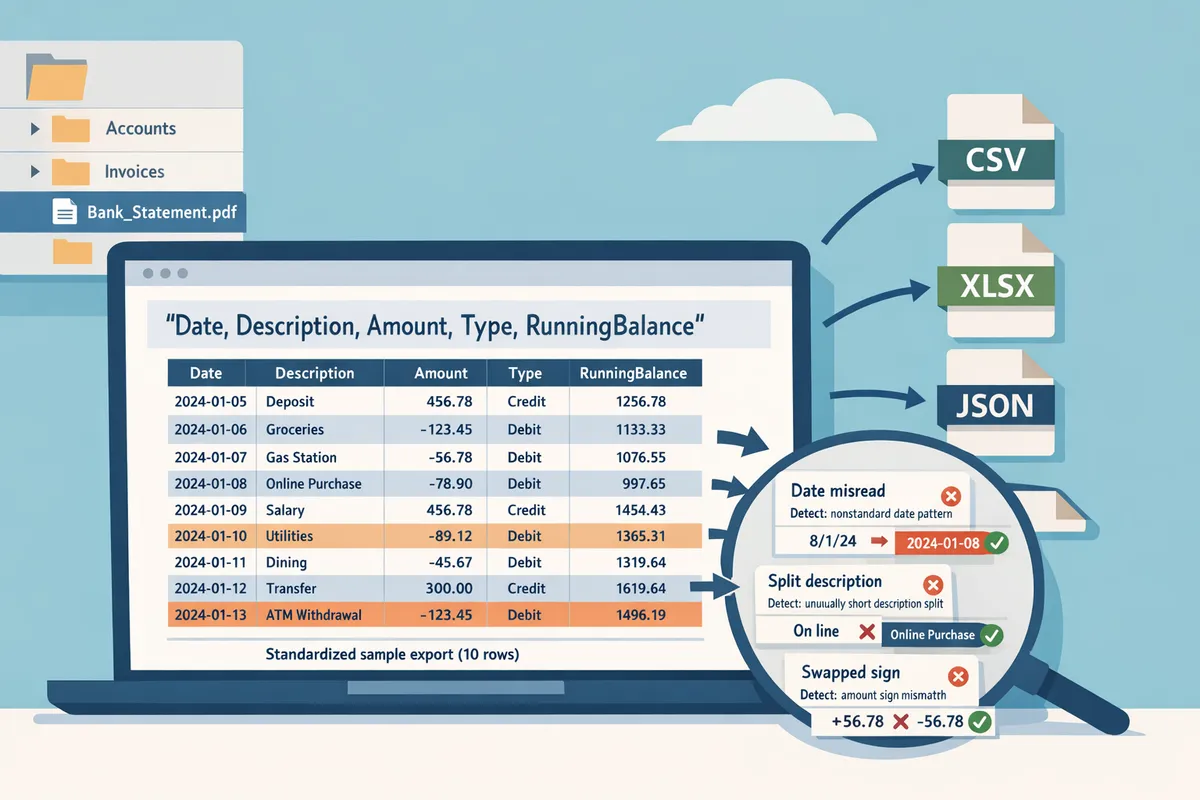
Common OCR and parsing errors 🔍
Typical extraction errors include date misreads, split descriptions, and swapped debit/credit signs. These errors routinely break imports and create reconciliation noise. Examples and one-line detection rules:
- Date misread. Example: 01/13/2021 read as 01/03/2021. Detection rule: flag dates that move the transaction outside the statement period or change the weekday unexpectedly.
- Split description. Example: "PAYMENT - ACME" split into two rows. Detection rule: consecutive rows with identical dates and very short amounts likely belong to one description.
- Misassigned sign. Example: refund shown as debit instead of credit. Detection rule: flag large absolute-value entries without matching opposite entries or known POS vendor patterns.
- Merged columns. Example: "Date | Description" combined in one field. Detection rule: presence of date pattern inside the description column.
- OCR characters misread. Example: comma read as period in amounts. Detection rule: non-numeric characters found in amount fields.
Field-level validation prevents bad imports by rejecting rows that fail basic checks before you push them into accounting software. Rocket Statements applies validation rules and bank-format templates to surface these issues and offers a quick-review interface so you only fix rows that actually need attention.
⚠️ Warning: Always verify debit/credit signs and date ranges on a 20-row sample before running a full batch import.
File-format comparison: CSV, Excel, JSON, QBO, and OFX 📊
Choose CSV for spreadsheet imports, Excel for manual review and human-friendly edits, JSON for automated ETL and data pipelines, and QBO/OFX when you need direct QuickBooks or bank-import compatibility. The following table summarizes each format and when to pick it.
| Format | Best for | Typical use case | QuickBooks import? |
|---|---|---|---|
| CSV | Spreadsheet work and manual reconciliation | Import to Excel or Google Sheets for review and cleanup | Often (requires correct headers) |
| Excel (XLSX) | Human review and multi-sheet exports | Teams that need notes, multiple tabs, or copy/paste readiness | Indirect (export CSV from Excel first) |
| JSON | Data pipelines and ETL | Automated analytics, warehousing, or API-based ingestion | No (use for backend processing) |
| QBO | QuickBooks Desktop/Online direct imports | Accounting teams who want native QuickBooks transactions | Yes (native) |
| OFX | Bank-import flows and some accounting tools | Bank-to-accounting reconciliation imports | Yes (supported by many platforms) |
Practical selection steps before a batch conversion:
- If your goal is spreadsheets or human review, export CSV or Excel.
- If you feed transactions into a BI tool or data lake, export bank statements to json for data pipelines.
- If you import directly to QuickBooks, choose QBO or OFX and use Rocket Statements’ QuickBooks-compatible export to avoid manual mapping.
Rocket Statements exports CSV, Excel, JSON, QBO, and OFX and offers batch processing plus automatic bank-layout detection to reduce the number of manual checks you must perform. For hands-on steps to create QuickBooks-ready files, see our guide on converting PDFs to QuickBooks-compatible files and the detailed walkthrough for importing bank statements into QuickBooks in minutes.
Compare DIY, spreadsheet macros, and Rocket Statements to evaluate time, accuracy, cost, and compliance trade-offs.
This comparison shows the time, accuracy, cost, and compliance trade-offs among DIY extraction, spreadsheet macros, and Rocket Statements. Use the table below to match an approach to your team size and audit requirements, then read the scenarios for concrete break-even math. According to our Bank Statement Converter, Rocket Statements automates bank-format detection and batch exports to CSV, Excel, JSON, and QuickBooks-ready files to reduce manual mapping work.
Side-by-side comparison table 📊
This table compares setup hours, per-file time, expected error types, audit readiness, scalability, and ongoing maintenance for DIY, spreadsheet macros, and Rocket Statements.
| Metric | DIY extraction (manual typing / copy-paste) | Spreadsheet macros (templates + scripts) | Rocket Statements (automated platform) |
|---|---|---|---|
| Typical setup hours | 0–4 hours to start copying; no formal setup | 8–40 hours to build templates and mappings | 1–4 hours to connect accounts, set folders, and configure exports |
| Per-file time (typical) | 15–45 minutes per statement depending on complexity | 5–15 minutes after setup (still needs spot fixes) | Batch processing: minutes for hundreds of files; quick review for exceptions |
| Expected error types | Typo errors, misread amounts, missing lines | Mapping mismatches, trimmed descriptions, date format inconsistencies | OCR edge cases on very poor scans; occasional bank-layout exceptions |
| Audit readiness | Low. Manual notes scattered across files | Medium. Central file exists, but mapping varies by staff | High. Centralized folders, consistent exports, and QuickBooks-compatible outputs |
| Scalability | Poor. Time increases linearly with volume | Moderate. Scales until edge-case variance increases fixes | High. Built for batch exports and multi-bank workflows |
| Ongoing maintenance | Low setup cost but high repetitive labor | Requires updates for new bank layouts and macro bugs | Platform updates handle bank format changes and security patches |
Refer to our guide on converting PDF bank statements to spreadsheets for examples of common mapping issues and fixes.
Real-world cost–benefit scenarios for different team sizes 💼
Sample math shows when manual entry becomes a financial drag and when automation typically pays for itself.
Freelancer (50 statements/month). At 20 minutes per statement manual work equals about 16.7 hours per month. At $60/hour that costs $1,000 monthly. Using spreadsheet macros might halve that time to ~8.3 hours ($500), while Rocket Statements can cut the active review to roughly 1–2 hours for quality checks (about $60–$120) because batch detection and standardized exports reduce mapping time. If a freelancer values billable time, automation typically pays for itself before three months at those rates.
Small accounting firm (1,000 statements/month). Manual entry at 20 minutes each equals ~333 hours per month, or $20,000 at $60/hour. Spreadsheet macros reduce repetitive work but require ongoing fixes and staff hours for exceptions. Rocket Statements removes most repetitive mapping work, centralizes files, and enables batch export to QuickBooks-ready formats so the firm reallocates staff to client services rather than data entry.
SMB with in-house bookkeeper (300–1,000 statements/month). The break-even depends on how much the bookkeeper costs and how many hours they lose during month-end closes. Use your hourly rate times hours saved to estimate whether a subscription or service fee is justified. Our PDF to QuickBooks guide notes that converting 50 PDF pages manually often costs 3–5 hours of work—scale that to your monthly volume to measure impact.
Hidden risks of DIY and macros ⚠️
DIY and spreadsheet macros introduce hidden costs: inconsistent field mapping, reconciliation time, and higher audit risk. Manual processes cause inconsistent column names and ad-hoc fixes that create reconciliation work later. Those hidden hours show up as lost billable time during tax season, delayed client deliverables, and strained staff capacity.
Business consequences include: lost revenue from unbilled catch-up hours, client dissatisfaction from slow turnarounds, and increased audit exposure from inconsistent running balances or missing transaction metadata. Small firms often discover these problems at month-end when reconciliation takes much longer than expected.
⚠️ Warning: Relying on ad-hoc macros without version control often multiplies errors across clients when a bank layout changes.
See our article for accountants and bookkeepers on how automated converters reduce these risks: Bank Statement Converter for Accountants and Bookkeepers.
How Rocket Statements cuts processing time and improves audit readiness ✅
Rocket Statements reduces manual review by automatically detecting bank formats, centralizing documents, and exporting batch-ready CSV, Excel, JSON, and QuickBooks files. The platform handles format detection so your team avoids repeated field-mapping work when a new bank PDF or scanned statement arrives. That means fewer exceptions during imports and cleaner QuickBooks or spreadsheet ingestion.
Practical workflow: upload or sync a folder of PDFs, let Rocket Statements classify bank layouts, review flagged exceptions in a single dashboard, then export a batch CSV, Excel, JSON, or QuickBooks-compatible file. For bank-specific behavior see our pages for Citi Bank statement conversions and US Bank statement conversions which explain common layout quirks.
💡 Tip: Always validate a small sample export into QuickBooks or your general ledger before importing a full batch. That single check prevents costly reversal work.
For technical how-to steps on preparing scanned statements and multi-bank exports, consult our PDF Bank Statements to QuickBooks in Minutes guide and our Bank Statement Converter page for batch export options.
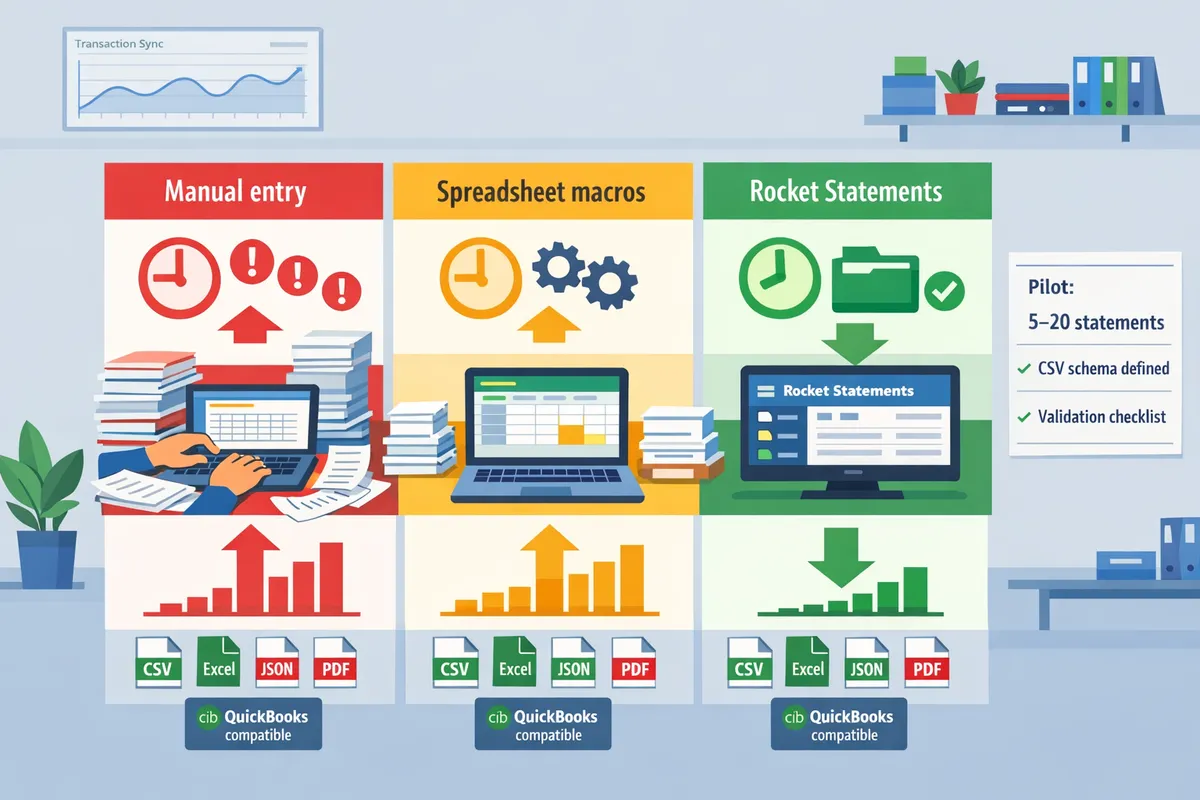
Start converting bank statements to CSV with a small pilot, clear CSV schema, and step-by-step validation before full batch runs.
Begin with a defined CSV schema, a 5–20 statement pilot, and a short validation checklist so full batches do not require heavy manual cleanup. A small pilot exposes variations in bank layouts and common OCR errors before you commit to batch processing. The workflow below gives the exact mapping rules, validation steps, and import checklist you can follow using Rocket Statements.
Define your CSV schema first 🧩
Define a CSV schema that matches your accounting import fields and prevents column mismatches. A schema is a specification that lists each CSV column, its data type, and formatting rules. Create the schema before running any conversions so every output column consistently maps into Excel, QuickBooks, or your data pipeline.
Numbered CSV schema checklist you can copy.
- Required columns: Date, Description, Amount, Running Balance, Account Number, Reference ID.
- Date format: choose YYYY-MM-DD or MM/DD/YYYY and document it.
- Amount sign convention: positive for deposits, negative for withdrawals, or separate Debit/Credit columns.
- Description rules: trim to 140 characters; remove repeated whitespace; preserve merchant name before transaction type.
- QuickBooks mapping: map "Account Number" to Bank Account in QuickBooks and set "Reference ID" to Memo if available.
Rocket Statements lets you select and export a custom schema so you can lock these column rules before batch runs. See the Bank Statement Converter documentation for export format options and format examples.
Run a small pilot (5–20 statements) ✅
Run a pilot of 5 to 20 representative statements to find layout edge cases and OCR mistakes before scaling. Choose statements across different months, account types (checking, credit), and scanned versus native PDFs so you capture variability.
Pilot steps.
- Collect 5–20 sample PDFs and name them with a short code that includes bank and month.
- Upload samples to Rocket Statements and confirm automatic bank-format detection for each file.
- Apply your predefined CSV schema and export one CSV, one Excel, and one JSON to check multi-format compatibility.
- Document any mapping exceptions (split transactions, multi-line descriptions, missing balances) and adjust schema or trimming rules.
- Repeat with 5 different samples if you see more than two mapping exceptions per batch.
Using Rocket Statements for the pilot reduces the manual time spent identifying bank-specific quirks. For more on handling different bank layouts, consult our bank-specific guides such as the Citi Bank and US Bank pages.
Validation routine and acceptance criteria
Validate outputs by checking row counts, reconciling opening and closing balances, and performing random spot checks against the original PDFs. A validation routine ensures automated runs meet your accuracy and audit requirements before you import into accounting software.
Validation checklist.
- Row counts: export row counts from the CSV and compare to transaction lines visible in the PDF.
- Balance reconciliation: verify opening balance, sum of transactions, and closing balance match the PDF.
- Random spot checks: inspect 10% of rows or at least 20 rows across different pages for date, amount sign, and truncated descriptions.
- Import test: load the CSV into Excel and a QuickBooks test company to confirm field mapping and that no rows are dropped.
- Acceptance criteria: no balance mismatches; fewer than 2% rows require manual edits; description truncation limited to non-critical characters.
💡 Tip: Keep the original PDFs and a copy of the exported CSV in the same cloud folder for a clear audit trail.
Use Rocket Statements to batch process and organize files
Use Rocket Statements to scale once your schema and validation checks pass, and store processed statements in folder structures that match clients, periods, and bank accounts. Folder-based document management speeds audits and supports team collaboration.
Batch processing steps.
- Confirm the final schema in Rocket Statements and save it as a preset.
- Create cloud folders and subfolders named by client > bank > year > month.
- Upload full batches or point Rocket Statements at your folder to run scheduled imports.
- Choose export format per destination: CSV/Excel for spreadsheets, JSON for data pipelines, or QBO/OFX for QuickBooks.
- Enable automatic file routing so converted files land in the matching audit folder and trigger notifications for reviewers.
See our Bank Statement Converter page for details on batch exports and supported accounting formats.
Step-by-step import checklist for Excel and QuickBooks 📥
Import first into a test file and reconcile before importing to production to avoid accounting errors. Testing prevents downtime and incorrect ledger entries.
Sequential import checklist.
- Export the final CSV using your approved schema from Rocket Statements.
- Back up existing ledgers and create a QuickBooks test company or a separate Excel workbook.
- Import CSV into Excel and run automated checks: date column parsing, amount signs, and total checks.
- For QuickBooks Desktop or Online: prefer QBO or properly mapped CSV; import into the test company and map Bank Account and Memo fields.
- Run reconciliation reports in the test company comparing opening and closing balances and transaction counts.
- If tests pass, import into production and archive the test imports with a short audit note.
For detailed QuickBooks import steps and common mapping pitfalls, consult our guide on PDF bank statements to QuickBooks and the bank statements to Excel import walkthrough.
Automate validation, schedule live syncs, and build audit-ready workflows to keep converted data reliable and connected to downstream systems.
Automating validation and scheduling live syncs keeps converted statement data accurate and continuously available to accounting tools. This reduces manual cleanup, prevents missed transactions, and maintains an auditable history that supports month-end close and compliance reviews.
Bank statements to JSON for data pipelines 🔁
Bank statements to JSON for data pipelines is an export option that converts statement data into structured JSON objects with consistent field names and types for automated ingestion. Use consistent keys and types so ETL tools and analytics platforms accept records without per-bank mapping work. According to Rocket Statements, exporting a normalized JSON schema removes the need to write custom parsers for each bank layout.
Mapping checklist for pipeline readiness:
- Required fields: date (string, ISO 8601), description (string), amount (number), balance (number), currency (string).
- Optional enrichment: merchant_category (string), transaction_type (credit|debit), statement_id (string), account_mask (string).
- Field normalization: convert dates to YYYY-MM-DD, amounts to signed numbers, and trim repeated whitespace in descriptions.
- Error handling: flag missing balances, non-numeric amounts, and inconsistent running balances for downstream exception handling.
Field/type mapping table:
| Field name | Type | Example value | Purpose |
|---|---|---|---|
| date | string (YYYY-MM-DD) | 2026-06-30 | sorting and joins |
| description | string | ACME Corp Payroll | merchant matching |
| amount | number | -123.45 | debit/credit math |
| balance | number | 456.78 | reconcile running totals |
| currency | string | USD | multi-currency workflows |
Use Rocket Statements to export into this normalized schema and feed the JSON directly to ETL jobs or analytics platforms. See our Bank Statement Converter for details on schema options and batch exports.
Organize cloud folders, versioning, and team permissions for audit trails 📁
Organize cloud folders, versioning, and tiered access so auditors can trace every file from original PDF to final export. A simple, consistent folder hierarchy reduces search time and prevents accidental overwrites during busy close periods.
Recommended folder structure and rules:
- Root: /Clients/{ClientName}/{Year}/
- Subfolders: /Raw-PDFs, /Converted/CSV, /Converted/JSON, /Exports/QuickBooks
- File naming: {ClientName}{BankName}{YYYYMMDD}_{sourceType}.{ext}
- Versioning: enable automatic version history for Raw-PDFs and Converted folders.
- Retention: keep Raw-PDFs and Converted files for at least 7 years if required by your jurisdiction; archive older records to cold storage.
Access tiers:
- Admin: create folders, manage access, export permissions.
- Accountant: view and export converted files, request re-runs.
- Reviewer: annotate exceptions, approve high-value items.
Rocket Statements' cloud document management supports folders and subfolders so teams centralize records for auditors and apply role-based access without juggling separate storage tools. Link to the Bank Statement Converter page to learn how Rocket Statements stores conversions alongside originals.
Schedule live syncs and recurring exports for near-real-time data ⏱️
Use live syncs for near-real-time transaction updates and periodic batch exports for full-history reconciliation and archival exports. Live syncs suit daily bookkeeping, fraud monitoring, and merchant-level cash flow dashboards. Batch exports suit month-end close, tax filing, and migration projects where you need a complete statement history.
When to use each approach:
- Live sync: low-latency needs (daily books, cashflow monitoring). Example: a retailer with 100–500 daily transactions gets daily feeds to update sales reports and cash forecasts.
- Nightly batch: mid-frequency reconciliation for teams that prefer a clean overnight snapshot.
- Full-history export: one-time migrations, year-end audits, or cross-bank consolidation.
Rocket Statements supports scheduled exports and live transaction syncing, so you can set daily exports to your accounting folder and a separate weekly full-history JSON export for archival. For a step-by-step on importing converted files into QuickBooks, see our PDF Bank Statements to QuickBooks in Minutes guide.
Validation and reconciliation workflows reduce import errors 🧾
Validation and reconciliation workflows check balances, detect duplicates, standardize merchant names, and escalate exceptions before importing into accounting software. Automated checks remove routine errors; a human review gate handles high-risk anomalies.
Verification steps to automate and when to escalate:
- Automated balance checks. Compare computed running totals against reported balances and flag discrepancies above a tolerance (for example, 0.5% or $20, whichever is greater).
- Duplicate detection. Match on date, amount, and masked account to avoid double-imports.
- Merchant-name standardization. Normalize common variants (Starbucks → STARBUCKS) and map to category codes.
- High-value/manual review. Route transactions above a configurable threshold (for example, $1,000) to a reviewer before import.
Automation recommendations:
- Automate low-risk items under the manual-review threshold and apply 2-step approval for exceptions.
- Keep an exceptions queue with clear audit notes and timestamps to speed reconciliation.
⚠️ Warning: Relying on ad-hoc macros without version control often multiplies errors across clients when a bank layout changes.
Rocket Statements offers automated validation rules, duplicate detection, and QuickBooks-compatible exports to reduce the manual work of reconciliation. For practical guidance on preparing scanned statements and running pilots, see our guide on how to convert bank PDFs to spreadsheets.
Frequently Asked Questions
This FAQ answers the practical questions accountants and small business owners face when converting bank statements to CSV, Excel, JSON, or QuickBooks. Each answer gives a direct, actionable statement followed by steps, examples, and product-specific guidance using Rocket Statements.
How accurate is OCR for bank statements? 🤖
OCR accuracy depends on source quality and layout, with clean text-based PDFs producing the highest reliability and scanned images producing the lowest. Poor scans, handwriting, or complex multi-column layouts increase character errors and misaligned fields. Verify extraction by sampling 10–20 rows per statement, checking Date, Description, Amount, and Balance fields for misreads and misplaced decimals. Rocket Statements improves raw OCR by detecting bank-specific formats automatically and applying post-OCR rules, which reduces manual correction when statements follow consistent templates. For audited work, export a short CSV and compare totals to the original PDF before running batch jobs.
Can I convert multiple bank statement formats in one batch? 🔁
Yes. Batch processing can handle mixed bank formats when the tool detects each bank layout and applies the correct extraction template. Run a 5–20 statement pilot that includes every bank type you plan to process to confirm detection reliability. Rocket Statements supports automatic bank-format detection and will assign templates per file; files that fail detection go to a manual-review queue for mapping. Practical limits: very poor scans, password-protected PDFs, or statements with heavy annotations often need single-file handling or preprocessing.
💡 Tip: Start batches with a representative sample of each bank and include one intentionally noisy scan to expose edge cases early.
What should a CSV schema include for QuickBooks imports? 📄
A QuickBooks-ready CSV schema should include Date, Description, Amount, Debit/Credit indicator, Account, and Memo columns. Use unambiguous date formats such as YYYY-MM-DD or MM/DD/YYYY consistently and ensure Amount uses a plain numeric format (no currency symbols) to avoid import errors. Map the Account column to the exact QuickBooks ledger names used by your company to prevent mismatched postings. Rocket Statements can export QuickBooks-compatible CSV or QBO files and offers account-mapping utilities so the exported columns match QuickBooks import requirements; consult our guide on PDF Bank Statements to QuickBooks in Minutes | Rocket Statements for specific field examples and common import fixes.
Is it safe to upload bank statements to a conversion service? 🔒
Data safety depends on the provider's encryption, access controls, and retention policies; always verify those controls before uploading. Check for TLS in transit, at-rest encryption, role-based access, and clear document retention and deletion policies. Rocket Statements stores documents in cloud folders with configurable permissions and provides audit logs so you can track who accessed each file. Before sending sensitive client data, confirm contractual protections and whether the provider supports private cloud or on-prem options if required.
⚠️ Warning: Never upload files without verifying the provider's retention and deletion policy if your workflow requires strict client-data purging.
How do I handle recurring parsing errors or unusual bank layouts? 🛠️
Persistent parsing errors usually require a custom mapping rule or template for that specific layout. Capture representative sample statements with the error and create a custom rule in the platform to remap columns, adjust offsets, or normalize descriptions. Rocket Statements provides a manual-review workflow where flagged files feed into a rule-creation interface that applies corrections to past and future statements of the same format. If a bank changes layout mid-year, re-run the rule on affected historical files and flag reconciliations that depend on running balance continuity.
When should I build a custom pipeline converting bank statements to JSON? ⚙️
Build a custom JSON pipeline when you need automated ingestion into analytics, ERP systems, or a standard data model across multiple banks. Common triggers include nightly ETL jobs that pull newly uploaded PDFs and event-driven ingestion when new files land in a monitored folder. Design the JSON schema to include normalized field names (date, description, amount, currency, account_id) and a source_bank identifier so downstream systems can apply bank-specific logic. Rocket Statements can export JSON and integrate into scheduled workflows; use the platform to normalize fields first, then push the cleaned JSON to your data warehouse or ERP.
Next steps for converting bank statements with minimal manual work.
You can move from manual cleanup to an efficient workflow that converts bank statement to csv with far less time and fewer import errors. Rocket Statements is a platform that helps users save time and money by automating the process of converting their statements into spreadsheets as well as manage their documents in the cloud. Start by testing a small batch with the Bank Statement Converter to compare output formats and column mappings.
If you plan to import into accounting software, our guide on bank statements to excel shows simple checks that prevent costly reconciliation work and reduce rework when importing multiple banks.
Schedule a consultation with Rocket Statements to map your source files, choose the right export format, and run a pilot that replaces hours of manual entry.
💡 Tip: Export a single-account sample and confirm column names and date formats before bulk processing.