
Automatically Import Live Bank Transactions in 2026: Reliability Matrix + Bank-Feed Outage Playbook for QuickBooks, Xero, Sage, FreshBooks, Wave, and Zoho

Automatically Import Live Bank Transactions in 2026: Reliability Matrix + Bank-Feed Outage Playbook for QuickBooks, Xero, Sage, FreshBooks, Wave, and Zoho
Frequent bank-feed outages and duplicate entries cost mid-size accounting teams 8–12 hours of manual cleanup each month. Automatically import live bank transactions is a workflow that syncs bank activity in real time to accounting systems and spreadsheets, replacing manual PDF exports and CSV reformatting. This best-practices guide compares reliability across QuickBooks, Xero, Sage, FreshBooks, Wave, and Zoho and includes an outage playbook and decision checklist for finance teams. Rocket Statements converts PDF and image statements into spreadsheets, manages documents in cloud folders and subfolders, and syncs live transactions with bank-level encryption and PCI DSS compliance. See Rocket Statements' real-time account sync and email attachment processing as practical fallbacks inside our Accounting Automation hub. Expect a reliability matrix and outage playbook that expose the trade-offs finance teams must consider.
What core principles guarantee reliable automatic import of live bank transactions?
Reliable automatic import of live bank transactions requires secure connections, consistent data mapping, duplicate protection, and auditable logs. These four pillars reduce manual cleanup, speed reconciliations, and preserve transaction provenance for audits. Below are the operational and technical rules every accounting team should enforce before enabling live sync to QuickBooks, Xero, Sage, FreshBooks, Wave, or Zoho.
What is automatic bank transaction import? 📥
Automatic bank transaction import is a data-flow process that extracts transaction records from a bank or statement source and converts them into a structured format for accounting or spreadsheets. The process includes ingest (live API feed or PDF/image attachment), parsing (field extraction), normalization (payee, amount, date), and export to your target format (CSV, Excel, QBO). For example, Rocket Statements ingests PDF attachments, extracts line-level transactions, and exports QuickBooks-compatible files or CSV for Google Sheets. If you plan to automatically sync bank transactions into Google Sheets, see our step-by-step setup for multi-bank live sync and PDF backfill.
Which security and compliance controls are non-negotiable? 🔒
Non-negotiable controls are end-to-end encryption in transit and at rest, role-based access control, and immutable audit logs that record who accessed or modified each feed. Check vendor documentation for bank-level encryption and PCI DSS references; Rocket Statements' Real-Time Account Sync page lists its encryption and compliance posture. Insist on per-account access controls so you can restrict who can enable new feeds or export raw statements. Also require tamper-evident processing logs that show the original source file, parsing decisions, and export events for each transaction.
⚠️ Warning: Avoid storing bank PDFs in shared drives without access logs; that practice creates audit gaps and increases exposure during reviews.
How should data mapping and chart-of-accounts alignment work?
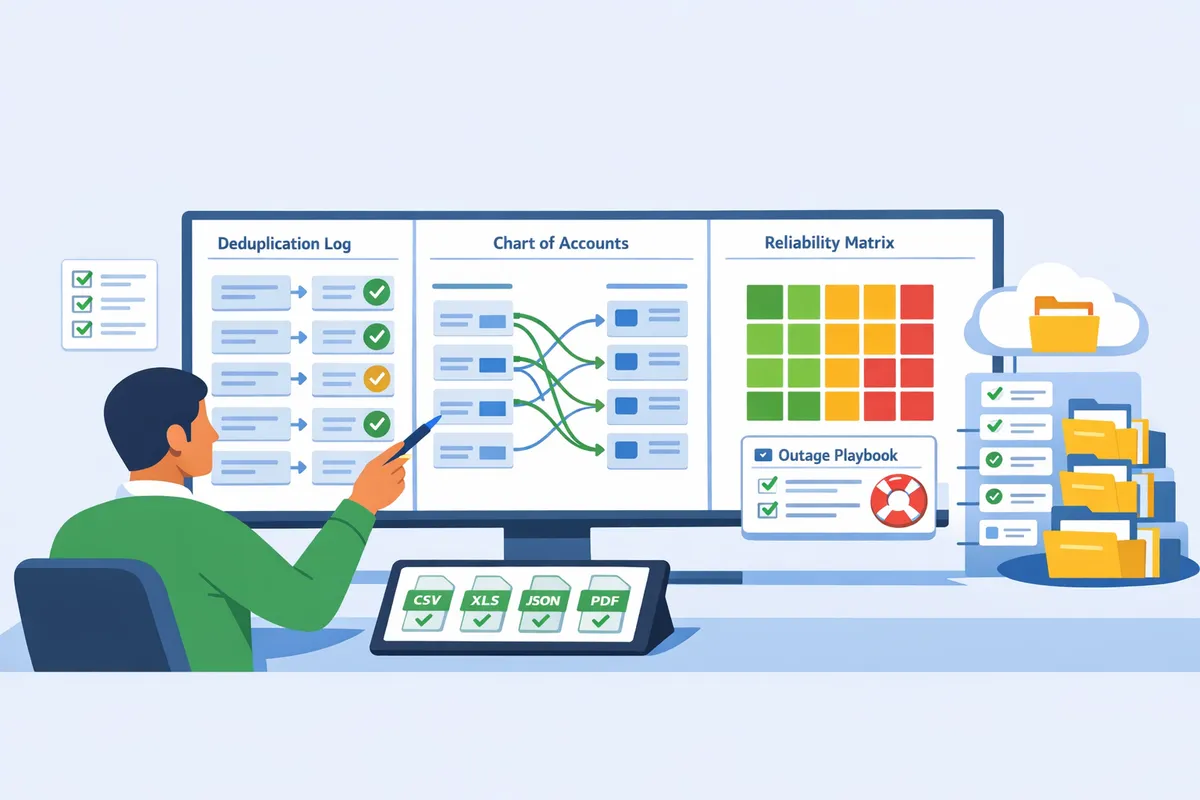
Data mapping must normalize bank description fields to your chart-of-accounts and preserve raw fields for reconciliation. Define field-level mappings (payee, memo, transaction type, bank reference) and map each incoming bank category to a specific account code. For example, map "POS PURCHASE" to COGS account 5200 and keep the original description and bank transaction ID in separate fields so an auditor or bookkeeper can trace the entry back to the source. Test mappings using a six-month historical backfill to reveal classification drift and correct rules before enabling live posting. For guidance on mapping into QuickBooks and Xero, consult our QuickBooks & Xero bank statement automation guide.
How do you prevent duplicates and conflicting entries?
Preventing duplicates requires transaction-level fingerprints, timestamp comparison, and a configurable deduplication window with full logging of each dedupe decision. A robust fingerprint uses date, amount, normalized payee, and bank-provided reference; the system should compare incoming records to existing ones and mark likely duplicates for review or automatic suppression based on your policy. Use a backfill window (for example, 3–14 days) that matches how long banks hold pending vs posted entries. Rocket Statements logs every dedupe action so accountants can reverse or audit each suppression. For spreadsheet workflows, follow our multi-account Google Sheets dedupe checklist to avoid double rows during backfills.
💡 Tip: Start with a conservative dedupe window (7 days) and shorten it after two months of monitoring to avoid false positives when banks post delayed transactions.
What business risk arises from DIY imports versus a managed platform?
DIY imports increase staff hours, raise reconciliation errors, and widen audit risk compared with a managed platform. Small and mid-size teams typically spend 8–12 hours monthly resolving feed outages, duplicate imports, and misclassifications; those hours translate into lost billable time and delayed closes. DIY approaches also often lack consistent audit trails and secure document management, which heightens compliance exposure during reviews. A managed option like Rocket Statements centralizes PDF conversion, live sync, and exports while preserving source files and processing logs, reducing month-end cleanup and shortening the time to reconcile. For a side-by-side view of how vendor feeds and backfill automation behave, see our QuickBooks vs Xero vs Sage comparison.
Which proven strategies prevent errors and keep data accurate when you automatically import live bank transactions?
A combination of process controls, layered monitoring, deduplication, and fallback ingestion routes prevents errors and keeps data accurate when you automatically import live bank transactions. These tactics reduce manual reconciliation time, limit duplicate entries, and preserve an auditable trail for compliance and audits. The subsections below compare options, give a rollout blueprint, provide an outage playbook, and explain alerting and PDF/email fallbacks you can apply immediately.
How do DIY spreadsheet imports compare to direct bank feeds and Rocket Statements? 📊
DIY spreadsheet imports, bank-provided feeds, and Rocket Statements each trade off setup effort, maintenance, and auditability. The table below shows practical differences so buyers can match solution to risk tolerance and staff bandwidth.
| Option | Typical setup time | Ongoing maintenance | Typical error profile | Backfill capability | Audit logs and traceability | Best for |
|---|---|---|---|---|---|---|
| DIY spreadsheet imports | A few hours to a day per account | High. Manual downloads, copy/paste, and custom formulas require weekly upkeep | Missing rows, date-format mistakes, duplicate rows from repeated exports | Manual only. Requires finding historical PDFs and reprocessing | Weak. Edits in spreadsheets hide source; hard to prove origin | Small teams with only occasional imports and strong spreadsheet skills |
| Bank-provided feeds | Same-day to a few days (account auth required) | Medium. Occasional reconnects, vendor maintenance windows | Outages, feed-format changes, occasional duplicate transactions during backfills | Varies by bank. Some offer limited backfill | Varies by provider. Many feeds provide basic timestamps but limited transformation logs | Businesses wanting live balances with direct bank integration |
| Rocket Statements (PDF + live sync) | Under an hour to connect an account and configure mappings | Low. Real-time sync with configurable dedupe and scheduled audits | Fewer missing rows because of PDF backfill and email import fallback | Strong. PDF/image backfill plus sync fills historical gaps | Detailed, auditable conversion logs, folder history, and export traceability | Accounting teams that need low-maintenance, auditable imports and reliable backfill |
Read our guide on importing statements into Sheets for multi-bank setups to see a step-by-step example of backfill plus live sync with deduplication.
What is a practical setup blueprint for stable live imports? 🛠️
A repeatable blueprint prevents surprise errors and shortens the time to reliable imports. Follow these numbered rollout steps for consistent implementation.
- Inventory accounts and assign access levels. Document each bank login, required approvals, and who can pause feeds. Example: list five business accounts and assign one primary reconciling accountant and one backup.
- Connect one bank account and verify transactions for seven days. Compare imported transactions to the bank PDF to catch mapping mismatches early. Use Rocket Statements Real-Time Account Sync to view live transaction streams next to source PDFs.
- Map bank fields to your chart of accounts and set dedupe rules. Create explicit mappings for memo, payee, and running balance. Set dedupe rules to match on date+amount+reference to avoid duplicate imports.
- Run parallel imports for 30 days while tracking reconciliation time. Keep the old workflow active and measure hours spent reconciling each week. If reconciliation time drops, you have evidence to finalize cutover.
- Switch to full production and schedule weekly audits. Automate a weekly reconciliation report that lists unmatched transactions and mapping failures for quick review.
💡 Tip: Run the 30-day parallel period as a billable-client phase when possible and track hours saved. That documents ROI for stakeholders.
Link to our QuickBooks and Xero mapping guide for mapping templates and common error fixes.
What does a bank feed outage playbook look like? 🧭
A bank feed outage playbook is a short, step-by-step contingency plan that preserves cash visibility and reconciliation when live feeds fail. Use the steps below to restore visibility fast and avoid duplicate entries during recovery.
- Quick checks (0–30 minutes). Confirm the outage: check feed status pages, test a separate account, and verify bank maintenance notices. Notify your team via the predefined channel.
- Freeze automatic imports (30–60 minutes). Pause scheduled imports to prevent partial syncs that cause duplicates once the feed returns.
- Activate temporary PDF ingestion (60–180 minutes). Pull the latest PDF statements or enable Rocket Statements Email Attachment Auto-Import to ingest emailed PDFs into structured transactions for immediate reconciliation.
- Use export templates for urgent reporting (same day). Export CSV/Excel from Rocket Statements or your bank to populate cash forecasts and payroll runs.
- Reconciliation and dedupe after feed restoration (24–72 hours). Re-enable the feed, run dedupe checks, and verify that PDF-ingested transactions do not double-import. Keep the paused import logs until you confirm zero duplicates.
- Post-mortem and SLAs (within 5 business days). Record root cause, time-to-recovery, and any process changes (e.g., shorten the manual-check cadence from weekly to daily).
⚠️ Warning: Do not re-import the same PDF exports into a live feed without dedupe rules. Manual re-uploads commonly create duplicate rows and extend month-end by hours.
For a hands-on example of using PDF backfill plus live sync, see our article on automatically importing bank statements into Google Sheets from multiple banks.
How should alerts and monitoring be configured for early detection? ⚠️
Alerts should detect sync failures, repeated mapping errors, and large unmatched transactions within set SLAs. Configure layered alerts to avoid alert fatigue and ensure escalation when problems persist.
- Level 1: Immediate automated email to the reconciling accountant for single sync failures or mapping errors. Example: "Feed failure for Bank A — last successful sync 04:12 UTC."
- Level 2: Escalation to the finance manager after three consecutive failures or 6 hours without a successful sync. Include the last 72 hours of transactions and the PDF source.
- Level 3: Daily digest to finance leadership showing unresolved unmatched transactions over a threshold (for example, any unmatched transaction over $5,000 or 10% of average daily cash).
Also track leading indicators: frequent mapping adjustments, sudden spikes in transaction volume, and repeated failed exports. Rocket Statements provides conversion logs and failure reasons that help automate these alerts.
Set SLA targets upfront (for example, first alert within 30 minutes, escalation after 6 hours) and document who accepts operational risk at each threshold.
How do email-import and PDF conversion workflows support continuity?
Email-attachment auto-import and PDF conversion act as reliable fallbacks that preserve transaction continuity when live feeds lag or fail. Rocket Statements Email Attachment Auto-Import detects PDF statements from incoming emails and converts them into structured transactions for review and export.
Practical workflow example:
- Configure a dedicated import mailbox (statements@yourdomain.com) and have banks, clients, and payment processors send PDFs there.
- Enable Rocket Statements Email Attachment Auto-Import for that mailbox. The platform auto-detects PDFs, extracts transactions, and stores the original file in a folder structure.
- Apply the same mapping and dedupe rules used for live feeds so PDF-derived transactions match live-sync rules.
- During an outage, use the PDF-derived transactions to populate cash reports and payroll runs. After feed restoration, run the reconciliation report to confirm no duplicates.
This workflow reduces emergency manual data entry and keeps the audit trail intact because each converted file retains the original PDF and conversion log. For migration and mapping examples specific to QuickBooks and Xero, see our mapping and error-fix guide.
How should teams implement, measure, and govern automatic bank transaction imports?
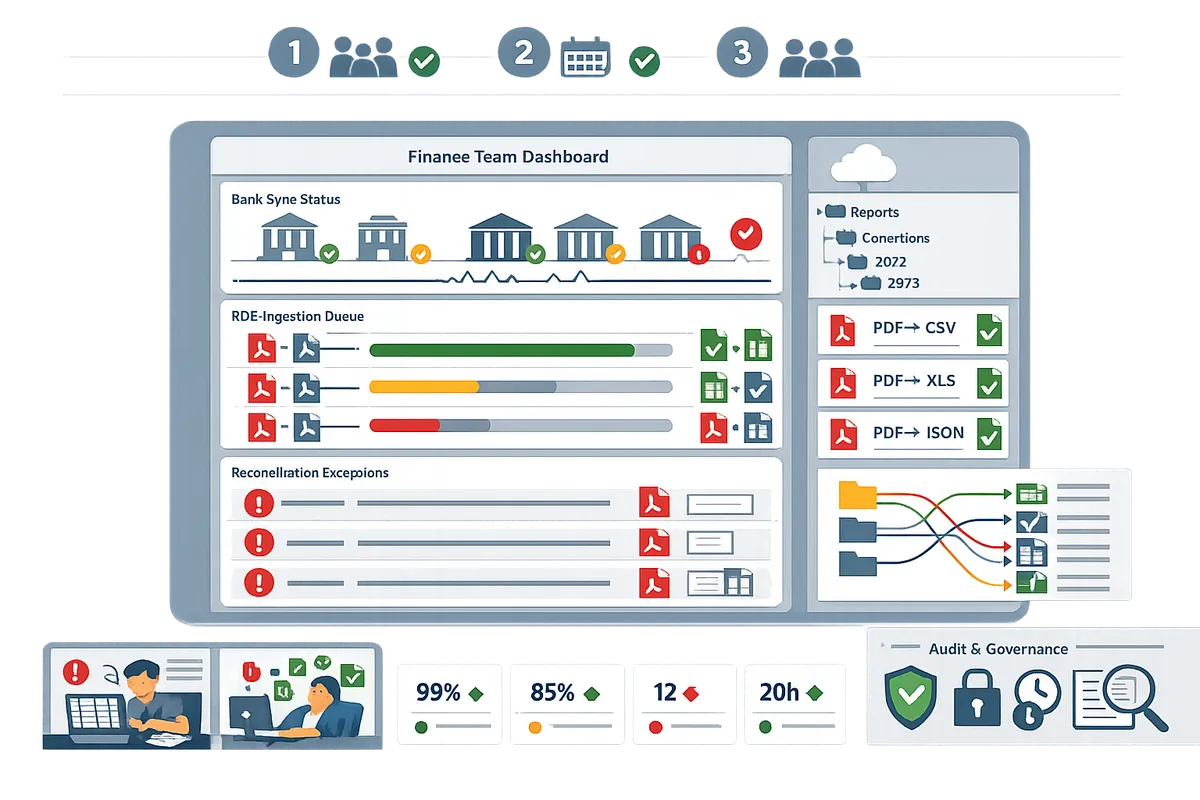
Teams should use a phased rollout, a concise KPI set, standardized reconciliation workflows, and auditable controls to implement, measure, and govern automatic bank transaction imports. These elements reduce month-end surprises, cut manual hours, and provide a defensible audit trail for regulators and clients. The guidance below targets small accounting teams and firms that need practical, step-by-step playbooks they can follow with Rocket Statements.
Phased rollout plan for accounting teams 🔁
Implement a phased rollout that pilots a small account set, expands by complexity, and locks configuration after successful validation. 1) Pilot (3–5 accounts): choose payroll and primary revenue accounts only. Run live sync and PDF backfill through Rocket Statements while continuing manual imports. 2) Expand: add vendor accounts and corporate cards once dedupe rules and mappings pass three full reconciliations. 3) Complex stage: add multi-currency or regional banks and finalize automation rules.
Steps to run the pilot.
- Select 3 target accounts and document current manual processes, monthly hours, and error types.
- Configure Rocket Statements to sync live transactions and to convert historical PDFs into spreadsheets for backfill.
- Run a 30-day parallel import window and compare reconciliation results each week.
- Lock mappings and dedupe rules after three clean closes.
💡 Tip: Run a 30-day parallel period before decommissioning manual imports. Running parallel imports for at least 30 days reduces month-end surprises and gives time to tune mappings and dedupe rules.
Read our guide on Automatically Import Bank Statements into Google Sheets from Multiple Banks (Live Sync + PDF Backfill, No Duplicates) for a step-by-step multi-bank pilot example.
KPIs to demonstrate ROI and data quality improvements 📈
Track reconciliation time per account, duplicate or unmatched transaction counts, days to detect feed failure, and staff hours saved per month. Start with a two-month baseline of these KPIs before switching on live sync so you can quantify improvements and present a clear business case to accounting leaders.
Measurement framework and targets.
- Reconciliation time per account. Measure cumulative hours per close. Use weekly sampling during the pilot. For example, a small firm reconciling 200 monthly transactions might compare hours before and after automation to show time savings.
- Duplicate and unmatched counts. Count exceptions created by imports and compare pre/post automation. Configure Rocket Statements dedupe rules and track remaining false positives.
- Days to detect feed failure. Set an alert threshold (for example, detect more than 48 hours without new transactions) and report mean time to detect.
- Staff hours saved. Multiply reductions in reconciliation time by billable rates to estimate ROI.
Use Rocket Statements' Real-Time Account Sync dashboard to export weekly KPIs for reporting and audit review. See the Real-Time Account Sync feature page for export and filter options: https://www.rocketstatements.com/features/view-filter-and-export-transactions-across-all-your-accounts
Standardized troubleshooting and reconciliation workflows 🔎
Use a three-step reconciliation flow: identify mismatches, trace to the raw bank record or PDF, and correct mapping or request vendor data. Assign ownership and SLAs for each step to prevent exceptions from aging into audit problems.
Three-step process (sample SLAs).
- Identify (0–24 hours): automated checks flag duplicates, unmatched amounts, and date mismatches. Bookkeeper opens an exceptions record in the ledger and tags it with a priority.
- Trace (24–72 hours): pull the original source from Rocket Statements (live sync record or converted PDF). Attach the source to the exception and note whether the issue is a mapping problem, bank formatting change, or missing vendor remittance.
- Resolve (72 hours to 7 days): correct the mapping in Rocket Statements, request vendor backup, or manually post an adjusting entry. Document the resolution steps in the exceptions ledger and mark the case closed only after a second reconciliation run.
Store every raw PDF and converted spreadsheet in Rocket Statements folders so auditors can retrieve source evidence quickly. See the Email Attachment Auto-Import feature for automating statement capture from incoming vendor emails: https://www.rocketstatements.com/features/automatically-process-bank-statements-from-email-attachments
Audit controls and data lineage for compliance 📚
Require immutable import logs, preserved original source attachments, and role-based access to maintain auditable data lineage and access control. These artifacts let you answer audit questions about who changed mappings, when an export occurred, and which source file supported each transaction.
Minimum audit artifacts to maintain.
- Immutable import log showing timestamped imports, file names, and user actions.
- Original source attachments (PDFs, images) stored in a separate folder structure with export history linked to import records.
- Change history for mapping templates and dedupe rules with the user who edited and the reason for the change.
- Export logs that link Rocket Statements exports to accounting software imports (for example, QuickBooks-compatible files), including file checksums and import timestamps.
Governance checkpoints and responsibilities.
- Monthly controls review. Finance manager verifies exceptions aging and mapping changes.
- Quarterly access review. Remove users who no longer need export or edit rights.
- Audit-ready export. Produce a packet of ledger exports, original PDFs, and import logs within 24–48 hours when requested.
⚠️ Warning: Encrypt sensitive PII at rest and restrict downloads to users with a business need to reduce compliance risk.
For mapping and import format guidance when exporting to QuickBooks, see our QuickBooks import playbook: QuickBooks Bank Transaction Import 2026: CSV/QBO/QFX Specs, Desktop EOL Playbook, and No‑Code Automations with Rocket Statements.
Frequently Asked Questions
This FAQ answers the specific operational, security, and outage questions finance teams ask when they automatically import live bank transactions. Use these answers to set expectations, design a feed outage playbook, and choose the right fallback routes before you move a workflow into production.
How accurate is OCR for converting PDF bank statements? 🔍
OCR accuracy for bank statements depends on source quality and statement layout and typically requires a validation step before production use. Scanned images, low-resolution PDFs, and non-standard vendor layouts increase exceptions; expect to see field-level errors (dates, amounts, payees) that need correction. Our website's Rocket Statements exposes parsed fields for quick review so accountants can fix mappings, and you should build validation rules that flag unusual amounts, missing dates, and outlier balances. For mapping guidance and common error fixes, see our guide on QuickBooks and Xero bank statement automation for practical checks and mapping templates.
Can I automatically sync bank transactions to Google Sheets or Excel? 📑
Yes; many platforms, including Rocket Statements, export live transactions to CSV, Excel, or push rows into Google Sheets through scheduled exports or connectors. Use export templates and strict column mappings to keep downstream reports stable and avoid broken dashboards when a new column appears. Small accounting teams often spend 8–15 hours a month consolidating multiple banks; using a scheduled live sync plus PDF backfill (see our multi-bank Google Sheets sync guide) preserves running balances and prevents duplicate rows. If you need templates, our bank statements to Google Sheets guide includes a multi-account template and dedupe checklist.
What causes bank feed outages and how fast can my team respond? ⏱️
Bank feed outages usually result from bank API schema changes, expired credentials, or rate limits, and a documented outage playbook lets teams respond within hours. The playbook should define an owner, a step-by-step verification checklist (check API status, re-authenticate accounts, inspect vendor logs), temporary imports (CSV or PDF backfill), stakeholder alerts, and a verification sign-off before re-enabling automatic reconciliation. Our website's Rocket Statements supports PDF imports and email-attachment auto-import as tested fallbacks, which lets you preserve cash visibility while the live feed is restored.
💡 Tip: Keep a tested CSV/PDF fallback and an escalation contact list (bank support, vendor support, internal approver) so you do not recreate duplicate imports during recovery.
How does Rocket Statements handle duplicate transactions and backfill? 🔁
Rocket Statements applies deduplication logic and supports backfill by ingesting historical statements and marking reconciled items to reduce manual cleanup. Deduplication compares transaction date, amount, and a payee fingerprint to avoid creating duplicates when both a live feed and a PDF import overlap. Backfill runs process historical PDFs or email attachments into the same transaction store so reconciliations remain auditable; see our Real-Time Account Sync page to view how backfill and dedupe options appear in the product. Using those controls cuts the typical cleanup time that results from overlapping imports.
Is automated import secure enough for client accounting data? 🔐
Automated import can meet professional security requirements when the vendor provides bank-grade encryption, access controls, and detailed audit logs. Verify that your vendor publishes compliance attestations, defines data retention policies, and documents storage locations and role-based access controls before moving sensitive client data into production. Our website's Real-Time Account Sync describes end-to-end encryption and PCI-related controls used by Rocket Statements; confirm those controls against your firm’s client data policy and any regulatory obligations before authorizing production connections.
What should I do if transactions are missing after a sync? 🧾
If transactions are missing after a sync, first check the sync error log, then verify the bank connection health and re-run a backfill from available PDFs. Keep an exceptions register that lists missing dates, account IDs, and corrective actions so you can spot recurring gaps and escalate them to bank or vendor support. As a fallback, ingest statement PDFs (manually or via Rocket Statements' Email Attachment Auto-Import) to recover missing items and tag recovered transactions so reconciliation workflows do not re-import them as new. For step-by-step recovery patterns and reconciliation checks, consult our QuickBooks vs Xero vs Sage bank feeds comparison to see where manual fixes most often appear.
Next steps to keep live bank feeds reliable and recover from outages.
Prioritize a hybrid workflow: enable live sync for high-volume accounts and keep scheduled PDF backfills to prevent gaps. This approach reduces reconciliation time and makes it easier to automatically import live bank transactions without creating duplicate rows. Follow a tested bank feed outage playbook so outages trigger a predictable fallback path and minimize billable-hour losses.
💡 Tip: Start by syncing your top two revenue accounts and set automated PDF backfill for smaller institutions. That single change usually cuts manual consolidation by several hours.
Rocket Statements is a platform that helps users save time and money by automating the process of converting their statements into spreadsheets as well as manage their documents in the cloud.
- Convert PDF and image statements into spreadsheets
- Manage documents in cloud folders and subfolders
- Sync live transaction data from bank accounts
- Export CSV, Excel, JSON, PDF, and QuickBooks-compatible files
Schedule a consultation with Rocket Statements to map a feed strategy and outage playbook for your accounting stack. For implementation templates and multi-bank setups, see our guide on automatically importing statements into Google Sheets and our comparison of QuickBooks, Xero, and Sage as part of the Accounting Automation series.