
Accounting Automation in 2026: The Complete Buyer’s Guide to Automate Bank Statement Conversion, Live Bank Feeds, and QuickBooks/Xero Imports

Accounting Automation in 2026: The Complete Buyer’s Guide to Automate Bank Statement Conversion, Live Bank Feeds, and QuickBooks/Xero Imports
Bookkeeping firms often spend dozens of hours per month on manual PDF statement entry and reconciliation. To automate bank statement conversion, teams must compare OCR accuracy, live feed reliability, and QuickBooks-compatible exports. Automating bank statement conversion is a workflow that extracts transactions from PDFs and images and exports them to CSV, Excel, JSON, QBO, or OFX for accounting systems. Our Rocket Statements platform uses an AI-powered Bank Statement Converter to process batches, manage documents in cloud folders, sync live transactions, and export QuickBooks-ready files via our QuickBooks Online integration. This buyer's guide compares tools and best practices for live bank feeds and choosing the right converter for QuickBooks Online in 2026. Which tools cut month-end close time without adding migration headaches?
Automating bank statement conversion extracts structured transactions from PDFs and images to reduce manual entry. What core principles and fundamentals should finance teams require?
Finance teams must require extraction accuracy, supported export formats, bank-grade security, live sync, and cloud document management before buying a solution. These five fundamentals let you compare vendors on speed, risk, and total cost of ownership rather than marketing claims. Our site frames each requirement so you can run fast pilots and avoid common compliance mistakes.
What exactly does a bank statement converter do? 📄
A bank statement converter is software that reads PDF and image statements and outputs CSV, Excel, JSON, QBO, or OFX. It detects common bank layouts, extracts transaction lines and balances, and bundles those records into structured files ready for import. Rocket Statements' Bank Statement Converter offers batch processing and automatic bank-format detection, plus cloud storage so teams process hundreds of pages without juggling local folders. See Rocket Statements' Bank Statement Converter for details on supported exports and sample workflows.
Which security and regulatory controls matter? 🔒
Mandatory security controls include end-to-end encryption, PCI DSS compliance, audit trails, and regular security reviews. These controls prevent data exposure during upload, processing, and export. Require vendor evidence: SOC reports, penetration-test summaries, or third-party audit dates. Rocket Statements documents encryption and compliance on the QuickBooks Online Integration and Bank Statement PDF Converter pages and includes audit logs for each conversion.
⚠️ Warning: Avoid storing raw bank PDFs in shared email or unencrypted cloud folders; that practice creates audit gaps and increases exposure during audits.
Which formats and connectors should you require? 🔁
Require native QBO/OFX exports and direct QuickBooks or Xero connectors to reduce mapping and reconciliation work. CSV and Excel are useful for ad hoc analysis but usually need column fixes. JSON suits integrations and ETL pipelines.
| Format / Connector | Best use | Mapping effort | Notes |
|---|---|---|---|
| QBO | Direct QuickBooks import | Low | Produces QuickBooks-ready transactions; reduces manual column mapping. See Rocket Statements' QuickBooks-compatible exports. |
| OFX | Bank-import style feed | Low | Works well for bulk imports and many accounting packages. |
| CSV | Ad hoc edits and spreadsheets | Medium | Requires consistent column order and checking for split descriptions. |
| Excel | Reporting and QA | Medium | Helpful for human review but not ideal for automated imports. |
| JSON | API or ETL workflows | Low to Medium | Best for programmatic pipelines; requires schema agreement. |
| Direct QuickBooks/Xero connector | Continuous sync | Low | Minimizes reconciliation friction by writing directly into the ledger. Rocket Statements supports live transaction syncs. |
How should teams validate extraction accuracy and handle edge cases? 🧾
Teams should validate extraction accuracy with sample batches, reconciliation checks, and defined error-rate thresholds. Run a pilot of 50–200 pages that mirror your client mix and calculate page-level and transaction-level error rates. Steps to validate:
- Select representative statements across banks, scanned and digital PDFs, and multi-page statements.
- Convert the batch and reconcile statement ending balances first; flag any balance mismatches.
- Compare transaction counts, dates, and amounts; record transaction-level error rate and unmapped lines.
- Create manual review workflows for exceptions and document time spent per exception.
- Repeat after vendor tuning; aim for consistent reduction in manual edits per page.
Collect these pilot metrics: transaction-level error rate, percent of pages requiring manual edits, average minutes saved per page, and time to import into QuickBooks or Xero. Rocket Statements supports batch runs and provides export formats that shorten mapping steps during validation. For a deeper checklist comparing free tools and pro workflows, see our feature benchmark article on Bank Statement Converter Features in 2026.
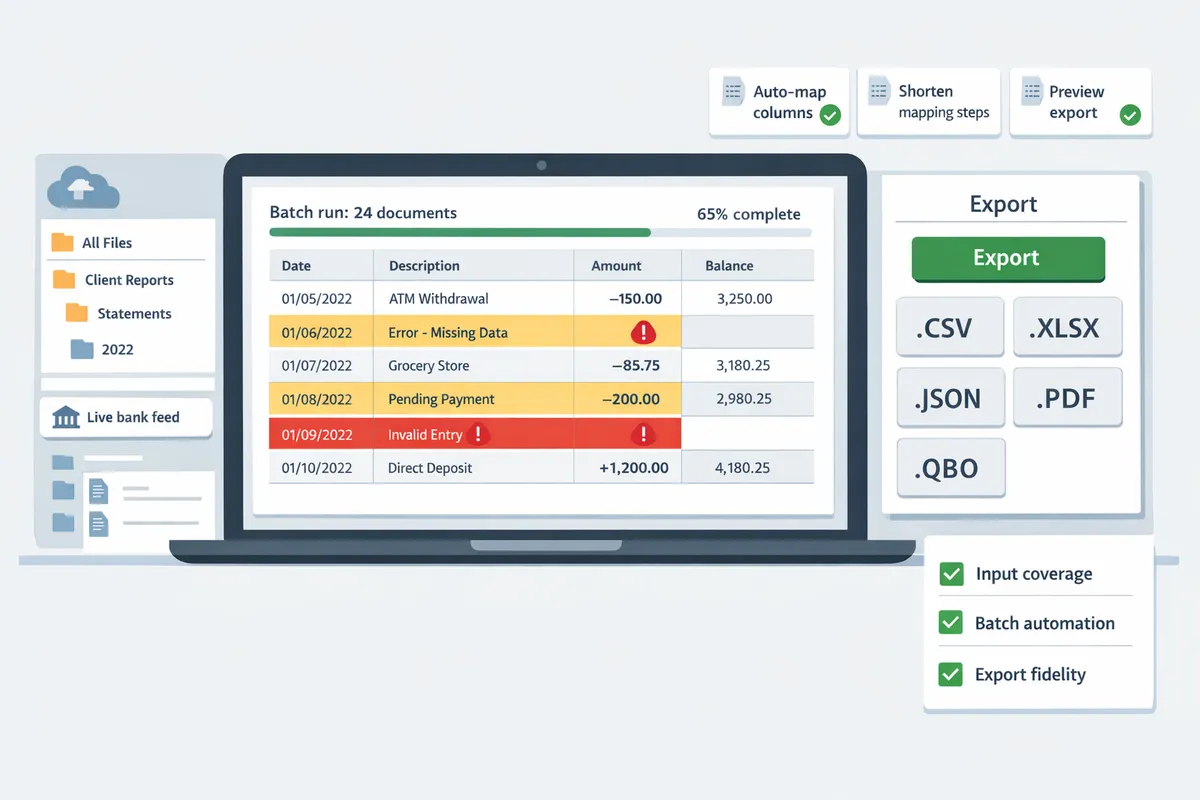
Proven strategies and techniques show which features and vendor choices cut hours and risk. How do you evaluate vendors and choose the best solution for your firm?
Evaluate vendors by checking input coverage, batch automation, export fidelity to QuickBooks/Xero, live feeds, security certifications, pricing model, and realistic ROI. These criteria separate tools that require constant manual cleanup from platforms that actually cut billable hours and compliance exposure. The rest of this section gives a practical comparison table, a realistic DIY vs vendor cost contrast, a simple ROI/TCO model you can plug numbers into, and feature priorities by use case.
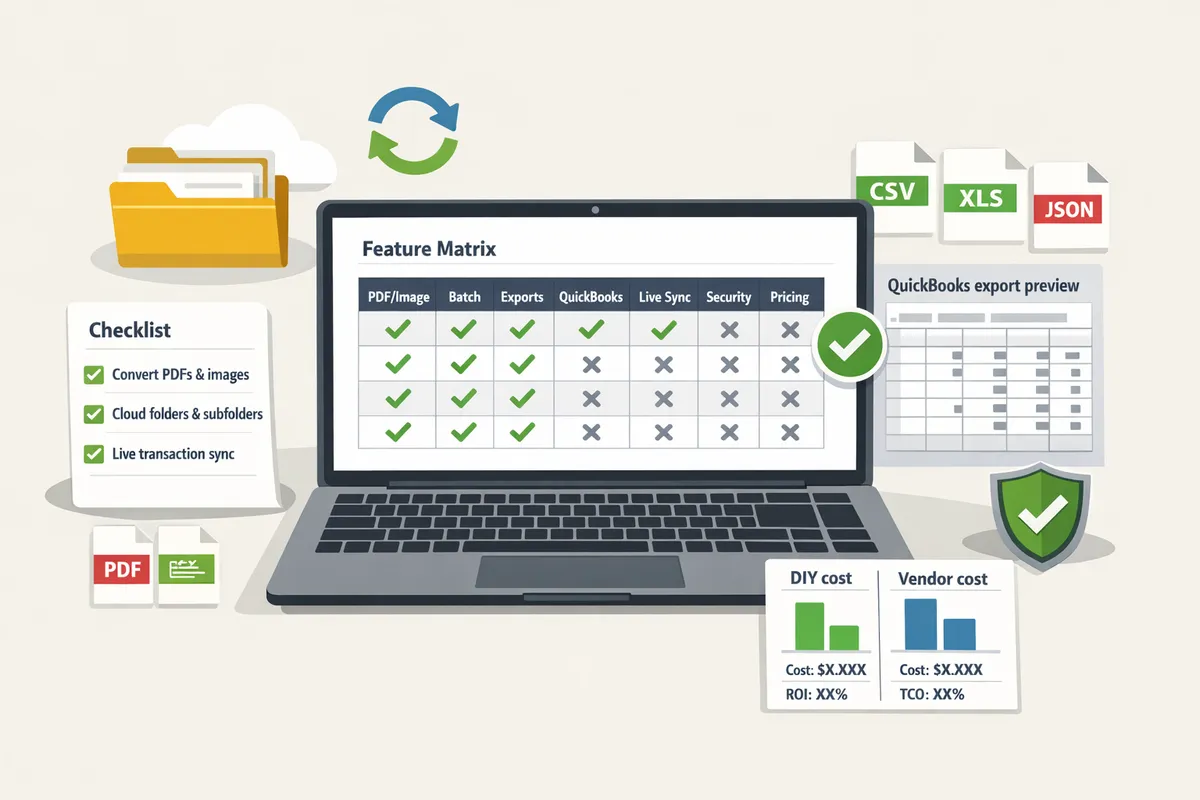
Feature matrix: compare core capabilities quickly 📊
A compact comparison table shows which option supports PDF and image inputs, batch processing, export formats, QuickBooks/Xero exports, live sync, security certifications, pricing model, and trial availability. Below is a side-by-side view to help you eliminate unsuitable vendors before running pilots.
| Option | Input types (PDF/image) | Batch processing | Output formats | QuickBooks/Xero exports | Live sync (bank transactions) | Security certifications | Pricing model | Trial availability |
|---|---|---|---|---|---|---|---|---|
| DIY / manual entry | Yes (scanned PDFs require manual OCR) | No (manual) | Any (manual mapping to CSV/Excel) | Manual export/import required | No | Depends on storage choice (often weak) | Time cost + storage fees | None |
| Low-cost converters (free AI tools) | PDF and image support varies by tool | Basic batch queues; inconsistent on varied layouts | CSV, Excel commonly; JSON/QBO rare | Often requires manual reformatting for QuickBooks/Xero | Rare or unreliable | Minimal; often no formal audits | Freemium or per-page; hidden QC hours | Free tier often available |
| Rocket Statements | PDF and image statements with automated layout detection | Yes. Large-batch, automatic bank-format detection | CSV, Excel, JSON, QBO, OFX, PDF | Exports QuickBooks-compatible files and direct QuickBooks export options. See QuickBooks Online Integration. | Yes. Automatically syncs live transaction data from bank accounts | Bank-level encryption and PCI DSS compliance with regular audits | Subscription plus processing tiers | 20 free pages trial |
Refer to our feature checklist for deeper benchmarks in Bank Statement Converter Features in 2026: Free AI Tools vs Pro Workflows (Benchmarks + Checklist) and to product specifics on the Bank Statement Converter page.
DIY and low-cost converters versus Rocket Statements: effort, hidden costs, and risk ⚖️
DIY and low-cost converters force extra manual steps that increase hours and reconciliation errors compared with Rocket Statements' automated conversion and cloud workflows. Manual mapping and repeated layout fixes add predictable overhead; for example, converting 50 PDF pages into QuickBooks-ready files often costs an accountant 3–5 hours of cleanup. Hidden costs include the time spent on quality control, extra storage and backup, client rework when imports fail, and potential compliance gaps if files contain sensitive data.
Rocket Statements addresses those pain points by automatically detecting bank layouts, exporting QuickBooks-compatible files, and storing documents in structured cloud folders. That reduces repetitive mapping and lowers the chance of import failures that generate downstream reconciliation work. Learn how firms reorder month-end when they remove manual PDF entry in How CPAs Can Automate Bank Statement Imports for Faster Month-End Reporting.
⚠️ Warning: Storing client bank PDFs on local drives or consumer cloud accounts increases compliance exposure. Choose a platform with formal audits and encrypted storage.
How to build a simple ROI and TCO model for automation 💰
A practical ROI model uses monthly statement volume, time per statement, billable or internal hourly rate, error correction time, and subscription or per-page costs. Follow these steps to produce an actionable number you can present to partners or a procurement committee.
- Measure baseline. Track average time to extract and prepare one client statement today (data entry, mapping, QC, import fixes). Use a short timed sample of 10 statements.
- Estimate automation savings. Use conservative reductions (for planning, assume 40–70% time saved depending on statement complexity). Document assumptions.
- Compute monthly labor savings. Formula: (baseline time - automated time) × monthly statements × hourly rate.
- Add error-reduction savings. Estimate hours currently spent correcting import errors and multiply by hourly cost.
- Subtract platform costs. Include subscription, per-page processing, onboarding time, and training hours.
- Calculate payback and annualized ROI. Payback = total implementation cost / monthly net savings.
Example scenario: a solo bookkeeper processing 50 statements at 1.0 hour each and charging $60/hour spends 50 hours ($3,000). If automation reduces work to 0.25 hour per statement, monthly billed hours drop to 12.5 (savings of 37.5 hours, $2,250). If the platform subscription and processing equal $250/month, net monthly saving is $2,000.
💡 Tip: Include the time your team spends fixing OCR errors in the error-correction line item; that often doubles the apparent labor cost of manual workflows.
Match features to common firm use cases 🏢
Feature priorities change by firm type: solo bookkeepers need low-cost QuickBooks exports; CPA firms prioritize batch accuracy and audit trails; finance teams require reliable live transaction sync. Match requirements to features below.
Solo bookkeeper (50 statements/month). Must-haves: QuickBooks-compatible exports, simple onboarding, affordable per-month pricing, and small-batch automation. Rocket Statements' QuickBooks export and cloud folders reduce per-client cleanup time. See our QuickBooks import guide for practical setup steps in PDF Bank Statements to QuickBooks in Minutes | Rocket Statements.
Mid-size CPA firm (2,000 pages/month). Must-haves: accurate batch processing, audit logs, role-based access, and enterprise SLAs. Prioritize platforms with proven batch throughput and formal security certifications; Rocket Statements provides automated batch detection and secure cloud management to reduce reconciliation cycles. Reference our accounting and bookkeeping overview for team workflows at Accounting & Bookkeeping.
Finance team needing live sync. Must-haves: real-time transaction sync, duplicate protection, and reliable mapping into the general ledger. Choose vendors with direct bank sync and export formats that feed ERPs or QuickBooks/Xero. Rocket Statements supports live transaction sync to keep imports current and minimize manual reconciliation.
For procurement, add these evaluation checklist items to your RFP: onboarding timeline, sample conversion accuracy on 10 representative client statements, support SLA, audit log detail, and export fidelity to QuickBooks/Xero. Run a short pilot with 100 pages from different banks before full rollout to validate assumptions and measure real-time savings.
See our benchmarks and checklist for a downloadable vendor evaluation grid and sample RFP language you can reuse.
Implementation and measurement tips outline a practical path to go live and prove value. What specific steps ensure a low-risk, 30-day rollout and measurable gains?
A focused 30-day rollout that uses pilot conversions, live sync, validation controls, and KPI baselines minimizes risk and proves value quickly. This approach reduces manual cleanup hours while giving finance teams concrete metrics to report. Rocket Statements handles the heavy lifting for PDF-to-spreadsheet conversion and live transaction sync so teams hit these milestones with minimal engineering work.
A 30-day implementation roadmap 📅
Week-by-week milestones — pilot, configure, enable, reconcile, and train — create a low-risk 30-day path to production. Follow this numbered plan and keep each week scoped to one primary outcome.
- Week 1 — Pilot and baseline. Select 20–50 representative statement pages (scanned and digital). Run them through Rocket Statements' Bank Statement Converter to measure baseline OCR errors and average processing time. Record current manual entry time per statement using a time log.
- Week 2 — Configure folders, mappings, and templates. Create cloud folders and subfolders in Rocket Statements by client and period. Build mapping templates for the three most common bank layouts you handle.
- Week 3 — Enable live sync and scheduled exports. Connect one or two low-risk bank accounts for live sync and configure scheduled exports to a test QuickBooks/Xero company. Validate imports on a sandbox company.
- Week 4 — Reconciliation checks and staff training. Run reconciliations on three pilot clients, fix mapping edge cases, and train staff on error queues and approval flows.
Common blockers and mitigations:
- Bank MFA delays. Mitigation: use small pilot accounts without strict MFA or schedule manual re-auth windows.
- Mixed statement formats. Mitigation: add a capture rule in Week 2 to separate scanned PDFs from digital statements.
Reference Rocket Statements' feature checklist to compare free tool trade-offs and onboarding effort in our Bank Statement Converter Features post.
Set up live bank sync and QuickBooks/Xero imports 🔄
Connecting bank feeds, mapping to the chart of accounts, and scheduling exports lets teams automatically sync bank transactions to accounting systems. Use this step-by-step sequence to cut manual imports and validate results.
- Add bank connections. In Rocket Statements, enable live transaction sync for chosen accounts and confirm feed frequency. Start with one low-volume account.
- Create mapping templates. Map incoming fields (date, amount, payee, running balance) to your chart of accounts and default tax codes. Save a template per bank to reuse across clients.
- Configure scheduled exports. Set exports to QuickBooks Online or Xero on a nightly or twice-daily cadence. Point exports to a test company first.
- Validate imports. Import a 7–14 day batch, then run sample reconciliations for date and balance continuity. Adjust mappings for format mismatches (date formats, multi-line payees).
Pitfalls and fixes:
- Mismatched account names. Fix by standardizing account IDs in Rocket Statements before export.
- Duplicate transactions from overlapping live sync windows. Use the duplicate protection checks below and test with short export windows.
See Rocket Statements' QuickBooks Online Integration page for export options and setup details.
Data validation, duplicate protection, and audit trails ✅
Implement reconciliation rules, duplicate checks, error queues, and export audit logs from day one to avoid costly month-end cleanups. These controls stop errors before they enter the general ledger.
- Sample reconciliation rules. Require a date-and-amount match within a one-business-day tolerance and a 1% merchant name fuzzy match. Flag exceptions for manual review.
- Duplicate protection. Use a transaction fingerprint (date + amount + normalized payee) to detect duplicates before export. Put flagged items into an error queue rather than deleting them.
- Error queues and workflows. Route errors to a named reviewer with SLA (example: 24-hour review window for pilot clients). Track resolution time and error types.
- Export audit logs and versioning. Keep an export ID, timestamp, and user who approved each export. Use Rocket Statements' cloud folders and version history for document-level audits.
💡 Tip: Hold a 48-hour error review window for the first two weeks after go-live to catch systematic OCR mapping issues and tune mappings before full production.
KPIs that prove impact and how to measure them 📈
Track time saved per statement, conversion error rate, import time, and reduction in manual adjustments to quantify ROI. Collect baseline metrics during Week 1 and compare them to post-launch measurements after 30 days.
| KPI | What to measure | Baseline method | Target (example) |
|---|---|---|---|
| Time saved per statement | Average minutes to convert and import | Time log for 30 statements pre-launch | Reduce by 60%+ |
| Conversion error rate | Errors per 1,000 transactions | Count flagged exceptions from sample batch | Under 10 per 1,000 |
| Time to import | From export timestamp to posted transaction in QBO/Xero | Export timestamp vs ledger post time | Under 15 minutes |
| Manual adjustments | Number of journal edits after import | Count manual edits per month | Reduce by 50% |
How to collect numbers:
- Baseline: run 30 representative statements manually and log time and errors.
- Post-launch: use Rocket Statements' export timestamps and audit logs to compute import time and error counts. Review weekly for the first month, then monthly.
Use our Accounting & Bookkeeping overview and the CPA implementation guide for templates and real-world benchmarks. These pages show how other firms measure month-end improvements and scale live sync across clients.
Frequently Asked Questions
This FAQ answers the top operational and security questions buyers ask when they want to automate bank statement conversion, connect live feeds, and import into QuickBooks or Xero. Use these short, practical answers to vet vendors, run a low-risk pilot, and avoid the common implementation mistakes that waste billable hours.
How accurate is OCR for bank statements? 🤖
OCR accuracy for bank statements depends on input quality and can range from usable to near-perfect when scans are clean and bank-specific templates are known. Poor image resolution, rotated pages, handwriting, and mixed-language statements reduce accuracy. Our tests show that batch processing with consistent templates yields far fewer exceptions than one-off scanned pages. Rocket Statements' AI-powered bank statement converter uses automatic bank-format detection and batch processing to reduce layout-related errors. To improve results, run a 100-page sample through the vendor, compare extracted rows to the source, and require vendor-assisted quality checks for any bank layouts that fail the sample.
What is the best bank statement converter for QuickBooks Online in 2026? 🏷️
The best converter produces native QBO or OFX exports, supports granular field mapping, and automates import workflows into QuickBooks Online. Evaluate vendors on three criteria: native QBO/OFX output, configurable field mapping (date, amount, payee, memos), and scheduled or webhook-driven imports that avoid manual CSV fixes. Rocket Statements produces QuickBooks-compatible files and supports direct integrations so imports need minimal cleanup. Compare vendor onboarding time, trial exports, and a sample QBO import before you commit; our QuickBooks Online Integration page outlines setup steps and common pitfalls.
Is automated bank statement processing secure enough for accounting firms? 🔐
Automated processing meets accounting-firm security needs when the vendor provides end-to-end encryption, bank-grade certifications, role-based access controls, and immutable audit logs. Verify the vendor's security documentation, including PCI DSS or SOC 2 reports, data residency policies, and regular third-party audits. Rocket Statements publishes security details about end-to-end encryption, PCI DSS compliance, and scheduled security reviews on our integration and features pages. Ask vendors for a security checklist during procurement and require evidence before running live client data through a pilot.
How long does it take to go from pilot to full production? ⏱️
Small pilots can complete in 1 to 2 weeks and full rollouts typically take 2 to 6 weeks depending on volume and the number of integrations. A reliable timeline pattern is: week 1 run sample conversions and verify outputs; week 2 configure mappings and set up live sync; weeks 3 to 6 expand batch processing, train staff, and add reconciliation checkpoints. Rocket Statements offers quick setup and a trial to test sample pages, which shortens the pilot phase. Use a staged rollout so accounting teams can validate imports and adjust mapping rules without interrupting month-end close.
Can I automatically sync bank transactions to QuickBooks and Xero? 🔁
Yes. Automatic sync is feasible via direct connectors or scheduled exports in QBO/Xero-compatible formats. Options include direct QuickBooks connectors, scheduled QBO/OFX exports, or sending CSV/Excel files to a monitored cloud folder for import. Rocket Statements supports live transaction syncing and exports to QuickBooks-compatible formats; our QuickBooks Online Integration documentation explains the setup options. When you configure sync, enable duplicate protection and mapping rules so transactions match existing accounts and reduce reconciliation noise.
How should firms handle conversion errors and exceptions? 🛠️
Firms should use an error-queue workflow that captures exceptions, assigns a reviewer, applies corrections, and reruns conversions. A practical 4-step process: 1) Flag and capture the failed record with the source PDF. 2) Assign the file to a reviewer who corrects payee or date errors or replaces a low-quality scan. 3) Reprocess the corrected source and validate the output against the ledger. 4) Log the incident and measure error rate as a KPI. Rocket Statements provides audit logs and error reporting to support this flow and to speed reruns.
💡 Tip: Always archive the original PDFs in a secure cloud folder for audit trails and to speed manual corrections.
Related resources: see our Accounting & Bookkeeping overview for accountant workflows, the feature checklist comparing free AI tools versus pro platforms, and the QuickBooks Online Integration page for setup details.
Take practical next steps to adopt accounting automation.
Choosing the right tool and workflow cuts billable hours and reduces import errors. To automate bank statement conversion, run a short pilot parsing one month of statements to measure cleanup time and catch format edge cases. Our benchmark guide on bank statement converter features in 2026 compares free AI tools vs pro workflows so you can weigh onboarding time, export formats, and accuracy against the cost of manual cleanup.
Rocket Statements is a platform that helps users save time and money by automating the process of converting their statements into spreadsheets as well as manage their documents in the cloud. It converts PDF and image statements into spreadsheets, stores documents in cloud folders and subfolders, syncs live transactions from bank accounts, and exports CSV, Excel, JSON, PDF, and QuickBooks-compatible files. Schedule a consultation with Rocket Statements via the QuickBooks Online Integration page to map a pilot workflow that converts sample statements, sets up live feeds, and aligns exports with your accounting processes. See our accounting and bookkeeping guide and the PDF bank statements to QuickBooks walkthrough for implementation ideas.
💡 Tip: Start the pilot with a single client or 20–50 pages to measure time saved before scaling.